

The Candidates tab within a center allows administrators to view all candidates scheduled to take exams at that specific center. This view provides a consolidated list of candidates along with their exam details, seating allocation, accommodations, and current exam status.Documentation Index
Fetch the complete documentation index at: https://docs.talview.com/llms.txt
Use this file to discover all available pages before exploring further.
Accessing the Candidates List
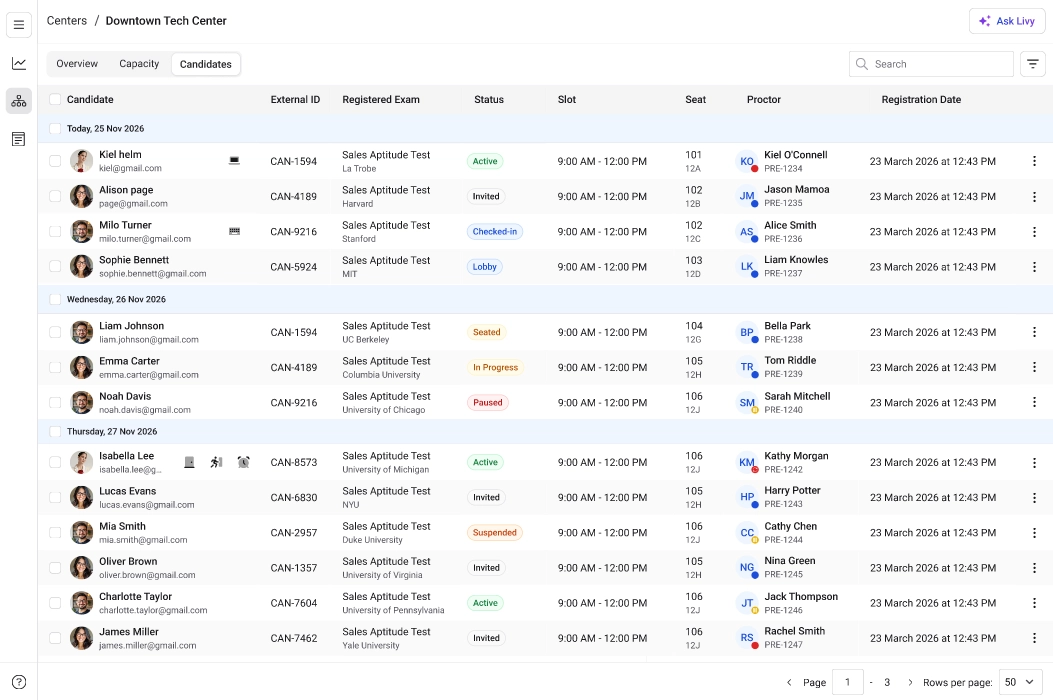
- Navigate to the Centers section from the main dashboard.
- Select the center you want to manage from the centers list.
- Once inside the center page, click the Candidates tab.
Understanding the Candidates Table
Each row in the Candidates table represents a candidate scheduled for an exam. The table provides detailed information to help administrators track candidate activity and manage exam operations efficiently. The table includes the following columns:| Column | Description |
|---|---|
| Candidate | Displays the candidate’s name and registered email address. |
| External ID | The unique candidate identifier used in the system. |
| Registered Exam | The exam that the candidate is scheduled to take. |
| Slot | The scheduled exam start time. |
| Duration | The total duration of the exam session. |
| Room | The room number where the candidate will take the exam. |
| Seat | The specific seat assigned to the candidate within the room. |
| Accommodations | Icons indicating any special accommodations assigned to the candidate. |
| Status | Shows the current stage of the candidate’s exam session (for example: Invited, Active, Checked-in, Lobby, Seated, In Progress, Paused, Completed, Checked Out). |
| Registration Date | The date and time when the candidate registered for the exam. |
- Candidate name
- Email address
- External ID
- Exam name
- Update Status
- Cancel Booking

