

The Update Status option allows administrators to manually change a candidate’s exam status during the in-center exam process. This helps staff accurately reflect the candidate’s progress and manage the exam workflow in real time.

Accessing the Candidate Status Option
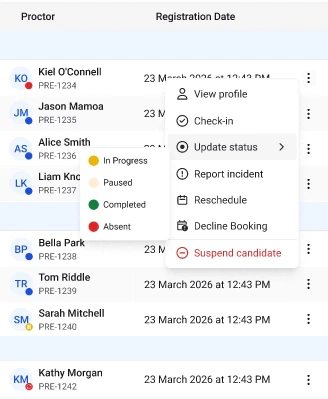
Image To update the status of a candidate:
  1. Navigate to the Centers section from the main dashboard.
  2. Select the center where the candidate is scheduled.
  3. Click on the Candidates tab.
  4. Locate the candidate in the Candidates table.
  5. Click the menu (⋯) at the end of the candidate’s row.
  6. Select Update Status from the available options.
A status selection window will appear, allowing you to change the candidate’s current status.

Available Candidate Statuses

When updating a candidate’s status, you may see several possible status options depending on the stage of the exam session. These statuses indicate the candidate’s current progress.

Updating the Status

After selecting Update Status:
  1. Choose the appropriate status from the list.
  2. Confirm the change.
Once updated, the new status will immediately appear in the Status column in the Candidates table.
Best Practices When Updating StatusTo maintain accurate exam tracking:
  • Ensure the candidate has completed the required step before updating their status.
  • Verify candidate identity before marking them as Checked-In.
  • Only mark Completed after the exam session has officially ended.
  • Use Paused only when an exam session needs to be temporarily halted.
Keeping candidate statuses updated helps maintain clear visibility of exam progress across the center.