

Accessing the Candidates tab
From the center’s page, click the Candidates tab next to Overview and Capacity. The full candidate roster for that center opens.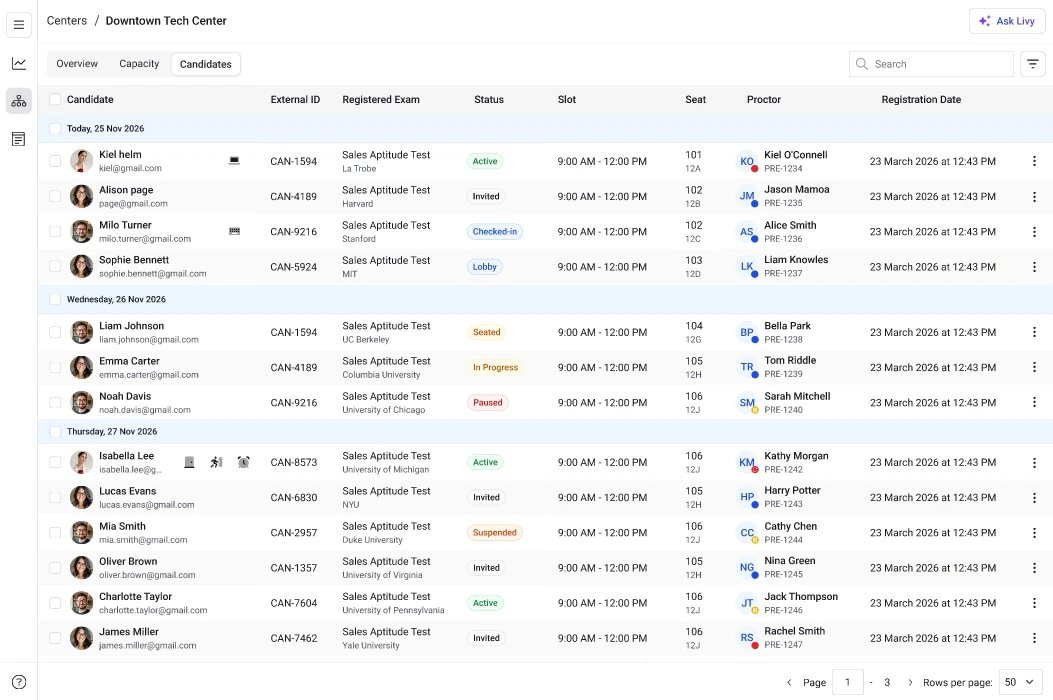
- Candidate name and email
- External ID
- Registered exam
- Scheduled slot
- Exam duration
- Assigned room and seat
- Accommodations (if any)
- Current status
- Registration date
- Invited
- Active
- Lobby
- Checked-in
- Seated
- In Progress
- Paused
- Completed
- Checked Out
- Update Status — manually adjust the candidate’s exam status when required
- Check-in — mark the candidate as checked in
- Report incident — log any exam-related issues
- Upload results — submit or attach exam outcomes
- Reschedule — move the candidate to a different slot
- Cancel booking — cancel the candidate’s exam appointment