

Step-by-Step Guide
- Navigate to the Capacity tab in the center workflow.
- This page displays the list of scheduled exam slots, including details such as date, time, exam type, and total slot capacity.
- Click anywhere on the slot row.
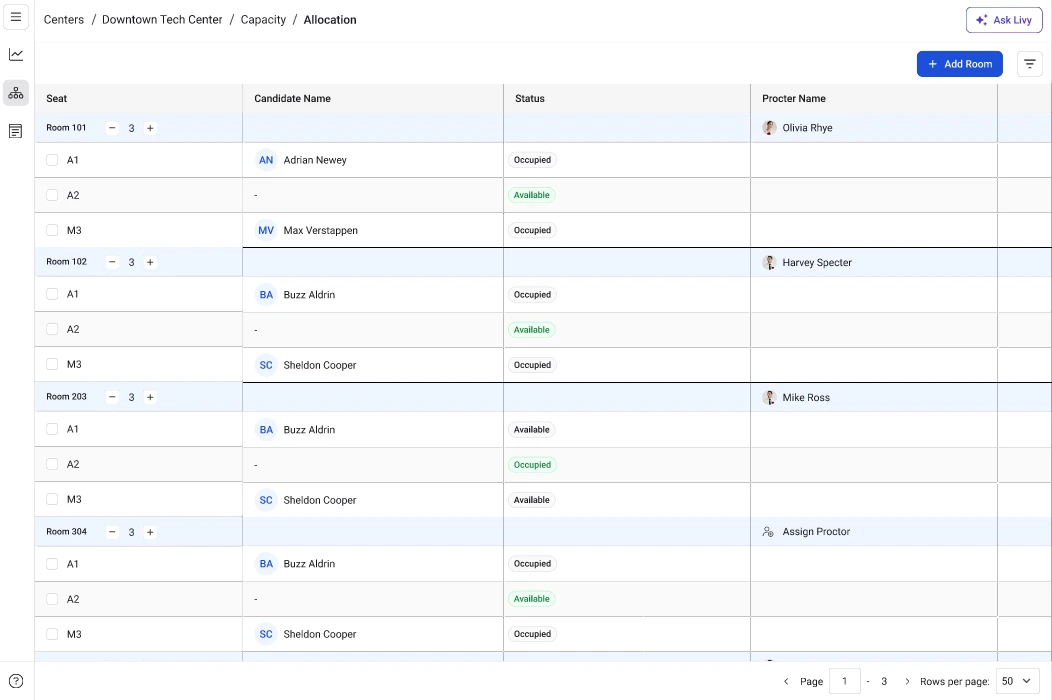
- This opens the Allocation view, where you can see how the slot is distributed across rooms.
Key Actions in the Allocation view
Once the allocation view opens, you will see detailed information about how the slot is configured. Rooms assigned to the slot The allocation view lists all rooms allocated for the selected slot. Each room entry typically displays:- Room name or number
- Room seat capacity
- Current seat usage
- The seat layout configured for the room
- The number of candidates assigned to the slot
- Proctor name
- Room assigned for supervision