

The Candidate Profile provides detailed information about a candidate participating in a session. It helps proctors quickly review the candidate’s identity, exam details, check-in information, and any incidents reported during the session. You can access the candidate profile from the Candidate Management view by either clicking the candidate’s name or selecting View Profile from the menu (three-dot icon) next to the candidate.

Information Available in the Candidate Profile

The candidate profile contains several sections that provide important session-related details. Image
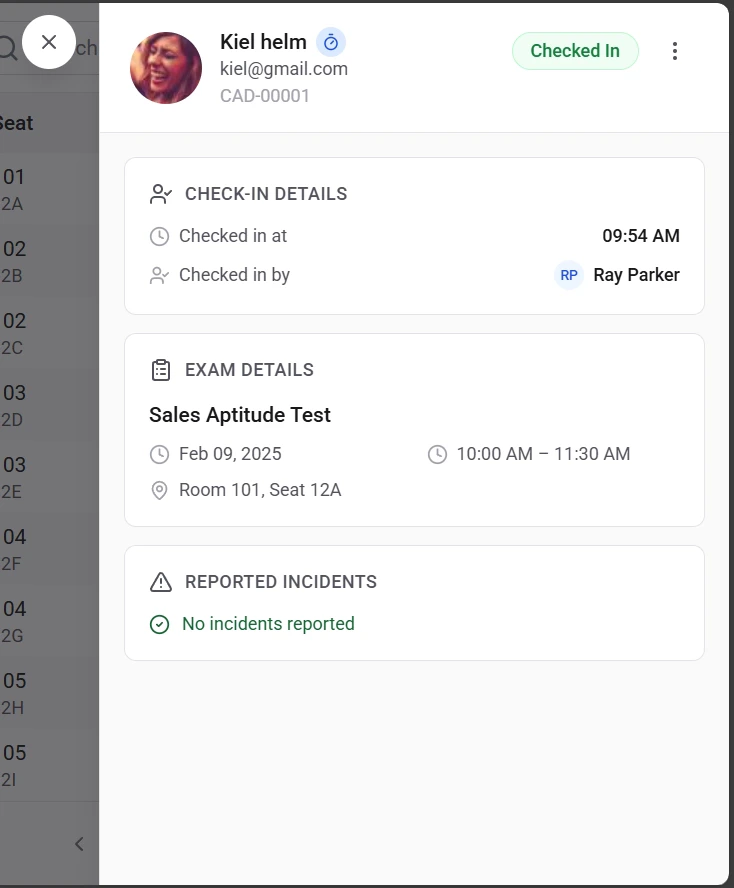
  • Candidate Information
This section displays the basic details of the candidate, such as:
  • Candidate name
  • Email address
  • Candidate ID
These details help confirm the identity of the candidate assigned to the session.
  • Check-In Details
This section shows information related to the candidate’s check-in, including:
  • Check-in time
  • Name of the proctor who performed the check-in
This helps track when and by whom the candidate was admitted into the session.
  • Exam Details
This section provides information about the exam assigned to the candidate, such as:
  • Exam name
  • Session date
  • Session time
  • Assigned room
  • Seat assignment
These details help ensure that the candidate is scheduled for the correct exam and location. Incident Records The profile also displays any incidents reported during the session. If no incidents have been recorded, the section will display No incidents reported. Face Authentication The profile displays the face authentication captured, which can be used as an identification factor for the candidate.
Key Benefits of the Candidate ProfileThe candidate profile allows proctors to:
  • Verify candidate and exam information
  • Review check-in activity
  • Monitor reported incidents
  • Access key session details quickly while managing the session
Having all this information in one place helps proctors manage candidates efficiently during the exam session.