

Step-by-step guide
A. Use the shortcut on the Centers page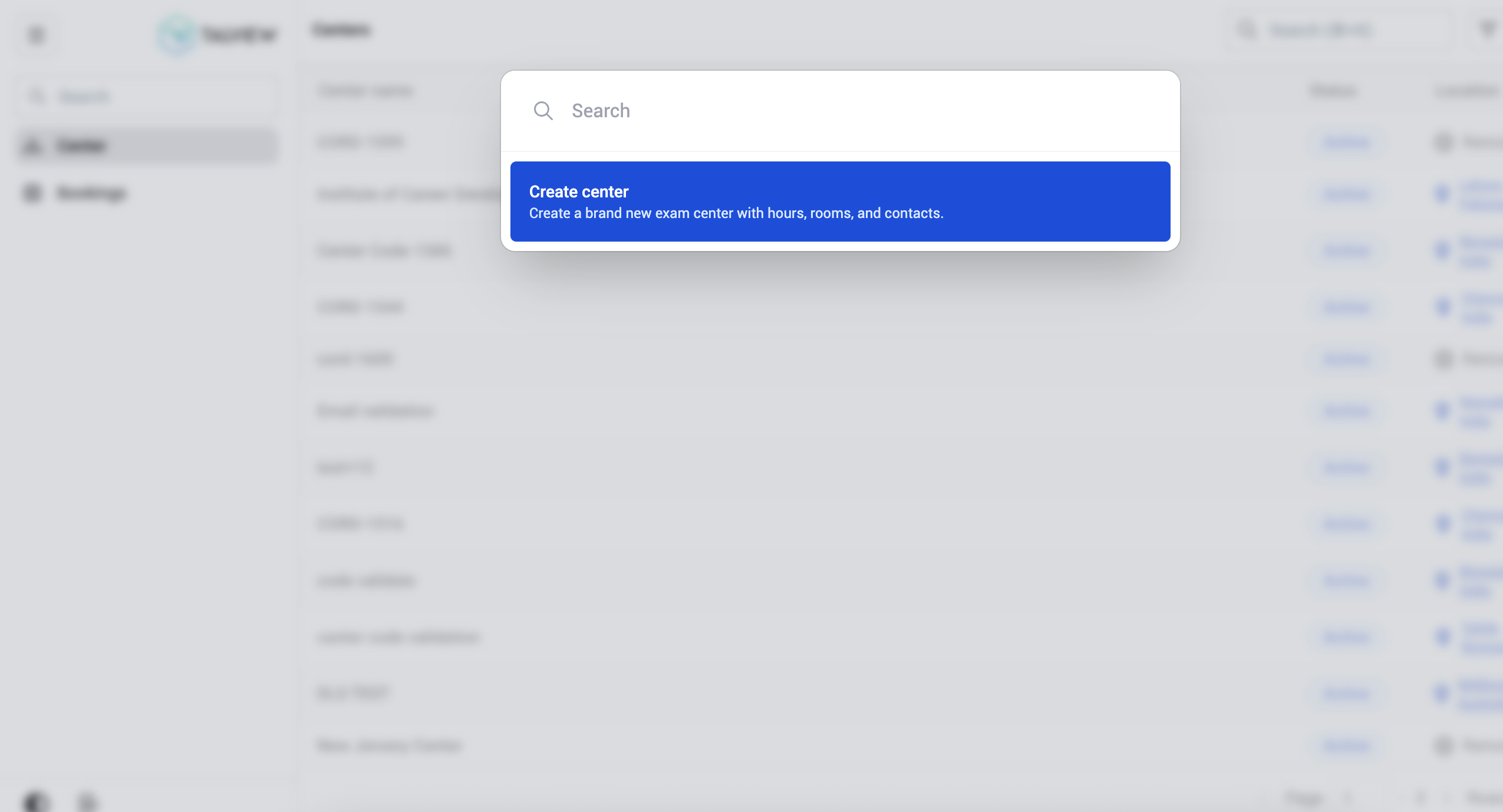
- Go to Centers in the left navigation panel.
- Press Ctrl+K / Cmd+K.
- The command menu displays the option Create center - Create a brand new exam center with hours, rooms, and contacts.
- Click Create center to proceed, or type in the search bar to filter available actions.
- Open a center by clicking its name from the Centers list.
- Press Ctrl+K / Cmd+K.
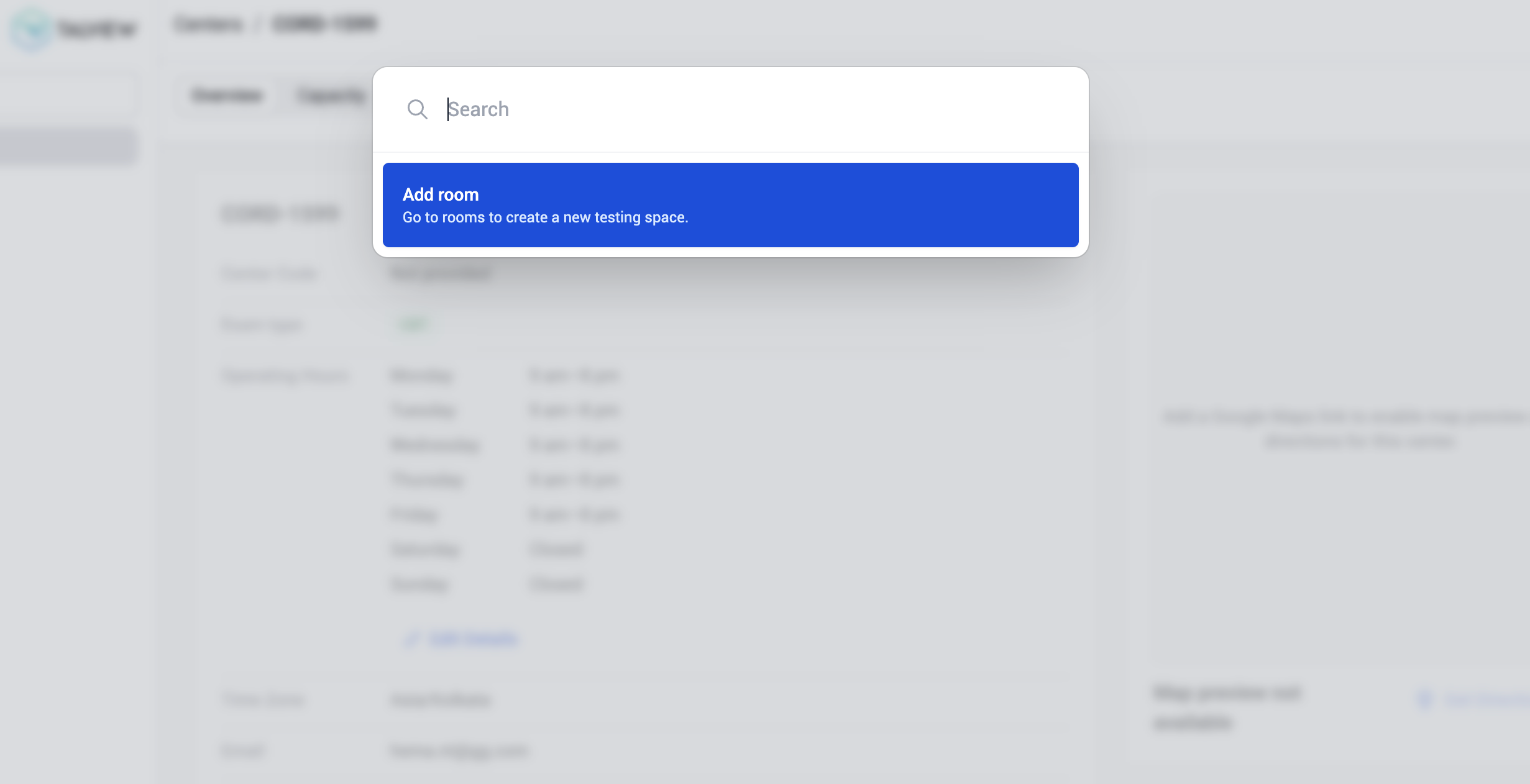
- The command palette displays the option Add room — Go to rooms to create a new testing space.
- Click Add room to be directed to the Rooms section where you can create a new testing space.