Sometimes due to operational issues, duplicate bookings, or candidate requests Center administrators can submit a decline booking request so the exam coordinator can review and reassign the booking and/or reschedule the bookingThis article explains how to submit a decline booking request for a candidate from the Candidates tab.
Step-by-Step Guide
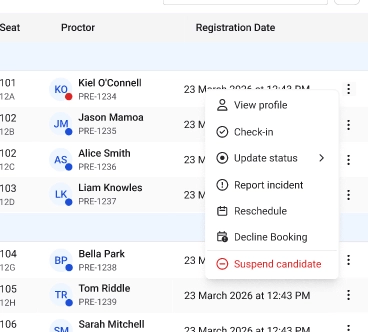
Follow these steps to decline a candidate booking.1. Open the Candidates tabNavigate to the Candidates tab within the center workflow.This page displays the list of candidates scheduled to take exams at the center, along with details such as exam slot, status, and assigned room.2. Locate the candidate bookingScroll through the candidate list or use available filters to find the candidate whose booking needs to be declined.Each row represents a candidate booking associated with a specific exam slot.3. Open the candidate action menuOn the right side of the candidate row, click the menu to view the available actions.4. Select the Decline booking optionFrom the action menu, click Decline booking.This opens the Decline booking request panel.5. Select the reason for declining the bookingFrom the Reason dropdown, choose the most appropriate reason for declining the booking.Common reasons include:
Technical issue at center
Center operational issue
Other (with optional remarks)
6. Add remarks (optional)If additional explanation is required, enter details in the Remarks field to provide context for the request.7. Confirm the decline requestClick Confirm decline request to send the request to the exam coordinator for review.Once submitted, the booking remains active until the exam coordinator reviews and approves the request.
Additional Tips
Declining a booking does not cancel the candidate’s slot but the slot will no longer be tagged to them
Provide clear remarks when selecting Other as the reason.
Decline requests cannot be submitted if the candidate’s exam status is In Progress or Completed.
If the request is approved, the candidate will be removed from the slot and the slot capacity will increase.
Was this page helpful?
{"docsConfig":{"theme":"mint","$schema":"https://mintlify.com/docs.json","name":"Talview Docs","colors":{"primary":"#1D4ED8","light":"#2059f5","dark":"#1741b3"},"logo":{"light":"https://mintcdn.com/talview-f3acd66d/4nxeCBiNgVZtoctt/logo/light.png?fit=max\u0026auto=format\u0026n=4nxeCBiNgVZtoctt\u0026q=85\u0026s=5c272fb59a6d1ae9d78a98e6ba767eba","dark":"https://mintcdn.com/talview-f3acd66d/4nxeCBiNgVZtoctt/logo/dark.png?fit=max\u0026auto=format\u0026n=4nxeCBiNgVZtoctt\u0026q=85\u0026s=c0ace49b68ee35fc864942b4c5bb93df"},"favicon":"https://mintcdn.com/talview-f3acd66d/auUfq4nfNITfsnOi/favicon.ico?fit=max\u0026auto=format\u0026n=auUfq4nfNITfsnOi\u0026q=85\u0026s=ec54f9b1628c75468c025b6ac0a8db6e","footer":{"socials":{"x":"https://x.com/talview","linkedin":"https://www.linkedin.com/company/talview","website":"https://www.talview.com/"},"links":[{"header":"Resources","items":[{"label":"Our Ethical AI Practices","href":"https://www.talview.com/en/ethical-ai-practices"},{"label":"Zero Code Integration","href":"https://www.talview.com/en/zero-code-integration"},{"label":"Our Integration Partners","href":"https://www.talview.com/en/integrations"}]},{"header":"Support","items":[{"label":"Seven Layer Security Framework","href":"https://www.talview.com/en/seven-layer-security-framework"},{"label":"The Empathy Advantage","href":"https://www.talview.com/en/empathy-advantage"},{"label":"Frequently Asked Questions","href":"https://www.talview.com/en/faq"}]},{"header":"Contact Us","items":[{"label":"Talk to Sales","href":"https://www.talview.com/talk-to-sales?utm_source=docs.talview.com\u0026utm_medium=footer\u0026utm_campaign=talk_to_sales"}]}]},"seo":{"metatags":{"google-site-verification":"-YCNNWMi1t69X2myeM5WhTLU005LRJLmthsEQ59RcRs"}},"integrations":{"mixpanel":{"projectToken":"1c7c27fca7274aadf357a735e3979cc0"}},"contextual":{"options":["copy","view"],"display":"header"},"styling":{"latex":false},"navigation":{"pages":[]}},"deployment":{"deploymentMetadataValue":{"subdomain":"talview-f3acd66d","hasAudioNarration":false,"actualSubdomain":"talview-f3acd66d","customDomains":["docs.talview.com"],"gitSource":{"type":"github","owner":"talview","repo":"docs","deployBranch":"main","contentDirectory":"","isPrivate":true,"mountPath":"","label":""},"feedback":{"thumbs":true},"entitlements":{"AI_CHAT":{"status":"ENABLED"},"WEB_MCP":{"status":"ENABLED"},"NARRATION":{"status":"ENABLED"}},"buildId":"6b000e8028dc5e301d81ce6a","clientVersion":"0.0.4270","searchFilterCounts":[{"language":"default","tag":"Candidates","count":247},{"language":"default","tag":"Hiring Teams","count":224},{"language":"default","tag":"Diagnostics","count":184},{"language":"default","tag":"How-tos","count":162},{"language":"default","tag":"Recruiter","count":144},{"language":"default","tag":"System Diagnostics","count":116},{"language":"default","tag":"Admin","count":109},{"language":"default","tag":"Interviews","count":94},{"language":"default","tag":"Evaluator","count":79},{"language":"default","tag":"Configurations","count":65}],"searchSettings":{"isFiltersEnabled":true}},"assistantConfig":{"enableAskAiButton":true,"enableStarterQuestions":false,"enableAskAiSearchBar":false,"deflection":{"enabled":true,"type":"link","email":"support@talview.com","url":"https://talview.freshdesk.com/support/tickets/new","showHelpButton":true}},"basePath":"","hasChatPermissions":true,"hasWebMcpPermissions":true,"toggles":[{"name":"kill-isr","enabled":true,"variant":{"name":"disabled","enabled":false,"feature_enabled":true},"impressionData":false},{"name":"custom-rbac-roles","enabled":true,"variant":{"name":"disabled","enabled":false,"feature_enabled":true},"impressionData":false},{"name":"agent-mintlify-slack","enabled":true,"variant":{"name":"disabled","enabled":false,"feature_enabled":true},"impressionData":false},{"name":"agent-integrations-settings","enabled":true,"variant":{"name":"disabled","enabled":false,"feature_enabled":true},"impressionData":false},{"name":"rbac-expansion","enabled":true,"variant":{"name":"disabled","enabled":false,"feature_enabled":true},"impressionData":false},{"name":"automations-pr-grouping","enabled":true,"variant":{"name":"disabled","enabled":false,"feature_enabled":true},"impressionData":false},{"name":"custom-prefix","enabled":true,"variant":{"name":"disabled","enabled":false,"feature_enabled":true},"impressionData":false},{"name":"analytics-v7","enabled":true,"variant":{"name":"disabled","enabled":false,"feature_enabled":true},"impressionData":false},{"name":"user-flows-analytics","enabled":true,"variant":{"name":"disabled","enabled":false,"feature_enabled":true},"impressionData":false},{"name":"no-publish-flow","enabled":true,"variant":{"name":"disabled","enabled":false,"feature_enabled":true},"impressionData":false},{"name":"workos-onboarding","enabled":true,"variant":{"name":"disabled","enabled":false,"feature_enabled":true},"impressionData":false},{"name":"snapshot-serving-live","enabled":true,"variant":{"name":"disabled","enabled":false,"feature_enabled":true},"impressionData":false},{"name":"stripTemperatureMiddleware","enabled":true,"variant":{"name":"disabled","enabled":false,"feature_enabled":true},"impressionData":false},{"name":"support-platform-pylon-zendesk","enabled":true,"variant":{"name":"disabled","enabled":false,"feature_enabled":true},"impressionData":false},{"name":"snapshot-serving","enabled":true,"variant":{"name":"disabled","enabled":false,"feature_enabled":true},"impressionData":false},{"name":"instant-rollback","enabled":true,"variant":{"name":"disabled","enabled":false,"feature_enabled":true},"impressionData":false},{"name":"granular-notifications-server","enabled":true,"variant":{"name":"disabled","enabled":false,"feature_enabled":true},"impressionData":false},{"name":"granular-notifications","enabled":true,"variant":{"name":"disabled","enabled":false,"feature_enabled":true},"impressionData":false},{"name":"automations-fable","enabled":true,"variant":{"name":"disabled","enabled":false,"feature_enabled":true},"impressionData":false},{"name":"fixed-ai-action-pricing","enabled":true,"variant":{"name":"disabled","enabled":false,"feature_enabled":true},"impressionData":false},{"name":"site-roles","enabled":true,"variant":{"name":"disabled","enabled":false,"feature_enabled":true},"impressionData":false},{"name":"automation-resolve-merge-conflict","enabled":true,"variant":{"name":"disabled","enabled":false,"feature_enabled":true},"impressionData":false},{"name":"scoped-publishing","enabled":true,"variant":{"name":"disabled","enabled":false,"feature_enabled":true},"impressionData":false},{"name":"mintql","enabled":true,"variant":{"name":"disabled","enabled":false,"feature_enabled":true},"impressionData":false},{"name":"page-level-analytics","enabled":true,"variant":{"name":"disabled","enabled":false,"feature_enabled":true},"impressionData":false},{"name":"editor-version-history-v2","enabled":true,"variant":{"name":"disabled","enabled":false,"feature_enabled":true},"impressionData":false},{"name":"billing-page-v2","enabled":true,"variant":{"name":"disabled","enabled":false,"feature_enabled":true},"impressionData":false},{"name":"full-page-search","enabled":true,"variant":{"name":"disabled","enabled":false,"feature_enabled":true},"impressionData":false},{"name":"workspace-projects","enabled":true,"variant":{"name":"disabled","enabled":false,"feature_enabled":true},"impressionData":false},{"name":"assistant-v5","enabled":true,"variant":{"name":"disabled","enabled":false,"feature_enabled":true},"impressionData":false},{"name":"fork-pr-previews","enabled":true,"variant":{"name":"disabled","enabled":false,"feature_enabled":true},"impressionData":false},{"name":"revalidation-jwt","enabled":true,"variant":{"name":"disabled","enabled":false,"feature_enabled":true},"impressionData":false},{"name":"workos-sso-scim","enabled":true,"variant":{"name":"disabled","enabled":false,"feature_enabled":true},"impressionData":false},{"name":"hobby-abuse-scan","enabled":true,"variant":{"name":"disabled","enabled":false,"feature_enabled":true},"impressionData":false},{"name":"dashboard-inbox","enabled":true,"variant":{"name":"disabled","enabled":false,"feature_enabled":true},"impressionData":false},{"name":"workos-signup","enabled":true,"variant":{"name":"disabled","enabled":false,"feature_enabled":true},"impressionData":false},{"name":"turbopuffer-dual-write","enabled":true,"variant":{"name":"disabled","enabled":false,"feature_enabled":true},"impressionData":false},{"name":"workos-enabled","enabled":true,"variant":{"name":"disabled","enabled":false,"feature_enabled":true},"impressionData":false},{"name":"approve-review-flow","enabled":true,"variant":{"name":"disabled","enabled":false,"feature_enabled":true},"impressionData":false},{"name":"editor-metadata","enabled":true,"variant":{"name":"disabled","enabled":false,"feature_enabled":true},"impressionData":false},{"name":"sso-setup-deadline-banner","enabled":true,"variant":{"name":"disabled","enabled":false,"feature_enabled":true},"impressionData":false},{"name":"turbopuffer-serve","enabled":true,"variant":{"name":"disabled","enabled":false,"feature_enabled":true},"impressionData":false},{"name":"live-agents","enabled":true,"variant":{"name":"disabled","enabled":false,"feature_enabled":true},"impressionData":false},{"name":"starter-pricing","enabled":true,"variant":{"name":"control","enabled":true,"payload":{"type":"string","value":"control"},"feature_enabled":true},"impressionData":false},{"name":"llms-txt-v2","enabled":true,"variant":{"name":"disabled","enabled":false,"feature_enabled":true},"impressionData":false},{"name":"wildcard-email-auth","enabled":true,"variant":{"name":"disabled","enabled":false,"feature_enabled":true},"impressionData":false}],"googleFontsInlined":false},"customCss":[]}
{"page":{"pagePath":"center-and-proctor-administration/center-admin/how-tos/how-to-decline-a-candidate-booking","slug":"/center-and-proctor-administration/center-admin/how-tos/how-to-decline-a-candidate-booking","pageMetadata":{"title":"How to decline a candidate booking","description":null,"href":"/center-and-proctor-administration/center-admin/how-tos/how-to-decline-a-candidate-booking","hidden":true},"pageType":"default","mdx":{"mdxSource":{"compiledSource":"\"use strict\";const{Fragment:_Fragment,jsx:_jsx,jsxs:_jsxs}=arguments[0];const{useMDXComponents:_provideComponents}=arguments[0];function _createMdxContent(props){const _components={hr:`hr`,li:`li`,p:`p`,strong:`strong`,ul:`ul`,..._provideComponents(),...props.components},{Heading,OptimizedImage,Tip}=_components;if(!Heading)_missingMdxReference(`Heading`,true);if(!OptimizedImage)_missingMdxReference(`OptimizedImage`,true);if(!Tip)_missingMdxReference(`Tip`,true);return _jsxs(_Fragment,{children:[_jsx(_components.p,{children:`Sometimes due to operational issues, duplicate bookings, or candidate requests Center administrators can submit a decline booking request so the exam coordinator can review and reassign the booking and/or reschedule the booking`}),`\n`,_jsxs(_components.p,{children:[`This article explains how to submit a decline booking request for a candidate from the `,_jsx(_components.strong,{children:`Candidates`}),` tab.`]}),`\n`,_jsx(_components.hr,{}),`\n`,_jsx(Heading,{level:`2`,id:`step-by-step-guide`,children:`Step-by-Step Guide`}),`\n`,_jsx(_components.p,{children:`Follow these steps to decline a candidate booking.`}),`\n`,_jsx(OptimizedImage,{src:`https://mintcdn.com/talview-f3acd66d/ZtCjCzTqTajaD5Xa/images/image-31.png?fit=max\u0026auto=format\u0026n=ZtCjCzTqTajaD5Xa\u0026q=85\u0026s=001dc746beae868ec503fa8dee9455c4`,alt:`Image`,title:`Image`,style:{width:`50%`},\"data-og-width\":`368`,width:`368`,\"data-og-height\":`332`,height:`332`,\"data-path\":`images/image-31.png`,\"data-optimize\":`true`,\"data-opv\":`3`,srcset:`https://mintcdn.com/talview-f3acd66d/ZtCjCzTqTajaD5Xa/images/image-31.png?w=280\u0026fit=max\u0026auto=format\u0026n=ZtCjCzTqTajaD5Xa\u0026q=85\u0026s=980377e2dd20041cf017b8b3dae98de7 280w, https://mintcdn.com/talview-f3acd66d/ZtCjCzTqTajaD5Xa/images/image-31.png?w=560\u0026fit=max\u0026auto=format\u0026n=ZtCjCzTqTajaD5Xa\u0026q=85\u0026s=c60dd5bf172ac659fa4eb8e2ddb5e047 560w, https://mintcdn.com/talview-f3acd66d/ZtCjCzTqTajaD5Xa/images/image-31.png?w=840\u0026fit=max\u0026auto=format\u0026n=ZtCjCzTqTajaD5Xa\u0026q=85\u0026s=3a5dcdf13f16995ce8cd402366b2667a 840w, https://mintcdn.com/talview-f3acd66d/ZtCjCzTqTajaD5Xa/images/image-31.png?w=1100\u0026fit=max\u0026auto=format\u0026n=ZtCjCzTqTajaD5Xa\u0026q=85\u0026s=c160c3c37f390f554fca005a51d27c7b 1100w, https://mintcdn.com/talview-f3acd66d/ZtCjCzTqTajaD5Xa/images/image-31.png?w=1650\u0026fit=max\u0026auto=format\u0026n=ZtCjCzTqTajaD5Xa\u0026q=85\u0026s=67c29f366b0263994afceac096275333 1650w, https://mintcdn.com/talview-f3acd66d/ZtCjCzTqTajaD5Xa/images/image-31.png?w=2500\u0026fit=max\u0026auto=format\u0026n=ZtCjCzTqTajaD5Xa\u0026q=85\u0026s=0cf90c16a6ab37c76bd6cb501fe95d3c 2500w`}),`\n`,_jsx(_components.p,{children:_jsx(_components.strong,{children:`1. Open the Candidates tab`})}),`\n`,_jsxs(_components.p,{children:[`Navigate to the `,_jsx(_components.strong,{children:`Candidates`}),` tab within the center workflow.`]}),`\n`,_jsxs(_components.p,{children:[`This page displays the list of candidates scheduled to take exams at the center, along with details such as `,_jsx(_components.strong,{children:`exam slot, status, and assigned room`}),`.`]}),`\n`,_jsx(_components.p,{children:_jsx(_components.strong,{children:`2. Locate the candidate booking`})}),`\n`,_jsxs(_components.p,{children:[`Scroll through the candidate list or use available `,_jsx(_components.strong,{children:`filters`}),` to find the candidate whose booking needs to be declined.`]}),`\n`,_jsx(_components.p,{children:`Each row represents a candidate booking associated with a specific exam slot.`}),`\n`,_jsx(_components.p,{children:_jsx(_components.strong,{children:`3. Open the candidate action menu`})}),`\n`,_jsxs(_components.p,{children:[`On the right side of the candidate row, click the `,_jsx(_components.strong,{children:`menu`}),` to view the available actions.`]}),`\n`,_jsx(_components.p,{children:_jsx(_components.strong,{children:`4. Select the Decline booking option`})}),`\n`,_jsxs(_components.p,{children:[`From the action menu, click `,_jsx(_components.strong,{children:`Decline booking`}),`.`]}),`\n`,_jsxs(_components.p,{children:[`This opens the `,_jsx(_components.strong,{children:`Decline booking request panel`}),`.`]}),`\n`,_jsx(_components.p,{children:_jsx(_components.strong,{children:`5. Select the reason for declining the booking`})}),`\n`,_jsxs(_components.p,{children:[`From the `,_jsx(_components.strong,{children:`Reason`}),` dropdown, choose the most appropriate reason for declining the booking.`]}),`\n`,_jsx(_components.p,{children:`Common reasons include:`}),`\n`,_jsxs(_components.ul,{children:[`\n`,_jsx(_components.li,{children:_jsx(_components.strong,{children:`Technical issue at center`})}),`\n`,_jsx(_components.li,{children:_jsx(_components.strong,{children:`Center operational issue`})}),`\n`,_jsxs(_components.li,{children:[_jsx(_components.strong,{children:`Other`}),` (with optional remarks)`]}),`\n`]}),`\n`,_jsx(_components.p,{children:_jsx(_components.strong,{children:`6. Add remarks (optional)`})}),`\n`,_jsxs(_components.p,{children:[`If additional explanation is required, enter details in the `,_jsx(_components.strong,{children:`Remarks`}),` field to provide context for the request.`]}),`\n`,_jsx(_components.p,{children:_jsx(_components.strong,{children:`7. Confirm the decline request`})}),`\n`,_jsxs(_components.p,{children:[`Click Confirm `,_jsx(_components.strong,{children:`decline request`}),` to send the request to the exam coordinator for review.`]}),`\n`,_jsxs(_components.p,{children:[`Once submitted, the booking remains active until the `,_jsx(_components.strong,{children:`exam coordinator reviews and approves the request`}),`.`]}),`\n`,_jsxs(Tip,{children:[_jsx(_components.p,{children:_jsx(_components.strong,{children:`Additional Tips`})}),_jsxs(_components.ul,{children:[`\n`,_jsxs(_components.li,{children:[`Declining a booking does `,_jsx(_components.strong,{children:`not cancel`}),` the candidate’s slot but the slot will no longer be tagged to them`]}),`\n`,_jsxs(_components.li,{children:[`Provide `,_jsx(_components.strong,{children:`clear remarks`}),` when selecting `,_jsx(_components.strong,{children:`Other`}),` as the reason.`]}),`\n`,_jsxs(_components.li,{children:[`Decline requests cannot be submitted if the candidate’s exam status is `,_jsx(_components.strong,{children:`In Progress`}),` or `,_jsx(_components.strong,{children:`Completed`}),`.`]}),`\n`,_jsxs(_components.li,{children:[`If the request is approved, the candidate will be `,_jsx(_components.strong,{children:`removed from the slot and the slot capacity will increase`}),`.`]}),`\n`]})]})]})}function MDXContent(props={}){const{wrapper:MDXLayout}={..._provideComponents(),...props.components};return MDXLayout?_jsx(MDXLayout,{...props,children:_jsx(_createMdxContent,{...props})}):_createMdxContent(props)}return{default:MDXContent};function _missingMdxReference(id,component){throw new Error(`Expected `+(component?`component`:`object`)+\" `\"+id+\"` to be defined: you likely forgot to import, pass, or provide it.\")}","frontmatter":{},"scope":{"config":{},"pageMetadata":{"title":"How to decline a candidate booking","description":null,"href":"/center-and-proctor-administration/center-admin/how-tos/how-to-decline-a-candidate-booking","hidden":true}}},"mdxSourceWithNoJs":null},"mdxExtracts":{"tableOfContents":[{"title":"Step-by-Step Guide","slug":"step-by-step-guide","depth":2,"children":[]}],"codeExamples":{}},"jsLinks":[],"subdomain":"talview-f3acd66d","siteName":"Talview Docs","title":"How to decline a candidate booking - Talview Docs","navMaps":{"firstHrefInVersion":{},"firstHrefInLanguage":{},"searchTabScopes":[{"tab":"Candidates"},{"tab":"Hiring Teams"},{"tab":"Content and Exam Admins"},{"tab":"Releases"},{"tab":"Developer Docs"},{"tab":"Admin"}]},"lastModified":"2026-11-05T07:16:21.886Z","originalFileLocation":"center-and-proctor-administration/center-admin/how-tos/how-to-decline-a-candidate-booking.mdx"},"headHtml":"\u003cscript data-mint-head>(function(){var d=document.documentElement,p=null;if(!p){try{p=localStorage.getItem(\"isDarkMode\")}catch(e){}if(p==='true')p='dark';else if(p==='false')p='light';if(p!=='light'\u0026\u0026p!=='dark'\u0026\u0026p!=='system')p=\"system\"}var r=p==='system'?(matchMedia(\"(prefers-color-scheme: dark)\").matches?'dark':'light'):p;d.classList.remove(r==='dark'?'light':'dark');d.classList.add(r);d.setAttribute(\"data-theme-preference\",p)})();\u003c/script>\u003cmeta data-mint-head name=\"application-name\" content=\"Talview Docs\">\u003cmeta data-mint-head name=\"generator\" content=\"Mintlify\">\u003cmeta data-mint-head name=\"robots\" content=\"noindex\">\u003clink data-mint-head rel=\"icon\" type=\"image/png\" sizes=\"192x192\" href=\"/mintlify-assets/_mintlify/favicons/talview-f3acd66d/oP3MBQjW12IuBTni/_generated/favicon/android-chrome-192x192.png\" media=\"(prefers-color-scheme: light)\">\u003clink data-mint-head rel=\"apple-touch-icon\" type=\"image/png\" sizes=\"180x180\" href=\"/mintlify-assets/_mintlify/favicons/talview-f3acd66d/oP3MBQjW12IuBTni/_generated/favicon/apple-touch-icon.png\">\u003clink data-mint-head rel=\"icon\" type=\"image/png\" sizes=\"16x16\" href=\"/mintlify-assets/_mintlify/favicons/talview-f3acd66d/oP3MBQjW12IuBTni/_generated/favicon/favicon-16x16.png\" media=\"(prefers-color-scheme: light)\">\u003clink data-mint-head rel=\"icon\" type=\"image/png\" sizes=\"32x32\" href=\"/mintlify-assets/_mintlify/favicons/talview-f3acd66d/oP3MBQjW12IuBTni/_generated/favicon/favicon-32x32.png\" media=\"(prefers-color-scheme: light)\">\u003clink data-mint-head rel=\"shortcut icon\" type=\"image/x-icon\" href=\"/mintlify-assets/_mintlify/favicons/talview-f3acd66d/oP3MBQjW12IuBTni/_generated/favicon/favicon.ico\" media=\"(prefers-color-scheme: light)\">\u003clink data-mint-head rel=\"icon\" type=\"image/png\" sizes=\"192x192\" href=\"/mintlify-assets/_mintlify/favicons/talview-f3acd66d/oP3MBQjW12IuBTni/_generated/favicon-dark/android-chrome-192x192.png\" media=\"(prefers-color-scheme: dark)\">\u003clink data-mint-head rel=\"icon\" type=\"image/png\" sizes=\"16x16\" href=\"/mintlify-assets/_mintlify/favicons/talview-f3acd66d/oP3MBQjW12IuBTni/_generated/favicon-dark/favicon-16x16.png\" media=\"(prefers-color-scheme: dark)\">\u003clink data-mint-head rel=\"icon\" type=\"image/png\" sizes=\"32x32\" href=\"/mintlify-assets/_mintlify/favicons/talview-f3acd66d/oP3MBQjW12IuBTni/_generated/favicon-dark/favicon-32x32.png\" media=\"(prefers-color-scheme: dark)\">\u003clink data-mint-head rel=\"shortcut icon\" type=\"image/x-icon\" href=\"/mintlify-assets/_mintlify/favicons/talview-f3acd66d/oP3MBQjW12IuBTni/_generated/favicon-dark/favicon.ico\" media=\"(prefers-color-scheme: dark)\">\u003cmeta data-mint-head property=\"og:title\" content=\"How to decline a candidate booking - Talview Docs\">\u003cmeta data-mint-head property=\"og:site_name\" content=\"Talview Docs\">\u003cmeta data-mint-head property=\"og:url\" content=\"https://docs.talview.com/center-and-proctor-administration/center-admin/how-tos/how-to-decline-a-candidate-booking\">\u003cmeta data-mint-head property=\"og:type\" content=\"website\">\u003cmeta data-mint-head property=\"og:image\" content=\"https://talview-f3acd66d.mintlify.site/_mintlify/api/og/v2?division=How-Tos\u0026amp;title=How+to+decline+a+candidate+booking\u0026amp;theme=5b66fb222366f85e7af7a47f\u0026amp;signature=3e5b3c79bd151f85607c17a5abe51dea90dc763beb4db6fc438d495f2ad4f3d4\">\u003cmeta data-mint-head property=\"og:image:width\" content=\"1200\">\u003cmeta data-mint-head property=\"og:image:height\" content=\"630\">\u003cmeta data-mint-head name=\"twitter:card\" content=\"summary_large_image\">\u003cmeta data-mint-head name=\"twitter:title\" content=\"How to decline a candidate booking - Talview Docs\">\u003cmeta data-mint-head name=\"twitter:image\" content=\"https://talview-f3acd66d.mintlify.site/_mintlify/api/og/v2?division=How-Tos\u0026amp;title=How+to+decline+a+candidate+booking\u0026amp;theme=5b66fb222366f85e7af7a47f\u0026amp;signature=3e5b3c79bd151f85607c17a5abe51dea90dc763beb4db6fc438d495f2ad4f3d4\">\u003cmeta data-mint-head name=\"twitter:image:width\" content=\"1200\">\u003cmeta data-mint-head name=\"twitter:image:height\" content=\"630\">\u003cmeta data-mint-head name=\"msapplication-config\" content=\"/mintlify-assets/_mintlify/favicons/talview-f3acd66d/oP3MBQjW12IuBTni/_generated/favicon/browserconfig.xml\">\u003cmeta data-mint-head name=\"apple-mobile-web-app-title\" content=\"Talview Docs\">\u003cmeta data-mint-head name=\"msapplication-TileColor\" content=\"#1D4ED8\">\u003cmeta data-mint-head name=\"google-site-verification\" content=\"-YCNNWMi1t69X2myeM5WhTLU005LRJLmthsEQ59RcRs\">\u003clink data-mint-head rel=\"canonical\" href=\"https://docs.talview.com/center-and-proctor-administration/center-admin/how-tos/how-to-decline-a-candidate-booking\">\u003clink data-mint-head rel=\"alternate\" type=\"application/xml\" href=\"/sitemap.xml\">\u003clink data-mint-head rel=\"alternate\" type=\"text/markdown\" href=\"/center-and-proctor-administration/center-admin/how-tos/how-to-decline-a-candidate-booking.md\">\u003cscript data-mint-head type=\"application/ld+json\">{\"@context\":\"https://schema.org\",\"@graph\":[{\"@type\":\"Organization\",\"@id\":\"https://docs.talview.com/#organization\",\"name\":\"Talview Docs\",\"url\":\"https://docs.talview.com\",\"logo\":{\"@type\":\"ImageObject\",\"url\":\"https://mintcdn.com/talview-f3acd66d/4nxeCBiNgVZtoctt/logo/light.png?fit=max\u0026auto=format\u0026n=4nxeCBiNgVZtoctt\u0026q=85\u0026s=5c272fb59a6d1ae9d78a98e6ba767eba\"}},{\"@type\":\"WebSite\",\"@id\":\"https://docs.talview.com#website\",\"name\":\"Talview Docs\",\"url\":\"https://docs.talview.com\",\"publisher\":{\"@id\":\"https://docs.talview.com/#organization\"}},{\"@type\":\"WebPage\",\"@id\":\"https://docs.talview.com/center-and-proctor-administration/center-admin/how-tos/how-to-decline-a-candidate-booking#webpage\",\"url\":\"https://docs.talview.com/center-and-proctor-administration/center-admin/how-tos/how-to-decline-a-candidate-booking\",\"name\":\"How to decline a candidate booking\",\"dateModified\":\"2026-11-05T07:16:21.886Z\",\"isPartOf\":{\"@id\":\"https://docs.talview.com#website\"},\"breadcrumb\":{\"@id\":\"https://docs.talview.com/center-and-proctor-administration/center-admin/how-tos/how-to-decline-a-candidate-booking#breadcrumb\"}},{\"@type\":\"BreadcrumbList\",\"@id\":\"https://docs.talview.com/center-and-proctor-administration/center-admin/how-tos/how-to-decline-a-candidate-booking#breadcrumb\",\"itemListElement\":[{\"@type\":\"ListItem\",\"position\":1,\"name\":\"Center Admin\",\"item\":\"https://docs.talview.com/center-and-proctor-administration/center-admin/how-tos/understanding-the-center-dashboard\"},{\"@type\":\"ListItem\",\"position\":2,\"name\":\"How-Tos\",\"item\":\"https://docs.talview.com/center-and-proctor-administration/center-admin/how-tos/understanding-the-center-dashboard\"},{\"@type\":\"ListItem\",\"position\":3,\"name\":\"How to decline a candidate booking\",\"item\":\"https://docs.talview.com/center-and-proctor-administration/center-admin/how-tos/how-to-decline-a-candidate-booking\"}]},{\"@type\":[\"Article\",\"TechArticle\"],\"@id\":\"https://docs.talview.com/center-and-proctor-administration/center-admin/how-tos/how-to-decline-a-candidate-booking#article\",\"headline\":\"How to decline a candidate booking\",\"name\":\"How to decline a candidate booking\",\"url\":\"https://docs.talview.com/center-and-proctor-administration/center-admin/how-tos/how-to-decline-a-candidate-booking\",\"mainEntityOfPage\":{\"@id\":\"https://docs.talview.com/center-and-proctor-administration/center-admin/how-tos/how-to-decline-a-candidate-booking#webpage\"},\"dateModified\":\"2026-11-05T07:16:21.886Z\",\"publisher\":{\"@id\":\"https://docs.talview.com/#organization\"},\"isPartOf\":{\"@id\":\"https://docs.talview.com#website\"}}]}\u003c/script>\u003cscript data-mint-head type=\"application/ld+json\">{\"@context\":\"https://schema.org\",\"@type\":\"WebSite\",\"name\":\"Talview Docs\",\"publisher\":{\"@type\":\"Organization\",\"name\":\"Talview Docs\"},\"provider\":{\"@type\":\"Organization\",\"name\":\"Mintlify\",\"url\":\"https://mintlify.com\"}}\u003c/script>","agentPointerHref":"/center-and-proctor-administration/center-admin/how-tos/how-to-decline-a-candidate-booking.md","siteName":"Talview Docs","nav":{"global":null,"tabs":[{"tab":"Home","pages":[{"title":"Home","href":""}]},{"tab":"Candidates","pages":[{"title":"Candidates","href":"/candidates/getting-started"}]},{"tab":"Hiring Teams","pages":[{"title":"Hiring Teams","href":"/hiring-teams/getting-started"}]},{"tab":"Content and Exam Admins","pages":[{"title":"Content and Exam Admins","href":"/content-and-exam-admins/getting-started"}]},{"tab":"Center and Proctor Administration","hidden":true,"groups":[{"group":"Welcome","pages":[{"title":"Getting Started - Center and Proctor Management","description":null,"href":"/center-and-proctor-administration/center-getting-started"}]},{"group":"Center Sync","pages":[{"title":"Center Sync — Overview","description":"Understand how center configuration is automatically kept in sync across connected organizations.","href":"/center-and-proctor-administration/center-federation/overview"},{"title":"Publishing a New Center","description":"When you create and activate a new center, it is automatically synced to connected partner organizations.","href":"/center-and-proctor-administration/center-federation/publishing-a-new-center"},{"title":"Updating Center Attributes","description":"Changes to center details — name, location, operating hours, contact info, and more — are automatically synced to partner organizations.","href":"/center-and-proctor-administration/center-federation/updating-center-attributes"},{"title":"Rooms \u0026 Seat Map","description":"Adding, editing, or removing rooms and seats in your center automatically updates the floor plan in connected partner organizations.","href":"/center-and-proctor-administration/center-federation/managing-rooms-and-seats"},{"title":"Schedules \u0026 Capacity Planning","description":"Planning slots and recurring schedules created in your center are automatically mirrored to connected partner organizations.","href":"/center-and-proctor-administration/center-federation/schedules-and-capacity-planning"},{"title":"Cancelling a Schedule","description":"Understand what happens to synced schedules and partner organization slots when you cancel a planning slot.","href":"/center-and-proctor-administration/center-federation/cancelling-a-schedule"},{"title":"Slot Capacity Updates","description":"Changes to room and seat allocations within a capacity slot are synced to partner organizations, keeping available capacity accurate on both sides.","href":"/center-and-proctor-administration/center-federation/slot-capacity-updates"},{"title":"What is Not Synced","description":"Some operational data intentionally stays within each organization. Understand what Center Sync does not share between connected organizations.","href":"/center-and-proctor-administration/center-federation/what-is-not-synced"}]},{"group":"Center Admin","pages":[{"group":"How-Tos","pages":[{"title":"Understanding the Center Dashboard","description":null,"href":"/center-and-proctor-administration/center-admin/how-tos/understanding-the-center-dashboard"},{"title":"How to add a new center","description":null,"href":"/center-and-proctor-administration/center-admin/how-tos/how-to-add-a-new-center"},{"title":"Understanding the Next 14 Days Distribution column","description":null,"href":"/center-and-proctor-administration/center-admin/how-tos/understanding-the-next-14-days-distribution-column"},{"title":"Understanding Center Overview","description":null,"href":"/center-and-proctor-administration/center-admin/how-tos/understanding-center-overview"},{"title":"How to configure center operating hours","description":null,"href":"/center-and-proctor-administration/center-admin/how-tos/how-to-configure-center-operating-hours"},{"title":"How to edit center details","description":null,"href":"/center-and-proctor-administration/center-admin/how-tos/how-to-edit-center-details"},{"title":"How to filter and search within the center tab","description":null,"href":"/center-and-proctor-administration/center-admin/how-tos/how-to-filter-and-search-within-the-center-tab"},{"title":"How to view room capacity","description":null,"href":"/center-and-proctor-administration/center-admin/how-tos/how-to-view-room-capacity"},{"title":"How to assign room and seats to a slot","description":null,"href":"/center-and-proctor-administration/center-admin/how-tos/how-to-assign-room-and-seats-to-a-slot"},{"title":"How to add seats to a room","description":null,"href":"/center-and-proctor-administration/center-admin/how-tos/how-to-add-seats-to-a-room"},{"title":"How to activate or deactivate a center","description":null,"href":"/center-and-proctor-administration/center-admin/how-tos/how-to-activate-or-deactivate-a-center"},{"title":"How to delete a room?","description":null,"href":"/center-and-proctor-administration/center-admin/how-tos/how-to-delete-a-room"},{"title":"How to change room status","description":null,"href":"/center-and-proctor-administration/center-admin/how-tos/how-to-change-room-status"},{"title":"How to add rooms in a center","description":null,"href":"/center-and-proctor-administration/center-admin/how-tos/how-to-add-rooms-in-a-center"},{"title":"How to delete seats in a room","description":null,"href":"/center-and-proctor-administration/center-admin/how-tos/how-to-delete-seats-in-a-room"},{"title":"How to edit room details","description":null,"href":"/center-and-proctor-administration/center-admin/how-tos/how-to-edit-room-details"},{"title":"How to edit seats in a room","description":null,"href":"/center-and-proctor-administration/center-admin/how-tos/how-to-edit-seats-in-a-room"},{"title":"How to edit exam types (PBT/CBT)","description":null,"href":"/center-and-proctor-administration/center-admin/how-tos/how-to-edit-exam-types-pbt-cbt"},{"title":"How to check the address of the center in map?","description":null,"href":"/center-and-proctor-administration/center-admin/how-tos/how-to-check-the-address-of-the-center-in-map"},{"title":"How to export the center data","description":null,"href":"/center-and-proctor-administration/center-admin/how-tos/how-to-export-the-center-data"},{"title":"How to view candidates using Workflow tabs","description":null,"href":"/center-and-proctor-administration/center-admin/how-tos/how-to-view-candidates-using-workflow-tabs"},{"title":"How to perform actions on a candidate from the Workflow tab","description":null,"href":"/center-and-proctor-administration/center-admin/how-tos/how-to-perform-actions-on-a-candidate-from-the-workflow-tab"},{"title":"Understanding Capacity Dashboard","description":null,"href":"/center-and-proctor-administration/center-admin/how-tos/understanding-capacity-dashboard"},{"title":"Understanding the Capacity Tab","description":null,"href":"/center-and-proctor-administration/center-admin/how-tos/understanding-the-capacity-tab"},{"title":"Understanding the Allocation View","description":null,"href":"/center-and-proctor-administration/center-admin/how-tos/understanding-the-allocation-view"},{"title":"Understanding the Seat Allocation view","description":null,"href":"/center-and-proctor-administration/center-admin/how-tos/understanding-the-seat-allocation-view"},{"title":"How to create a planning slot","description":null,"href":"/center-and-proctor-administration/center-admin/how-tos/how-to-create-a-planning-slot"},{"title":"How to search schedules","description":null,"href":"/center-and-proctor-administration/center-admin/how-tos/how-to-search-schedules"},{"title":"How to export capacity data","description":null,"href":"/center-and-proctor-administration/center-admin/how-tos/how-to-export-capacity-data"},{"title":"How to delete a scheduled exam slot","description":null,"href":"/center-and-proctor-administration/center-admin/how-tos/how-to-delete-a-scheduled-exam-slot"},{"title":"How to filter and search within the Capacity tab","description":null,"href":"/center-and-proctor-administration/center-admin/how-tos/how-to-filter-and-search-within-the-capacity-tab"},{"title":"How to assign a Proctor and Proctor Lead to a Capacity slot","description":null,"href":"/center-and-proctor-administration/center-admin/how-tos/how-to-assign-a-proctor-and-proctor-lead-to-a-capacity-slot"},{"title":"Understanding Candidates Dashboard","description":null,"href":"/center-and-proctor-administration/center-admin/how-tos/understanding-candidates-dashboard"},{"title":"How to decline a candidate booking","href":"/center-and-proctor-administration/center-admin/how-tos/how-to-decline-a-candidate-booking"},{"title":"How to view candidates for a specific center","description":null,"href":"/center-and-proctor-administration/center-admin/how-tos/how-to-view-candidates-for-a-specific-center"},{"title":"How to report an exam incident for a candidate","description":null,"href":"/center-and-proctor-administration/center-admin/how-tos/how-to-report-an-exam-incident-for-a-candidate"},{"title":"How to update candidate status","description":null,"href":"/center-and-proctor-administration/center-admin/how-tos/how-to-update-candidate-status"},{"title":"How to reassign a candidate's room or seat after check-in","description":null,"href":"/center-and-proctor-administration/center-admin/how-tos/how-to-reassign-a-candidates-room-or-seat-after-check-in"},{"title":"How to access the search command palette in the In-Center platform","description":null,"href":"/center-and-proctor-administration/center-admin/how-tos/how-to-access-the-search-command-palette-in-the-in-center-platform"},{"title":"How to export candidate data","description":null,"href":"/center-and-proctor-administration/center-admin/how-tos/how-to-export-candidate-data"},{"title":"How to manage candidate actions in a session","description":null,"href":"/center-and-proctor-administration/center-admin/how-tos/how-to-manage-candidate-actions-in-a-session"},{"title":"How to check in a candidate","description":null,"href":"/center-and-proctor-administration/center-admin/how-tos/how-to-check-in-a-candidate"},{"title":"How to create a room within a workflow step","description":null,"href":"/center-and-proctor-administration/center-admin/how-tos/how-to-create-a-room-within-a-workflow-step"},{"title":"How to assign a seat to a candidate after check-in","description":null,"href":"/center-and-proctor-administration/center-admin/how-tos/how-to-assign-a-seat-to-a-candidate-after-check-in"},{"title":"How to view a candidate's profile in Center dashboard ","description":null,"href":"/center-and-proctor-administration/center-admin/how-tos/how-to-view-a-candidates-profile-in-center-dashboard"},{"title":"How to mark a candidate as absent","description":null,"href":"/center-and-proctor-administration/center-admin/how-tos/how-to-mark-a-candidate-as-absent"},{"title":"How to filter and search within the candidate tab","description":null,"href":"/center-and-proctor-administration/center-admin/how-tos/how-to-filter-and-search-within-the-candidate-tab"},{"title":"How to add a room to a time slot in the in-center dashboard","description":null,"href":"/how-to-add-a-room-to-a-time-slot-in-the-in-center-dashboard"}]},{"group":"FAQs","pages":[{"title":"Center Admin FAQs","description":null,"href":"/center-and-proctor-administration/center-admin/faqs/center-admin-faqs"}]}]},{"group":"Center Manager or Proctor Lead","pages":[{"group":"How-Tos","pages":[{"title":"How to search for a scheduled slot","description":null,"href":"/center-and-proctor-administration/proctor/how-tos/how-to-search-for-a-scheduled-slot"},{"title":"How to start a scheduled session","description":null,"href":"/center-and-proctor-administration/proctor/how-tos/how-to-start-a-scheduled-session"},{"title":"How to check-in a candidate","description":null,"href":"/center-and-proctor-administration/proctor/how-tos/how-to-check-in-a-candidate"},{"title":"Understanding the Step column","description":null,"href":"/center-and-proctor-administration/proctor/how-tos/understanding-the-step-column"},{"title":"Understanding the Candidate progress","description":null,"href":"/center-and-proctor-administration/proctor/how-tos/understanding-the-candidate-progress"},{"title":"How to suspend a candidate","description":null,"href":"/center-and-proctor-administration/proctor/how-tos/how-to-suspend-a-candidate"},{"title":"Understanding the Candidate profile","description":null,"href":"/center-and-proctor-administration/proctor/how-tos/understanding-the-candidate-profile"},{"title":"How to report an incident","description":null,"href":"/center-and-proctor-administration/proctor/how-tos/how-to-report-an-incident"},{"title":"How to access a candidate's profile","description":null,"href":"/center-and-proctor-administration/proctor/how-tos/how-to-access-a-candidates-profile"},{"title":"Understanding the Candidate check-in flow","description":null,"href":"/center-and-proctor-administration/proctor/how-tos/understanding-the-candidate-check-in-flow"},{"title":"How to view candidates for a specific center","description":null,"href":"/center-and-proctor-administration/center-admin/how-tos/how-to-view-candidates-for-a-specific-center"},{"title":"Understanding the list view of completed sessions","description":null,"href":"/understanding-the-list-view-of-completed-sessions"},{"title":"How to assign a session to a proctor","description":null,"href":"/how-to-assign-a-session-to-a-proctor"}]},{"group":"FAQs","pages":[{"title":"Center Manager Or Proctor Lead FAQs","description":null,"href":"/center-and-proctor-administration/center-manager-or-proctor-lead/faqs/center-manager-or-proctor-lead-faqs"}]}]},{"group":"Proctor","pages":[{"group":"How-Tos","pages":[{"title":"How to view your upcoming schedules","description":null,"href":"/center-and-proctor-administration/proctor/how-tos/how-to-view-your-upcoming-schedules"},{"title":"How to search for a scheduled slot","description":null,"href":"/center-and-proctor-administration/proctor/how-tos/how-to-search-for-a-scheduled-slot"},{"title":"How to start a scheduled session","description":null,"href":"/center-and-proctor-administration/proctor/how-tos/how-to-start-a-scheduled-session"},{"title":"How to check-in a candidate","description":null,"href":"/center-and-proctor-administration/proctor/how-tos/how-to-check-in-a-candidate"},{"title":"Understanding the Step column","description":null,"href":"/center-and-proctor-administration/proctor/how-tos/understanding-the-step-column"},{"title":"How to suspend a candidate","description":null,"href":"/center-and-proctor-administration/proctor/how-tos/how-to-suspend-a-candidate"},{"title":"Understanding the Candidate profile","description":null,"href":"/center-and-proctor-administration/proctor/how-tos/understanding-the-candidate-profile"},{"title":"Understanding candidate status types","description":null,"href":"/center-and-proctor-administration/proctor/how-tos/understanding-candidate-status-types"},{"title":"Understanding the Candidate check-in flow","description":null,"href":"/center-and-proctor-administration/proctor/how-tos/understanding-the-candidate-check-in-flow"},{"title":"How to manually report a new incident in the session playback","description":null,"href":"/how-to-manually-report-a-new-incident-in-the-session-playback"},{"title":"How to add an event to an existing incident","description":null,"href":"/how-to-add-an-event-to-an-existing-incident"},{"title":"How to see what events made up an incident","description":null,"href":"/how-to-see-what-events-made-up-an-incident"},{"title":"How to use incident markers to review a candidate’s exam session recording","description":null,"href":"/how-to-use-incident-markers-to-review-a-candidate-s-exam-session-recording"},{"title":"Understanding your assigned sessions list view","description":null,"href":"/understanding-your-assigned-sessions-list-view"},{"title":"How to access the submitted onboarding checks in the video player","description":null,"href":"/how-to-access-the-submitted-onboarding-checks-in-the-video-player"},{"title":"How to view sessions assigned to you for review","description":null,"href":"/how-to-view-sessions-assigned-to-you-for-review"},{"title":"How to use the information panes in the video player","description":null,"href":"/how-to-use-the-information-panes-in-the-video-player"},{"title":"How to join and monitor a session from the proctor console","description":null,"href":"/how-to-join-and-monitor-a-session-from-the-proctor-console"},{"title":"How to warn a candidate for an incident flagged","description":null,"href":"/how-to-warn-a-candidate-for-an-incident-flagged"},{"title":"How to use the monitoring list during an exam session","description":null,"href":"/how-to-use-the-monitoring-list-during-an-exam-session"},{"title":"How to view a candidate’s session preview from the sessions list","description":null,"href":"/how-to-view-a-candidate-s-session-preview-from-the-sessions-list"},{"title":"How to pause a candidate's session from the monitoring dashboard","description":null,"href":"/how-to-pause-a-candidates-session-from-the-monitoring-dashboard"},{"title":"How to suspend a candidate during their session","description":null,"href":"/how-to-suspend-a-candidate-during-their-session"},{"title":"How to use the onboarding and monitoring lists to manage candidates","description":null,"href":"/how-to-use-the-onboarding-and-monitoring-lists-to-manage-candidates"},{"title":"Understanding the candidate grid view in the monitoring dashboard","description":null,"href":"/understanding-the-candidate-grid-view-in-the-monitoring-dashboard"},{"title":"How to view events in the chat pane during a live session","description":null,"href":"/how-to-view-events-in-the-chat-pane-during-a-live-session"},{"title":"How to send a corrective action to a candidate for a flagged incident","description":null,"href":"/how-to-send-a-corrective-action-to-a-candidate-for-a-flagged-incident"},{"title":"How to interpret transition states on candidate tiles in the monitoring dashboard","description":null,"href":"/how-to-interpret-transition-states-on-candidate-tiles-in-the-monitoring-dashboard"},{"title":"How to send a message to all candidates from the monitoring dashboard","description":null,"href":"/how-to-send-a-broadcast-message-to-all-candidates"},{"title":"How to send a message with different formatting","description":null,"href":"/how-to-send-a-message-with-different-formatting"},{"title":"Understanding the Signals view","description":null,"href":"/understanding-the-signals-view"},{"title":"Understanding the candidate tile in the Signals view","description":null,"href":"/understanding-the-candidate-tile-in-the-signals-view"},{"title":"How to acknowledge or redo an onboarding check from the chat pane","description":null,"href":"/how-to-acknowledge-or-redo-an-onboarding-check-from-the-chat-pane"}]},{"group":"FAQs","pages":[{"title":"Proctor FAQs","description":null,"href":"/center-and-proctor-administration/proctor/faqs/proctor-faqs"}]}]},{"group":"Session Playback","pages":[{"group":"Video player","pages":[{"group":"How-Tos","pages":[{"title":"What do the dots inside a suspicious moment mean","description":null,"href":"/center-and-proctor-administration/session-playback/video-player/how-tos/what-do-the-dots-inside-a-suspicious-moment-mean"},{"title":"How to bring a specific video stream into the main view","description":null,"href":"/center-and-proctor-administration/session-playback/video-player/how-tos/how-to-bring-a-specific-video-stream-into-the-main-view"},{"title":"How to view the events within an incident in the side panel","description":null,"href":"/center-and-proctor-administration/session-playback/video-player/how-tos/how-to-view-the-events-within-an-incident-in-the-side-panel"},{"title":"How to submit your review using Recalculate Risk Index","description":null,"href":"/center-and-proctor-administration/session-playback/video-player/how-tos/how-to-submit-your-review-using-recalculate-risk-index"},{"title":"How to dismiss an individual event within an incident","description":null,"href":"/center-and-proctor-administration/session-playback/video-player/how-tos/how-to-dismiss-an-individual-event-within-an-incident"},{"title":"How to change the severity of an incident in session recording","description":null,"href":"/center-and-proctor-administration/session-playback/video-player/how-tos/how-to-change-the-severity-of-an-incident-in-session-recording"},{"title":"How to dismiss an incident","description":null,"href":"/center-and-proctor-administration/session-playback/video-player/how-tos/how-to-dismiss-an-incident"},{"title":"How to view a candidate's 360 Environment Check in the session summary report","description":null,"href":"/center-and-proctor-administration/session-playback/video-player/how-tos/how-to-view-a-candidates-360-environment-scan-in-the-session-summary-report"},{"title":"How to acknowledge an incident in the session recording","description":null,"href":"/center-and-proctor-administration/session-playback/video-player/how-tos/how-to-acknowledge-an-incident-in-the-session-recording"},{"title":"How to access the incidents in the video player","description":null,"href":"/center-and-proctor-administration/session-playback/video-player/how-tos/how-to-access-the-incidents-in-the-video-player"},{"title":"How to use the playback controls in the activity playback","description":null,"href":"/center-and-proctor-administration/session-playback/video-player/how-tos/how-to-use-the-playback-controls-in-the-activity-playback"},{"title":"How to use the session playback controls in the video player","description":null,"href":"/center-and-proctor-administration/session-playback/video-player/how-tos/how-to-use-the-session-playback-controls-in-the-video-player"},{"title":"How to use the Logs pane in the session playback","description":null,"href":"/how-to-use-the-logs-pane-in-the-session-playback"}]},{"group":"FAQs","pages":[{"title":"Session Video Player FAQs ","description":null,"href":"/center-and-proctor-administration/session-playback/video-player/faqs/session-video-player-faqs"}]}]},{"group":"Summary report","pages":[{"group":"How-Tos","pages":[{"title":"How to view and play an incident's video evidence","description":null,"href":"/center-and-proctor-administration/session-playback/summary-report/how-tos/how-to-view-and-play-an-incidents-video-evidence"},{"title":"How to read the incident summary in the session report","description":null,"href":"/center-and-proctor-administration/session-playback/summary-report/how-tos/how-to-read-the-incident-summary-in-the-session-report"},{"title":"Understanding candidate header in session summary report","description":null,"href":"/center-and-proctor-administration/session-playback/summary-report/how-tos/understanding-candidate-header-in-session-summary-report"},{"title":"How to open the session recording from the summary report","description":null,"href":"/center-and-proctor-administration/session-playback/summary-report/how-tos/how-to-open-the-session-recording-from-the-summary-report"},{"title":"How to review incident video clips in the summary report","description":null,"href":"/center-and-proctor-administration/session-playback/summary-report/how-tos/how-to-review-incident-video-clips-in-the-summary-report"},{"title":"How to view a candidate's face capture submission in the report","description":null,"href":"/center-and-proctor-administration/session-playback/summary-report/how-tos/how-to-view-a-candidates-face-capture-submission-in-the-report"},{"title":"How to view previous face capture submissions","description":null,"href":"/center-and-proctor-administration/session-playback/summary-report/how-tos/how-to-view-previous-face-capture-submissions"},{"title":"How to view a candidate's submitted photo ID in the report","description":null,"href":"/center-and-proctor-administration/session-playback/summary-report/how-tos/how-to-view-a-candidates-submitted-photo-id-in-the-report"}]},{"group":"FAQs","pages":[{"title":"Session Summary Report FAQs","description":null,"href":"/center-and-proctor-administration/session-playback/summary-report/faqs/session-summary-report-faqs"}]}]}]}]},{"tab":"Releases","pages":[{"title":"Releases","href":"/releasenotes/q4-2026/october-2026-release-updates"}]},{"tab":"Developer Docs","pages":[{"title":"Developer Docs","href":"/sdk/getting-started"}]},{"tab":"Admin","pages":[{"title":"Admin","href":"/admin/configurations/forms/diagnostics/forms-application-missing-from-platform-dashboard"}]}]},"basePath":"","title":"How to decline a candidate booking - Talview Docs","deploymentId":"dpl_DyXGnKeCjZyA3sUdfMJ7FjkdBefg","buildId":"dpl_DyXGnKeCjZyA3sUdfMJ7FjkdBefg","dynamics":["a74be98ba7"],"chunks":["zoom-image-lightbox-BQ4tbj_9.js","lightbox-handle-r17bVUz3.js"]}