

Workflow Tools Enhancements
This month, we introduced enhancements focused on bulk candidate actions, automated resume fitment, and smarter workflow automation rules.🆕 Features
1️⃣ Bulk Actions Description: Recruiters can now act on multiple candidates at once from an action dock at the bottom of the candidate list. What’s New- Action dock appears as soon as candidates are selected, showing the number selected.
- Step-specific actions: Invite and Schedule on the All tab; Change Status and Assign Evaluator on Screening and Assessment; Schedule, Change Status, Assign Evaluator, and Cancel Interview on Interview.
- Assign multiple evaluators to multiple candidates in one go, with a summary of assigned, already assigned, and failed.
- Cancel Interview with one cancellation reason applied to all selected interviews.
- Bulk actions also available from the command palette.
- Essential, Preferred, and Optional criteria auto-generated from the job description at workflow creation.
- All three criteria tiers pre-filled on the Resume Fitment configuration tab.
- Resume Fitment progression at Screening: Strong Fit sets Selected, Potential Fit sets a recruiter-configured status, Low Fit sets Turned Down. Strong and Potential Fit can optionally move the candidate to the next step.
- Evaluation status bubble-up: when an evaluator submits a recommendation, the candidate’s step status updates automatically across Screening, Assessment, and Interview steps.
- Inactive candidate handling: candidates still Invited or In Progress after invite expiry are moved automatically to Turned Down, Hold, or a recruiter-configured status.
🐞 Bug Fixes
Workflow Tools: Candidate Lists, Evaluation & Workflow Setup- Additional fields not appearing in filters and search on workflow and candidate lists.
- Proctoring index label showing incorrectly between V7 and V8 proctoring.
- Kebab menu, side panel display, and external ID issues across candidate views.
- Search showing empty state for full email and Experience filter not clearable.
- All view showing generic “Interview” instead of configured step names.
- Missing Evaluator Name, External ID, and Recommendation columns in Assessment export.
- Evaluation-based status automation not updating candidate step status.
- Candidate invitation failing after bulk resume parsing with missing organization.
- Workflow creation failing when required templates are missing.
- Notification Inbox status filter showing previously selected data.
- Calendar replies failing for some response types and spelling error in interview cancellation email.
Proctoring Updates
This month, we introduced enhancements focused on new exam creation tools, enrollment management, and improved session review capabilities.Attendee Experience
🐞 Bug Fixes
- Candidates no longer see a generic error when another app is already using their camera or microphone.
- Fixed candidates getting stuck on the face capture page with no camera feed.
- Fixed the fallback video stream for face capture not passing through correctly.
- Primary and secondary devices no longer disconnect after a short network interruption.
- Fixed the Help Center article viewer crashing when an article contains an unsupported content block.
Proctor/Center Management (V8)
⚙️ Enhancements
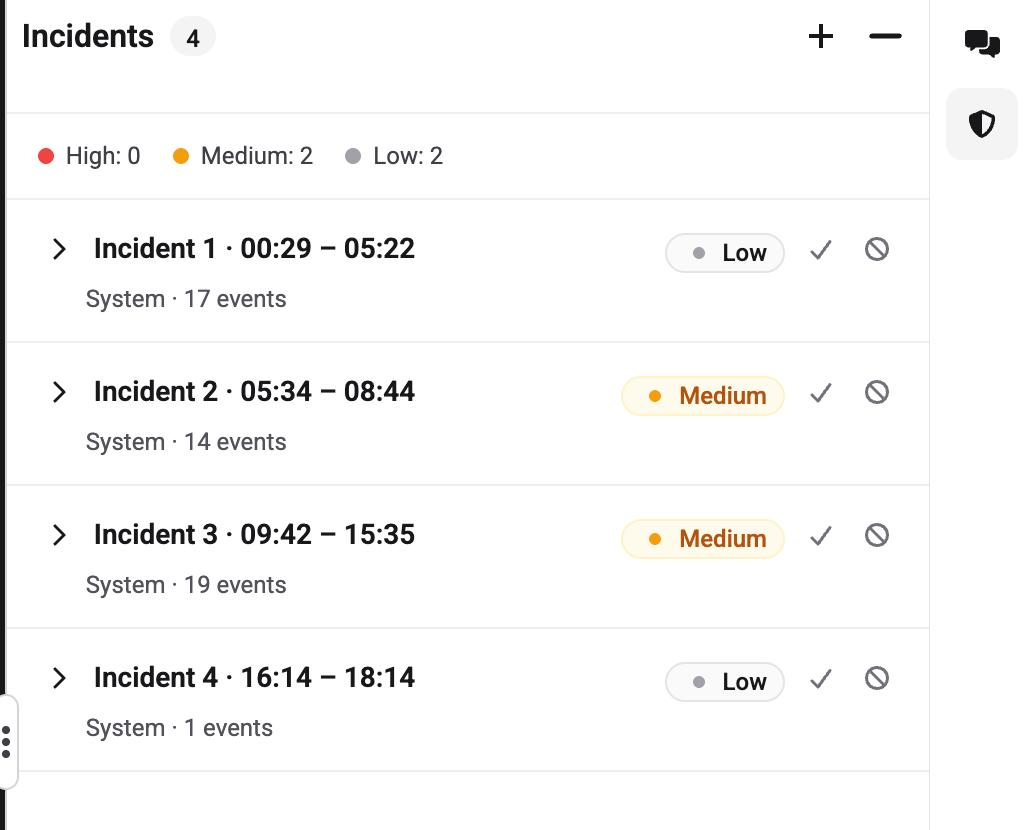
1️⃣ Clearer Incident IdentificationIncidents are now labeled with a sequential number and time range (e.g., “Incident 1 · 02:19–07:29”) instead of being named after the first detected event.
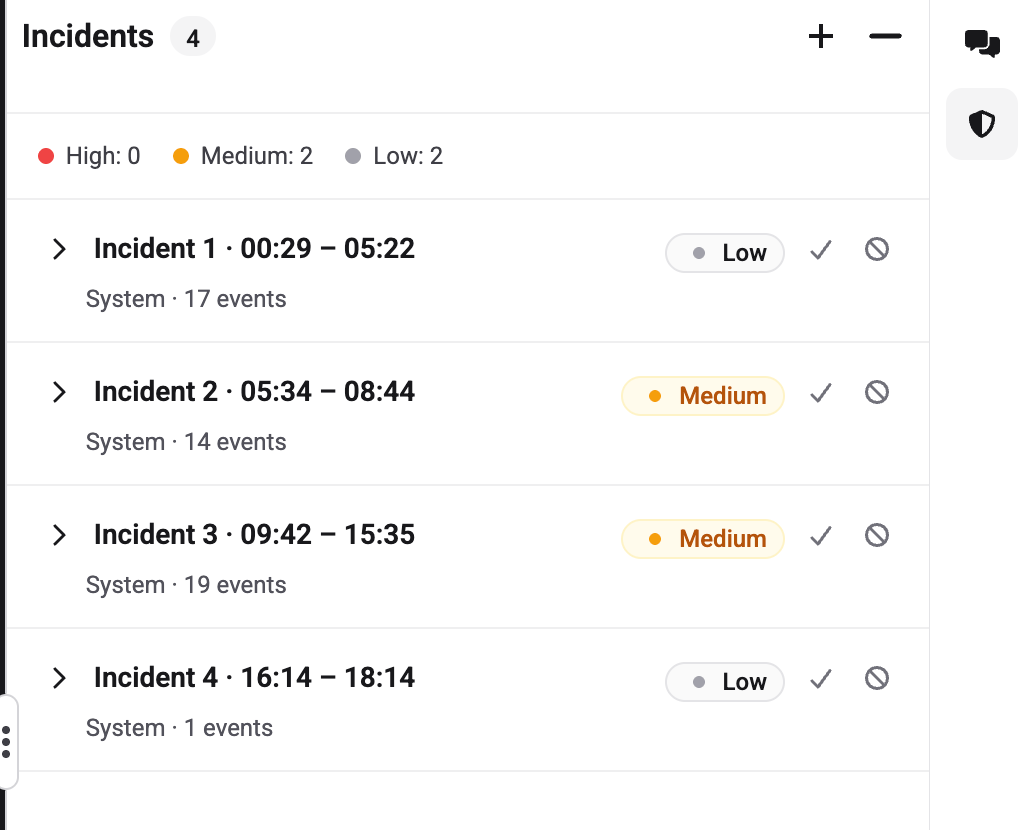
When reporting a new incident manually, the system now checks whether the specified timestamp falls within an existing incident’s time window and prompts the reviewer to add their observation as an event instead.
🐞 Bug Fixes
- Fixed incorrect verification statuses, mismatched ID images, statuses not refreshing, and missing timestamps in the checks pane.
- Fixed missing device information, incorrect browser details, and layout issues in the System Overview pane.
- Fixed candidate connection status not updating accurately on tiles.
- Fixed candidate tiles getting stuck in a loading state after disconnection or reconnection.
- Fixed messages sent to candidates being delivered multiple times.
- Fixed wait time not tracking correctly during and after sessions.
- Fixed the monitoring dashboard showing empty panes immediately after login.
Proview Console (V8)
🆕 Features
1️⃣ New Exam Creation Templates Description: Eight exam creation templates are now available across Assessment, AI Proctoring, and Proctor Reviewed options. What’s New- Templates span Assessment / Enrollment + Assessment, AI Proctoring / Proctor Reviewed, and Invite-based Window / Fixed Window combinations.
- Each template includes helper text explaining how it works.
- Proctor Reviewed templates automatically create a Drive for live monitoring and recorded review.
- Single Room template for post-session review with no scheduling required.
- Multi Room template for live proctored sessions with scheduling, room management, and candidate tracking.
- Available individually or in bulk via “Approve Selected” with a confirmation modal.
⚙️ Enhancements
1️⃣ Exam Security ConfigurationsDOM recording (RRPlay) is now labeled in config and can be set when publishing a new version. Side panel has been restructured with copy and order updates. Email templates updated including certification email, certification exam invite, and a new guardian consent invite email.
🐞 Bug Fixes
- Newly created flows being automatically set as default.
- Enrollment status not moving from Invited to Registered, including after IDV pass/fail.
- Guardian consent status not updating after consent and verification.
- ID verification display issues including rejected IDs showing “Matched” and missing IDV section for some candidates.
- Extended time from Extend Invite not reflected in the invitation email.
- Candidate invitations intermittently not appearing in the candidate list or not being delivered by email.
- Flow config versioning dropping the EP policy and guideline on publish.
- Slot rescheduling, cancellation sync, and playback association issues.
Interview Rooms Updates
This month, we introduced enhancements focused on improved transcription reliability and insights workflow stability.⚙️ Enhancements
1️⃣ Insights Workflow: Retry on ID CollisionThe insights workflow now retries correctly when an ID collision occurs during skill extraction, instead of failing the entire run permanently. 2️⃣ Insights Workflow: Timeout Fixed
The insights workflow child execution timeout has been corrected to match the activity retry budget. 3️⃣ Transcription: File Size Issue Fixed
Transcript generation workflows were failing for long MP4 recordings due to payload size. Chunking and payload size have been corrected. 4️⃣ Transcription: Retrigger CLI Enhanced
The retrigger transcription CLI now supports forced regeneration for sessions that already have a transcript ID, enabling correction of stale or incorrect transcripts. 5️⃣ Email with Special Characters: Auth Fixed
User emails containing special characters such as apostrophes are now recognised correctly during login.
🐞 Bug Fixes
- Transcript and insights not being generated for interviews on the Talview hiring account.
- Twilio fallback not triggering and the “Join Interview” button stuck in loading after fallback.
Assessment Engine & Candidate Experience Updates
This month, we focused on client-specific provider accounts, improved question authoring, and candidate experience clarity.🆕 Features
1️⃣ Client-Specific Accounts for External Assessment Providers Description: Clients with their own agreement with an external assessment provider can now run invites and results through their own provider account instead of the shared Talview account. What’s New- Available for iMocha, IKM, and Psymetrics.
- If a client has not set up their own account, assessments continue to use the Talview account as a fallback.
⚙️ Improvements
1️⃣ 1. Example Questions in the Bulk Import Template Description: The bulk import template now includes filled-in example rows for each question type, with an instruction row explaining the correct format. What’s New- One example row each for multiple-choice, multiple-answer, long form, live interview, and video interview questions.
- Instruction row at the bottom explaining how to use the examples and the correct time format for video interview questions.
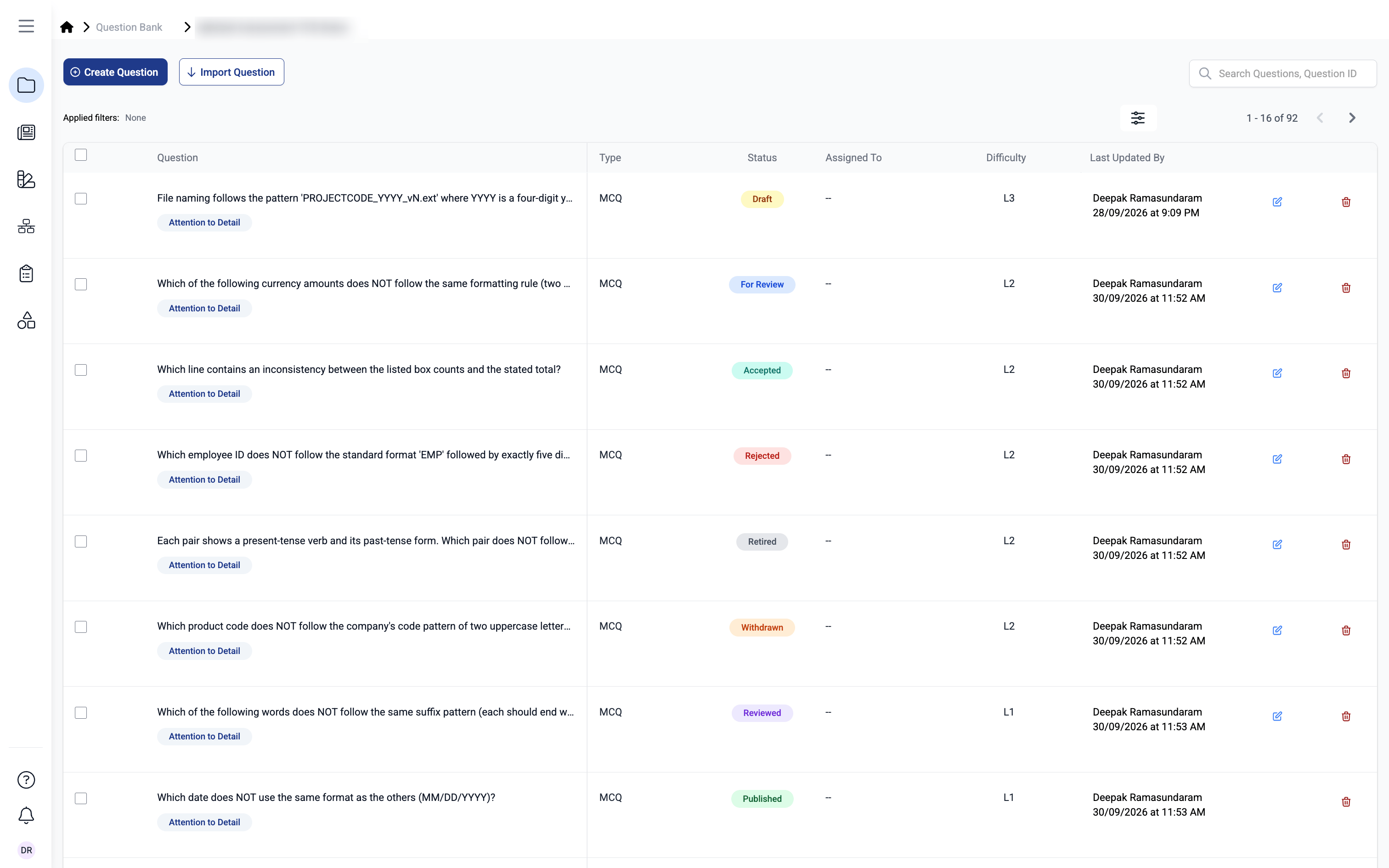
- Each status has its own color: Draft (yellow), For Review (blue), Reviewed (purple), Accepted (teal), Rejected (red), Published (green), Retired (grey), and Withdrawn (orange).
- Same labels and colors appear consistently across all views.
- The Update Question Status window now includes guidance text explaining what you are selecting.
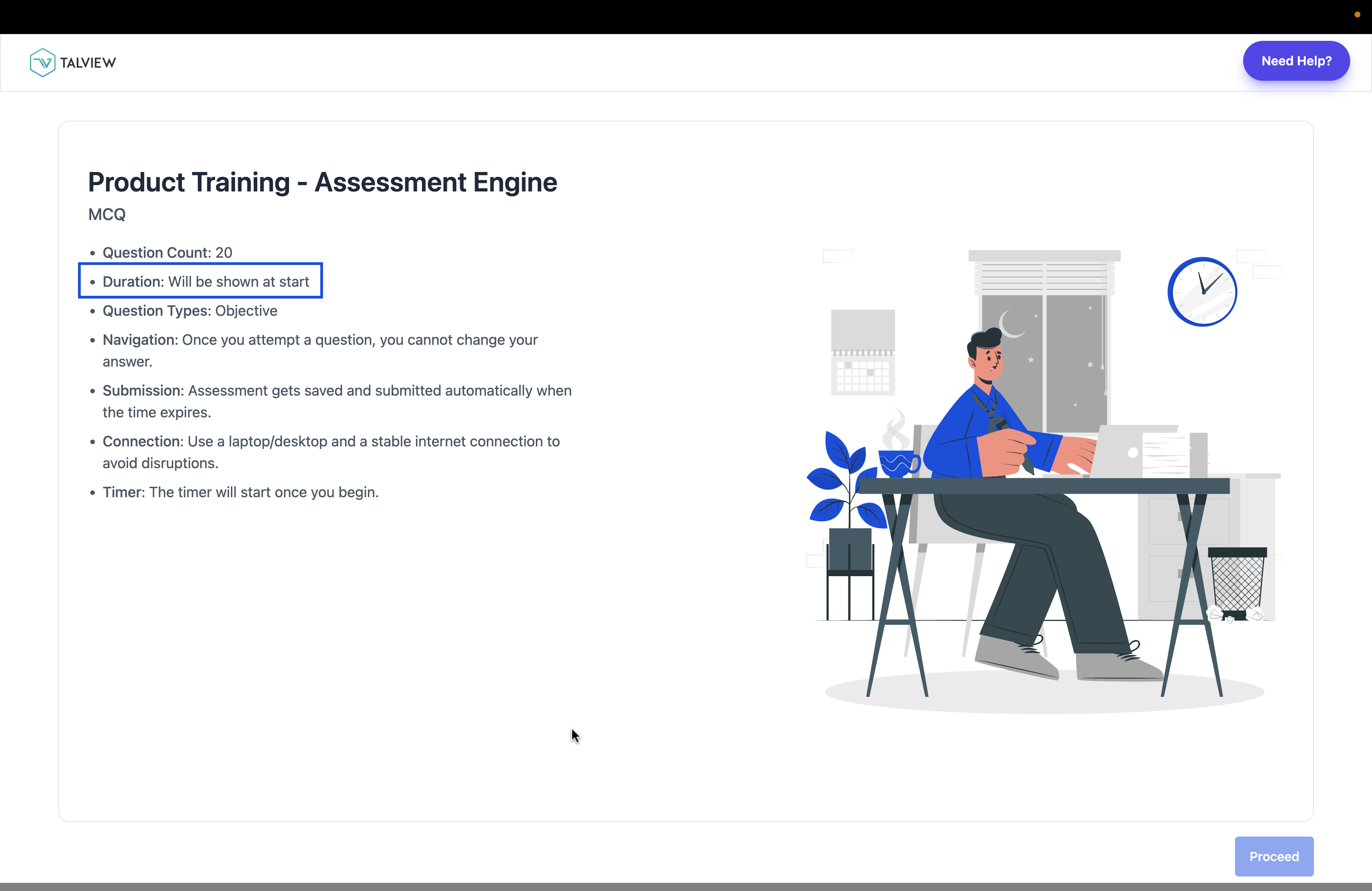
- Label updated from “Test Duration” to “Duration” across all instruction screen types.
- Keeps candidate-facing wording neutral and consistent on every instruction screen.
🐞 Bug Fixes
- Overall Writing score appearing as a number instead of a CEFR band.
- Coding and Code Pair questions failing to upload through bulk upload.
- Cursor jumping to a new line while a candidate was typing their response.
Admin Updates
This month, we focused on improving form reliability and user management flows.⚙️ Enhancements
1️⃣ Publishing SafeguardThe form editor header and canvas are now locked while a form is publishing, preventing conflicting actions mid-publish. 2️⃣ Users List: Cleaner View
The “User Group” column has been removed from the Users list for a cleaner, more focused view.
🐞 Bug Fixes
- Form response/save operations taking longer than expected.
- Adding a new option in a V8 form caused existing options to move out of the visible container.
- Number field displaying an incorrect validation error with no validation configured.
- Form editor staying dark after switching the app to Light mode.
- Renamed form reverting to its previous name after saving.
- Unable to scroll by touchpad within a V8 form.
- Forms failing to publish when an embedded audio file was added.
- Min/max range configuration for the Date field not being enforced correctly in V8 forms.