

Accessing the Capacity Tab
Click the Capacity tab next to Overview. This opens the slot-wise capacity management view for that specific center.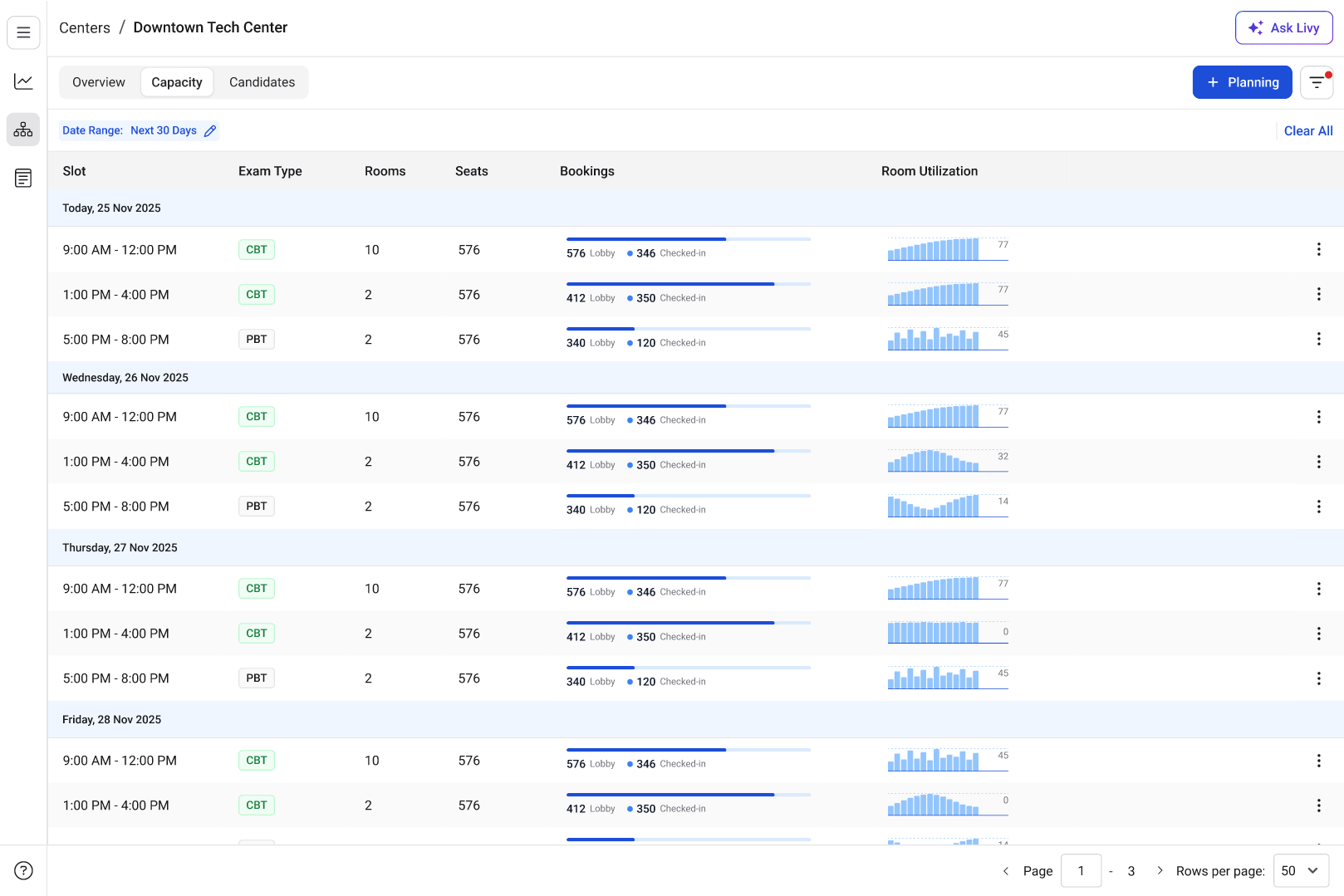
What You Can Do in the Capacity Tab
Adjust the date range
At the top left, the Date Range selector (for example, Next 30 Days) controls the time window displayed.- Modify this to analyze capacity for different periods.
- Use the edit icon to change the range as needed.
- Select Clear All to reset filters.
View slot-wise scheduling
The table is organized by date and time slots (for example, 9:00 AM – 12:00 PM). For each slot, you can quickly understand:- when the exam window is scheduled
- what exam mode is running
- how much capacity is allocated
Identify exam mode per slot
The Exam Type column shows whether the slot is:- CBT (Computer-Based Testing)
- PBT (Paper-Based Testing)
Monitor rooms allocated
The Rooms column displays how many rooms are assigned to that slot. Use this to:- verify room allocation
- detect under- or over-allocation
- plan redistribution if required
Track total seat availability
The Seats column shows the total seating capacity available for the slot across assigned rooms. This gives a quick view of maximum intake for that session.Analyze bookings and check-ins
The Bookings bar provides a visual and numeric breakdown of candidate flow:- Lobby — candidates registered/scheduled
- Checked-in — candidates who have completed check-in
- monitor real-time attendance flow
- anticipate crowding
- identify no-show patterns
Review room utilization trends
The Room Utilization graph shows how effectively rooms are being used for that slot. With this you can:- spot high-utilization periods
- identify idle capacity
- optimize future slot planning
Create or adjust planning
Use the + Planning button in the top-right to configure or modify slot planning for the center. This is typically used when:- adding new exam windows
- adjusting capacity distribution
- updating future schedules