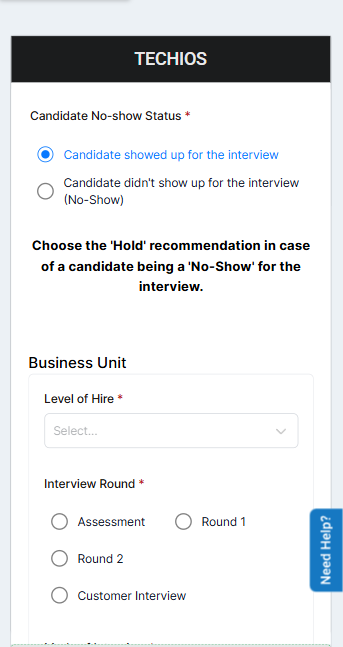
This document provides an overview of all available features in the Talview Form Builder, covering input types, formatting options, field configuration, and layout controls.
1. Input Collection Features
These are the core building blocks for capturing information from your users.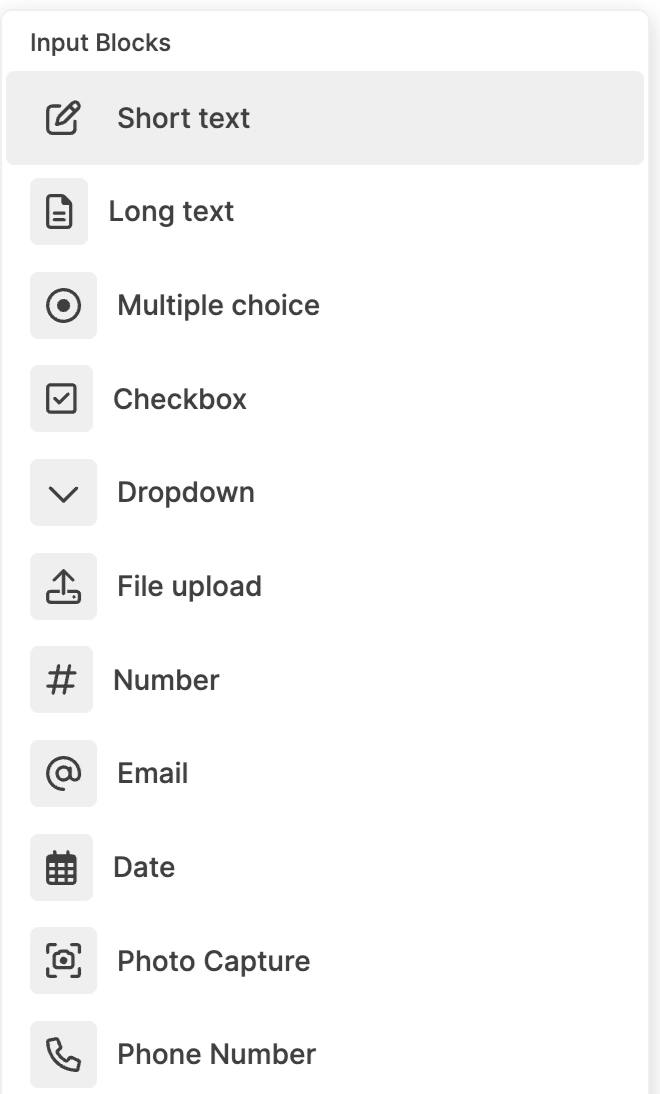
| Feature | Description |
|---|---|
| Short Text | Captures single-line input such as names, titles, or short identifiers |
| Long Text | Captures multi-line input for detailed descriptions, comments, or explanations |
| Multiple Choice | Allows users to select one option from a predefined list |
| Checkbox | Allows users to select multiple options from a predefined list |
| Dropdown | Provides a collapsible list of options for single selection |
| Number | Accepts numeric-only input to ensure numerical data accuracy |
| Captures email addresses in a structured format | |
| Phone Number | Captures contact numbers using a dedicated phone input field |
| Date | Allows users to select a date through a calendar interface |
| File Upload | Enables users to attach documents or files within the form |
| Photo Capture | Allows users to capture and upload images directly from their devicec |
2. Content & Formatting Features
Use these blocks to add context, instructions, and structure to your form content.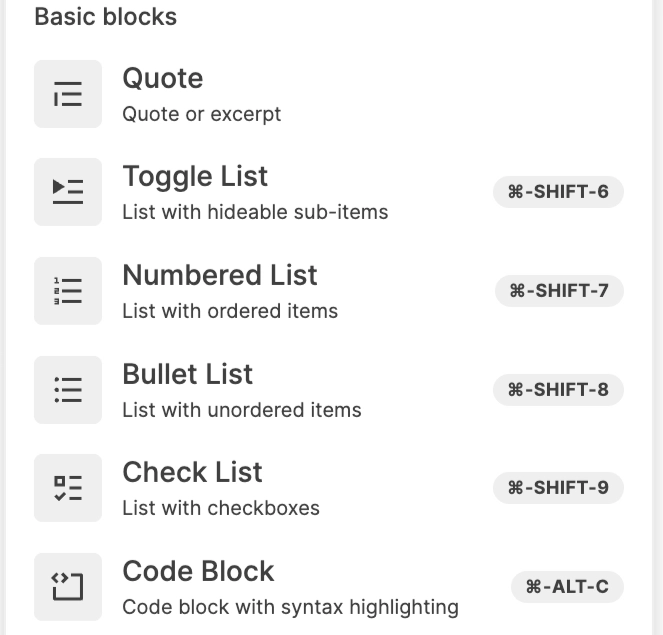
| Feature | Description |
|---|---|
| Quote Block | Displays highlighted text to emphasize important information or instructions |
| Bullet List | Presents information in an unordered list format |
| Numbered List | Displays content in a sequentially numbered format |
| Check List | Creates an interactive checklist where items can be marked as completed |
| Toggle List | Creates expandable and collapsible sections to manage long content |
| Code Block | Displays formatted code with syntax highlighting for technical content |
3. Hierarchical Structuring Features
Organise your form into clear, collapsible sections using heading-based toggles.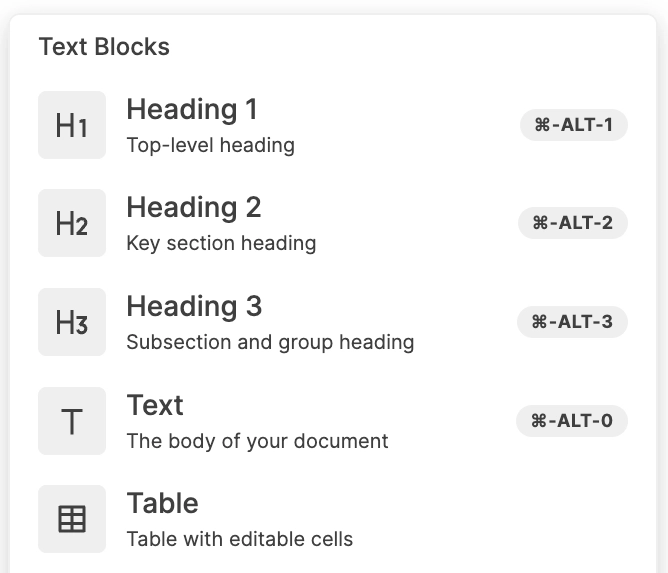
| Feature | Description |
|---|---|
| Toggle Heading 1 (H1) | Creates a top-level collapsible section for organising major form areas |
| Toggle Heading 2 (H2) | Creates a secondary collapsible section within main sections |
| Toggle Heading 3 (H3) | Creates subsection-level collapsible groupings within sections |
4. Media Embedding Features
Enrich your forms with visual and video content to guide users effectively.
| Feature | Description |
|---|---|
| Video Block | Embeds video content within the form for instructional or informational purposes |
| Image Block | Embeds images within the form to provide visual context or references |
5. Structural Grouping Features
Logically group related fields together to improve form flow and readability.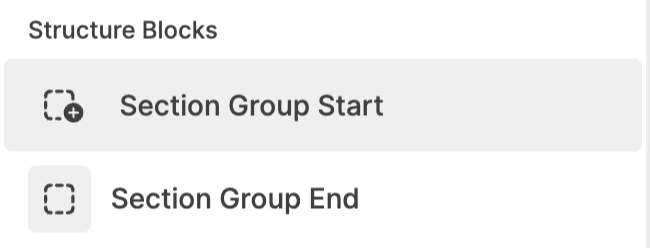
| Feature | Description |
|---|---|
| Section Group Start | Marks the beginning of a logically grouped section of fields |
| Section Group End | Marks the end of a logically grouped section of fields |
6. Advanced Features
Take your forms further with intelligent, dynamic behaviour.
| Feature | Description |
|---|---|
| Conditional Logic | Controls the dynamic visibility of fields or sections based on user responses |
7. Field Configuration Features
Fine-tune how each field behaves, appears, and validates input.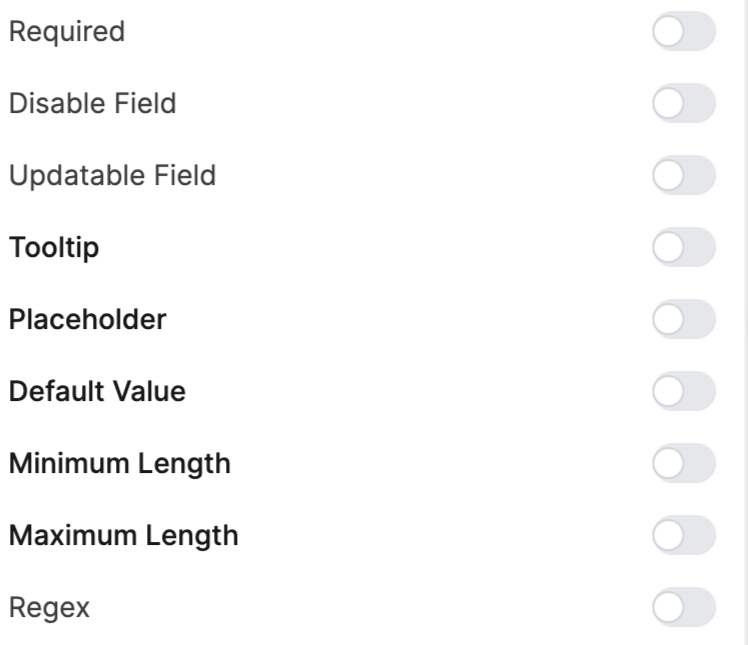
| Feature | Description |
|---|---|
| Field Identifier | Defines the internal reference name used for backend mapping or integrations |
| Label | Defines the visible name displayed to users for the field |
| Required | Marks a field as mandatory before form submission |
| Disable Field | Makes a field visible but non-editable |
| Updatable Field | Controls whether a field can be edited after submission |
| Tooltip | Provides contextual helper information for users interacting with a field |
| Placeholder | Displays example text inside the field before user input |
| Default Value | Pre-populates a field with a predefined value |
| Minimum Length | Sets the minimum number of characters allowed for input |
| Maximum Length | Sets the maximum number of characters allowed for input |
| Regex Validation | Applies pattern-based validation rules for advanced input control |
8. Layout & Design Features
Control the visual arrangement and management of fields within your form.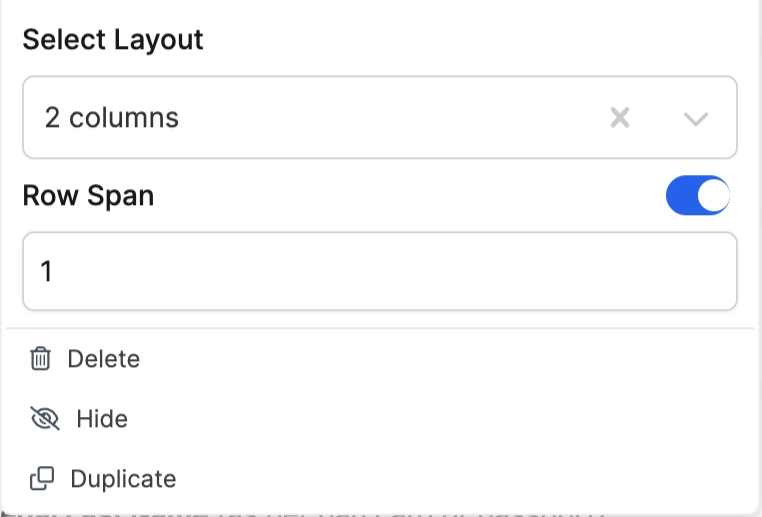
| Feature | Description |
|---|---|
| Column Layout (1 / 2 / 3 Columns) | Controls how fields are arranged horizontally within the form layout |
| Row Span | Determines how much vertical grid space a field occupies |
| Delete | Removes a field from the form |
| Hide | Temporarily hides a field without deleting it |
| Duplicate | Creates a copy of an existing field with the same configuration |
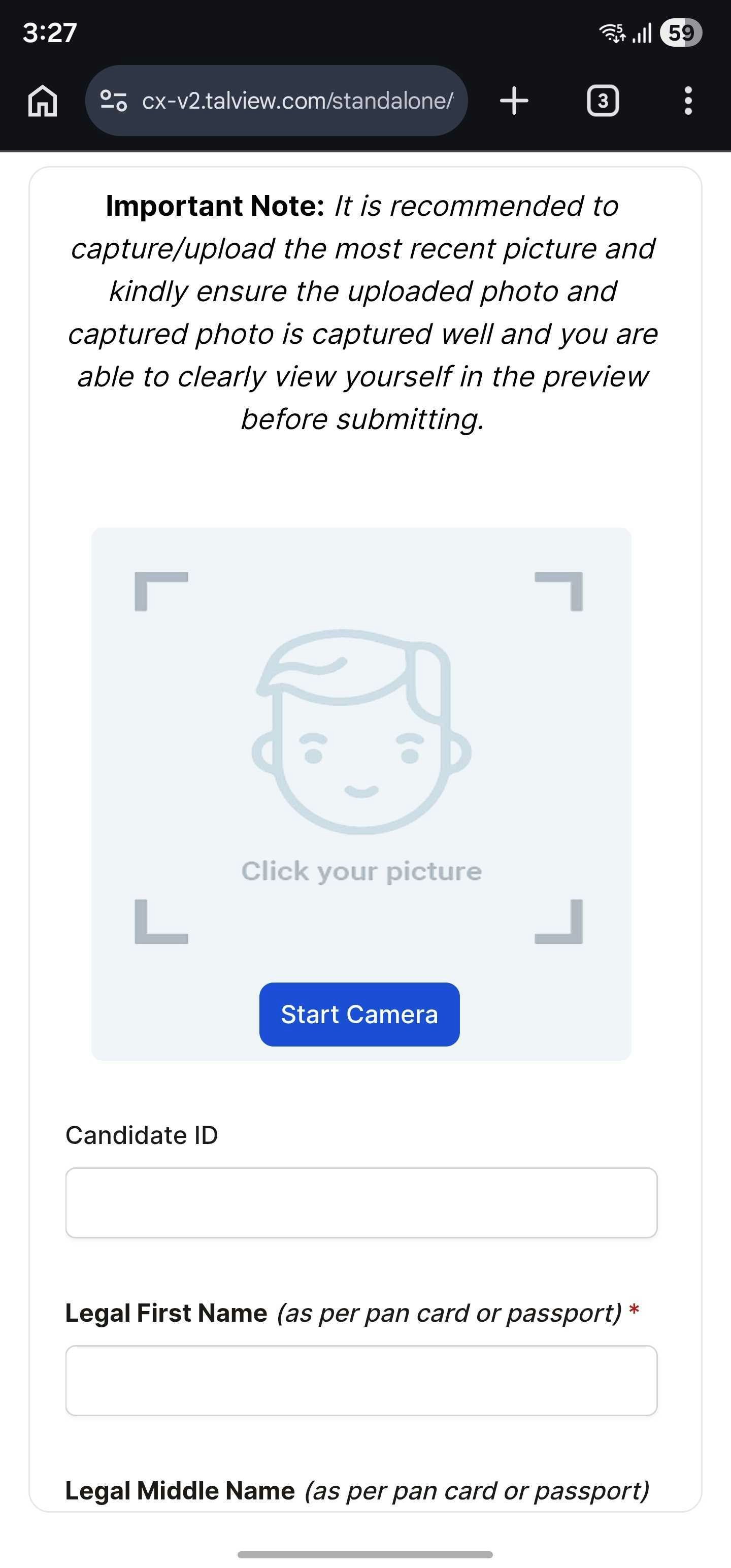
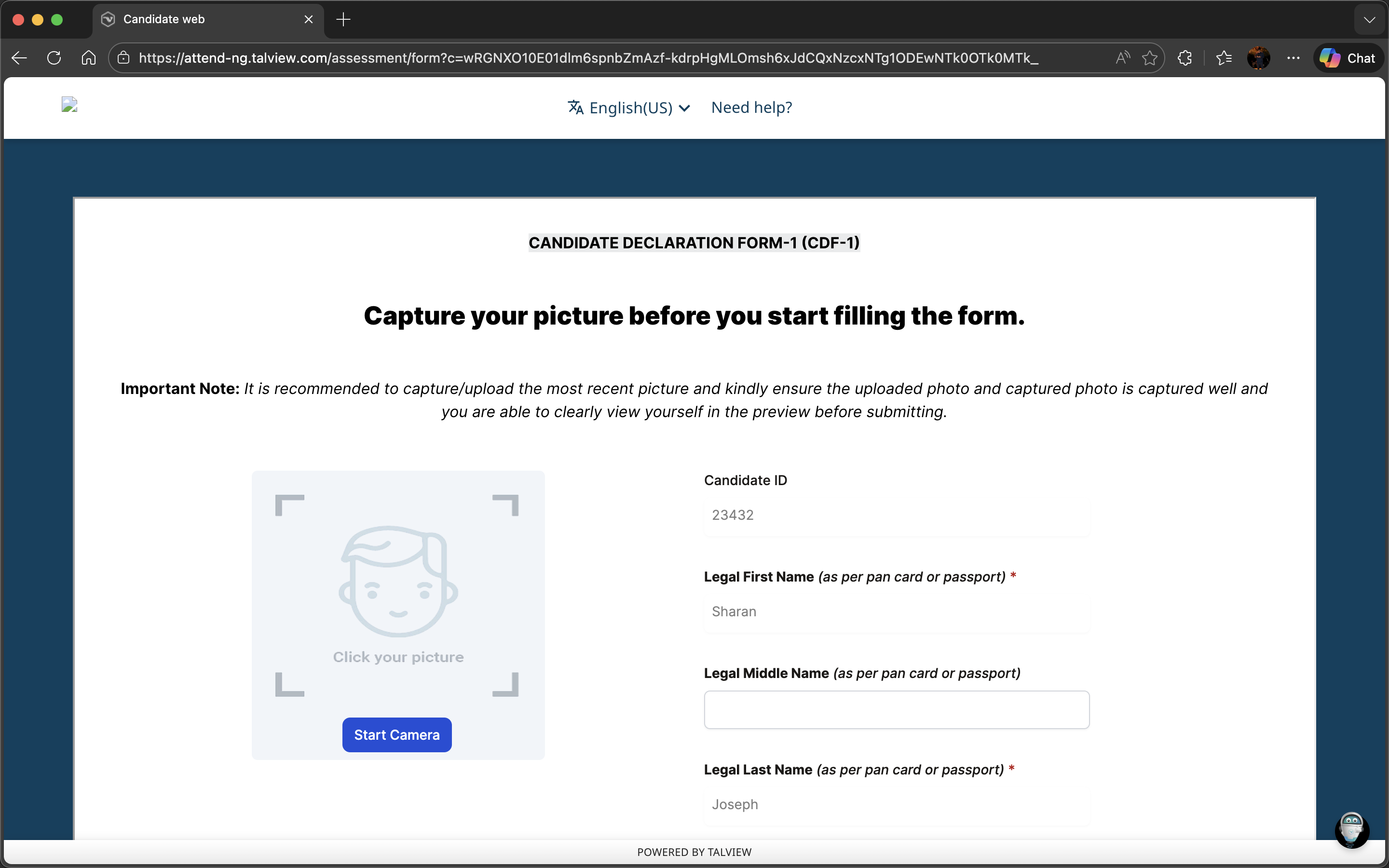
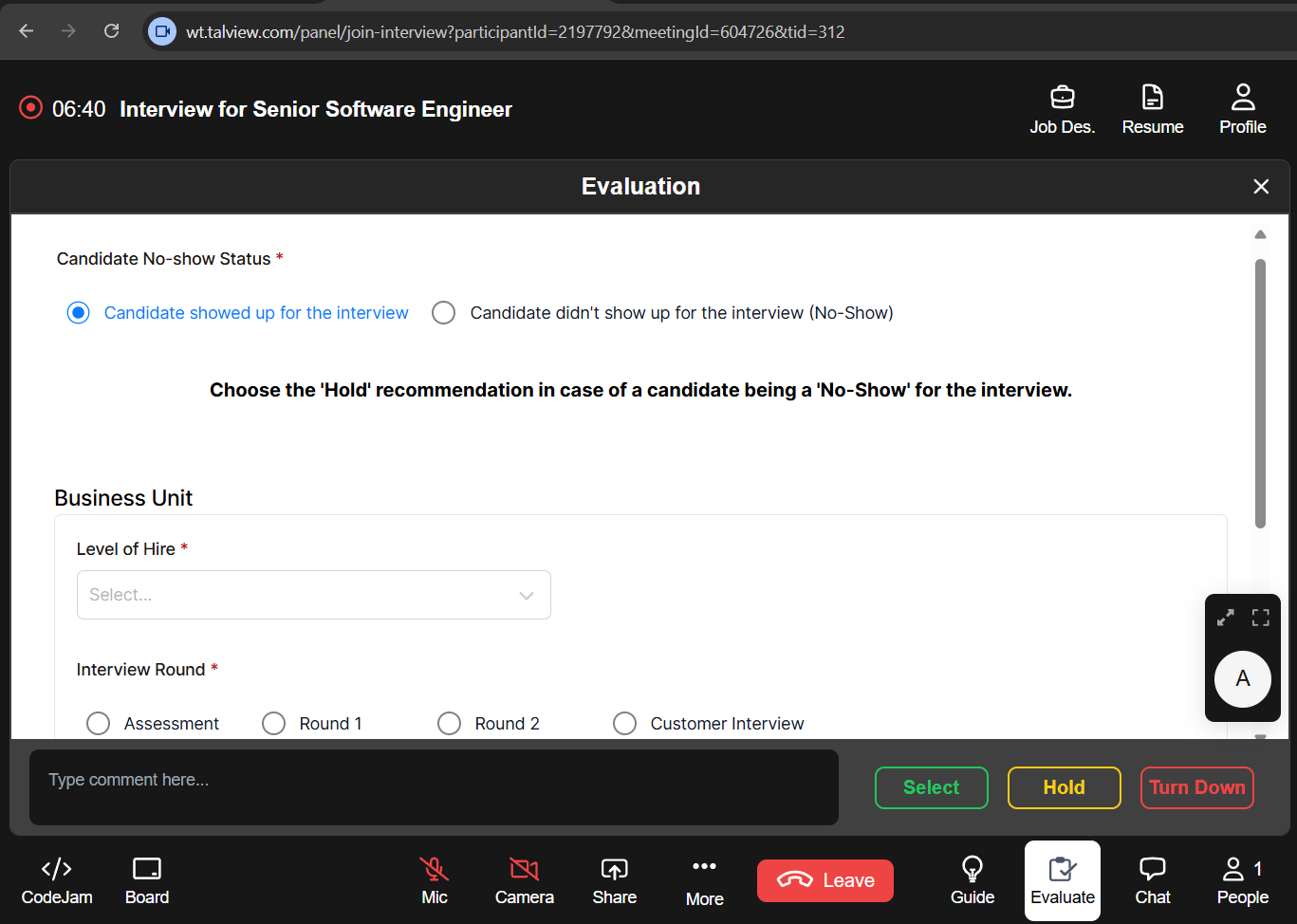
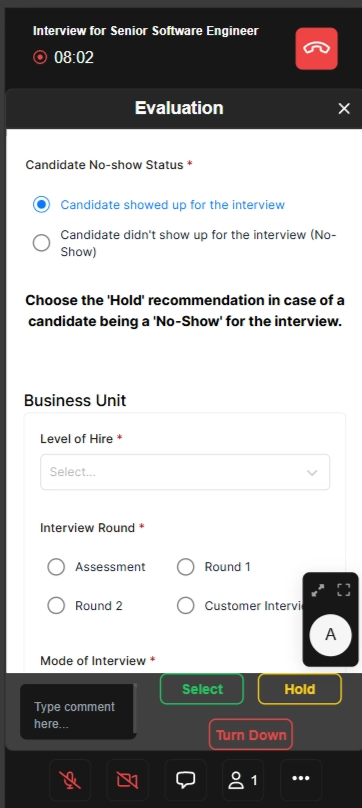
Form embedded in different applications
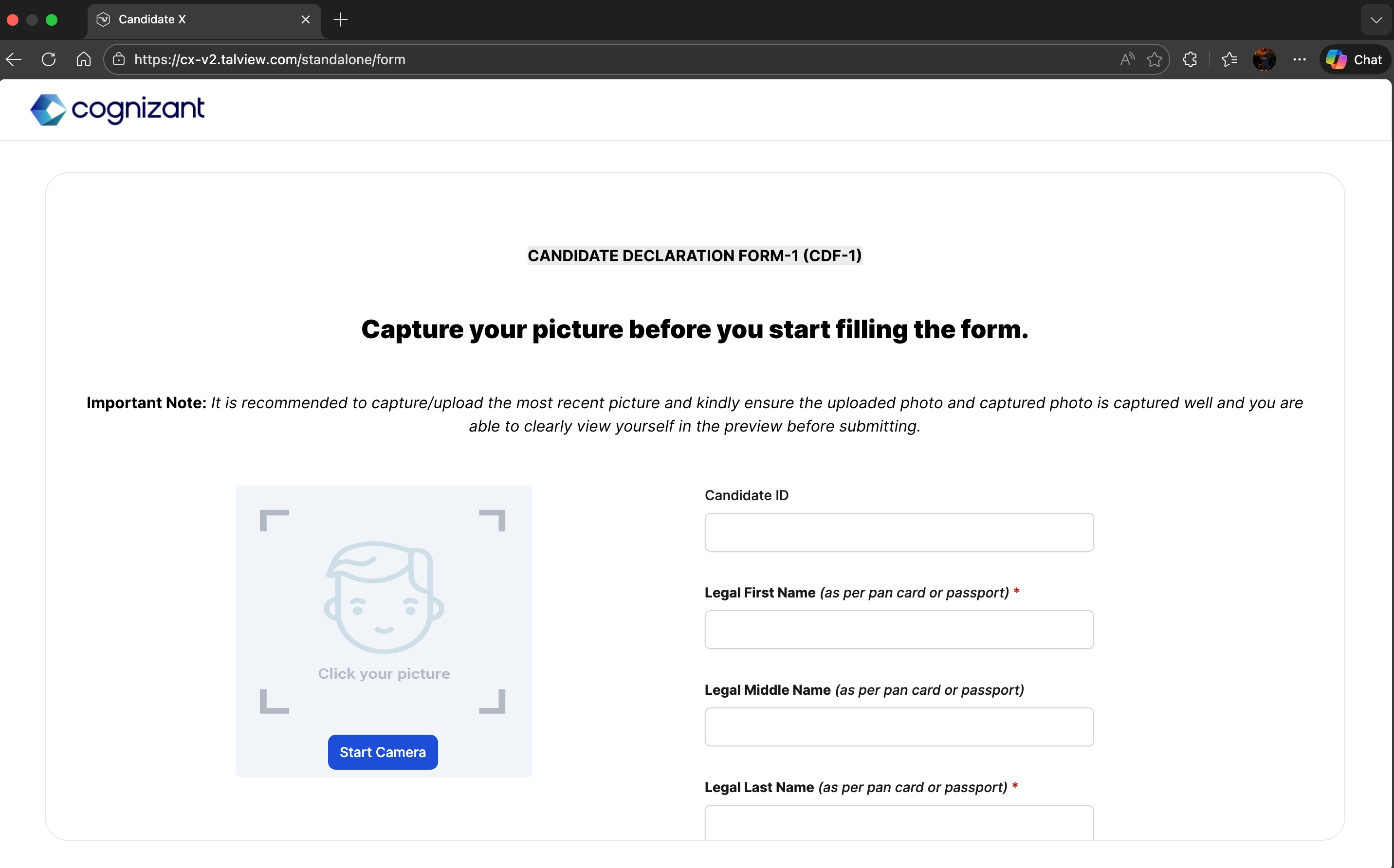
1. Candidate form on the CX application (Web)
2. Candidate form on CX application (Mobile view)
3. Candidate form on the attend-ng application (Web)
4. Evaluation form on Workflow tools application
5. Evaluation form on workflow tools application (Mobile view)
6. Evaluation form on the Recruit web application
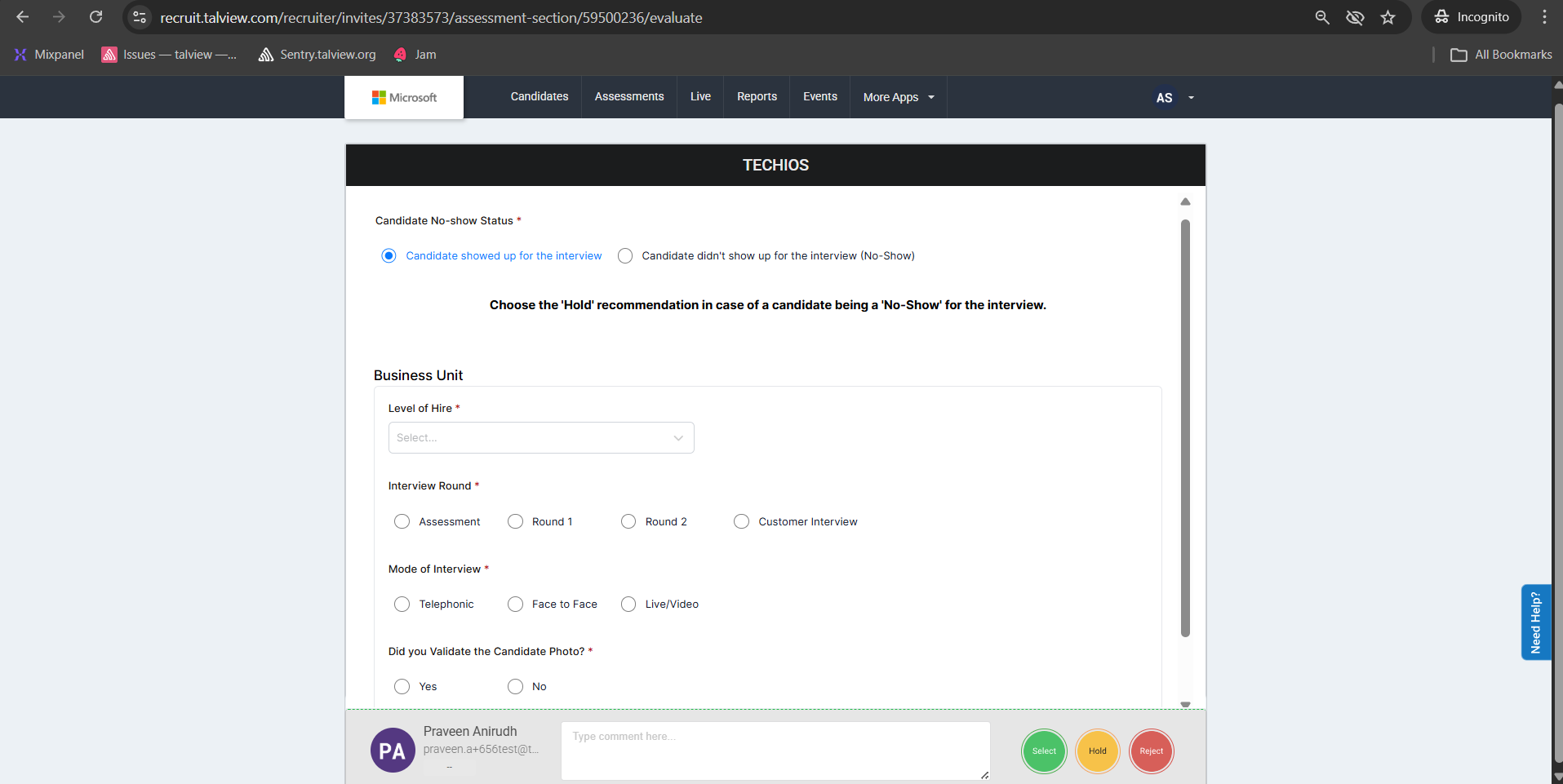
7. Evaluation form on the Recruit (Mobile view)