

Before You Begin
Ensure you have the following information ready:- Center name
- Center type (Physical or Virtual)
- Supported exam type(s) (CBT and/or PBT)
- Google Maps location link
- Time zone
- Available accommodations (if any)
- Contact name, number, and email
Steps to Add a New Center
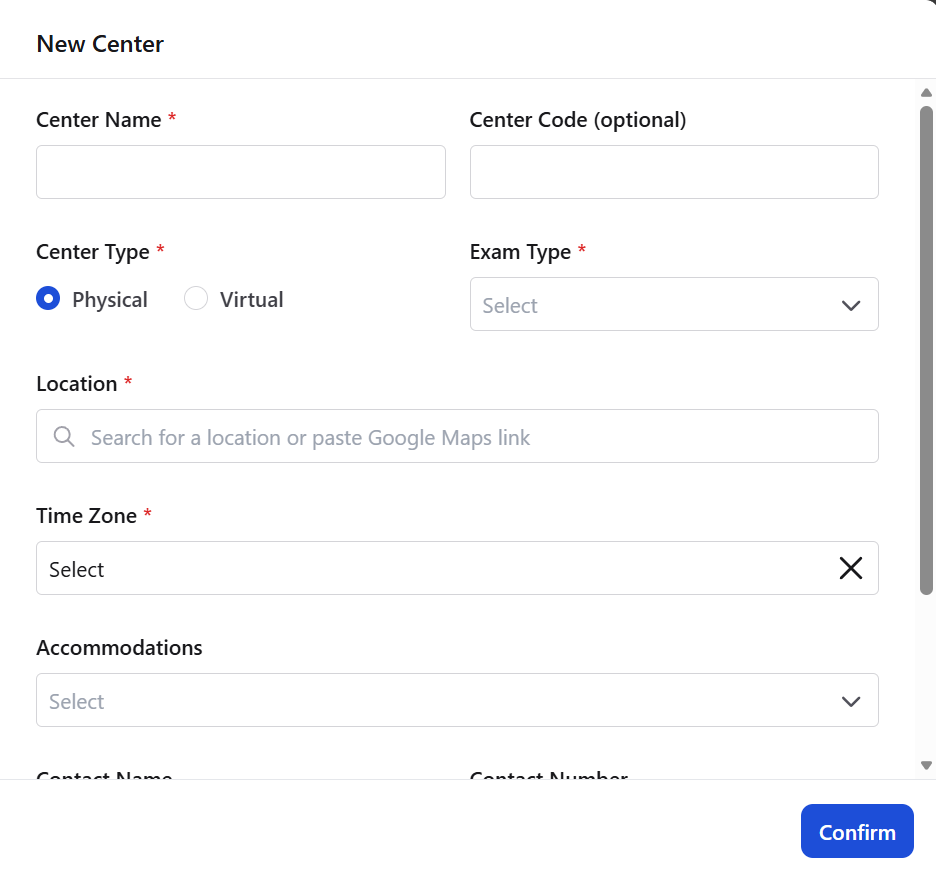
1. Open the Add Center Form
From the In-Center dashboard, click Add Center in the top-right corner. The New Center panel will open.2. Enter Center Name
In the Center Name* field, type the official name of the exam center. This is the primary identifier displayed in the dashboard.3. (Optional) Enter Center Code
In Center Code (optional), enter an internal reference code if required. You may leave this blank if not applicable.4. Select Center Type
Under Center Type*, choose one:- Physical — for in-person test centers
- Virtual — for remote/online centers
5. Select Exam Type
In Exam Type*, choose the supported mode(s):- CBT (Computer-Based Testing)
- PBT (Paper-Based Testing)
6. Add Location
You need to fill in the Location* field if the exam is physical. For this, you need to:- Search for the location or
- Paste the Google Maps link of the center and make sure it’s correct as it will be shared with the candidates during the time of booking.
7. Select Time Zone
From the Time Zone* dropdown, choose the correct time zone for the center location. This ensures accurate scheduling and slot distribution.8. Choose Accommodations
In Accommodations, select any supported accessibility or facility accommodations available at the center. They include Wheelchair accessibility, Service animal, Separate testing room, Extra time, Medical breaks, Food/water allowed etc.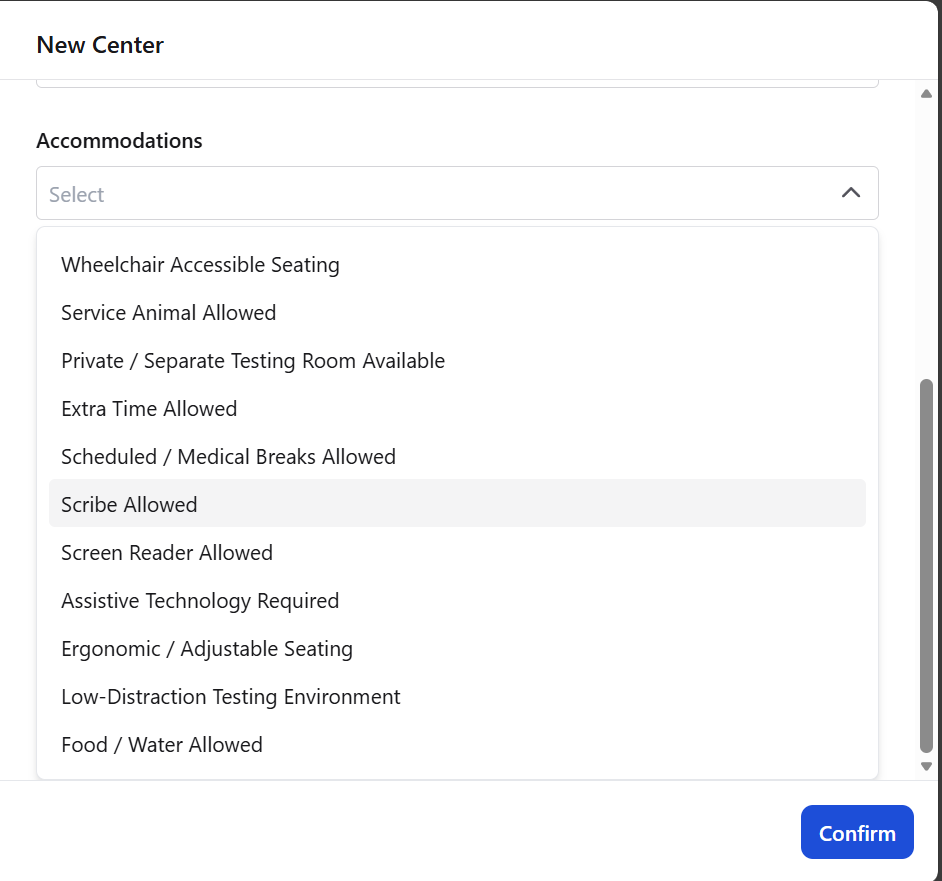
9. Enter Contact Details
Provide the center’s point of contact:- Contact Name — responsible person at the center
- Contact Number — active phone number
- Contact Email — official email address
10. Confirm Creation
After verifying all required fields, click Confirm.The new center will be successfully added to the In-Center dashboard and will appear in the centers list.
After Adding a Center
Once created, you can:- View it in the centers table
- Open its Overview by clicking the center name
- Monitor its status and upcoming distribution
- Edit details later if needed