

In Talview’s In-Center platform, you can use the keyboard shortcut Ctrl+K (Windows) or Cmd+K (Mac) to quickly take actions on your current screen without navigating through menus. In this article, you will learn how to use this shortcut across different sections of the Center Management.

Step-by-step guide

A. Use the shortcut on the Centers page
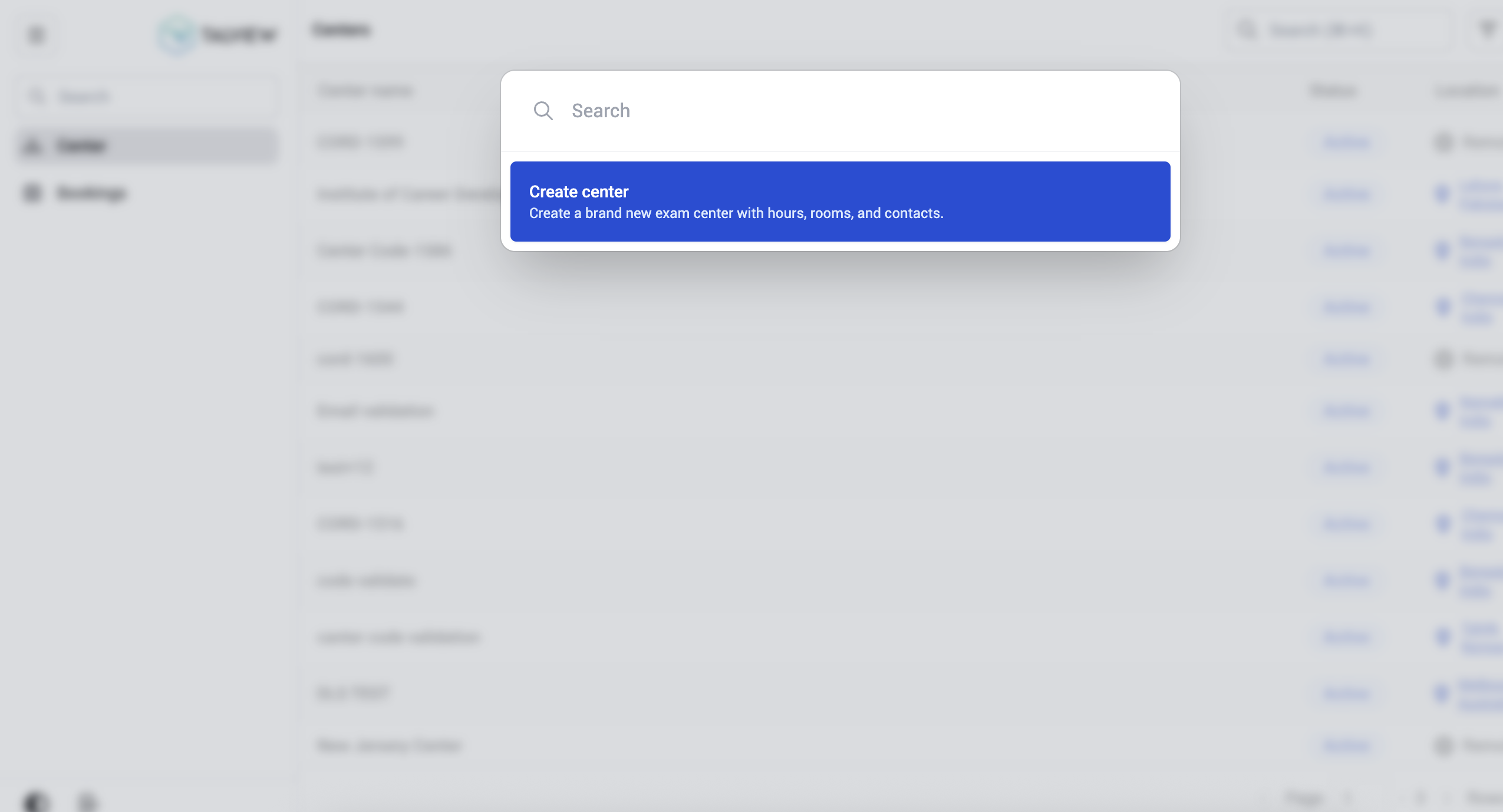
Screenshot2026 03 06at12 18 47PM
  1. Go to Centers in the left navigation panel.
  2. Press Ctrl+K / Cmd+K.
  3. The command menu displays the option Create center - Create a brand new exam center with hours, rooms, and contacts.
  4. Click Create center to proceed, or type in the search bar to filter available actions.

B. Use the shortcut within a center
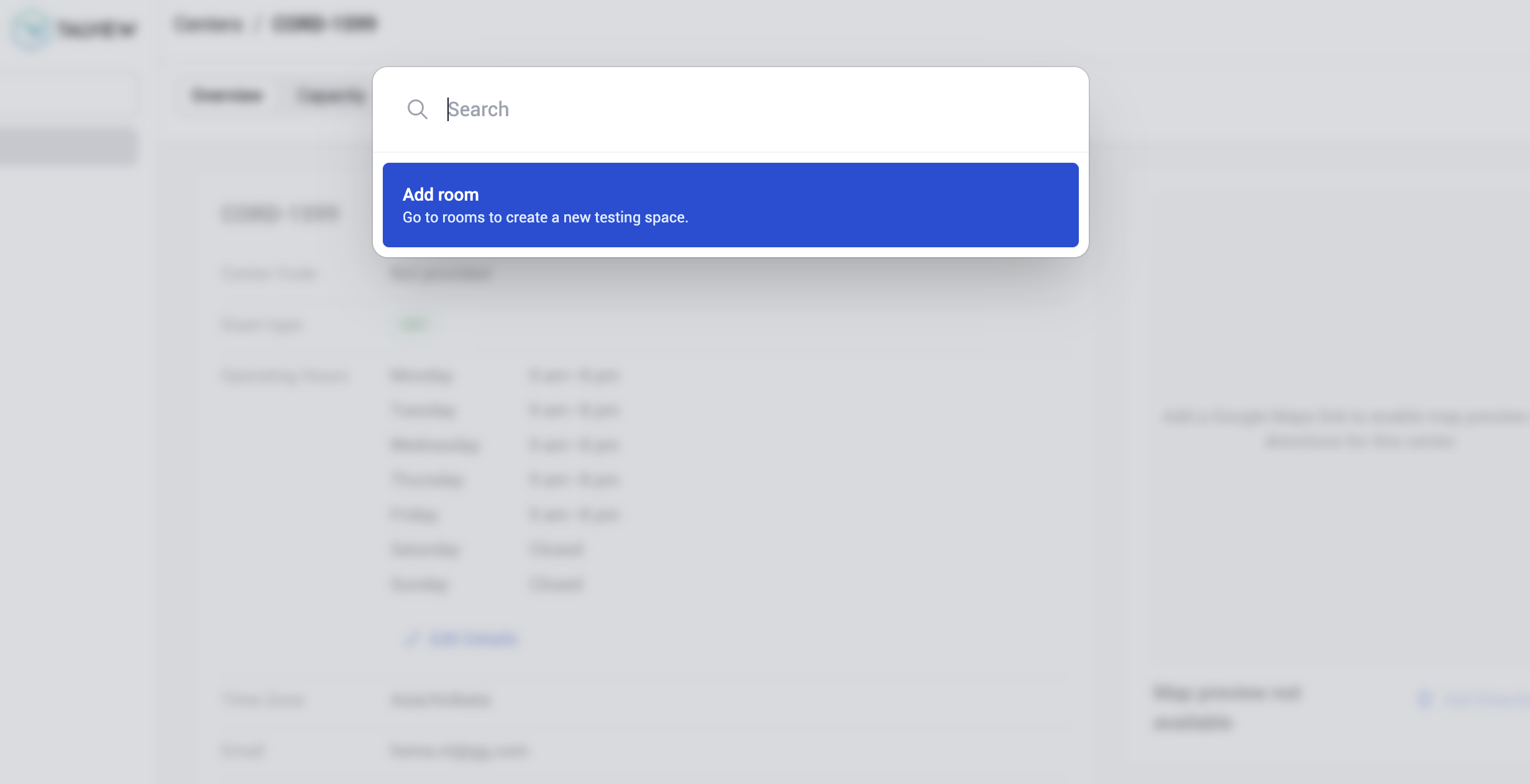
Screenshot2026 03 06at12 26 41PM
  1. Open a center by clicking its name from the Centers list.
  2. Press Ctrl+K / Cmd+K.
  3. The command menu displays the option Add room - Go to rooms to create a new testing space.
  4. Click Add room to be directed to the Rooms section where you can create a new testing space.

Additional tips

  • The command menu is context-aware, the actions it shows depend on which page you’re currently on
  • You can type keywords in the search bar within the command menu to quickly find a specific action.
  • This shortcut works across all major sections of the Center Management.