

How the Notification Appears
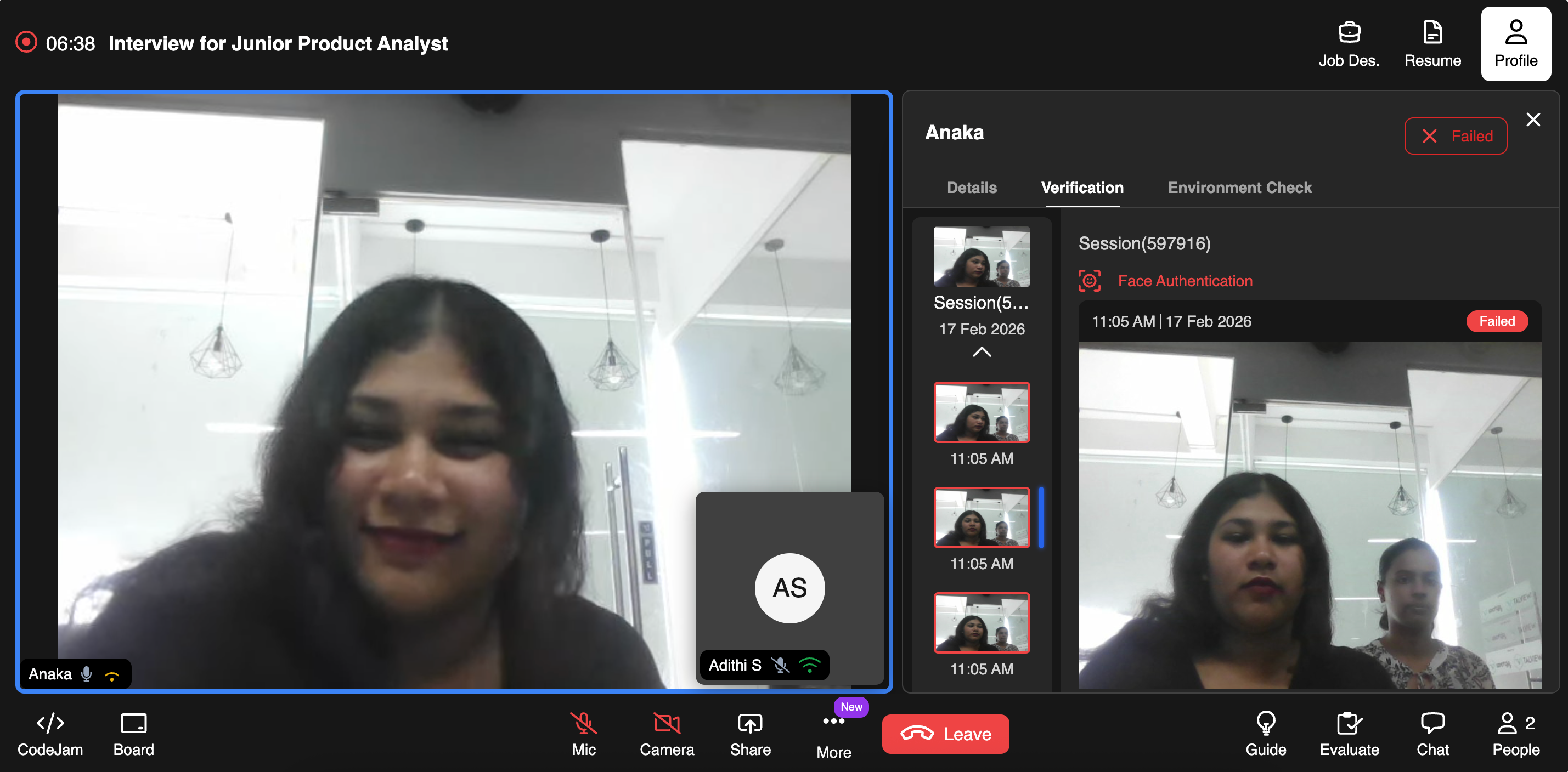
Real-Time Flag in the Verification Panel
- Navigate to the Profile section during a Live interview.
- Open the Verification tab.
- Under the active Session, you will see:
- A red status indicator.
- A label such as Face Authentication – Failed (if verification fails due to multiple faces).
- A timestamp of when the the event is occured
What Should You Do If Multiple Faces Are Detected
As an Evaluator, you may:- Politely ask the candidate to adjust their camera.
- Request that no one else remain in the room.
- Pause the interview if needed.
- Escalate to your internal compliance or hiring operations team.
- Mark the session for review.
Important Notes
- Detection is automated and runs continuously during the session.
- Not every detection results in session failure (severity depends on system rules and policy configuration).
- All flagged instances are logged for audit purposes.