

How is the Evaluator Notified?
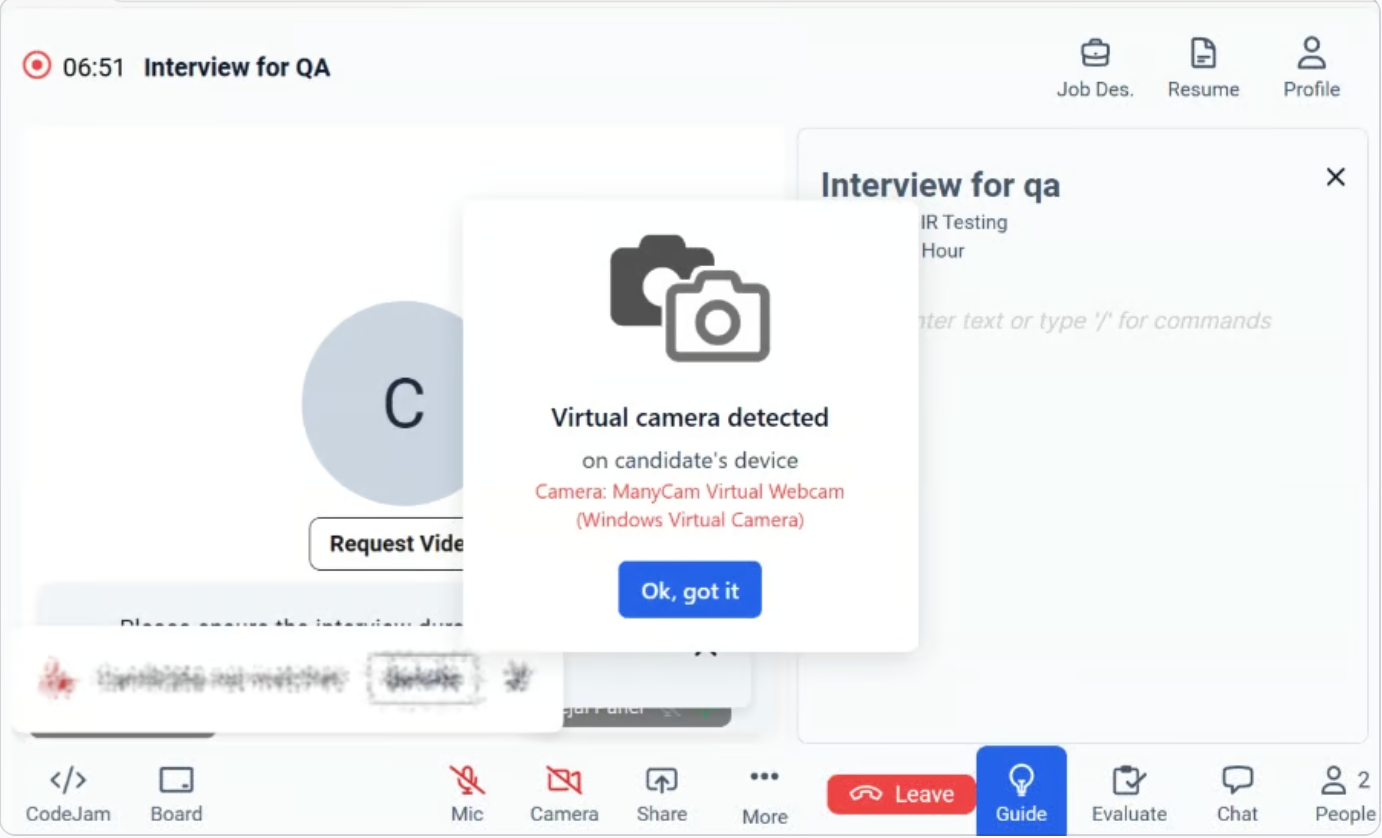
- A pop-up alert appears at the center of the interview screen.
- The alert clearly states: “Virtual camera detected on candidate’s device.”
- The specific camera name is displayed (for example: ManyCam Virtual Webcam (Windows Virtual Camera)).
- You must acknowledge the alert by clicking “Ok, got it” to continue.
What Does This Mean?
A virtual camera is a software-based camera feed that can:- Modify or overlay video content
- Display pre-recorded or manipulated video
- Mask the candidate’s actual camera feed
Recommended Actions for an Evaluator
- Inform the candidate that a virtual camera has been detected.
- Request the candidate to switch to a physical camera (built-in or external webcam).
- Confirm that the live video feed reflects the candidate in real time.
- If the issue persists, follow your organization’s interview integrity or escalation guidelines.
Important Notes
- The alert is informational and designed to support interview integrity.
- The session will not automatically end due to this detection.
- The Evaluator retains full discretion to proceed or escalate as per internal policy.