

Step-by-Step Guide
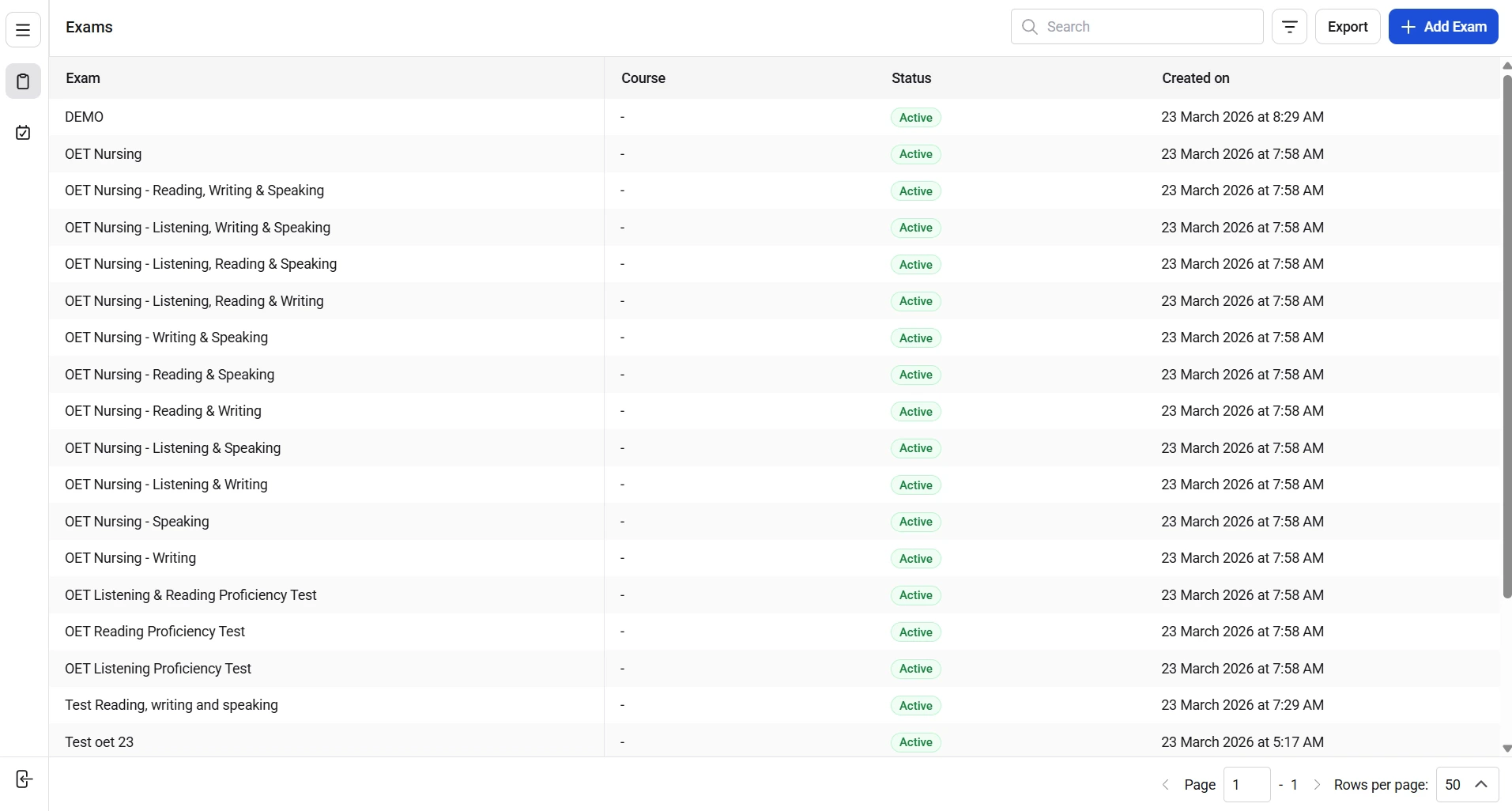
- From the dashboard, open the Exams list view.
- Locate the exam row for the exam containing the candidate’s enrollment.
- Click the exam row to open the exam details screen.
- Open the assessment tab for the specific step (for example, Reading & Listening or Speaking).
- Locate the candidate time slot for that assessment step.
- Click on the candidate time slot
- Locate the candidate name
- Click the ellipsis (more actions) on the candidate’s row and select Reschedule booking.
- Choose a new available slot (date/time) for that exam step from the slot picker and confirm the change.
- If enrollment-level reschedule is needed for the tenant, open the Enrollments tab.
- Click the ellipsis on the specific candidate row and select Reschedule booking
- Select new slots for the required assessments
- Confirm the candidate’s assigned slot and center update in the step tab and the Enrollments list.
- Check booking and capacity values to ensure the new slot allocation is reflected.