

The Forms list table gives you an overview of all the forms in your organisation. Each row represents a form, and the columns show key details about it at a glance. In this article, you’ll learn what each column in the table means, how to interpret the values shown, and how the table is organised.

What does each column show
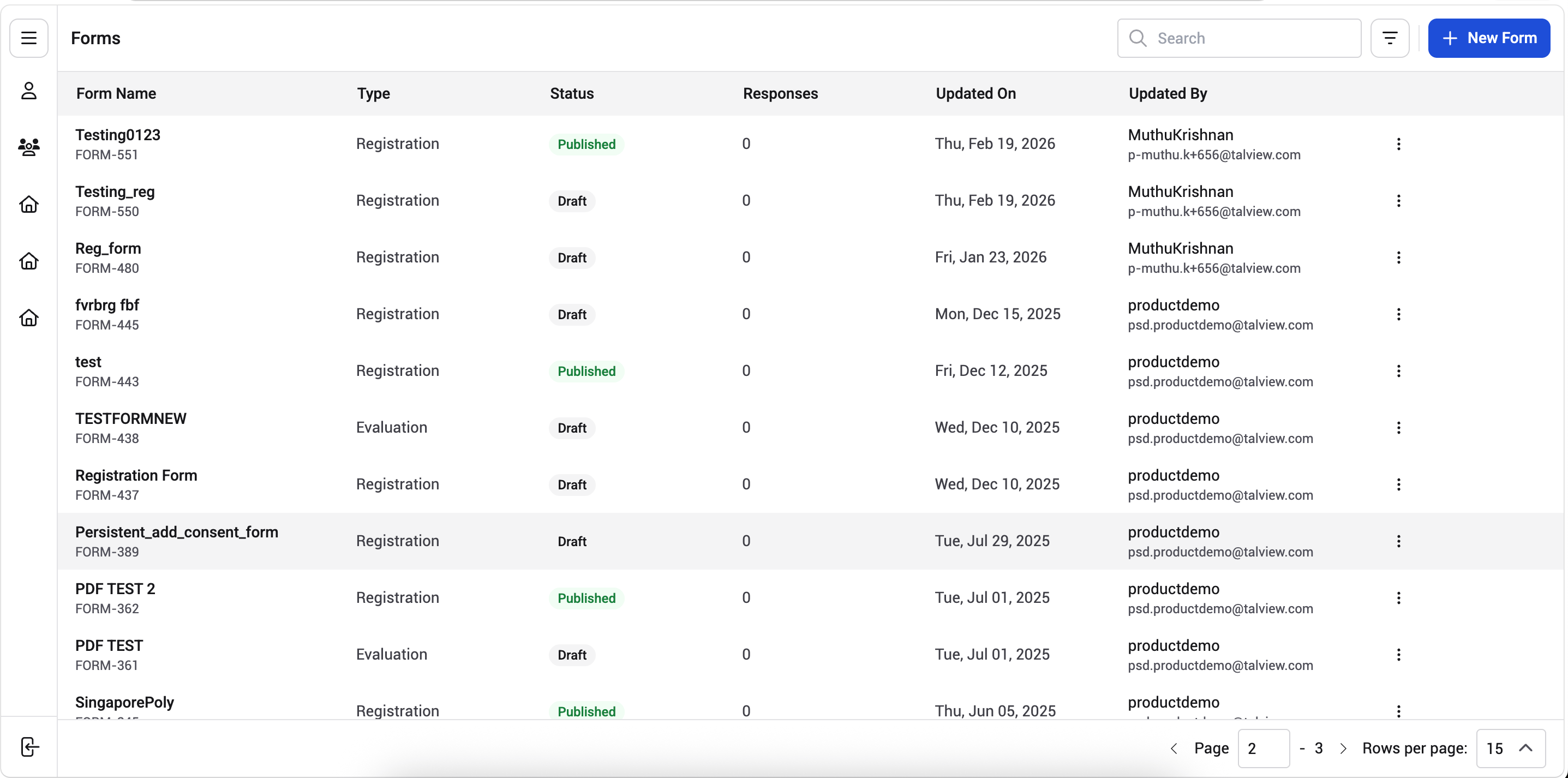
Image Form Name Displays the name of the form along with its form ID. The form name is what you set when you create the form, and the ID is assigned automatically. The form ID is unique and doesn’t change, so you can use it to quickly identify a specific form even if multiple forms have similar names. Type Shows the form type, based on the type selected when the form was created (for example, Evaluation Form or Survey). For a full list and description of each form type. Status Shows the current state of the form:
  • Draft: the form is still being worked on and hasn’t been published yet. Forms in Draft are not accessible to respondents.
  • Published: the form is live and accessible to respondents through its shared link or QR code.
  • Archived: the form has been published before but is no longer needed and has been archived. Archived forms are no longer accessible to respondents.
Responses The total number of responses that have been submitted for the form. A form with 0 responses either hasn’t received any submissions yet or is still in Draft and hasn’t been shared with respondents. Updated On The date when the form was last modified (for example, Wed, Jun 10, 2026). This helps you identify which forms have been recently worked on and which haven’t been touched in a while. Updated By The name and email address of the user who last made changes to the form. This is useful when multiple admins are working on forms and you need to know who last edited a particular form.

How the table is organised

The table displays a set number of rows per page. You can see the current page number, total pages, and the rows per page setting at the bottom of the table. Use the pagination controls to move between pages if your organisation has more forms than a single page can display. Each row also has a menu on the right side that gives you quick access to actions for that form. The actions available from this menu are covered in their respective articles.