

Step-by-step guide
- Open a new form Create a new form to open the Form Editor. On the canvas, you will see two options: Start from scratch and Use a template.
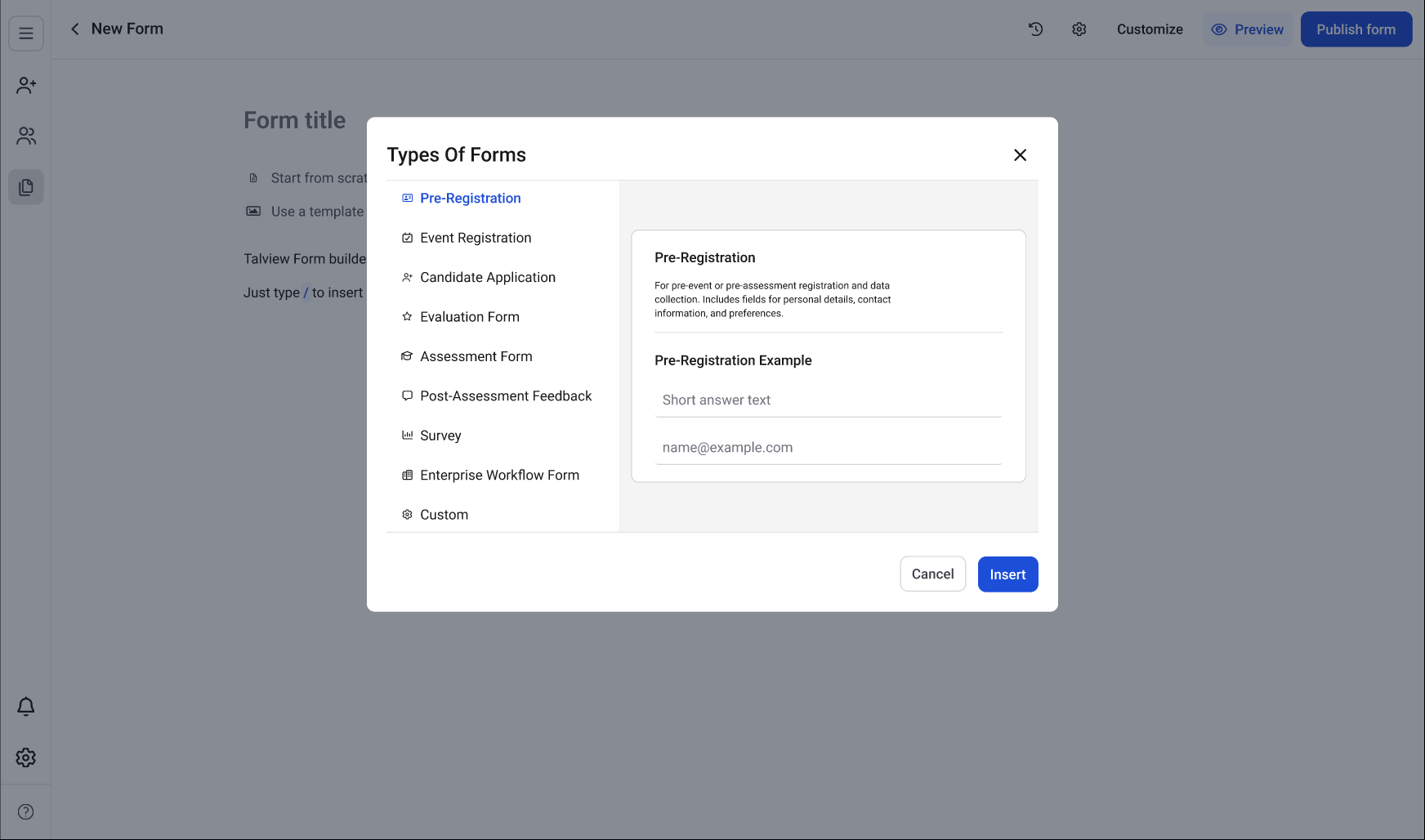
- Click Use a template Click the icon next to Use a template. A Types Of Forms modal opens, listing all available form types on the left side.
- Choose a form type Select a form type from the list (for example, Pre-Registration). When you select a type, a description and a preview of the template appear on the right side of the modal. This helps you understand what fields the template includes before inserting it.
- Insert the template
Click Insert at the bottom right of the modal. The template is applied to your form, and the canvas now shows the pre-built fields for the selected type.
For example, a Pre-Registration template includes fields like Full Name, Email Address, Phone Number, and Department.
- Customise the form You can now add, remove, or rearrange fields on the canvas to match your requirements. Use the “/” command or the block picker to add new fields.
- Publish or save as a draft Once you’re done, click Publish form at the top right to make the form live. If you want to keep it as a draft and continue working on it later, click the back arrow next to the form name to return to the Forms list. Your changes are auto-saved.