

Accessing the Capacity Tab
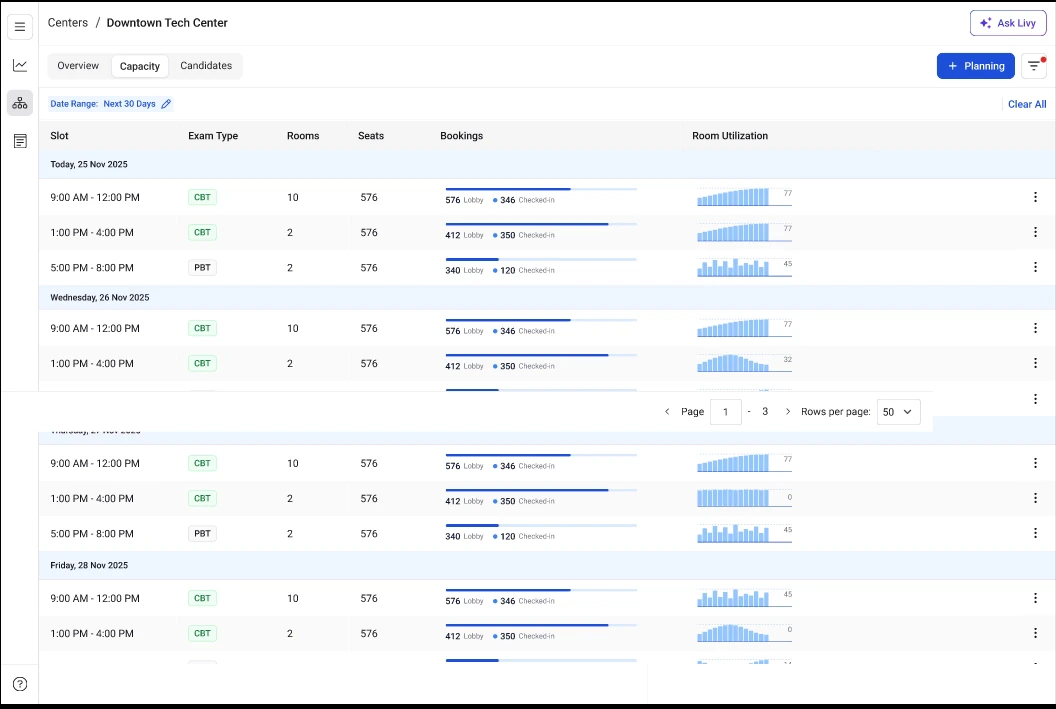
- Go to the In-Center Dashboard.
- Click Centers from the left navigation panel.
- Select the center you want to manage.
- Click the Capacity tab at the top of the page.
Columns in the Capacity Table
Slot The Slot column shows the scheduled exam time for a specific day. Slots are grouped by date, and each row represents a specific time window during which exams can take place. Example:- 9:00 AM – 12:00 PM
- 1:00 PM – 4:00 PM
- CBT (Computer-Based Test) – Exams conducted on computers.
- PBT (Paper-Based Test) – Exams conducted using paper answer sheets.
- If a slot shows 576 seats, it means the center can accommodate up to 576 candidates for that session.
- Lobby – Candidates who have arrived and are waiting to begin the exam.
- Checked-in – Candidates who have completed the check-in process and are ready for the exam.
- More seats are filled
- Rooms are being used efficiently
- Unused seats
- Opportunity to optimize room allocation
Planning New Capacity Slots
The + Planning button in the top-right corner allows administrators to create recurring exam availability schedules. When clicked, a Recurring Availability window appears where administrators can configure:- Schedule Name – A label for the schedule.
- Start Date – The first day the schedule begins.
- Start Time – When the exam slot starts.
- End Time – When the exam slot ends.
- Day Selection – Choose which days of the week the slot should repeat.
- Until Date – The final date for the recurring schedule.
BenefitsThe Capacity tab helps administrators:
- View all upcoming exam slots for a center
- Monitor seat availability
- Track candidate arrivals and check-ins
- Evaluate room utilization
- Plan recurring exam schedules