

During an exam, administrators may need to record irregular activities such as suspected malpractice, rule violations, or other unexpected events. Reporting an incident ensures that the issue is formally documented and can be reviewed if required. This article explains how to report an exam incident for a candidate from the Candidates tab.

Before You Begin

Make sure that:
  • The candidate appears in the Candidates tab.
  • You have the necessary incident details, such as the reason, remarks, or supporting evidence.

Step-by-Step Guide
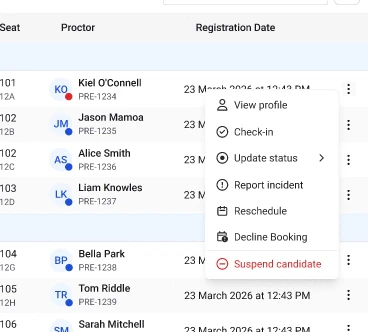
Image Follow these steps to record an exam incident. 1. Open the Candidates tab
  • Navigate to the Candidates tab within the center workflow.
  • This page displays all candidates scheduled for or attending exams at the center.
2. Locate the candidate involved in the incident
  • Scroll through the candidate list or use filters to find the candidate for whom the incident needs to be reported.
  • Each row includes information such as candidate name, exam slot, and exam status.
3. Open the candidate action menu On the right side of the candidate row, click the menu to view available actions. 4. Select the Report incident option
  • From the action menu, click Report incident.
  • This opens the Report exam incident panel.
5. Select the incident reason
  • From the Reason dropdown menu, choose the appropriate reason for reporting the incident.
  • Examples may include suspected cheating, use of unauthorized devices, or rule violations.
6. Add remarks describing the incident
  • In the Remarks field, enter a brief description explaining what occurred during the exam.
  • Include relevant details that may help administrators review the incident later.
7. Upload supporting documents (optional) If evidence such as images, logs, or documents is available, upload the files using the Upload document option. 8. Review the incident details Verify that the selected reason, remarks, and attachments accurately describe the incident. 9. Submit the incident report
  • Click Submit incident to record the incident.
  • Once submitted, the incident will be linked to the candidate’s exam record for administrative review.
Additional Tips
  • Provide clear and specific remarks so reviewers can understand the situation
  • Upload supporting evidence whenever possible to strengthen the incident report
  • Incident reports help maintain exam integrity and audit records
  • Once submitted, the incident becomes part of the candidate’s exam history