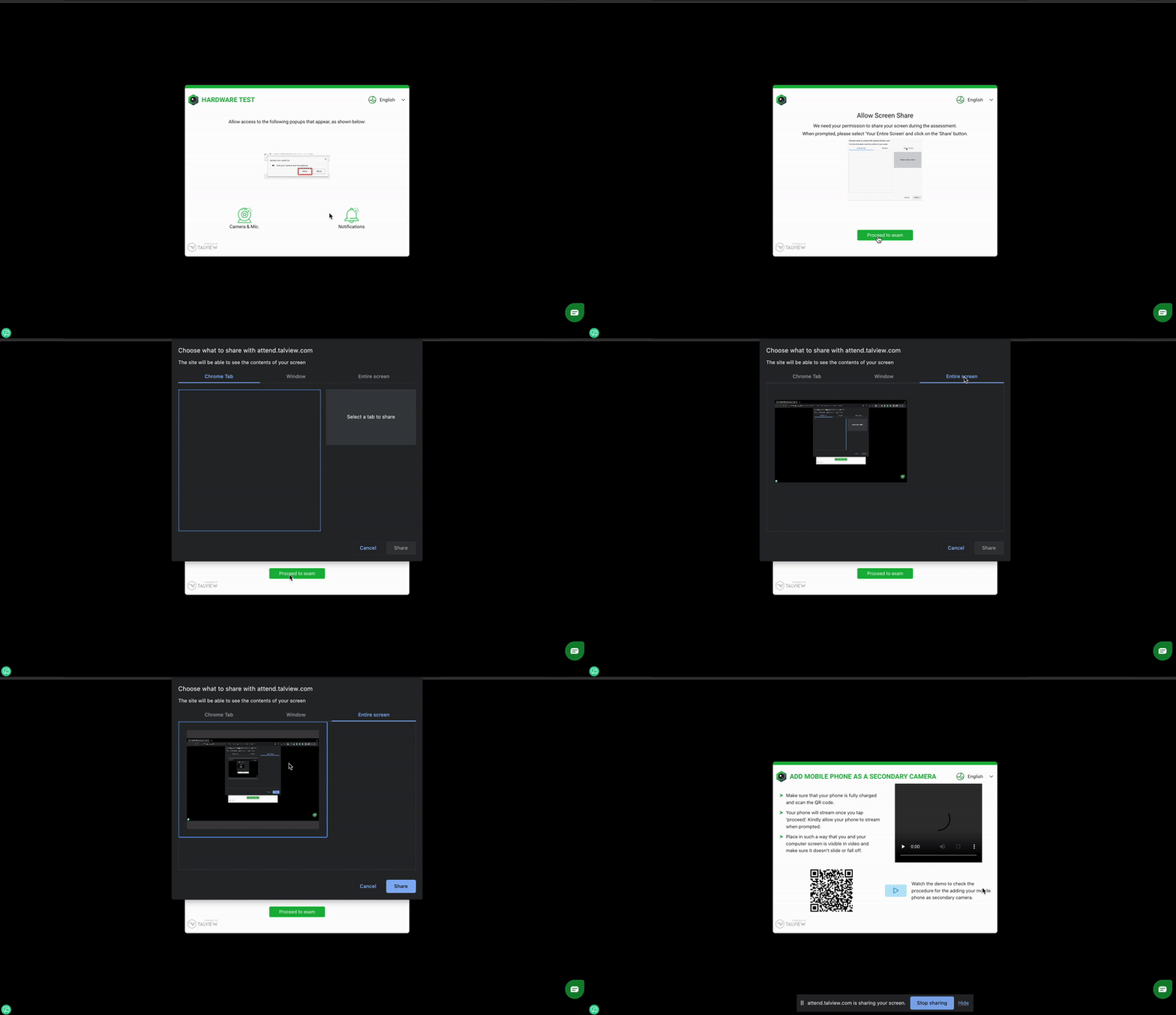
Screen sharing is mandatory during Talview’s onboarding process to verify your identity and maintain assessment integrity. During the attendee onboarding, you’ll be required to share your entire screen to allow the platform to monitor and record your on-screen activities throughout the session.
This article helps you understand the complete process of granting screen sharing permissions at both the system and browser levels.
Supported Browsers Talview V8 Proview supports screen sharing on the following browsers:
Google Chrome
Microsoft Edge
Note: Avoid using incognito or private browsing mode, as it may block screen sharing permissions.
System Permissions Setup Before sharing your screen in the browser, you must grant system-level permissions for screen recording.
For Windows:
Click the Start button and open Settings .
Select Privacy & Security from the left sidebar.
Under App permissions , enable Camera , Microphone , and Notifications for your web browser.
Make sure screen capture is allowed in Privacy settings.
For Mac:
Open System Settings from the Apple menu.
Navigate to Privacy & Security > Screen Recording.
Enable screen recording permission for your browser (Chrome, Edge, or Firefox).
How to Share Your Entire Screen In the interview/assessment page, continue with the prechecks and when prompted to share the screen:
Click Proceed to Exam when prompted to initiate screen sharing.
A browser permission window will appear displaying screen sharing options.
Select Entire screen from the options at the top of the window.
Click on the thumbnail preview of your screen below the options.
Click the Share button to confirm and begin sharing.
You must select and share your entire screen to proceed with the assessment.
Additional Tips:
Use a personal device with full access rather than corporate laptops with admin restrictions.
Disable browser extensions that may interfere with screen sharing permissions.
If you stop screen sharing during the session, you can resume by sharing your screen again without restarting prechecks.
Ensure your device doesn’t have endpoint protection software that blocks screen recording.