

Product Feature Document
Overview
Scheduling a live interview involves multiple stakeholders — recruiters, candidates, and interviewers — each with their own calendars, preferences, and constraints. Coordinating across all three often leads to delays, repeated follow-ups, and scheduling conflicts that slow down hiring. Talview eliminates this friction entirely. With Talview’s Workflow Tools and Interview Rooms working in seamless tandem, recruiters can schedule live interviews in minutes — with built-in availability checks, automated invitations, and a powerful RSVP system that keeps every stakeholder informed and in control at every step. This document walks through the complete end-to-end flow of scheduling a live Technical Interview for candidate Jenson, managed by Recruiter Deepak, with John as the designated interviewer — from the initial scheduling action all the way through to RSVP responses, rescheduling, and cancellation.Section 1: Recruiter Experience — Scheduling the Interview
Step 1.1 — Selecting the Candidate from the Workflow Pipeline
The scheduling journey begins inside Talview’s Workflow Tools, where recruiters manage their entire hiring pipeline for a given job role. In this scenario, Recruiter Deepak navigates to the Fullstack Developer workflow, which shows a structured pipeline across multiple stages — Resume Screening, Technical Assessment, Technical Interview, and HR Interview — giving a clear, at-a-glance view of where every candidate stands. Deepak selects candidate Jenson from the Resume Screening stage by checking the checkbox next to his name. With the candidate selected, the “Schedule” button becomes active at the bottom of the screen.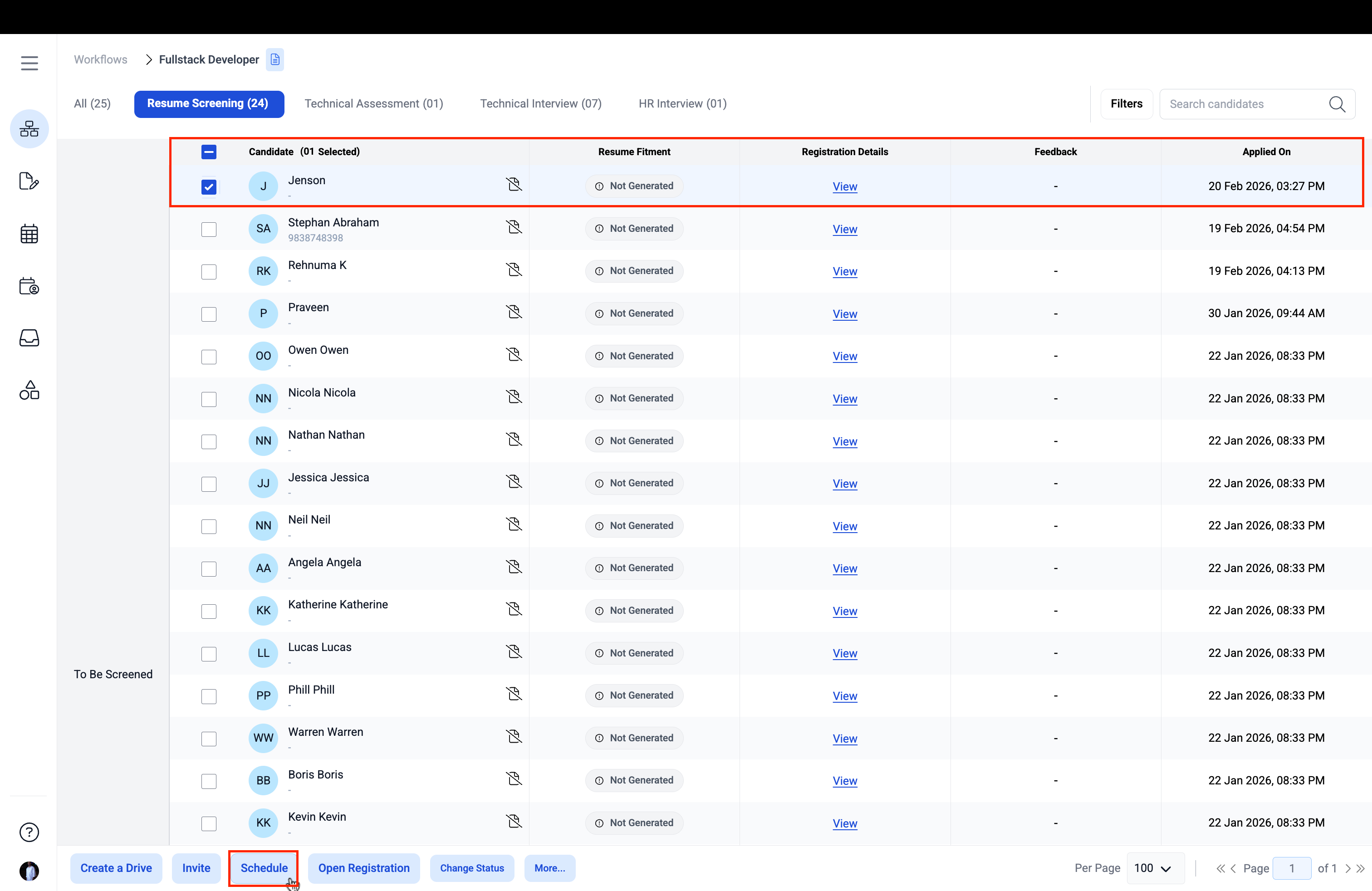
Step 1.2 — Configuring the Interview: Stage, Duration & Interview Format
Clicking Schedule opens a scheduling window on the right side of the screen — without navigating away from the candidate list. This keeps the recruiter in full context of the workflow at all times. The window displays the following configuration fields:- Workflow — Pre-populated with the current workflow (Fullstack Developer)
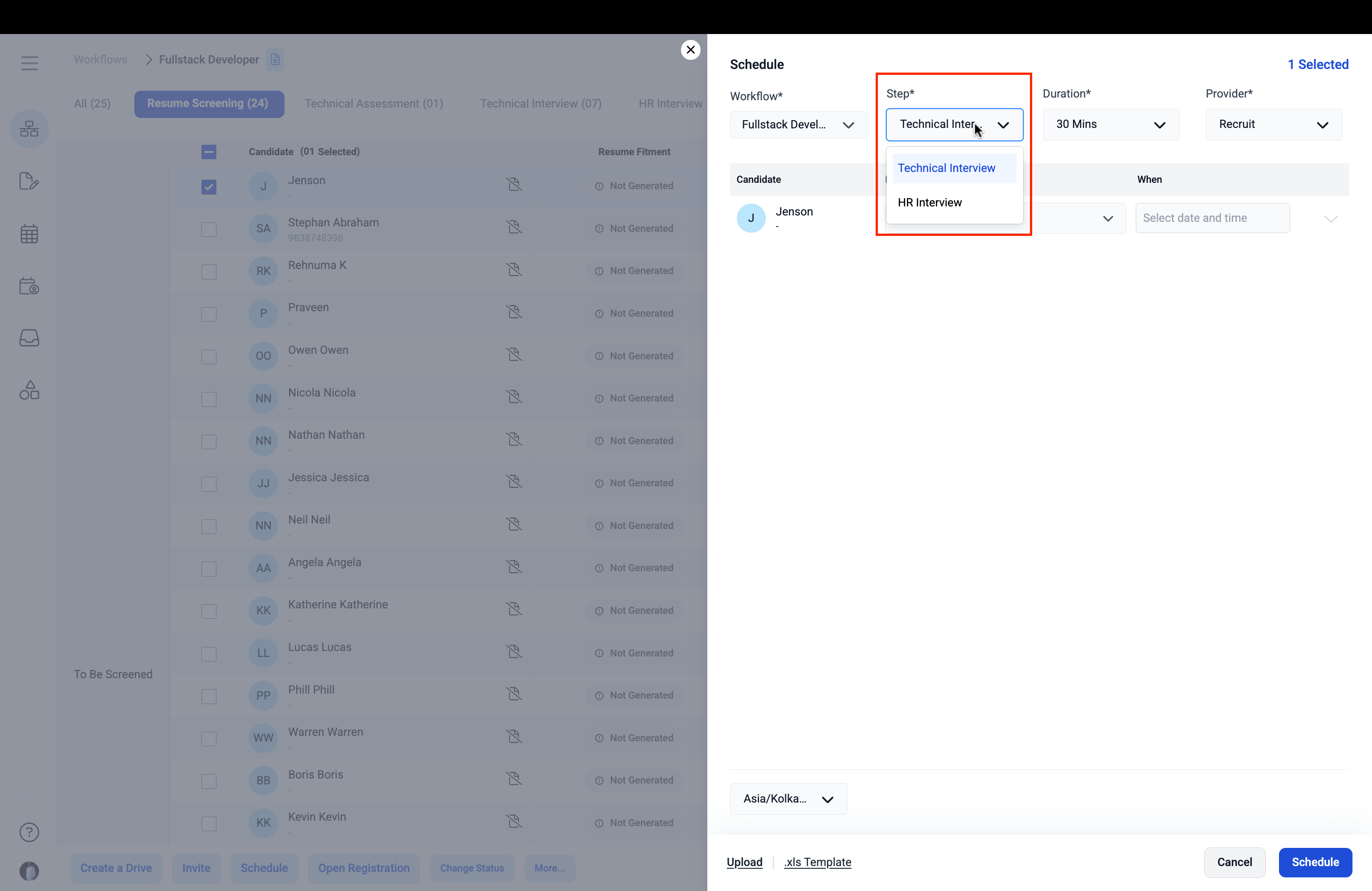
- Step — A dropdown to select the interview stage. Deepak selects Technical Interview from the available options (Technical Interview, HR Interview)
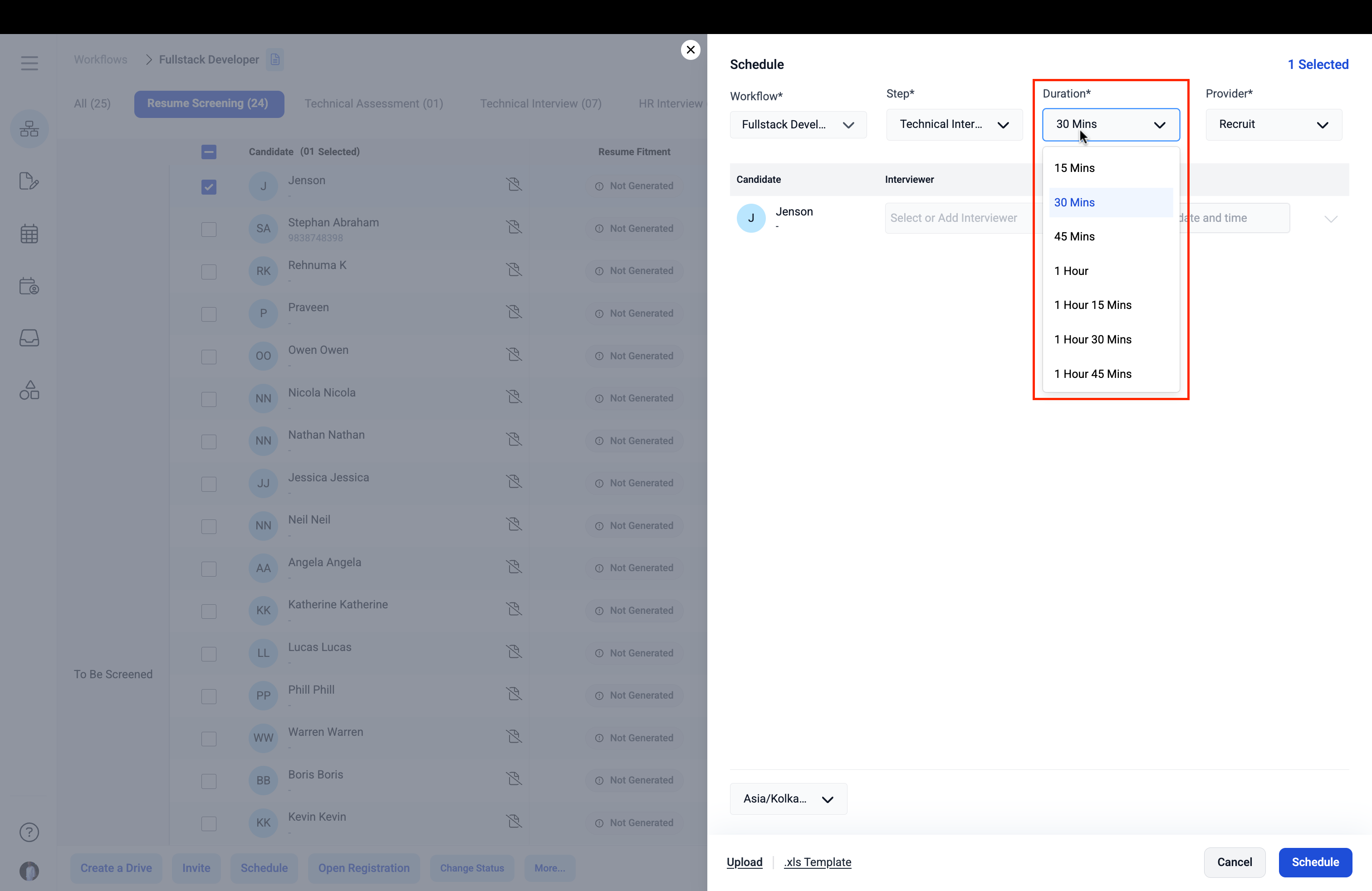
- Duration — A dropdown offering flexible slot lengths: 15 Mins, 30 Mins, 45 Mins, 1 Hour, 1 Hour 15 Mins, 1 Hour 30 Mins, and 1 Hour 45 Mins. Deepak selects 30 Minutes
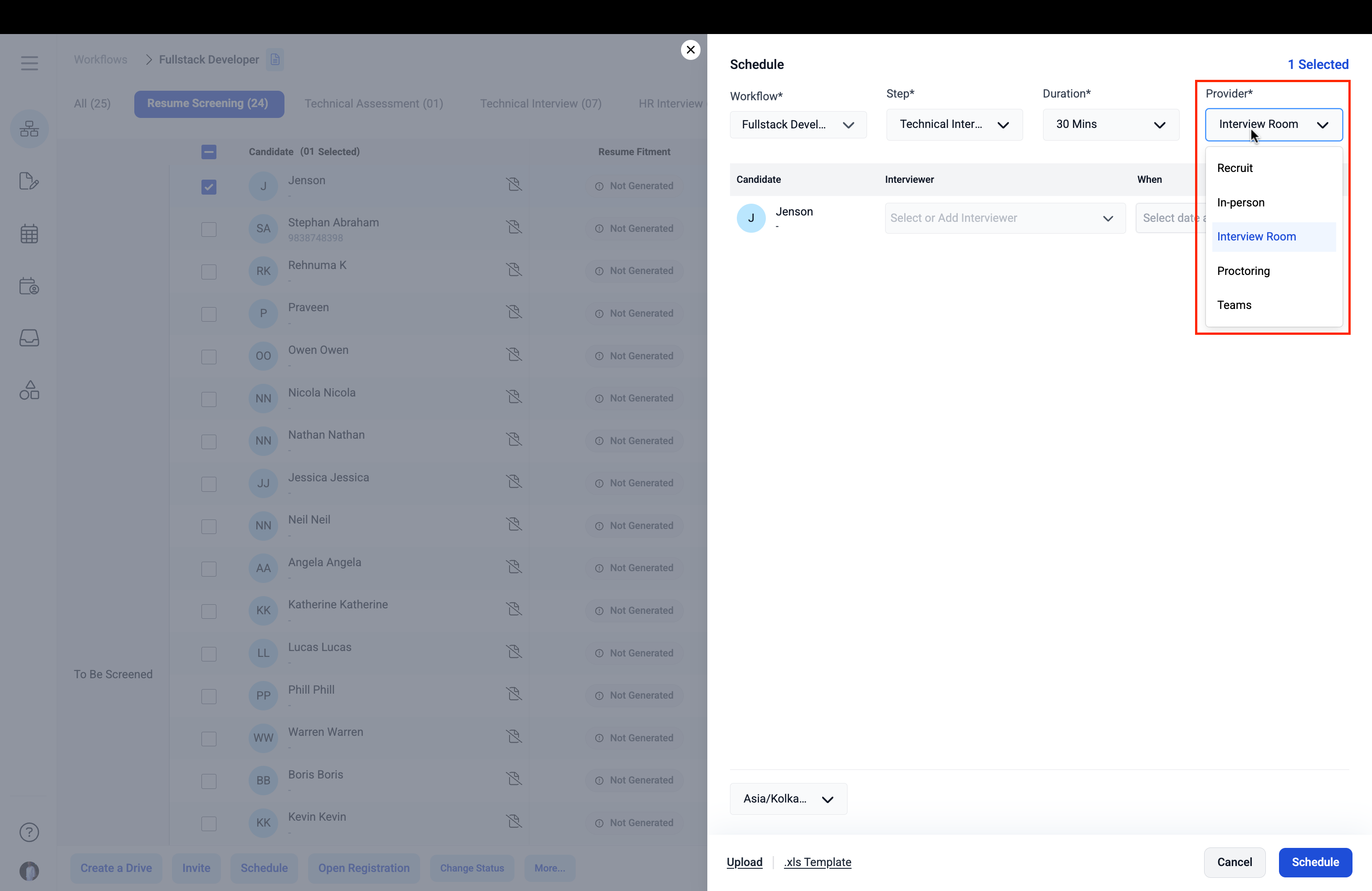
- Provider — A dropdown to select the interview format
Duration dropdown open showing all available optionsThe Provider dropdown is where Talview’s flexibility shines. Recruiters can choose from multiple interview formats:
- In-person — For on-site interviews
- Interview Room — Talview’s live virtual interview environment
- Teams — For Microsoft Teams-based interviews
Interview format dropdown open with Interview Room selected
Step 1.3 — Assigning the Interviewer
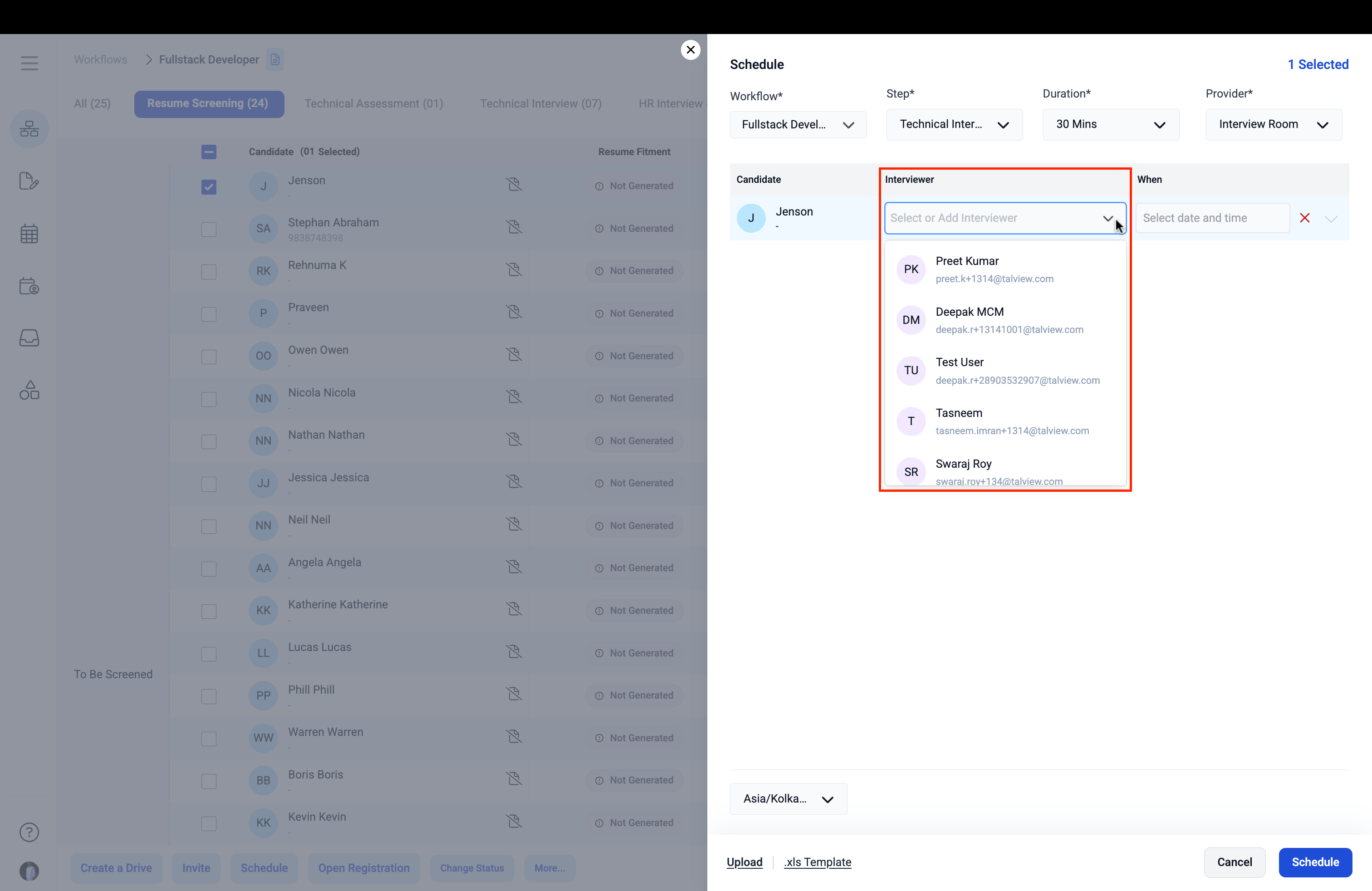
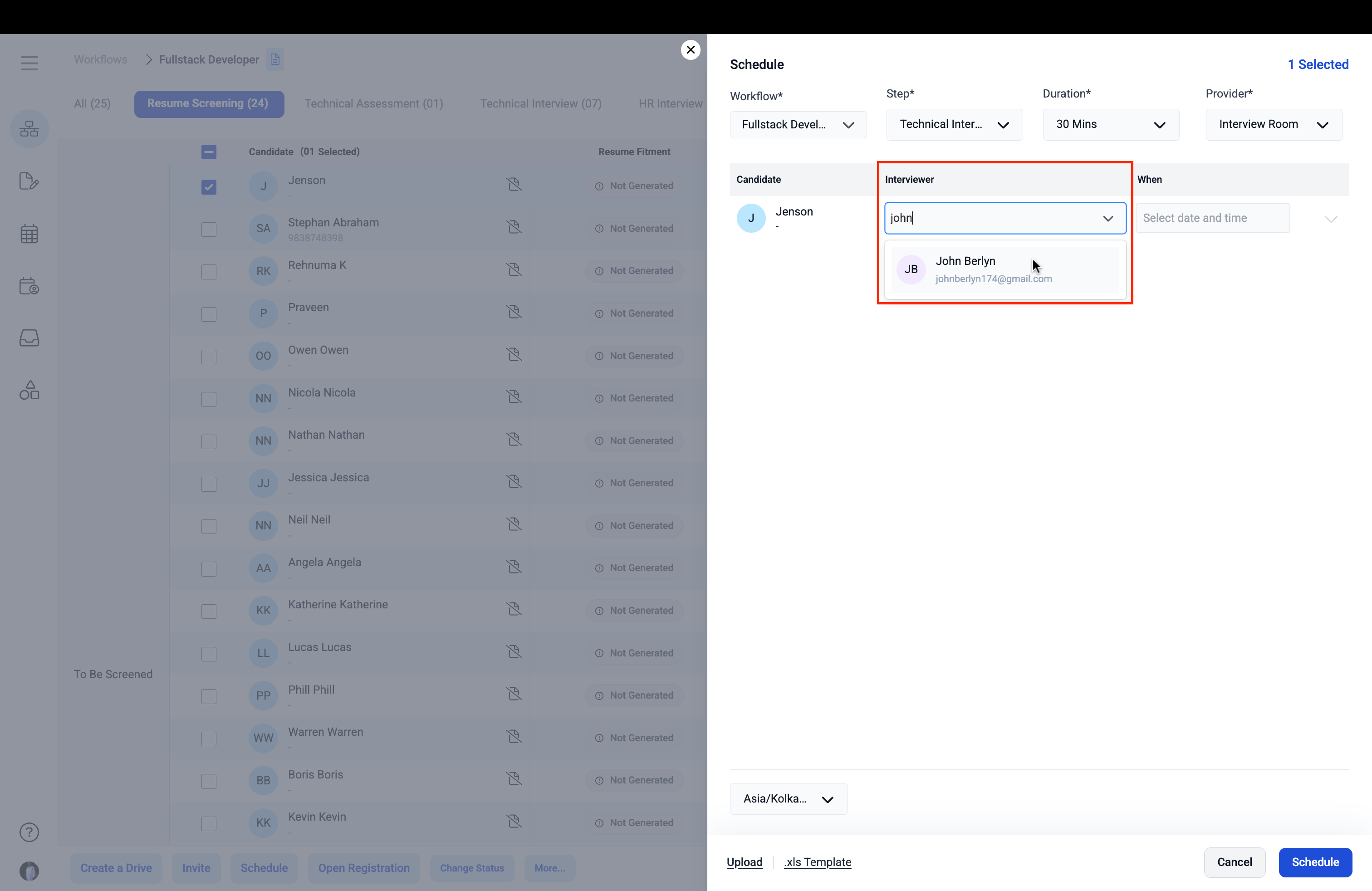
With the interview configuration set, the window presents an Interviewer field alongside the candidate row. Deepak types “john” into the search field, and Talview’s live search instantly filters the list of available interviewers, surfacing John from the panel.Interviewer dropdown open showing available panel members
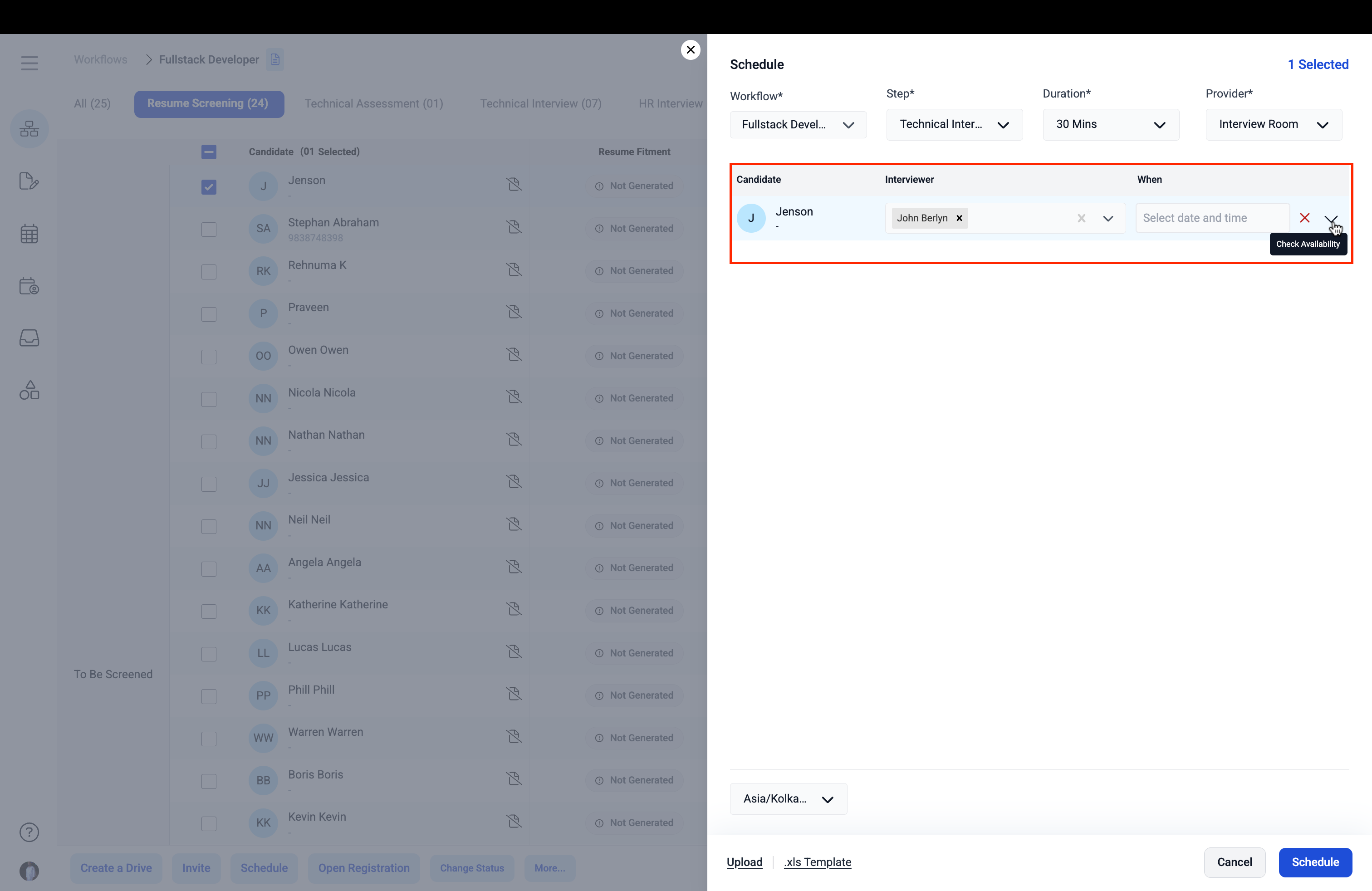
Recruiter searches “john”; John appears as the resultDeepak selects John, who appears as a selected name tag in the Interviewer field, confirming the assignment. A “Check Availability” option appears near the date and time field — allowing the recruiter to verify John’s availability before locking in a time slot.
John selected as interviewer; Check Availability option visible
Step 1.4 — Checking Availability & Selecting a Time Slot
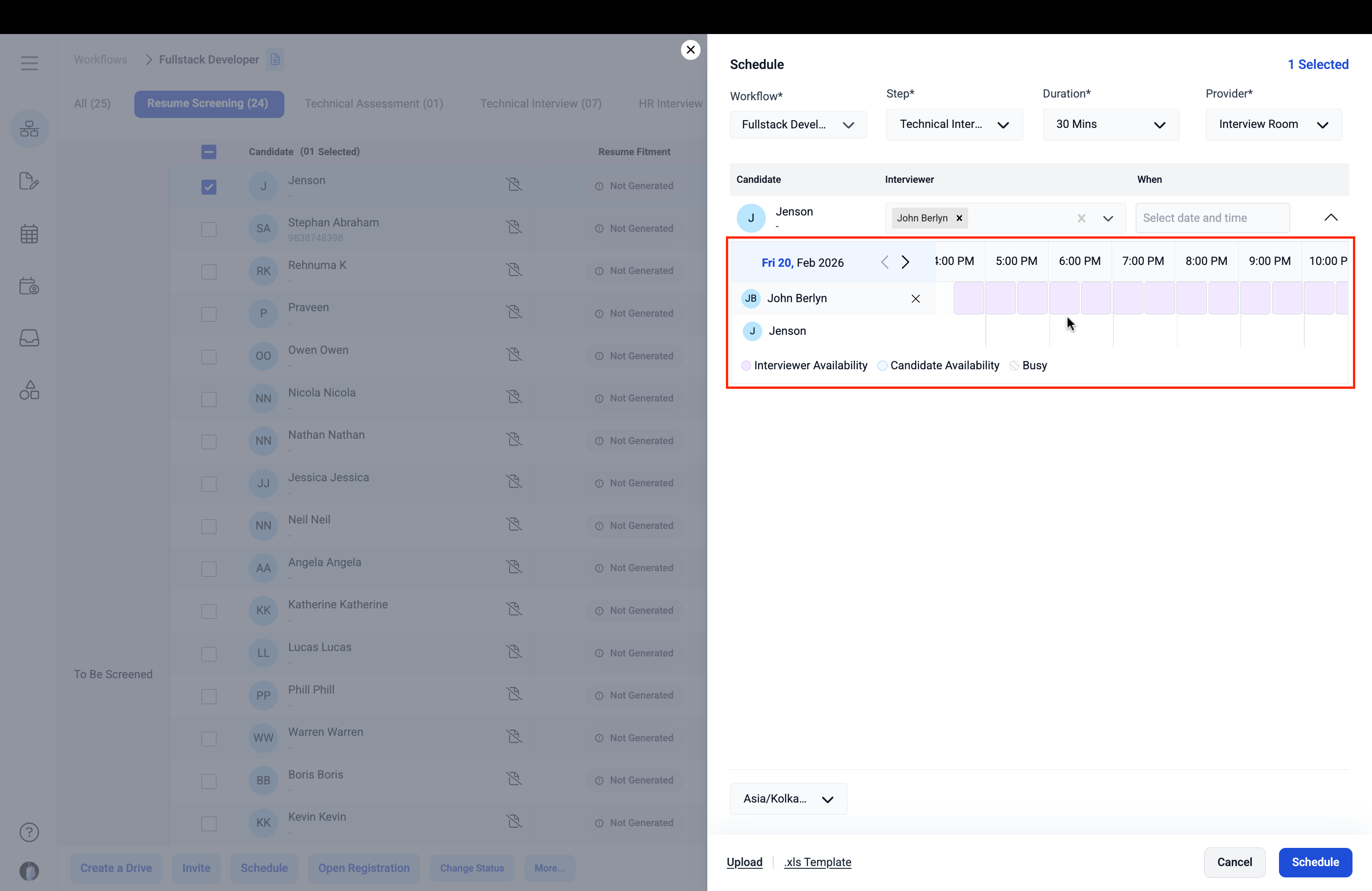
Clicking Check Availability expands an availability calendar directly within the scheduling window. This calendar displays:- John’s availability — highlighted in purple
- Jenson’s availability — displayed in a separate row
- Busy slots — clearly marked for easy avoidance
- Date navigation — allowing the recruiter to browse across dates
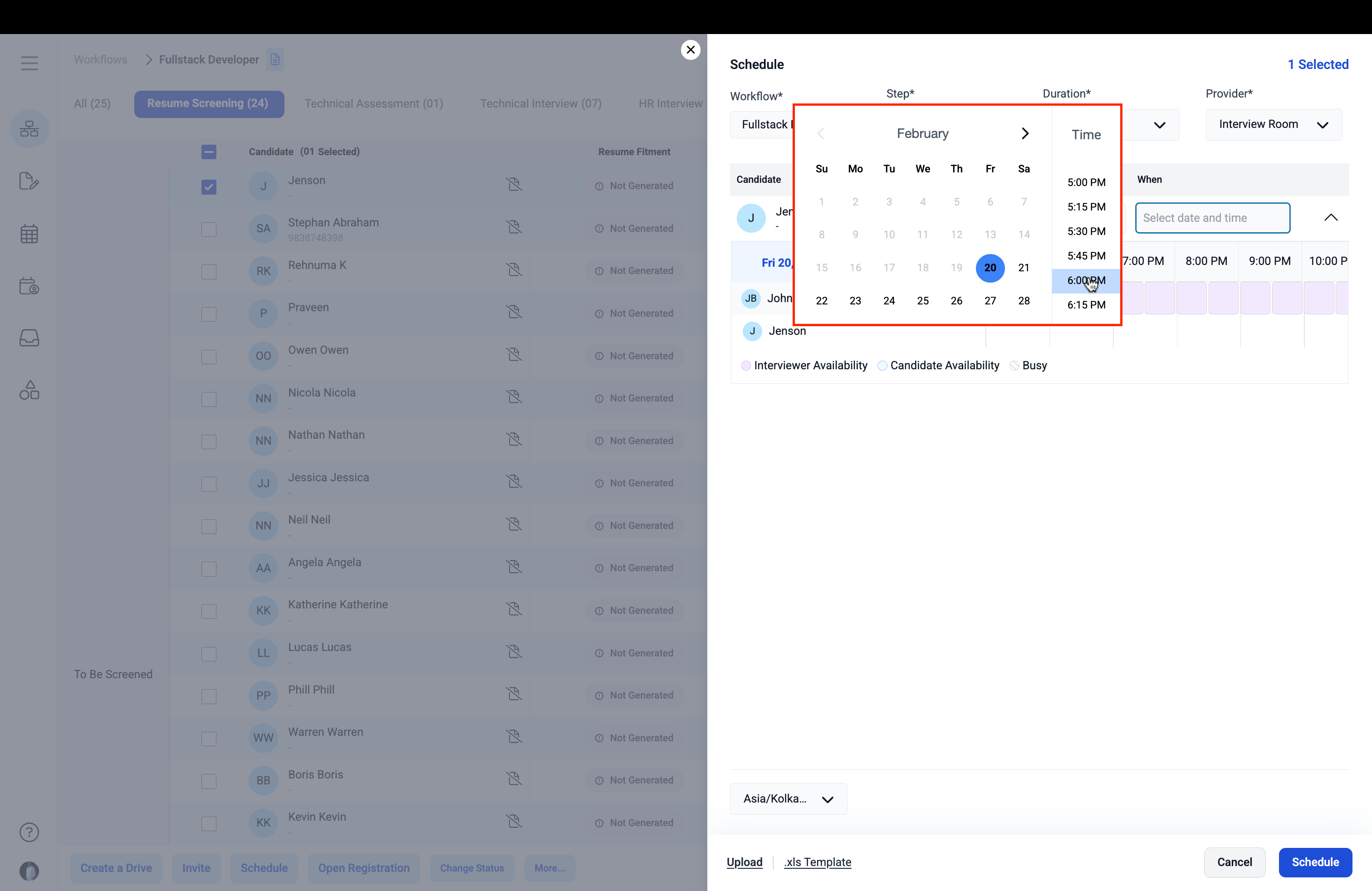
Availability calendar showing John and Jenson’s availability side by sideDeepak selects February 20, 2026 and opens the time picker, which presents available slots in 15-minute increments. He selects 6:00 PM, which is confirmed by a green highlight on both John’s and Jenson’s rows — visually confirming that this slot works for everyone.
Date and time picker open; 6:00 PM selected
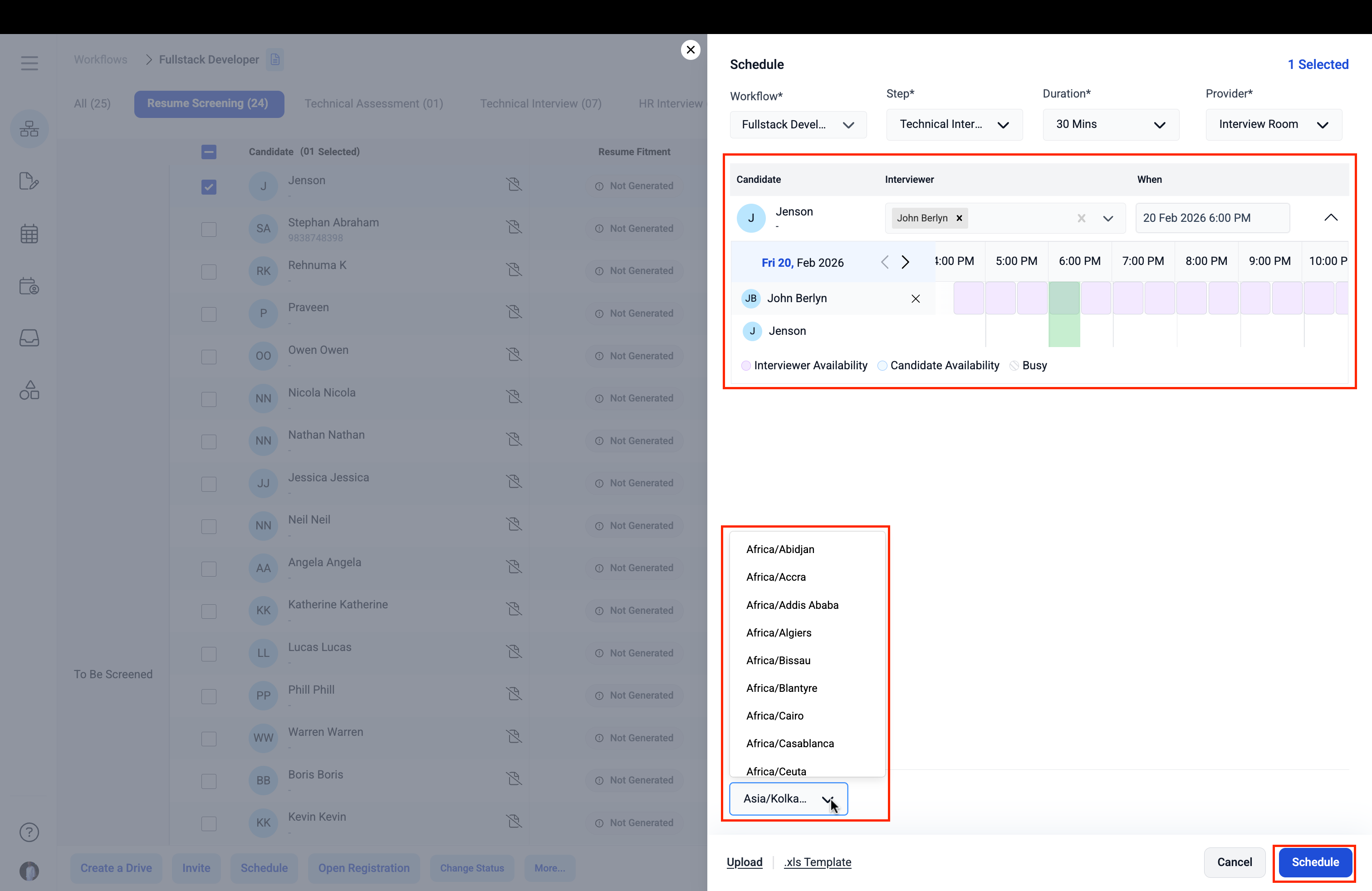
Green indicator confirms mutual availability at 6:00 PM; Timezone dropdown open showing global optionsThe window also displays a comprehensive timezone selector — supporting time zones across the globe — making Talview ready for organizations with distributed and international hiring teams.
Step 1.5 — Confirming the Schedule
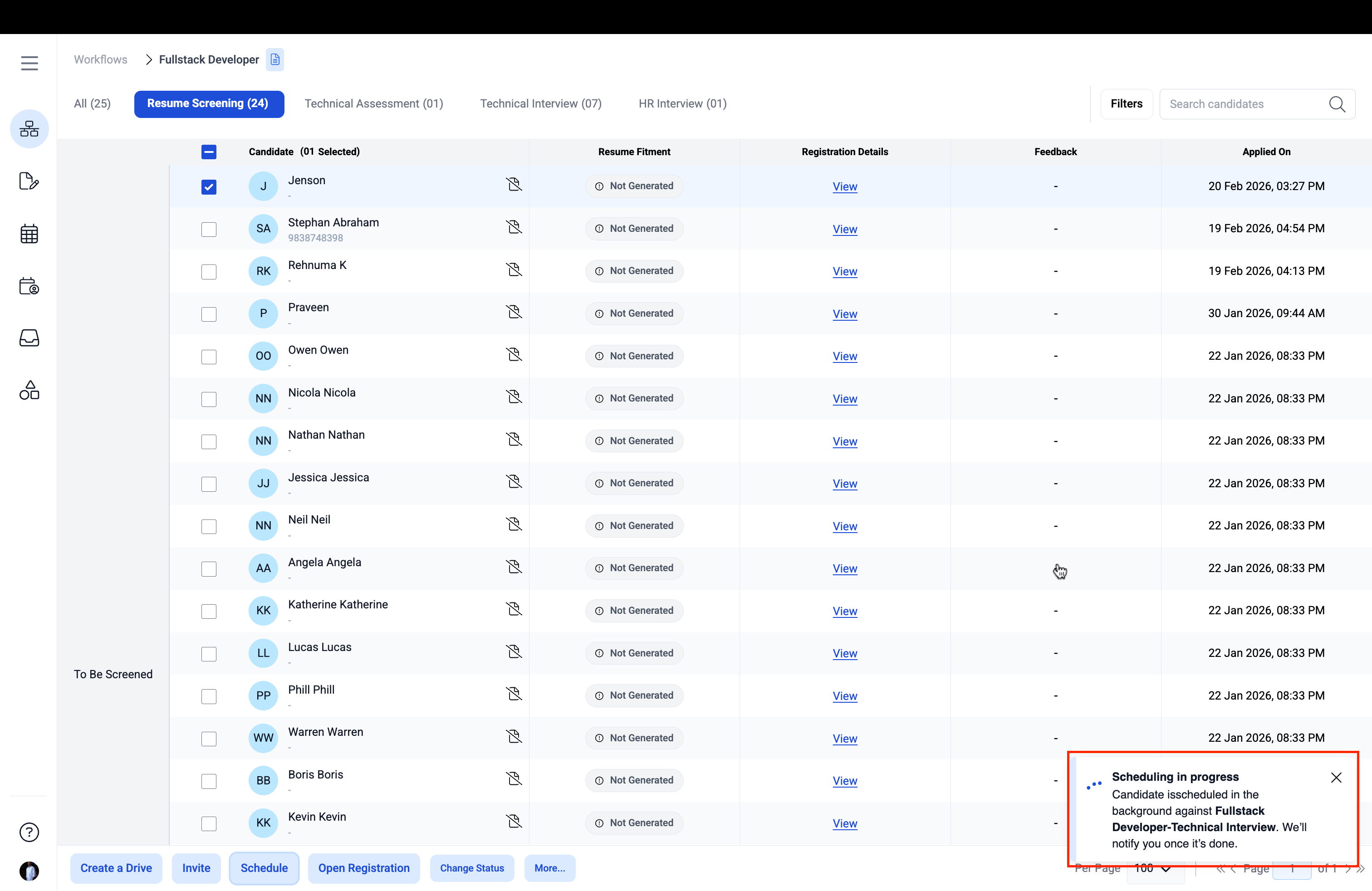
With all fields configured — Workflow, Stage, Duration, Interview Format, Interviewer, and Date/Time — Deepak clicks the Schedule button. The scheduling window closes and the recruiter is returned to the full workflow view. A pop-up confirmation message appears in the bottom-right corner of the screen:“Scheduling in progress — Candidate is scheduled in the background against Fullstack Developer-Technical Interview. We’ll notify you once it’s done.”
The system processes the scheduling in the background while Deepak continues working — he does not need to wait or stay on the page for the action to complete.
Step 1.6 — Viewing the Scheduled Interview
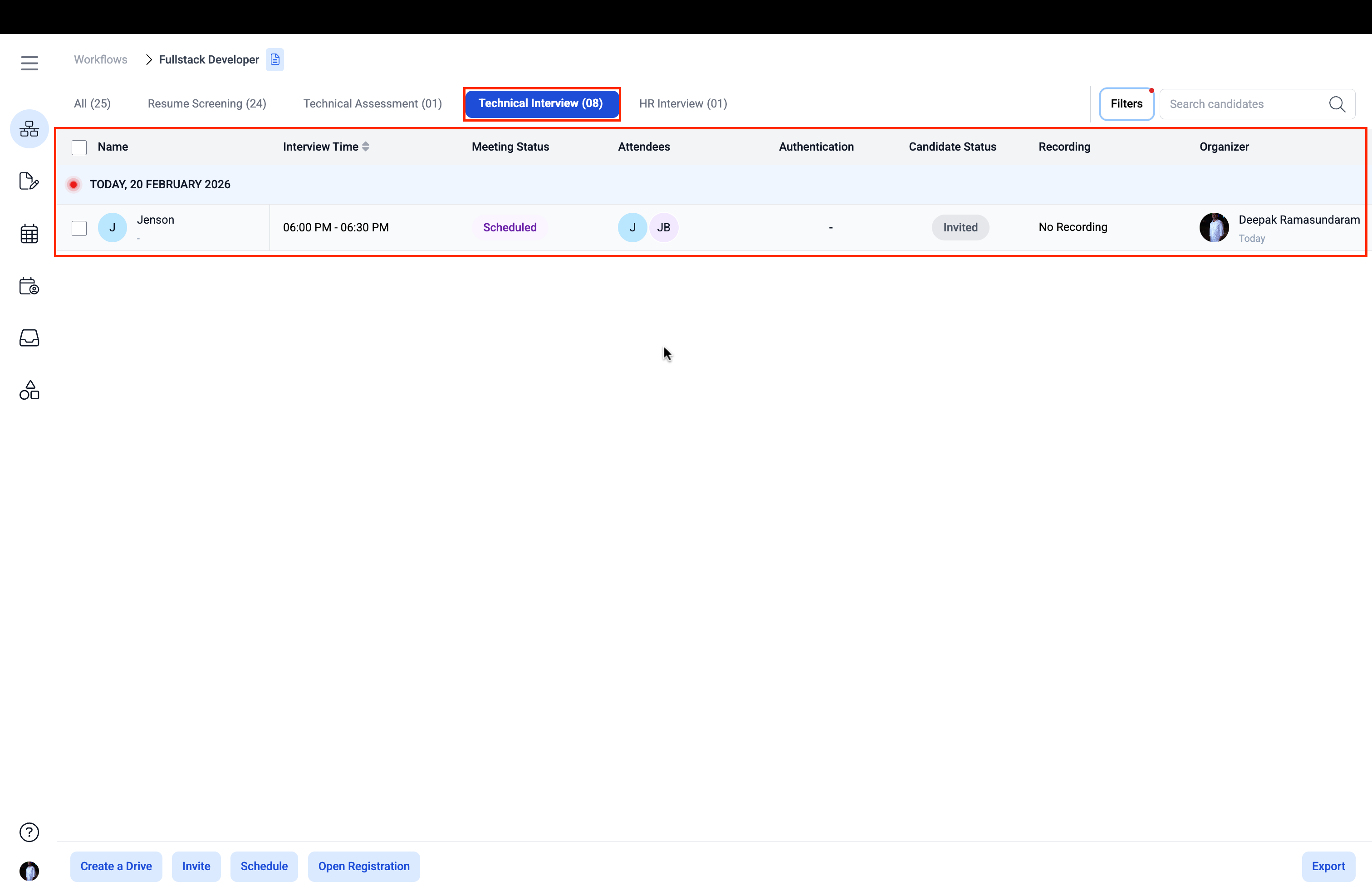
Once scheduling is complete, Jenson’s interview appears under the Technical Interview (08) tab — the count having automatically updated to reflect the new addition. The interview list presents a clear, consolidated view of all scheduled technical interviews with the following details: Candidate Name, Interview Time, Meeting Status, Attendees, Candidate Status, Recording preference, and Organizer. Jenson’s entry shows:- Interview Time: 06:00 PM – 06:30 PM
- Meeting Status: Scheduled
- Attendees: Jenson + John
- Candidate Status: Invited
- Organizer: Deepak
Technical Interview tab showing Jenson’s scheduled interview
Step 1.7 — Interview Details View
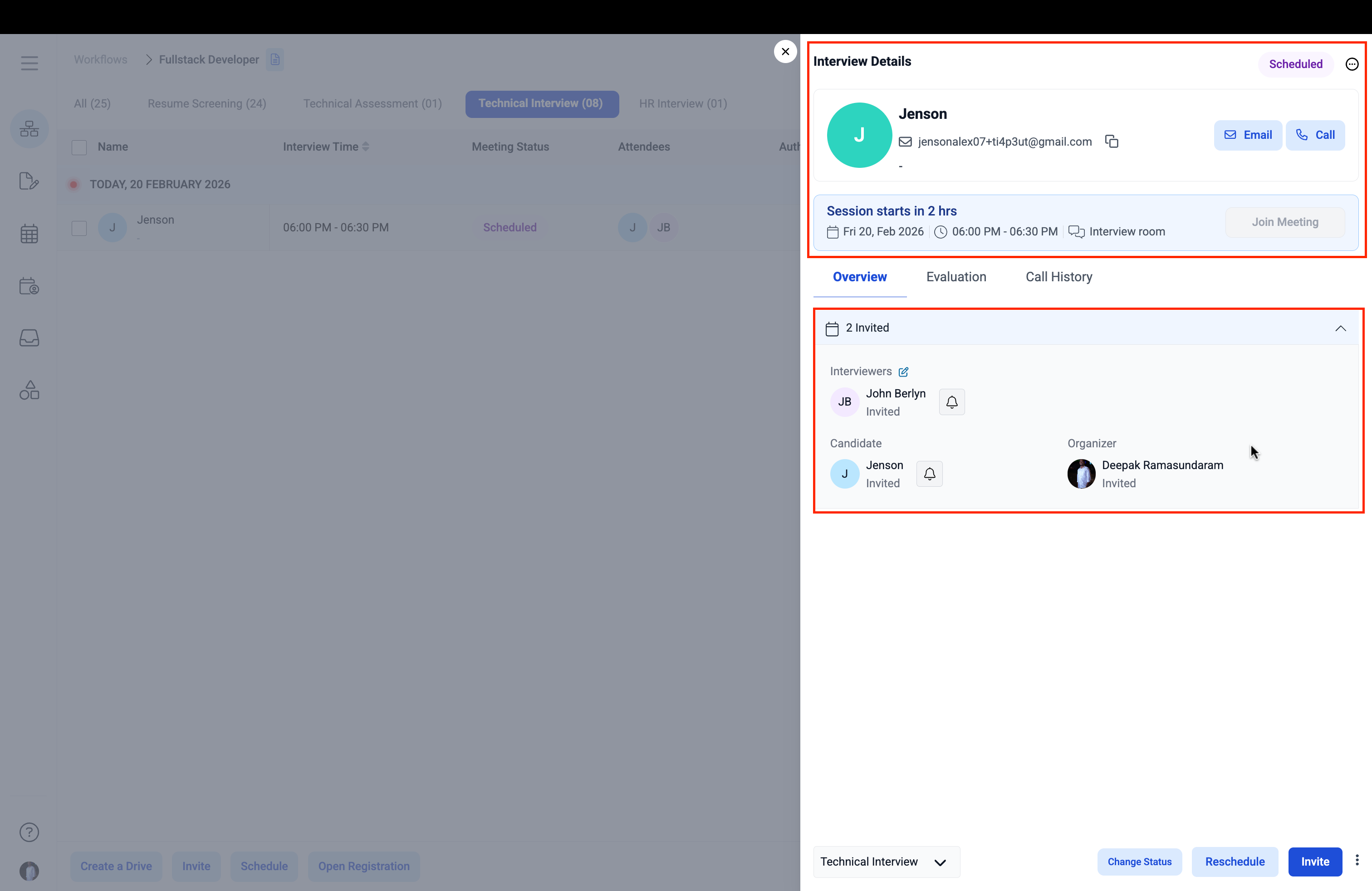
Clicking on Jenson’s row opens the Interview Details view — a comprehensive summary panel for the recruiter. It displays:- Candidate name and quick-action Email and Call buttons for direct outreach
- A live session countdown (“Session starts in 2 hrs”)
- Session date, time, and interview format (Interview Room)
- A “Join Meeting” button for the recruiter to join directly when needed
- Tabs for Overview, Evaluation, and Call History
- An attendee section showing the confirmation status for all parties — Interviewers, Candidate, and Organizer
Interview Details view showing all parties with Invited status
Section 2: The RSVP Feature — Candidate Experience
Talview’s RSVP system is the defining capability that sets its scheduling workflow apart from conventional calendar-based tools. Every invited stakeholder — candidate, interviewer, and organizer — receives a structured, actionable invitation that allows them to respond, reschedule, or decline directly from their email inbox, with no platform login required.Step 2.1 — The Candidate Receives the Interview Invitation
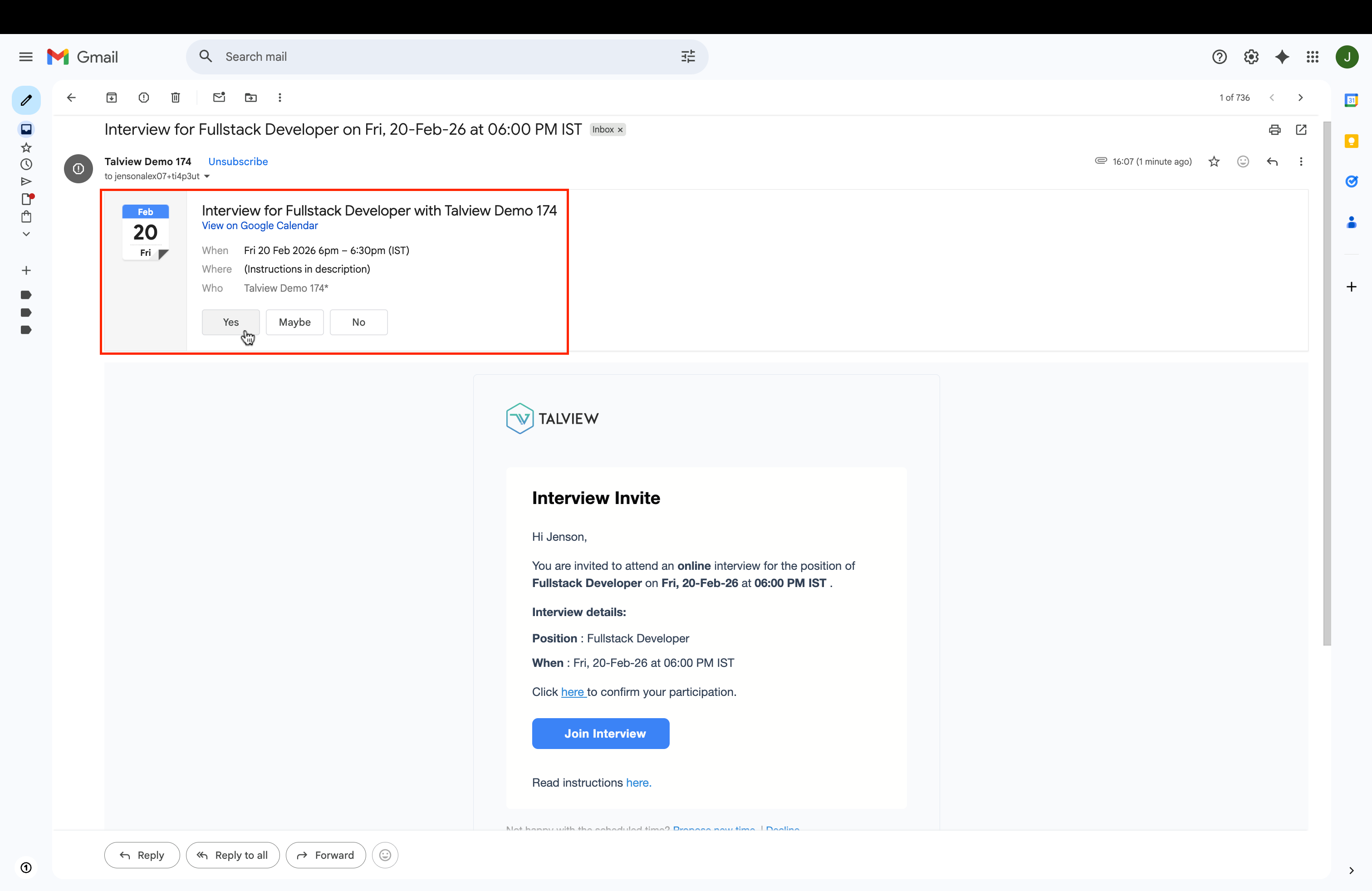
Candidate Jenson receives a fully branded Interview Invite email in his inbox from Talview. The email contains everything he needs to act:- Subject: Interview for Fullstack Developer on Fri, 20-Feb-26 at 06:00 PM IST
- A Google Calendar invite embedded at the top — with the event details and RSVP buttons (Yes / Maybe / No) that add the interview directly to his calendar
- A link to confirm participation within the email itself
- A prominent “Join Interview” button for one-click access to the Interview Room on the day of the interview
- A “Read Instructions” link to help Jenson prepare ahead of time
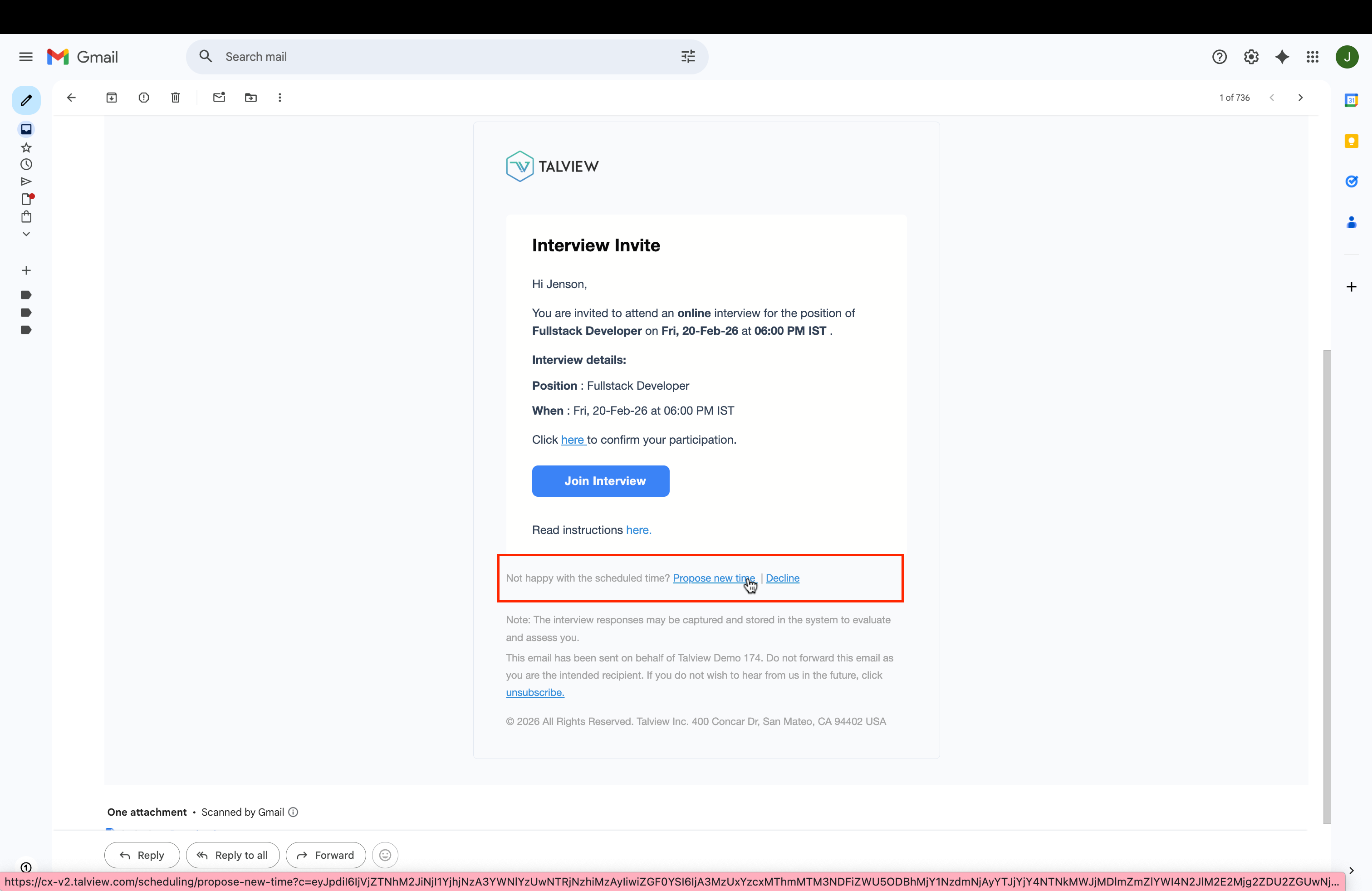
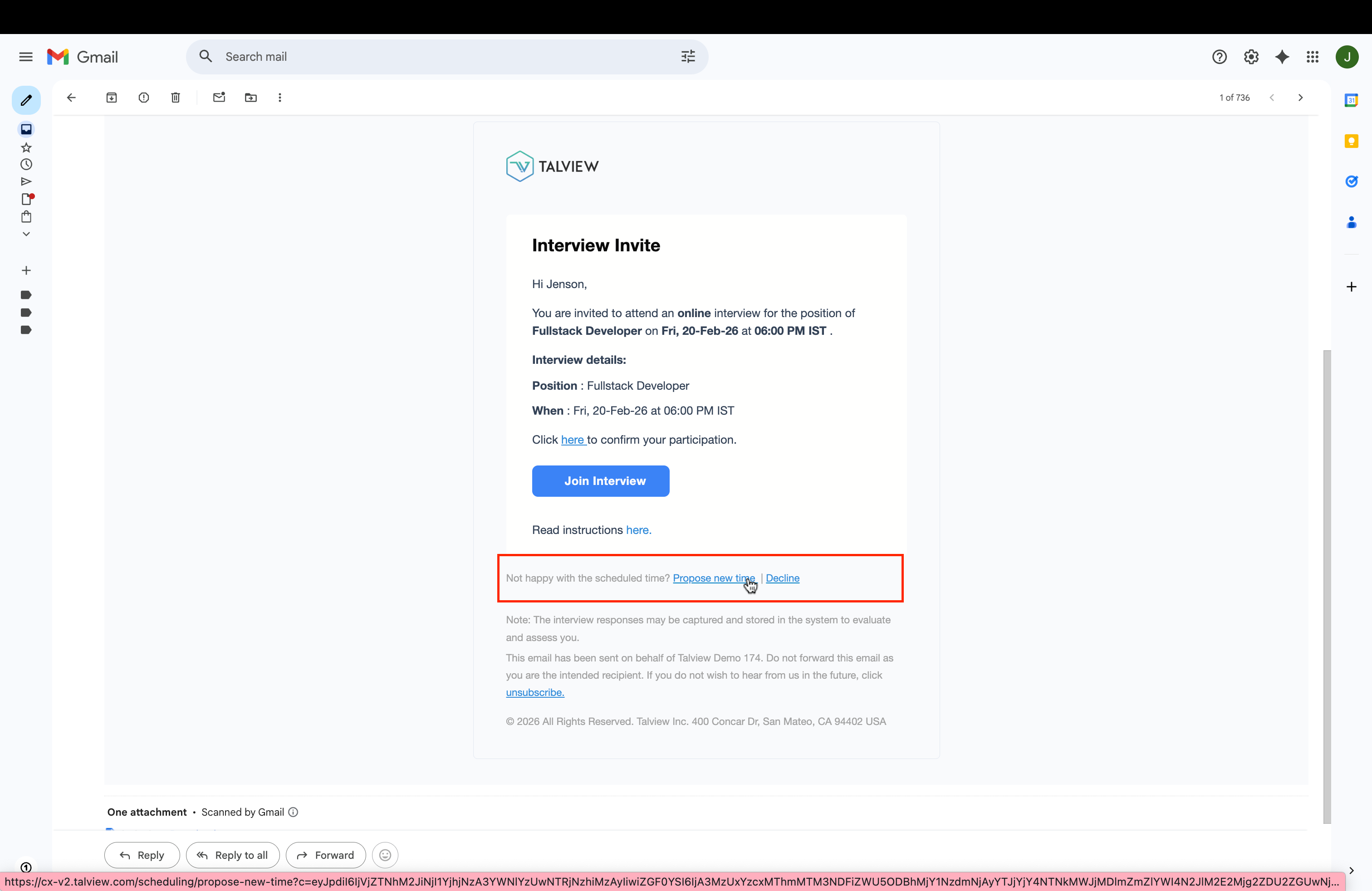
- At the bottom: “Not happy with the scheduled time? Propose new time | Decline”
Jenson’s inbox showing the Interview Invite email with Google Calendar invite and RSVP buttons
Full email body showing Propose new time and Decline options at the bottomThe email is entirely self-contained. Jenson can accept, reschedule, or decline without navigating to any external portal or logging into any system.
Step 2.2 — Candidate Accepts the Interview (RSVP: Yes)
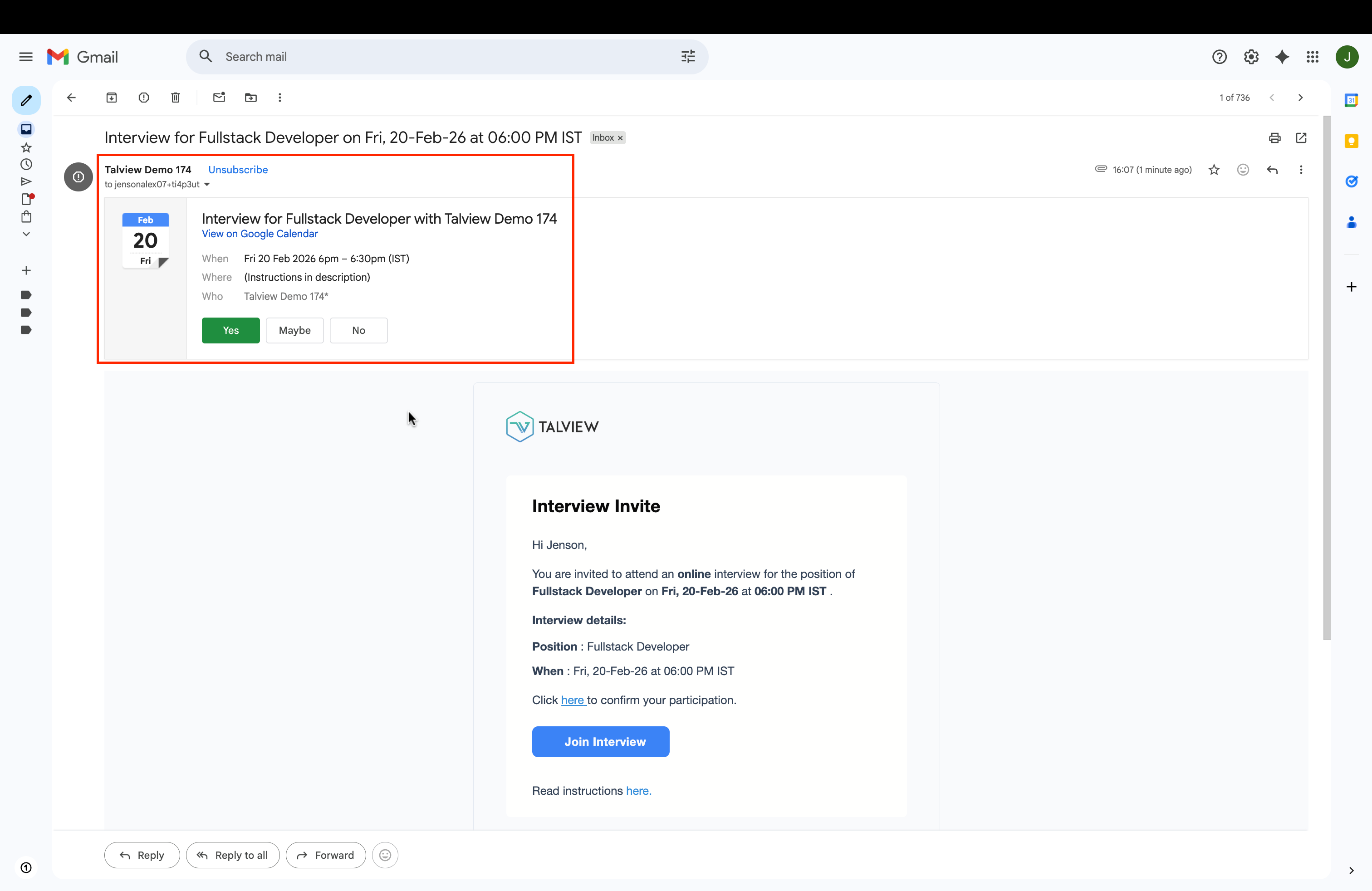
Jenson reviews the invitation and clicks “Yes” on the Google Calendar RSVP option. The button immediately changes to a solid green filled state — providing instant visual confirmation that his response has been recorded.Jenson clicks Yes; the RSVP button turns solid green
Step 2.3 — Acceptance Reflected on the Recruiter’s View
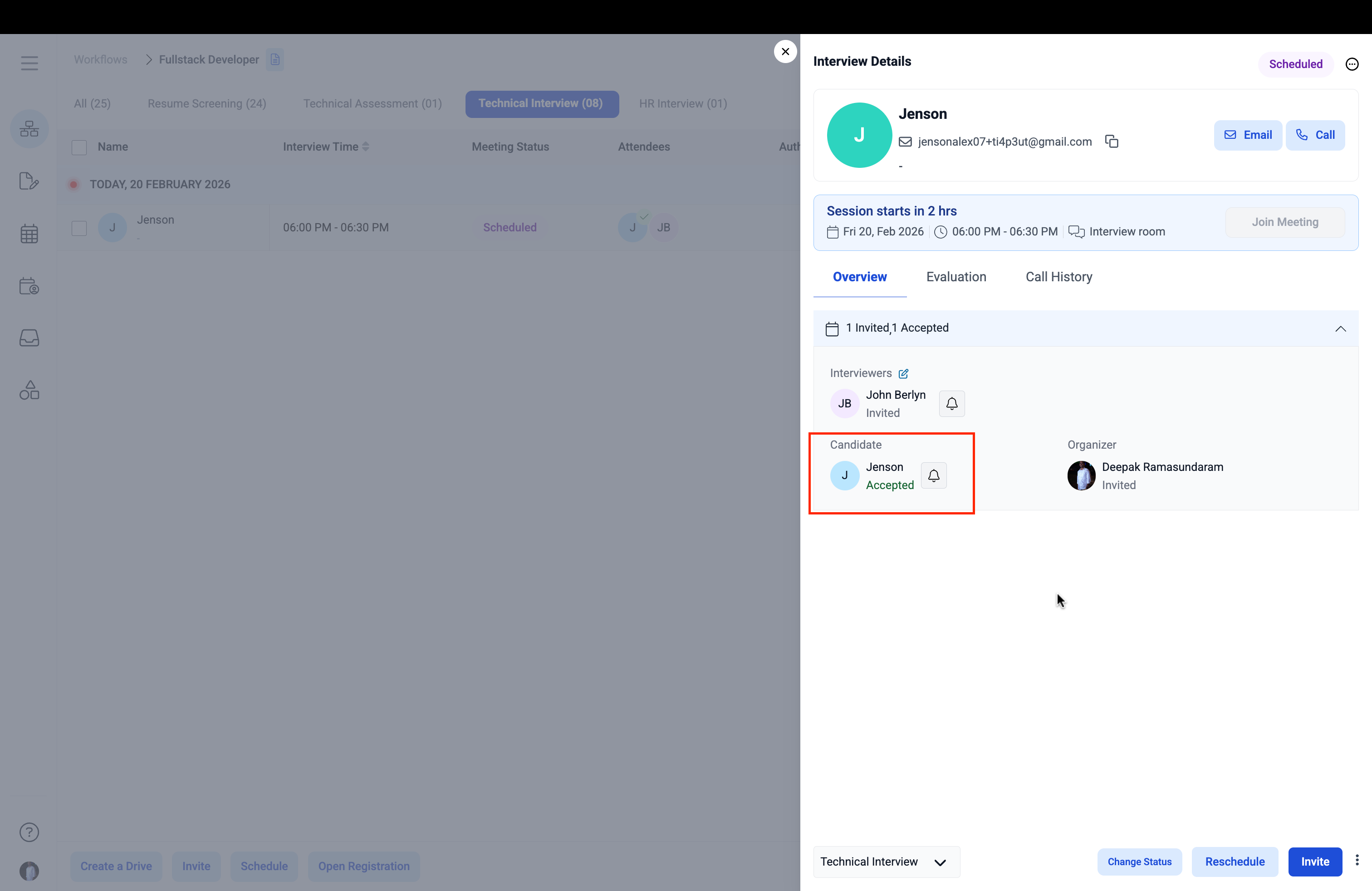
The moment Jenson accepts, Recruiter Deepak’s Interview Details view updates automatically — no manual refresh required:- The attendee summary updates from “2 Invited” to “1 Invited, 1 Accepted”
- Jenson’s status changes from “Invited” to “Accepted” (displayed in green)
- A checkmark appears on Jenson’s name in the background interview list
Recruiter view showing Jenson’s status updated to AcceptedThis real-time confirmation tracking eliminates the need for manual follow-up entirely. Deepak can see at a glance who has confirmed and who is still pending — allowing him to focus his attention only where it is needed.
Step 2.4 — Candidate Proposes a New Time
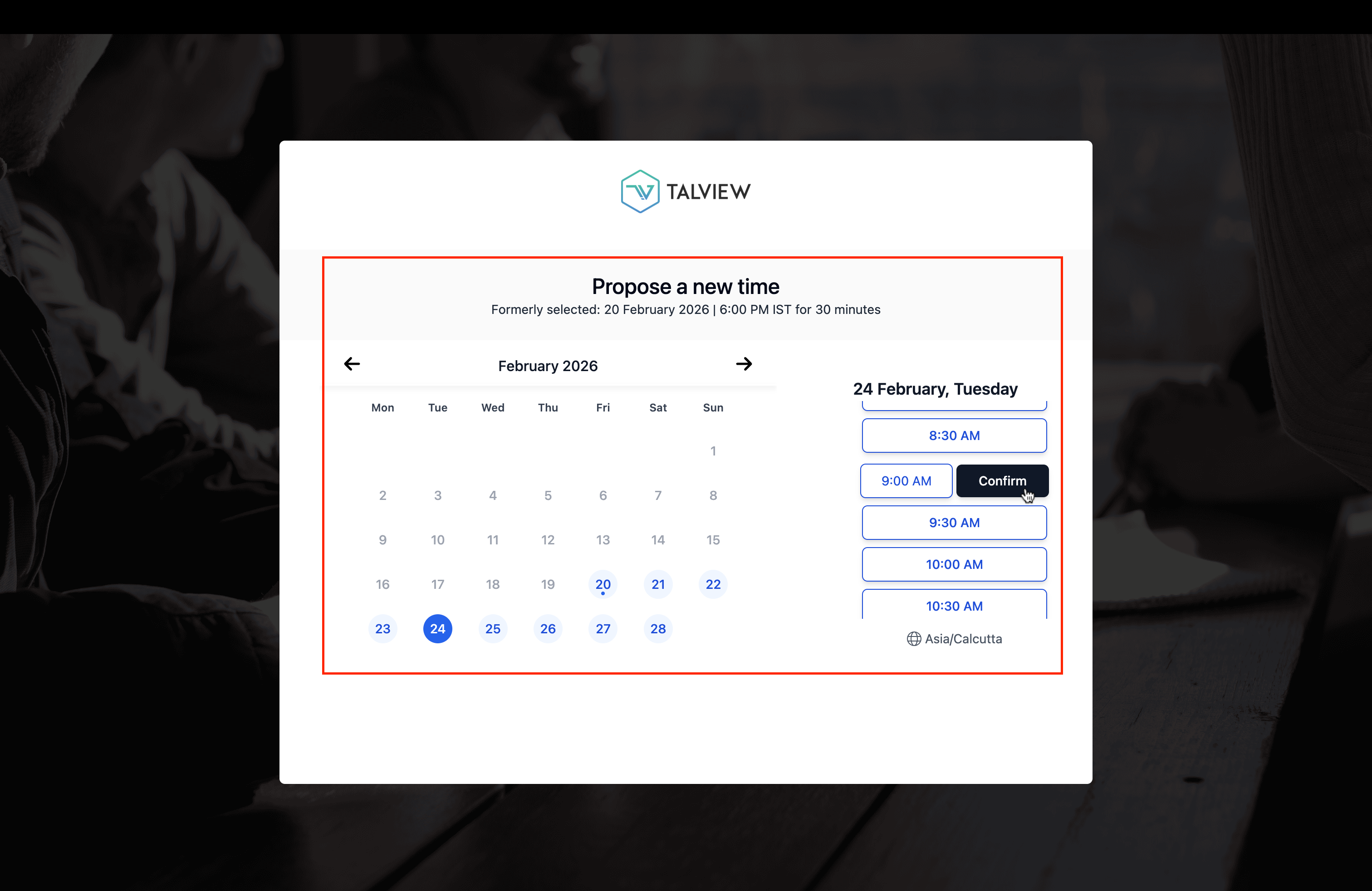
If the scheduled time does not suit the candidate, Jenson can click “Propose new time” in the email. This directs him to a dedicated, branded Talview page — no login required. The page displays:- A clear title: “Propose a new time”
- A reference to the originally scheduled slot: “Formerly selected: 20 February 2026 | 6:00 PM IST for 30 minutes”
- A February 2026 calendar with available dates highlighted
- Available time slots for the selected date
- Timezone indicator (Asia/Calcutta)
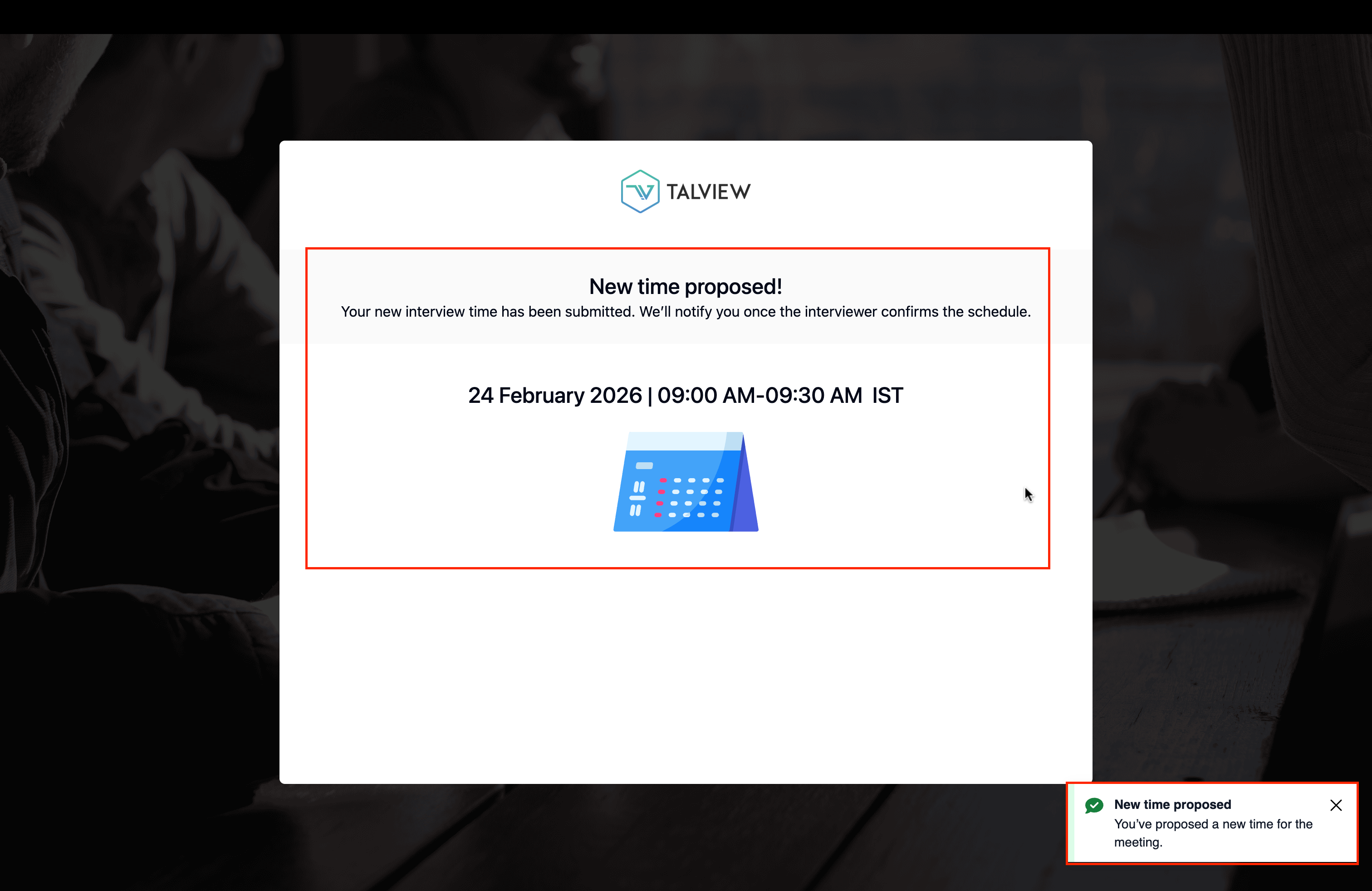
[Propose a new time page showing calendar and available slots; 9:00 AM on Feb 24 selected]A critically important detail: the available slots shown to Jenson are drawn directly from John’s actual availability — ensuring Jenson can only propose times that genuinely work for the interviewer, preventing any chance of a conflict. Upon clicking Confirm, a “New time proposed!” confirmation page appears, along with a green pop-up message at the bottom of the screen:
“New time proposed — 24 February 2026 | 09:00 AM – 09:30 AM IST""We’ll notify you once the interviewer confirms the schedule.”
New time proposed confirmation page with pop-up message
Step 2.5 — Proposed New Time Reflected on the Recruiter’s View
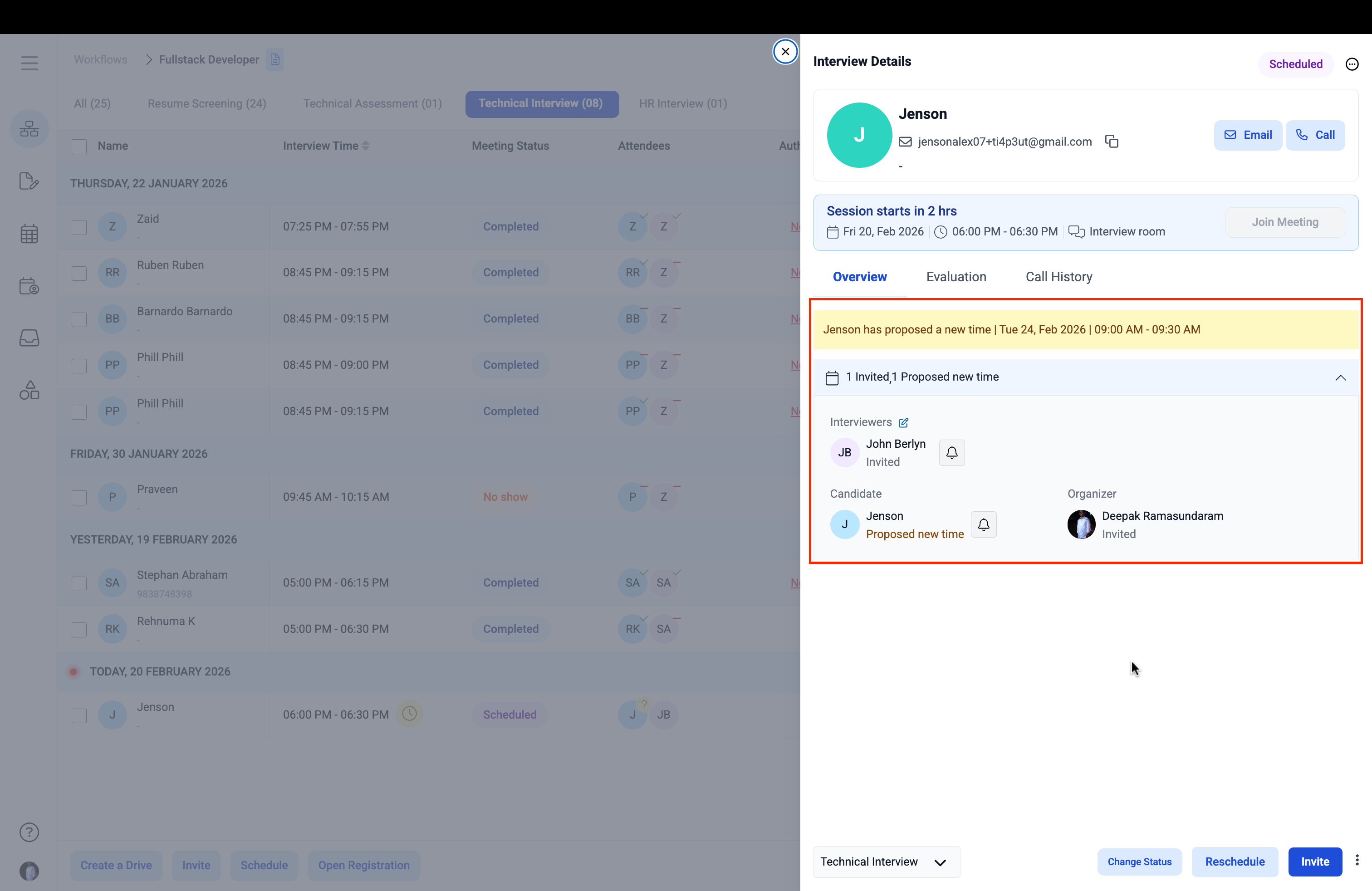
Deepak’s Interview Details view immediately surfaces Jenson’s rescheduling request with a prominent amber alert banner:“Jenson has proposed a new time | Tue 24, Feb 2026 | 09:00 AM – 09:30 AM”The attendee summary updates to “1 Invited, 1 Proposed new time”, and Jenson’s status changes to “Proposed new time” displayed in orange — clearly distinguishing it from other response states.
Recruiter view showing amber alert banner and Jenson’s Proposed new time status
Step 2.6 — Interviewer Notified of the Proposed New Time
At the same time, John receives an automated email notifying him of Jenson’s request to reschedule:- Email Title: “New time proposed”
- Body: Candidate Jenson has proposed a new time for the Fullstack Developer interview originally scheduled on Fri, 20-Feb-26 at 06:00 PM IST
- Proposed new time: Tue, 24-Feb-26 at 09:00 AM IST
- “Accept new time” — a prominent button for one-click confirmation
- “Propose alternate time | Decline” — giving John the option to suggest a different time or decline if needed
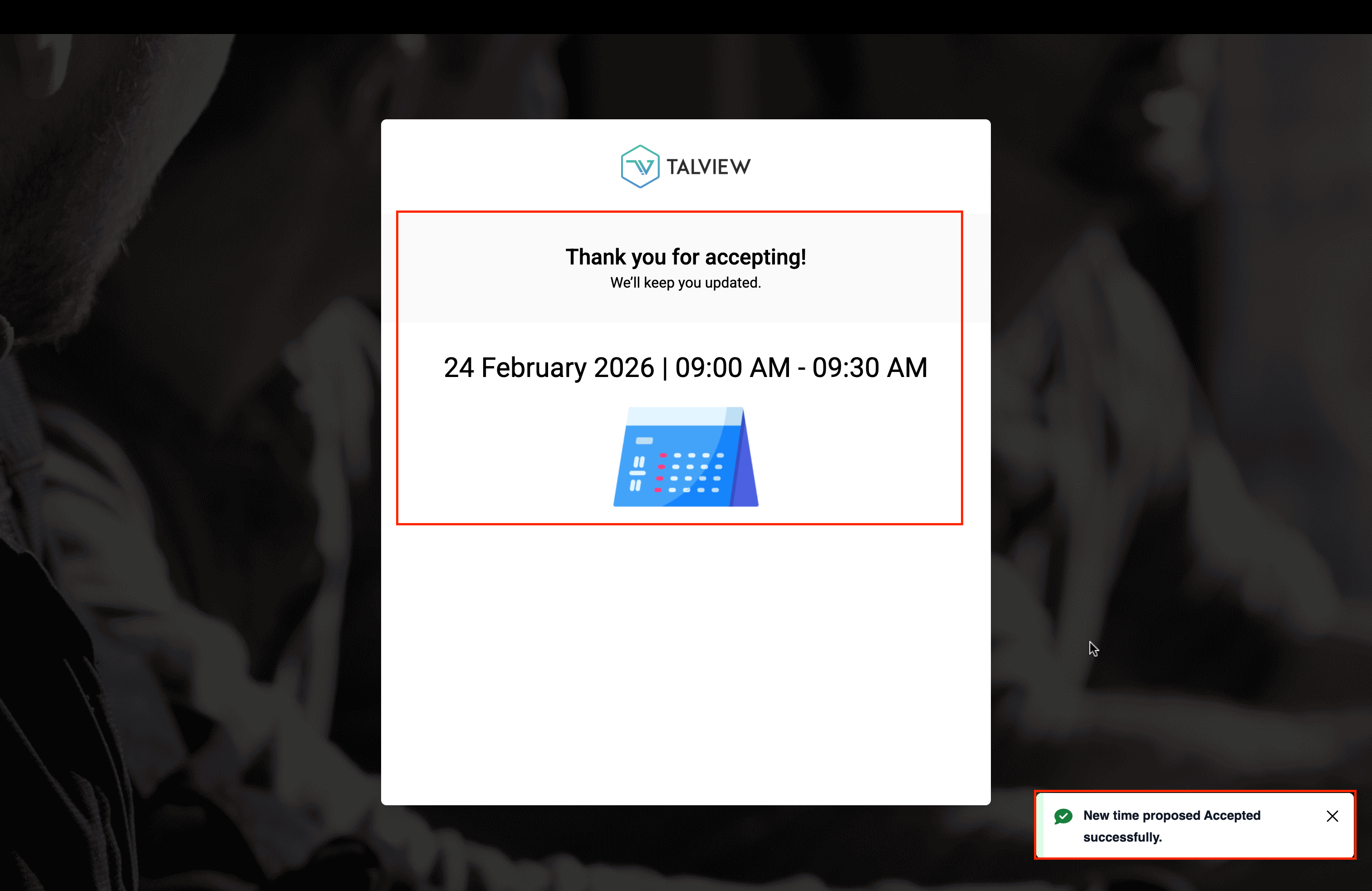
John’s inbox showing the New time proposed email with Accept new time buttonJohn clicks “Accept new time”, and a branded confirmation page appears:
“Thank you for accepting! We’ll keep you updated.” Confirmed time: 24 February 2026 | 09:00 AM – 09:30 AMA green pop-up message confirms: “New time proposed Accepted successfully.”
John’s acceptance confirmation page with pop-up message
Step 2.7 — Interview Rescheduled: Recruiter View Updated
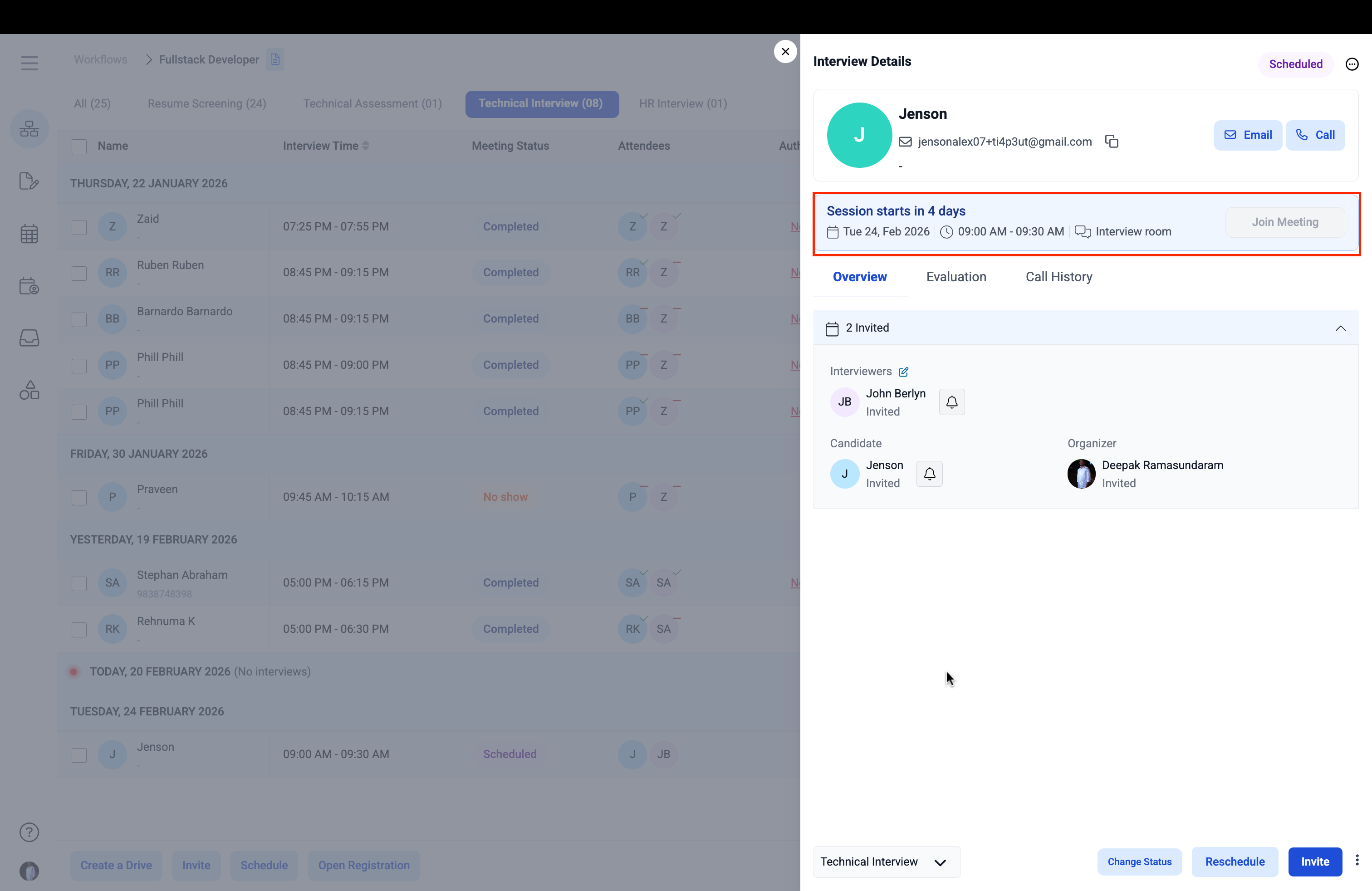
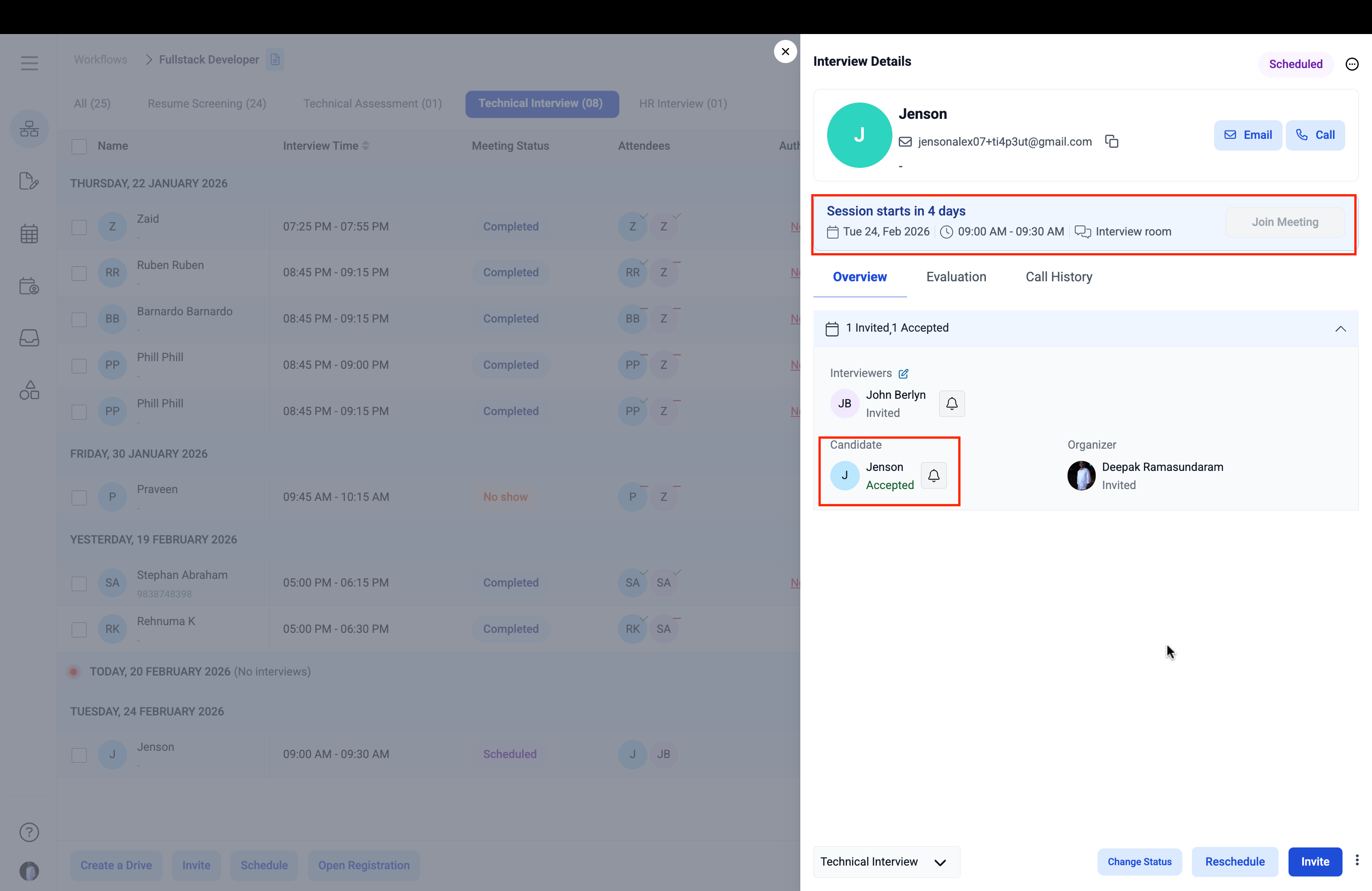
With John’s acceptance confirmed, the recruiter’s view automatically reflects the updated schedule:- The interview entry moves from TODAY, 20 FEBRUARY 2026 to TUESDAY, 24 FEBRUARY 2026 in the interview list
- Today’s date now shows (No interviews)
- The session countdown updates from “Session starts in 2 hrs” to “Session starts in 4 days”
- The new interview time (09:00 AM – 09:30 AM) is displayed
- Confirmation statuses reset to “Invited” as fresh invitations are sent out for the new slot
Recruiter view showing interview rescheduled to Feb 24; Today shows No interviews
Step 2.8 — Candidate Receives Updated Interview Confirmation
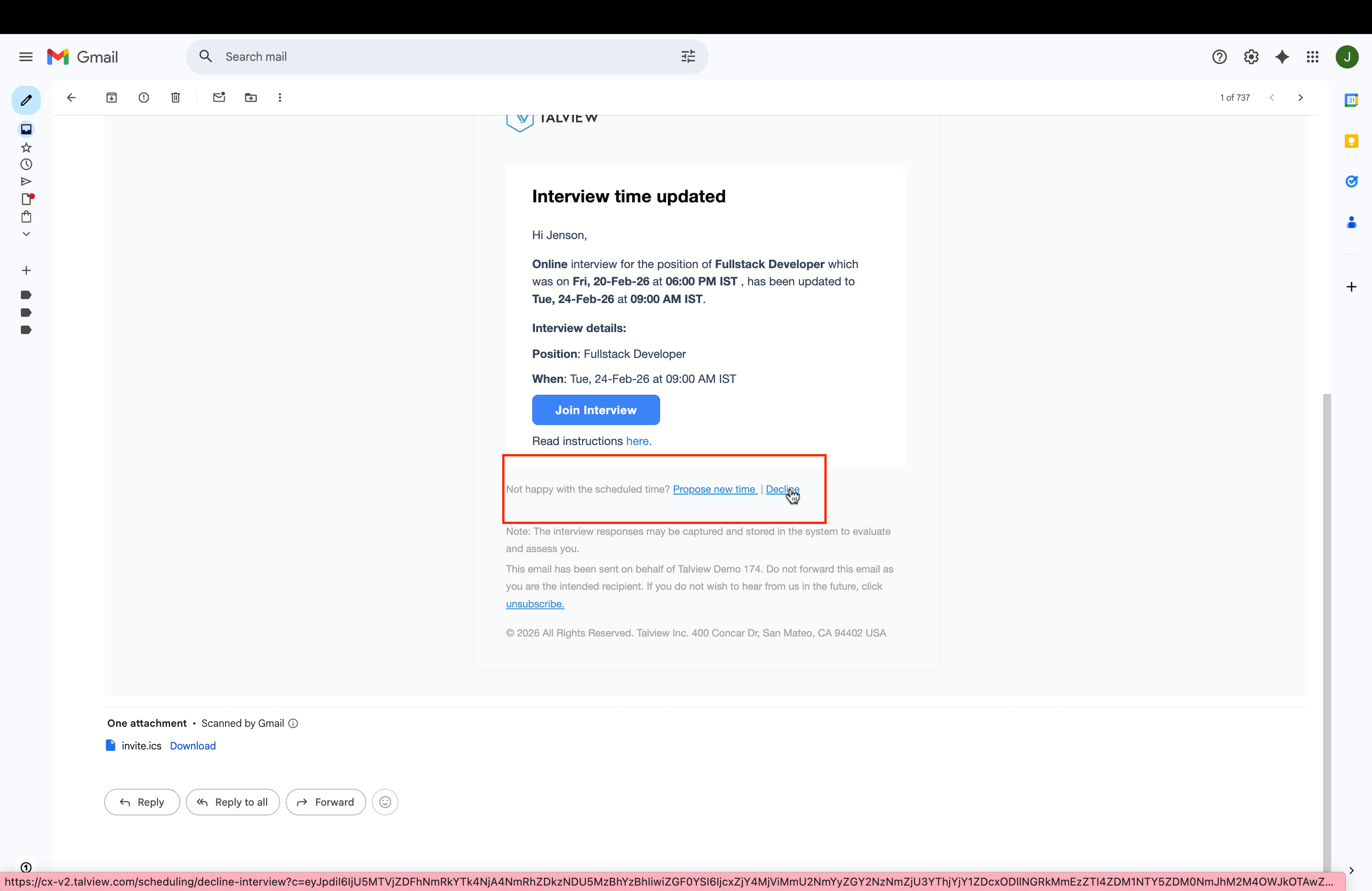
Jenson receives an automatic “Interview time updated” email confirming the rescheduled slot:- Title: “Interview time updated”
- Body: The interview which was on Fri, 20-Feb-26 at 06:00 PM IST has been updated to Tue, 24-Feb-26 at 09:00 AM IST
- “Join Interview” button — updated with the new session details
- “Propose new time | Decline” — RSVP options remain available
- An updated calendar file attachment — automatically updating the interview entry in Jenson’s calendar application
Jenson’s inbox showing Interview time updated email with new details and calendar attachmentJenson accepts the updated invite, and his status on the recruiter’s view updates to “Accepted” for the new slot — completing the rescheduling process.
Recruiter view showing Jenson Accepted for the new Feb 24 slot
Step 2.9 — Candidate Declines the Interview
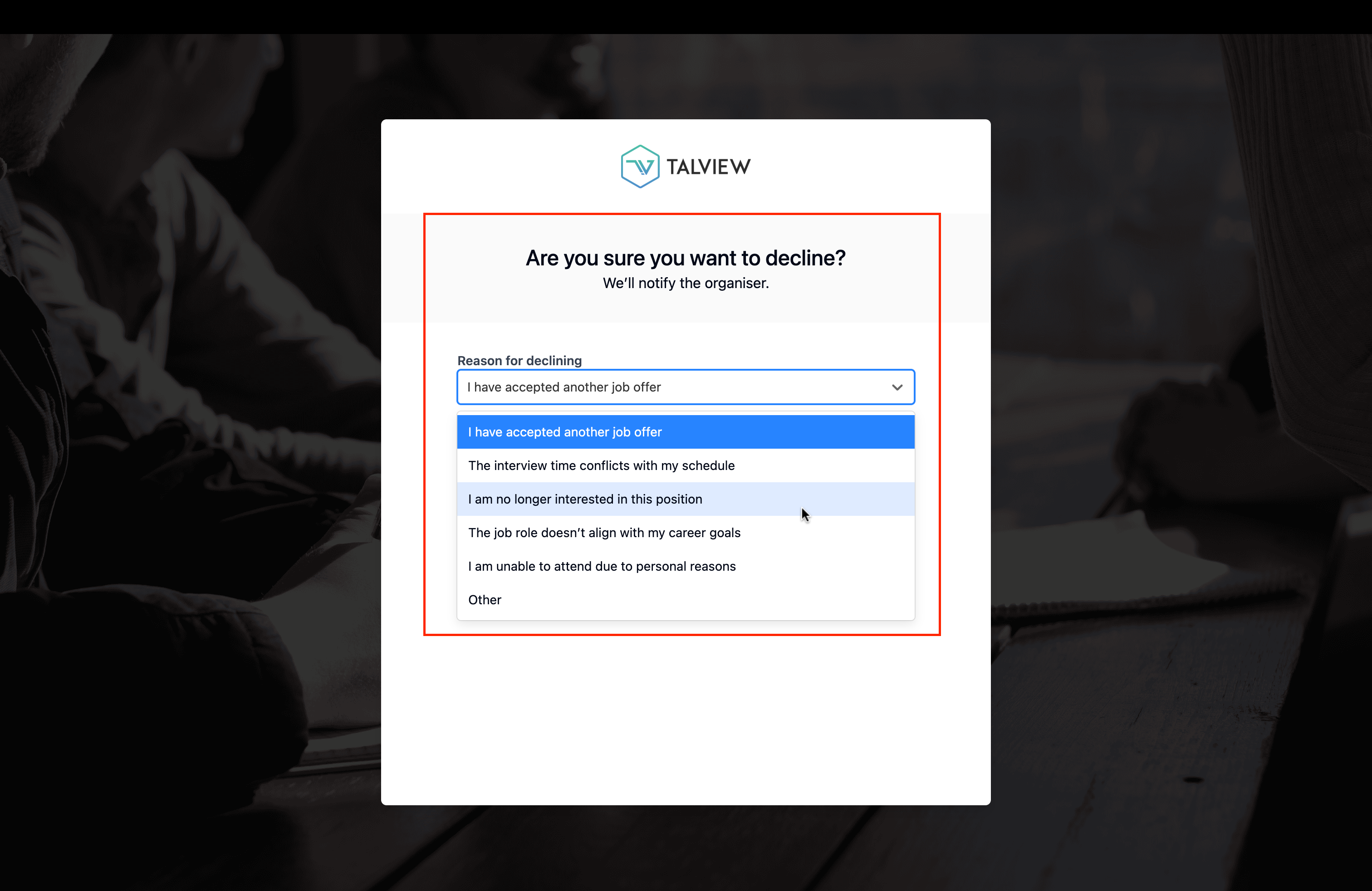
Talview’s RSVP system also handles interview declines with care and structure. When a candidate clicks “Decline” in the email, they are directed to a two-step decline flow: Step 1 — Reason Selection: The candidate is presented with a dropdown of structured decline reasons to choose from:- I have accepted another job offer
- The interview time conflicts with my schedule
- I am no longer interested in this position
- The job role doesn’t align with my career goals
- I am unable to attend due to personal reasons
- Other
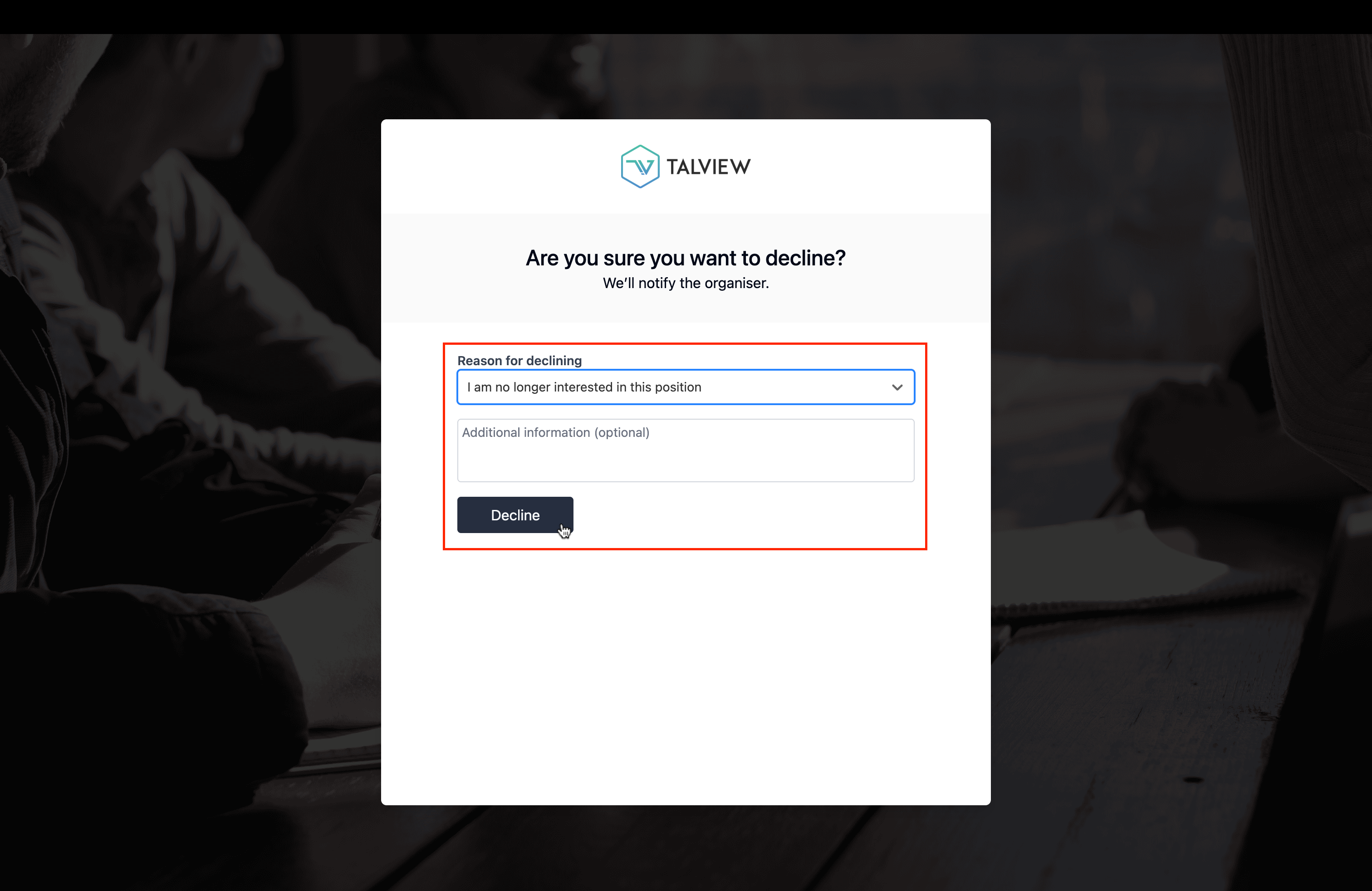
Decline page showing reason dropdown with all optionsStep 2 — Optional Details: After selecting a reason, the candidate can provide additional written context in an optional text field before clicking the “Decline” button. This step is optional and does not block the candidate from completing the decline.
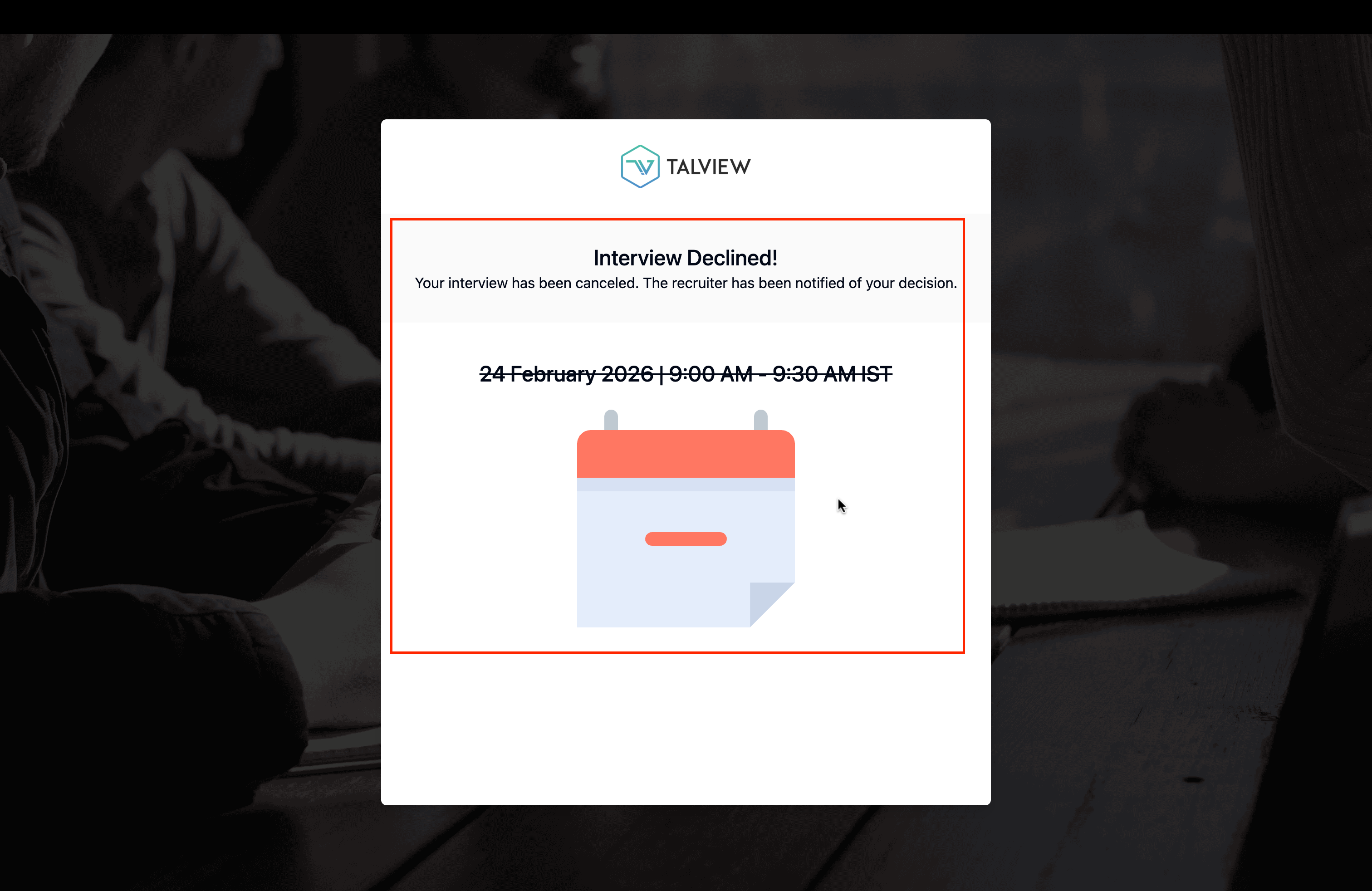
Decline page showing selected reason and optional additional information fieldStep 3 — Confirmation: A branded confirmation page appears with the cancelled slot displayed in strikethrough format — an unambiguous visual cue that the interview has been cancelled — accompanied by a red calendar illustration:
“Interview Declined! Your interview has been canceled. The recruiter has been notified of your decision.”24 February 2026 | 9:00 AM – 9:30 AM IST
Interview Declined confirmation page with strikethrough date and time
Section 3: The RSVP Feature — Interviewer Notification on Decline
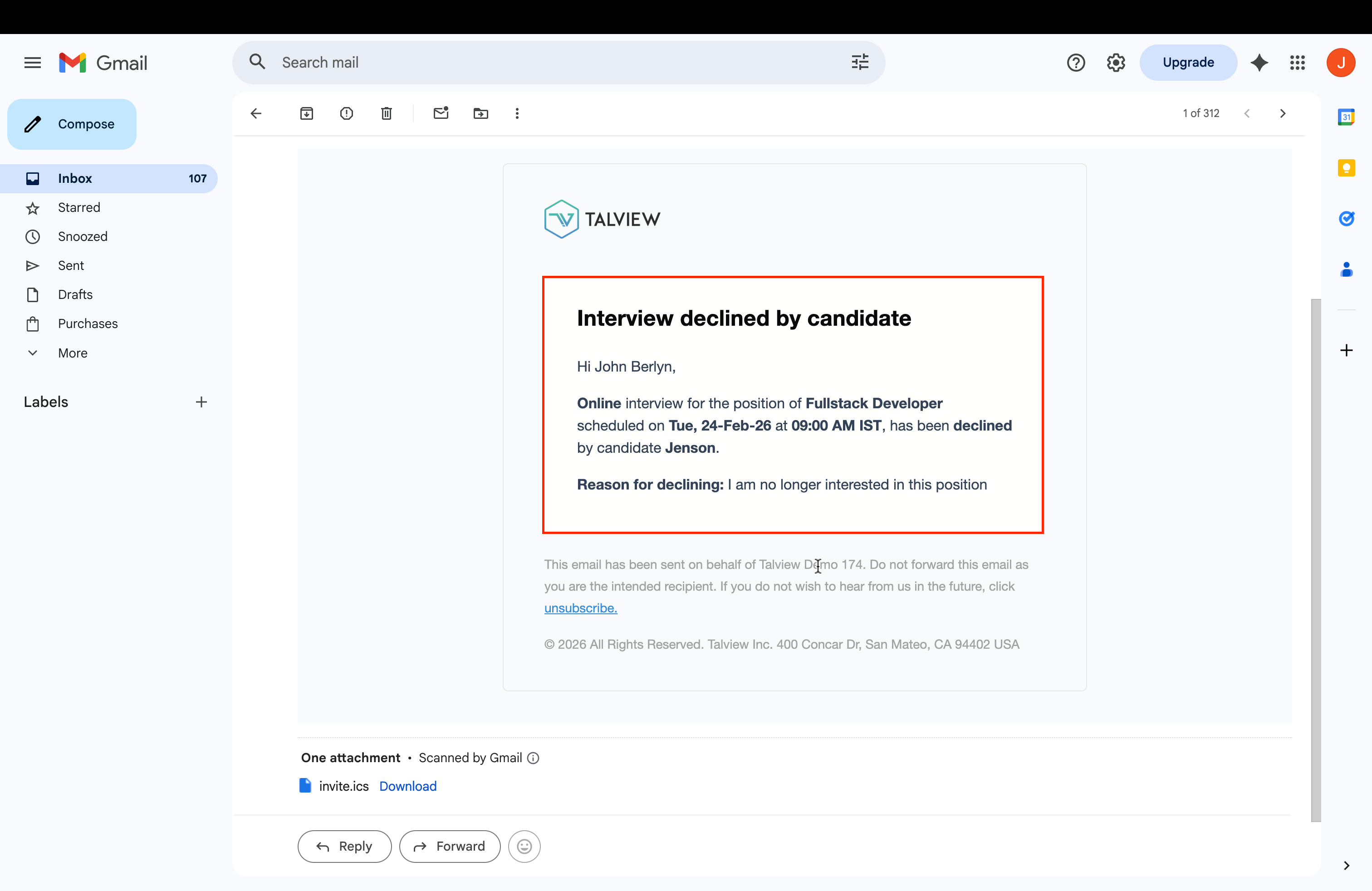
When the candidate declines, John receives an automatic notification in his inbox:- Email Title: “Interview declined by candidate”
- Body: Online interview for Fullstack Developer scheduled on Tue, 24-Feb-26 at 09:00 AM IST has been declined by candidate Jenson
- Reason for declining: “I am no longer interested in this position”
- An updated calendar file attachment automatically clearing the cancelled slot from John’s calendar
John’s inbox showing Interview declined by candidate email with decline reasonJohn is kept fully informed without any manual communication from the recruiter.
Section 4: Final State — Recruiter View After Decline
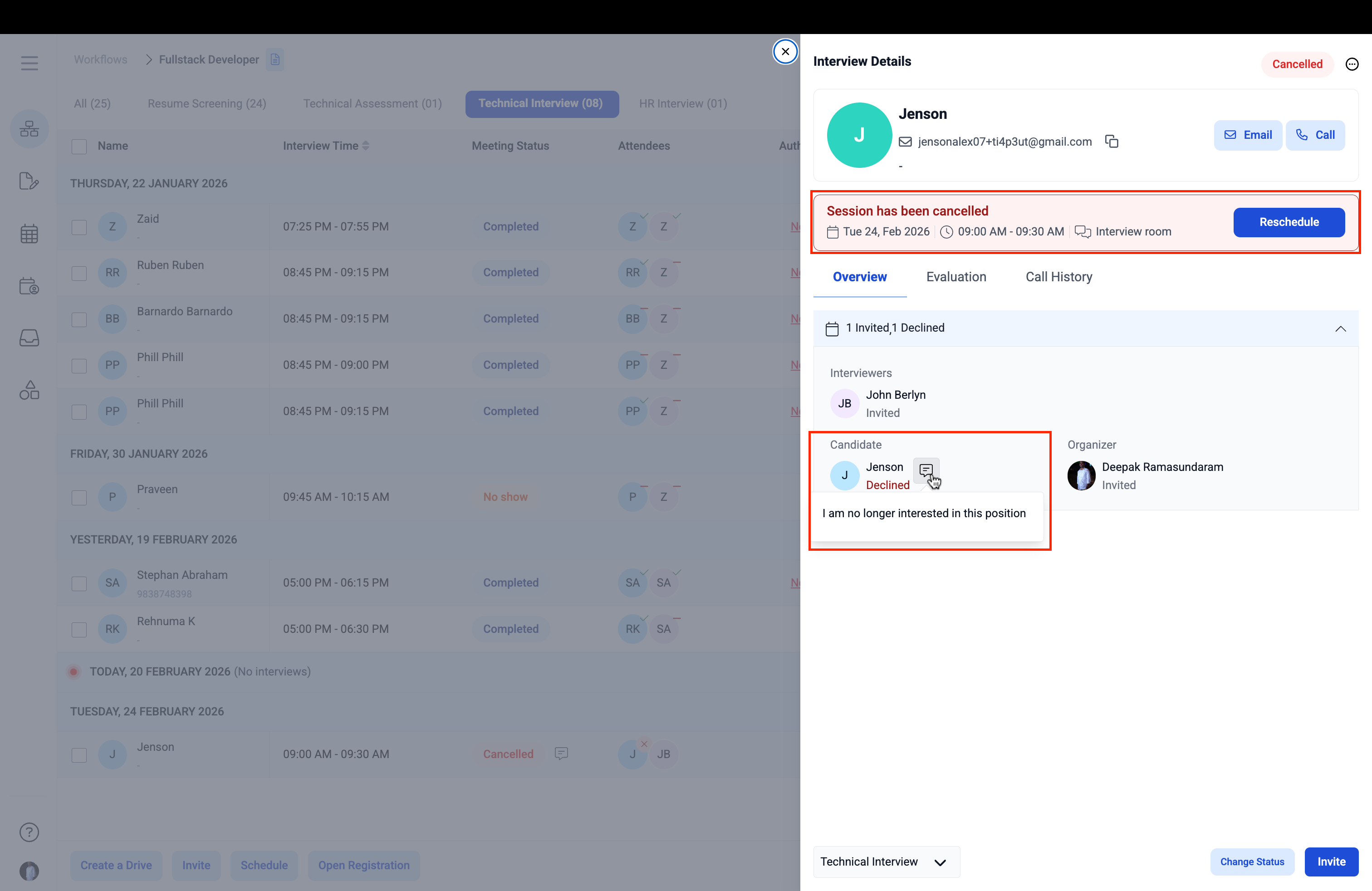
The recruiter’s Interview Details view reflects the final state of the interview:- Status: “Cancelled” — shown in red at the top of the panel
- Session banner: “Session has been cancelled” with a prominent “Reschedule” button — allowing the recruiter to immediately initiate a fresh scheduling cycle if needed
- Attendee summary: “1 Invited, 1 Declined”
- Jenson’s status: Declined (in red) with the reason “I am no longer interested in this position” displayed directly on the panel
- In the background interview list, Jenson’s entry shows “Cancelled” in red
Recruiter view showing final Cancelled state with decline reason visibleThe “Reschedule” button ensures that a declined interview does not create a dead end — recruiters can immediately take the next step without any additional setup.
Section 5: Key Benefits at a Glance
| Feature | Business Benefit |
|---|---|
| Scheduling window opens on the same screen | Recruiters stay in context and move faster without switching between pages |
| Multiple interview formats in one place | One platform supports live virtual, pre-recorded, in-person, supervised, and Teams interviews |
| Side-by-side availability view | Recruiters see candidate and interviewer availability together — no back-and-forth needed |
| Flexible time slot durations | Precise scheduling from 15 minutes to 1 hour 45 minutes for any type of interview |
| Global timezone support | Ready for organizations with hiring teams and candidates across different countries |
| Background processing after scheduling | Recruiters continue working while the system sends out invitations |
| Automated invitations for all parties | Zero manual communication — everyone is notified instantly upon scheduling |
| Google Calendar integration | Invites appear natively in recipients’ calendars with one-click RSVP buttons |
| RSVP directly from email | Candidates and interviewers respond without logging into any platform |
| Real-time confirmation tracking | Recruiters see live accept, decline, and reschedule statuses without manual follow-up |
| Candidate-initiated rescheduling | Candidates pick from the interviewer’s actual available slots — no conflicts possible |
| Interviewer acceptance of proposed times | Interviewers stay in control with one-click acceptance from their inbox |
| Automatic calendar updates | All parties’ calendars stay in sync with every change, automatically |
| Structured decline reasons | Recruiters receive actionable information on why candidates drop off |
| Optional written decline context | Candidates can share more detail, giving recruiting teams richer feedback |
| Reschedule option after cancellation | No dead ends — recruiters can restart the scheduling process immediately |
Section 6: Role-Based Summary
Recruiter (Deepak)
Talview gives recruiters a single, unified workspace to schedule, track, and manage live interviews without leaving the candidate pipeline. From checking availability to monitoring confirmation responses in real time, every action is contextual and automated — significantly reducing the time and effort involved in coordinating interviews.Candidate (Jenson)
Candidates receive a clear, professionally branded, and fully actionable interview invitation directly in their inbox. They can confirm, propose a new time, or decline — all without logging into any platform. The experience is straightforward, respectful of the candidate’s time, and reflective of the hiring organization’s professionalism.Interviewer (John)
Interviewers are kept informed at every stage — from the initial invitation to candidate rescheduling requests and cancellations — through automated, timely email notifications. They can accept, suggest alternate times, or decline with a single click, ensuring their time is always protected and their calendar remains accurate.Conclusion
Talview’s live interview scheduling and RSVP system represents a meaningful shift in how hiring teams coordinate interviews. By automating every communication step, providing real-time visibility across all stakeholders, and giving candidates and interviewers genuine control through a seamless response experience, Talview removes the most time-consuming and error-prone parts of the interview scheduling process. The result is a faster, more professional, and more informed hiring operation — at any scale.© 2026 Talview Inc. | 400 Concar Dr, San Mateo, CA 94402 USA