Introduction
The Proview extension, developed by Talview Inc., integrates the “Proview” proctoring solution into Moodle LMS. Proview Proctoring Browser Extension is designed to deliver a secure, seamless, and efficient proctoring experience directly through your web browser. This cutting-edge extension provides robust exam integrity measures and unparalleled convenience, setting a new standard in online proctoring. This extension continuously evolves with frequent feature enhancements.
Capabilities
- Versatile and Flexible: Proview is compatible with major web browsers, providing a consistent user experience across different devices and operating systems.
- Live Remote Proctoring : Live Remote Proctoring offers an end-to-end platform that supports holding multiple low to high-stakes online exams concurrently monitored by live proctors. The proctors help in authenticating test takers, monitoring exams, intervening, raising flags, terminating exams, and more.
- Automated AI Proctoring: Through advanced video & audio analytics, the Proview system monitors the feeds for any suspicious activity. It ensures candidate focuses on test screen during the test and checks for suspicious objects in video and background voice activity to red flag the test.
- Record & Review: This fully automated, AI-enabled application authenticates test takers, tracks, and records their behaviors, and flags critical events. After the exam concludes, our highly trained proctors, or those provided by you, can quickly review and confirm any event flags before certifying the validity of the exam and authenticity of test takers.
Prerequisites
Before starting the integration, ensure the following details are provided:
- Moodle Web Service URL
- Moodle Web Service Token (wstoken)
- This token is generated by the Moodle admin.
- It will be used to authenticate Proview’s requests to Moodle.
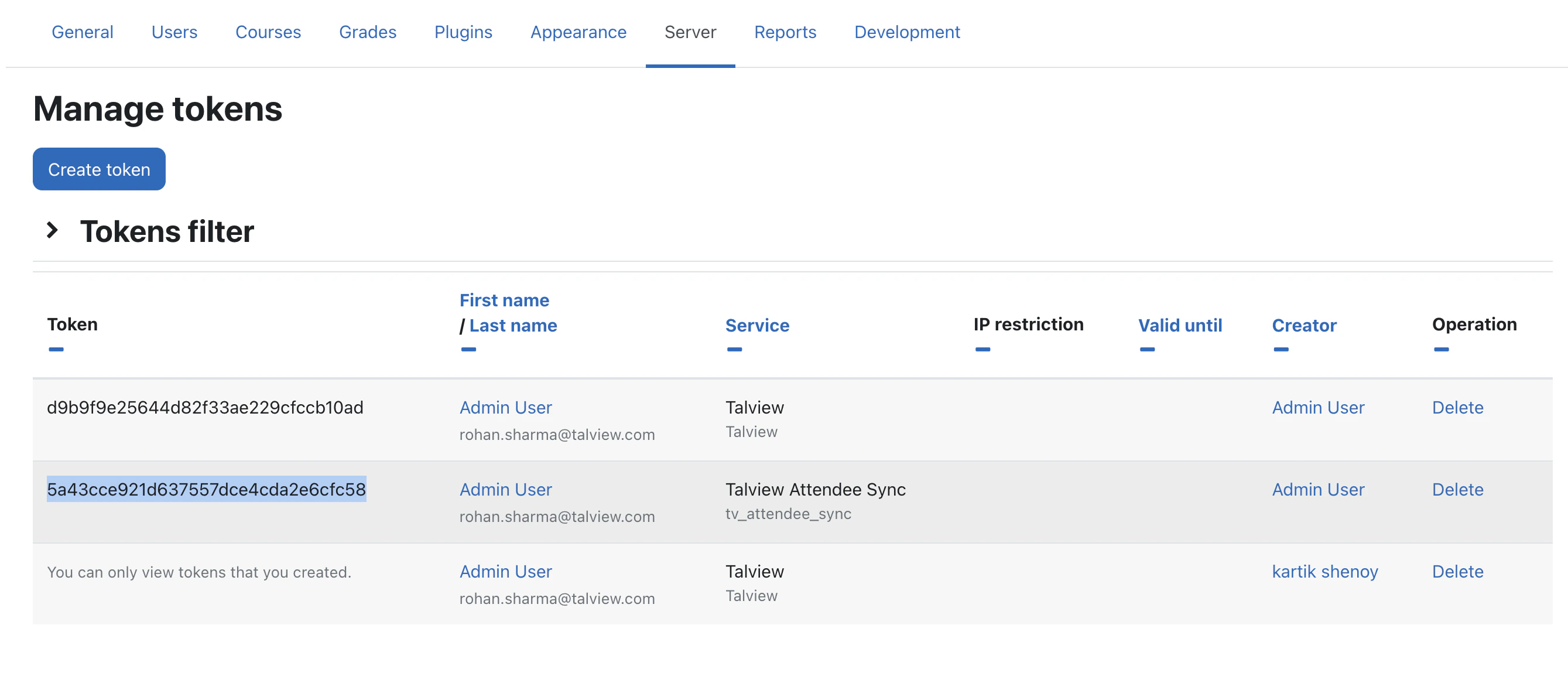
Steps to create WSToken
-
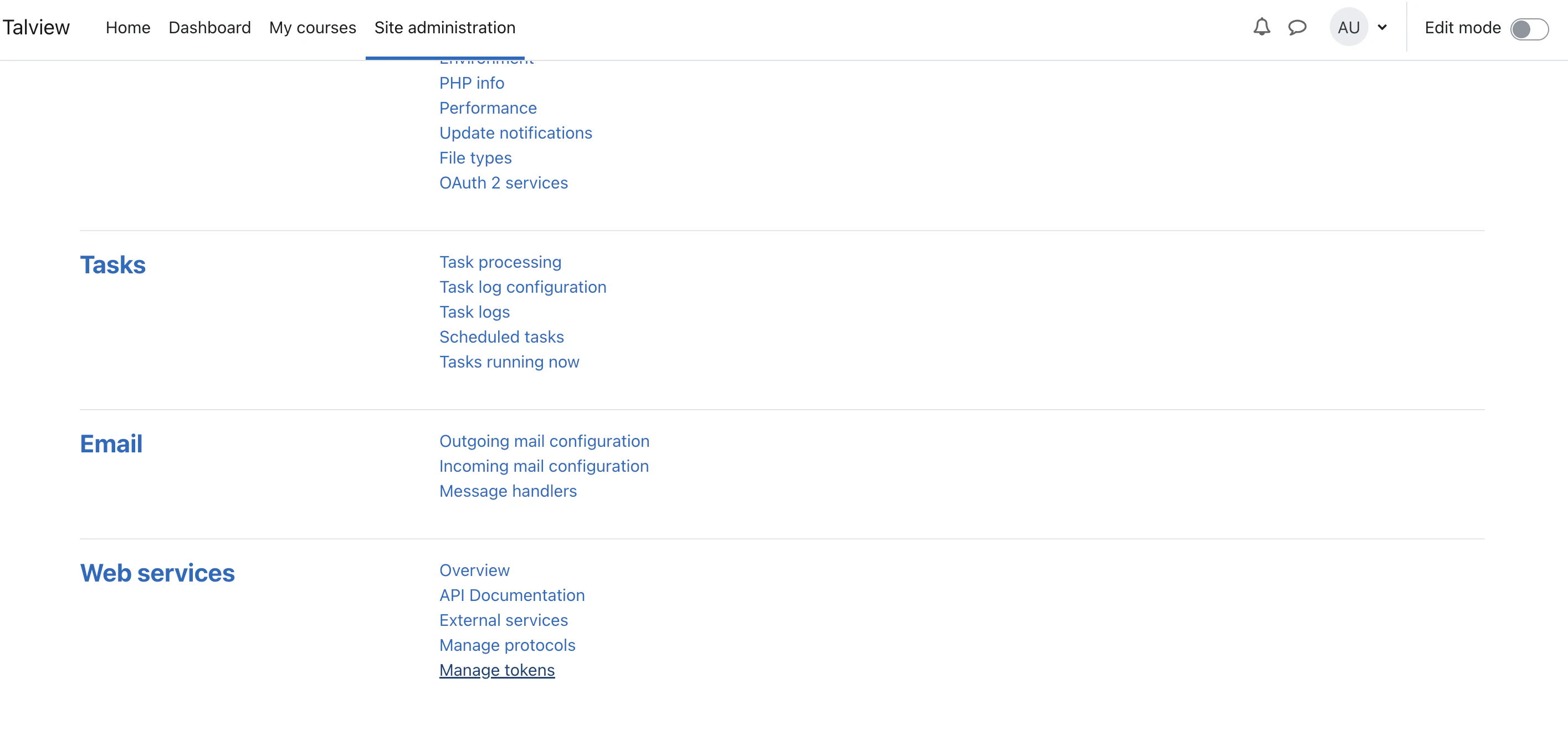
Navigate to Server (Tab) > Web Services > Manage tokens
-
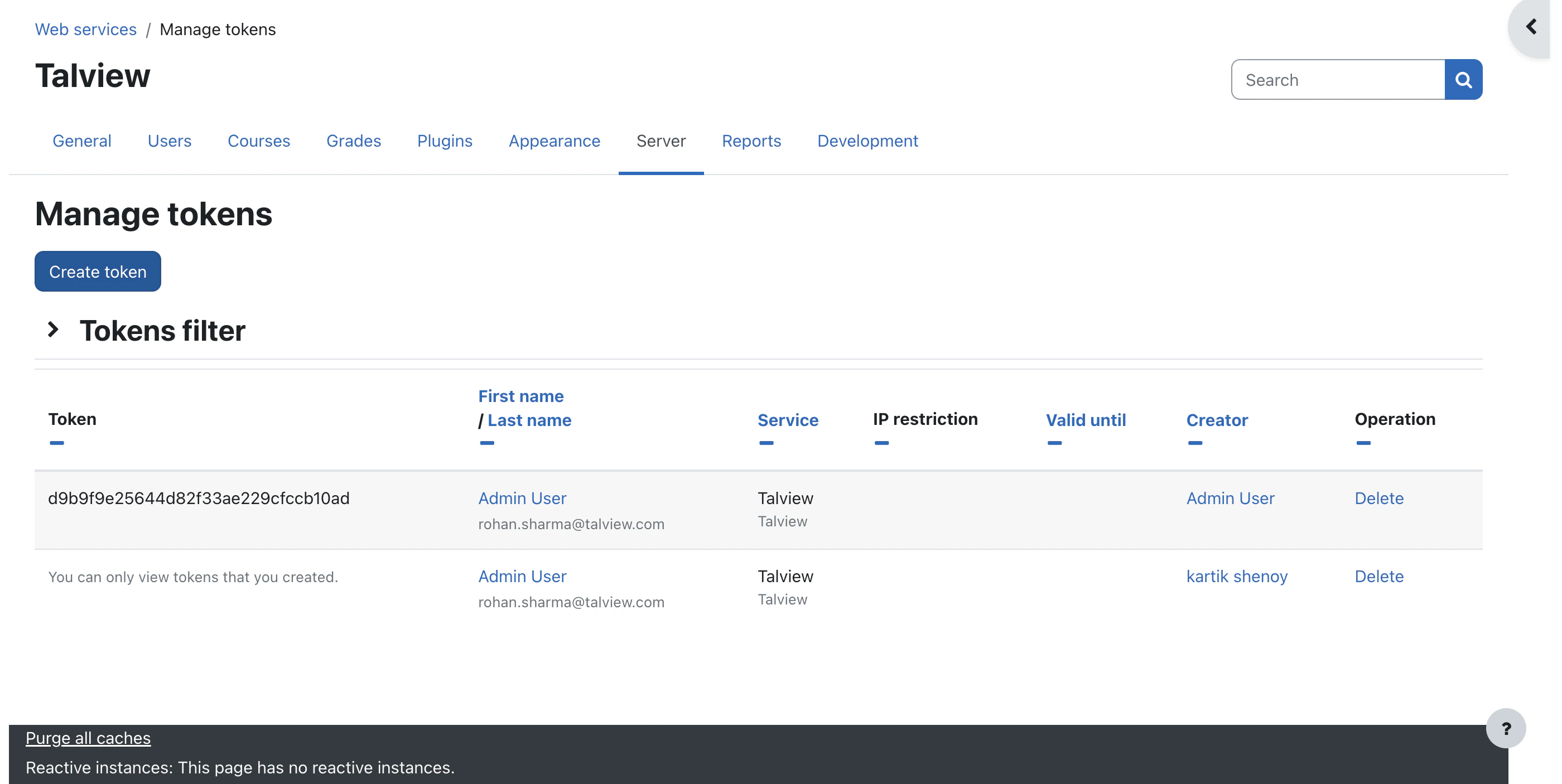
Click on “Create token” button
-
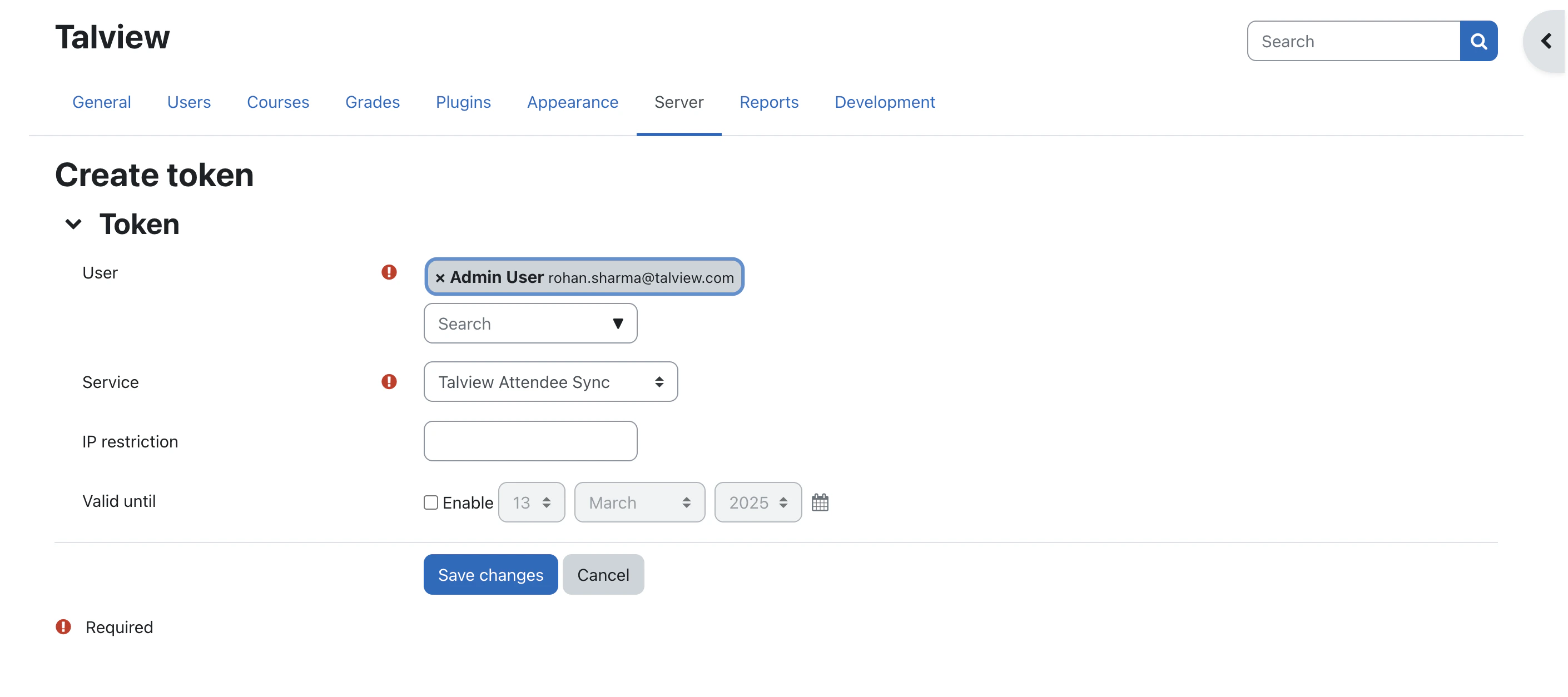
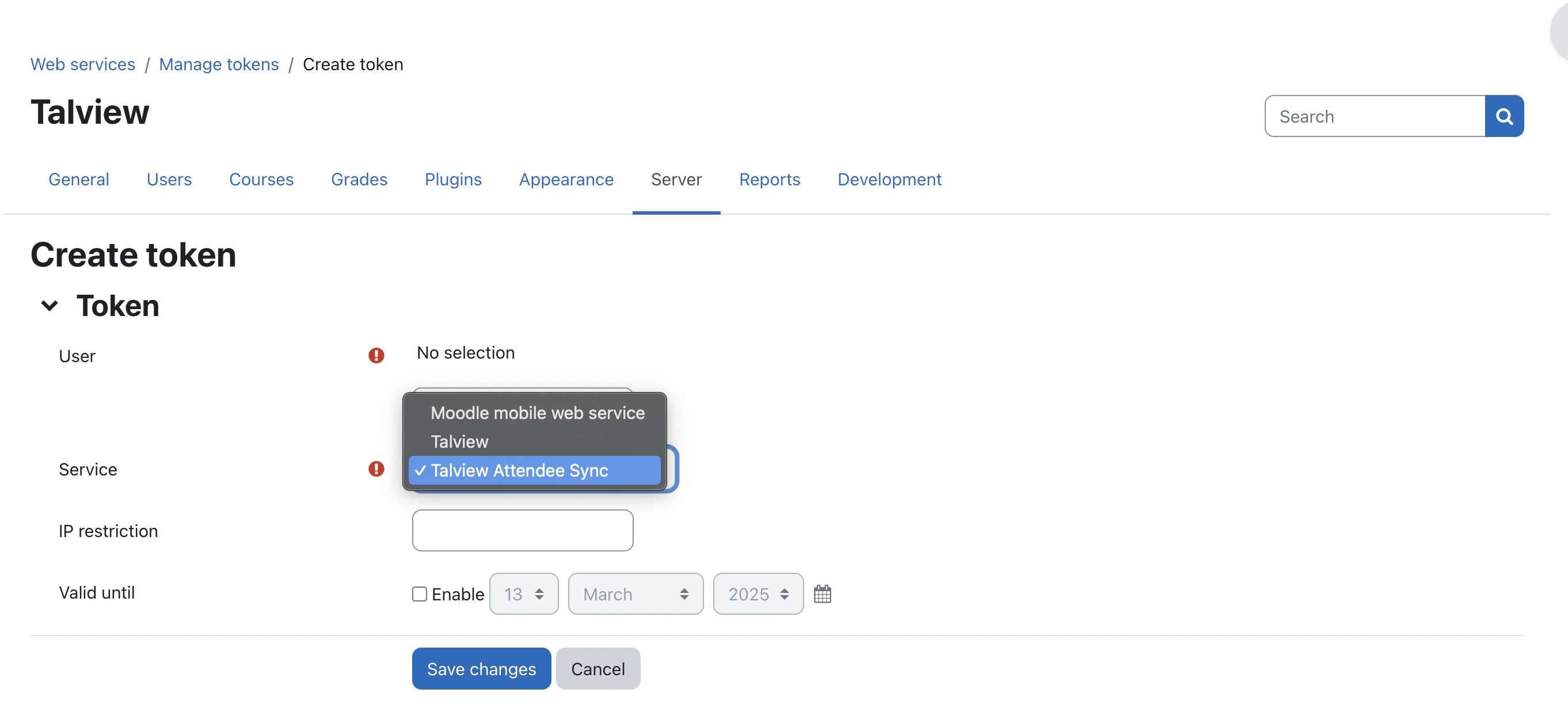
Select user who have admin access and Select service that we created in earlier (Create external web service).
-
Click “Save changes” to obtain token
Add custom script to end proctoring upon quiz submission
To ensure proctoring ends upon click of quiz submission, add the following code snippet.
- Navigate to Site Administration from the home page.
- Click on the Appearance tab.
- Click on Additional HTML.
- Add this code snippet in the last field, and then click on Save changes.
<script>
  (function(){
    if(!window.location.pathname.toLowerCase().includes('/mod/quiz/review.php')){
      return;
    }

    const STOP_MESSAGE = 'moodle:stop-proctoring';
    const finishClass = 'mod_quiz' + '-next-nav';

    const isFinishReview = (anchor) => {
      if(!anchor){ return false; }
      const text = (anchor.textContent || '').trim().toLowerCase();
      const href = anchor.getAttribute('href') || '';
      return text === 'finish review' && href.indexOf('/mod/quiz/view.php') !== -1;
    };

    const attach = (anchor) => {
      if(!anchor || anchor.__proviewHooked){ return; }
      anchor.__proviewHooked = true;
      anchor.addEventListener('click', (event) => {
        event.preventDefault();
        const targetHref = anchor.href;
        window.top.postMessage({ type: STOP_MESSAGE, source: 'moodle-hook' }, '*');
        setTimeout(() => window.location.assign(targetHref), 700);
      }, { once: true });
    };

    const init = () => {
      const anchors =
  Array.from(document.getElementsByClassName(finishClass)).filter(isFinishReview);
      if(!anchors.length){ return false; }
      anchors.forEach(attach);
      return true;
    };

    if(!init()){
      const observer = new MutationObserver(() => {
        if(init()){ observer.disconnect(); }
      });
      observer.observe(document.body, { childList: true, subtree: true });
    }
  })();
  </script>

