

Introduction
The Proview extension, developed by Talview Inc., integrates the “Proview” proctoring solution into D2L LMS. Proview Proctoring Browser Extension is designed to deliver a secure, seamless, and efficient proctoring experience directly through your web browser. This cutting-edge extension provides robust exam integrity measures and unparalleled convenience, setting a new standard in online proctoring. This extension continuously evolves with frequent feature enhancements.Capabilities
- Seamless and User-Friendly Integration: Proview integrates effortlessly with D2L Brightspace Learning Management System (LMS), ensuring a smooth setup process. The browser-based extension is easy to install and use, eliminating the need for complex software installations and making it accessible to a wide range of users.
- Versatile and Flexible: Proview is compatible with major web browsers, providing a consistent user experience across different devices and operating systems.
- Live Remote Proctoring : Live Remote Proctoring offers an end-to-end platform that supports holding multiple low to high-stakes online exams concurrently monitored by live proctors. The proctors help in authenticating test takers, monitoring exams, intervening, raising flags, terminating exams, and more.
- Automated Proctoring: Through advanced video & audio analytics, the Proview system monitors the feeds for any suspicious activity. It ensures candidate focuses on test screen during the test and checks for suspicious objects in video and background voice activity to red flag the test.
- Record & Review: This fully automated, AI-enabled application authenticates test takers, tracks, and records their behaviors, and flags critical events. After the exam concludes, our highly trained proctors, or those provided by you, can quickly review and confirm any event flags before certifying the validity of the exam and authenticity of test takers.
Supported Browsers and Operating Systems
Note: Ensure to keep your browser and OS updated to one of these supported versions to prevent any potential issues during proctoring sessions.
- Google Chrome (latest 3 versions only)
- Microsoft Edge (latest 3 versions only)
- Mozilla Firefox (latest 3 versions only)
- Windows Devices: Windows 10 and Windows 11
- Apple Devices: macOS Sonoma
Steps
1. Access admin tools
- Log in to your LMS instance.
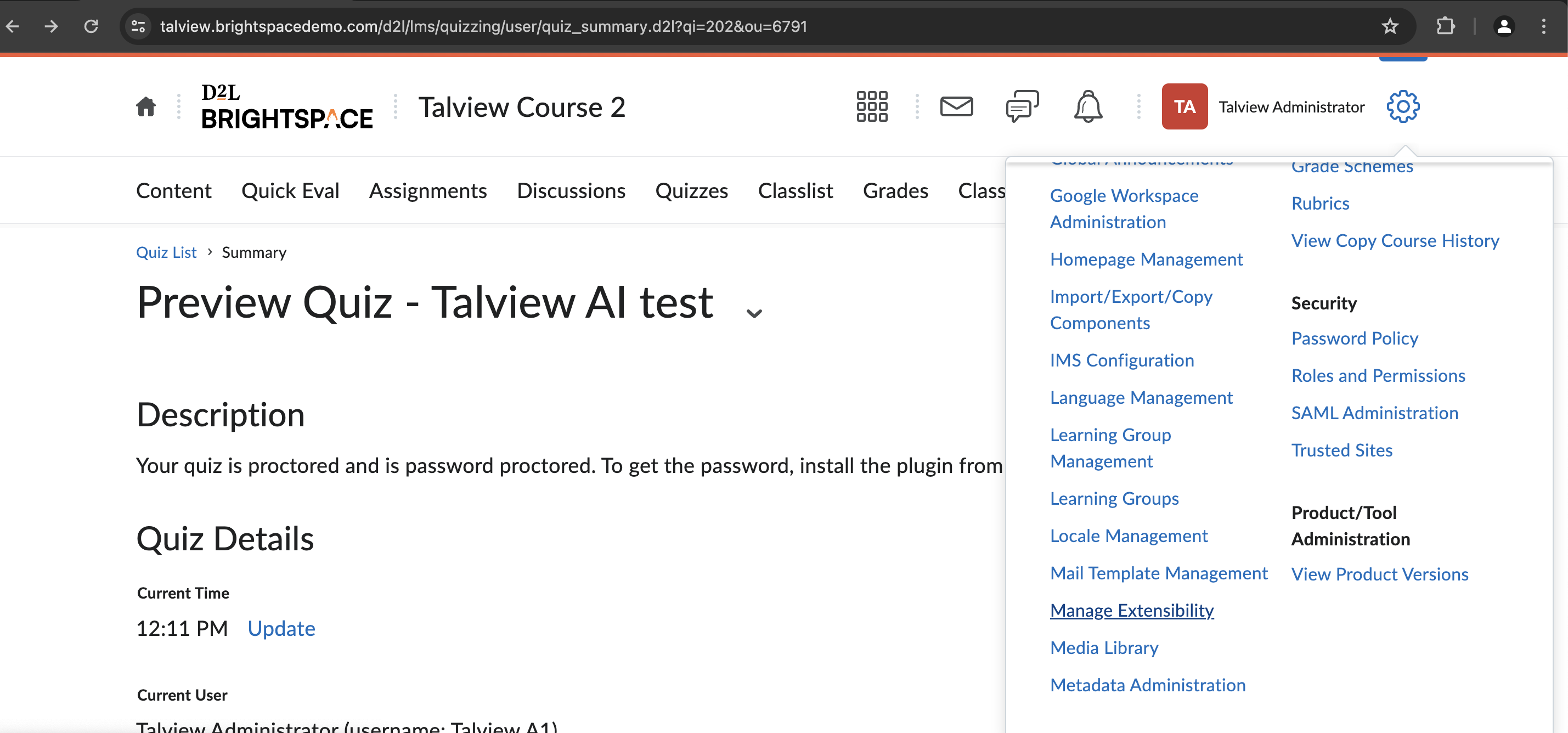
- Look to the right of the screen and click on the admin tools icon.
2. Manage extensibility
-
From the list of options presented, click on Manage Extensibility.
3. Register the app
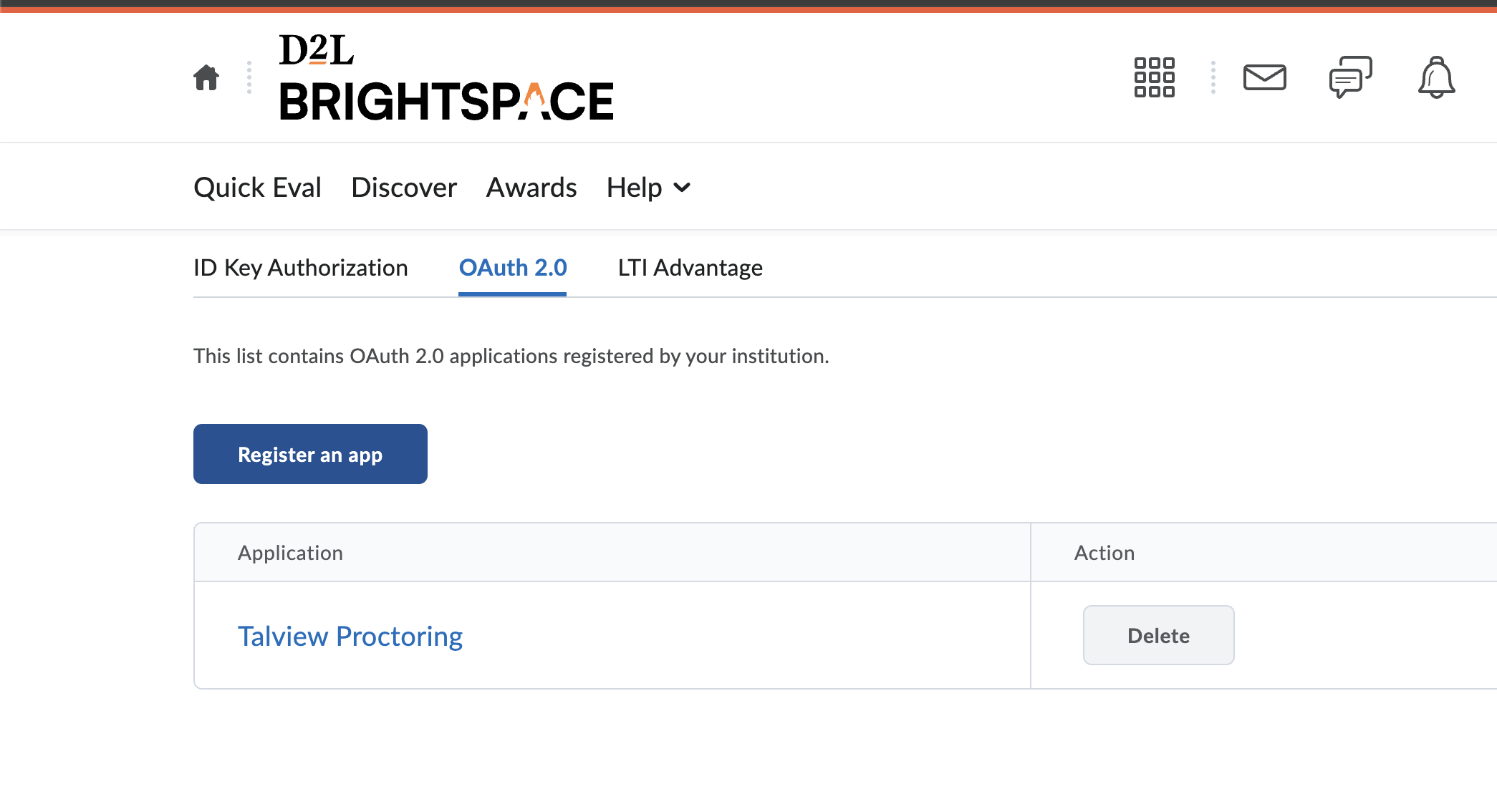
- Within the Manage Extensibility page, click on the OAuth2.0 navigation tab. It’s imperative to set up your OAuth and share the credentials with Talview.
-
Click on the Register an App button.
4. Fill out application details
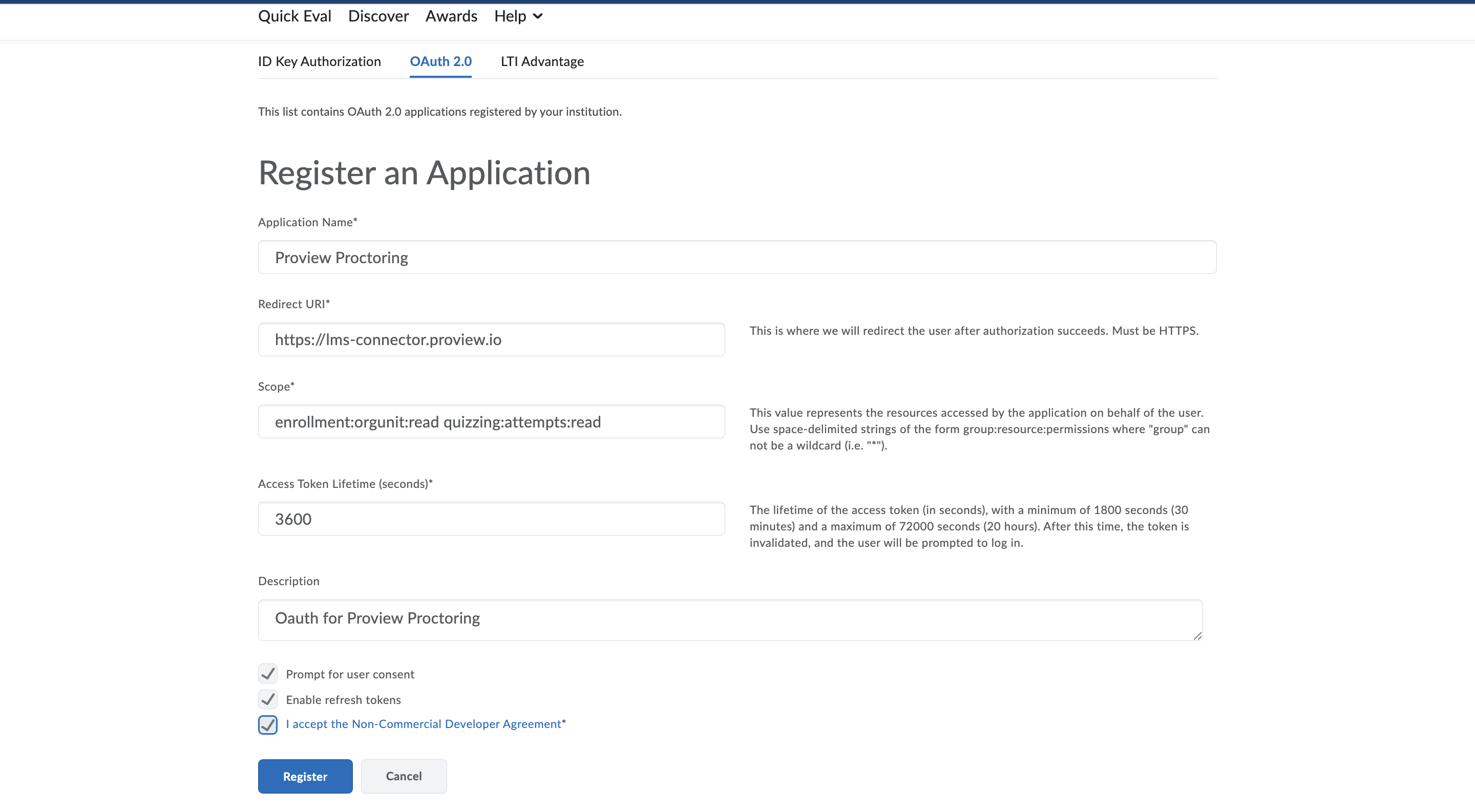
- Application Name: Enter Proview Proctoring as the name of the application.
- Redirect URI: Enter https://console.eu.proview.io/dashboard/lms/configure/brightspace in the field
- Scope: Enter the following scopes, separated by space:
enrollment:orgunit:readquizzing:attempts:read- The
enrollment:orgunit:readscope is necessary for syncing enrollment data to schedule live proctored exams. - The
quizzing:attempts:readscope is needed to map each new quiz attempt to Proview for AI and Record & Review exams.
- Access Token Lifetime: Provide the access token’s lifetime validity in seconds.
- Description: Enter a brief description of the application.
5. Additional enablement
- Prompt for User Content: Check this statement.
- Enable Refresh Tokens: Check this statement.
- Non-commercial Developer Agreement: Check the statement to accept the agreement.
6. Finalize registration
-
Click on the Register button to complete the registration process.
-
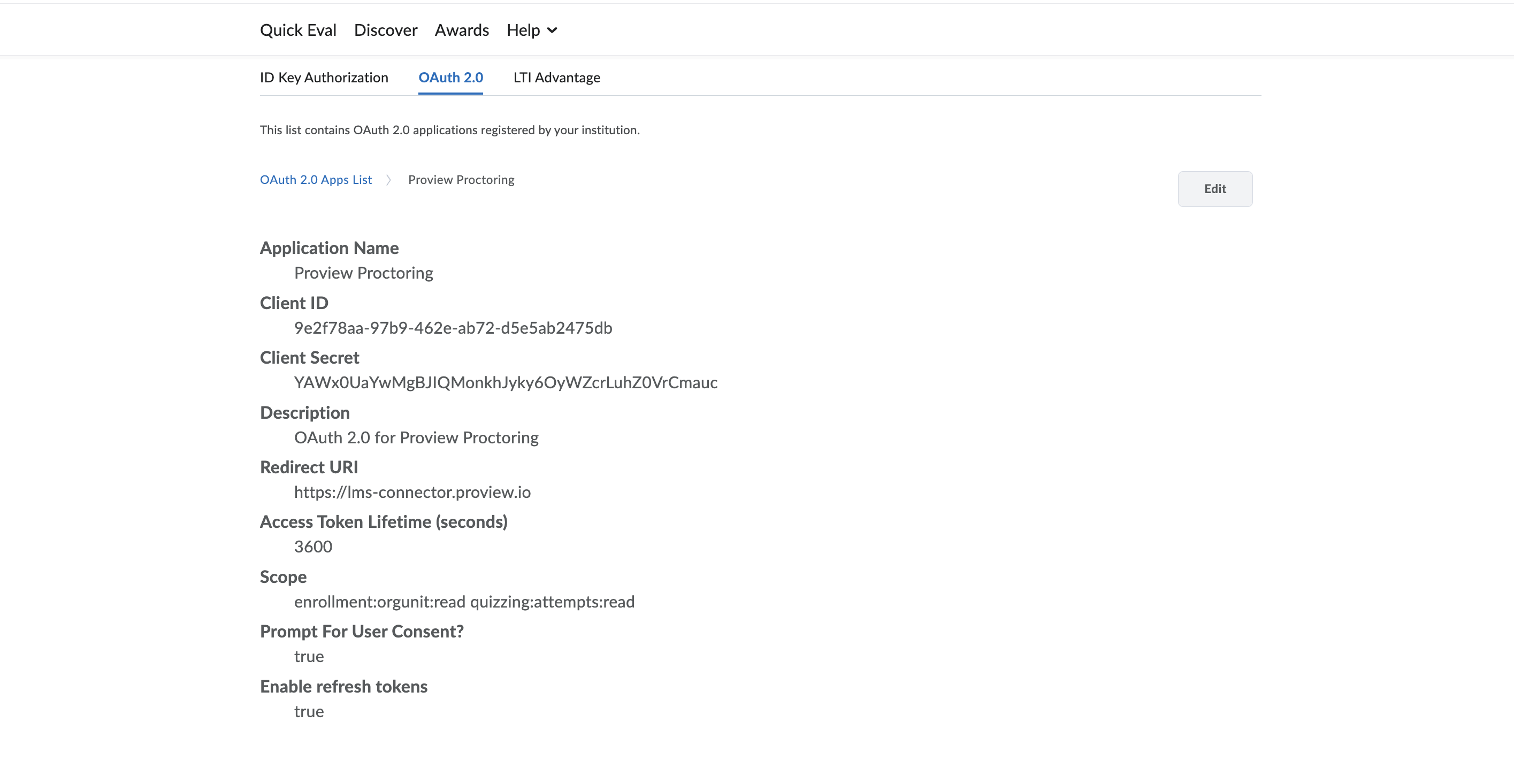
You have now completed registering the application, and will be displayed within OAuth 2.0 Apps List
7. Share admin credentials for that instance
- Provide Talview with the admin credentials (username and password) along with the LMS URL.
- Talview needs the URL to whitelist it, ensuring the Proview Proctoring extension becomes compatible for the users.
- The whitelisting process will take about one hour