1. Getting Started
Q1. Where can I see my upcoming schedules? Log in to Talview and navigate to Bookings. Your assigned schedules are listed here, showing the date, time, room, and seat count for each slot. Q2. How do I search for a specific schedule slot? Use the Search slots bar at the top right of the Bookings page to look up a slot by name or date. Q3. How do I start a schedule? Find the schedule you want to start and click Start Schedule. This takes you to the candidate list for that slot. Q4. Can I see schedules that have already been completed? Yes. Select the Completed tab on the Bookings page to view your past schedules. Q5. What information is shown for each schedule on the Bookings page? Each schedule card shows the date, slot name, time, room, and total seat count. Q6. What does “Up Next” mean on the Bookings page? “Up Next” lists your upcoming schedules that are not yet ready to start. The schedule at the top of the page with the Start Schedule button is your most immediately active one.2. Candidate Statuses & Progress
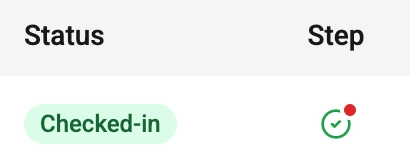
Q1. What are the different candidate statuses I’ll see in the schedule view? You’ll see the following statuses: Checked-in, Paused, Lobby, Exam in Progress, and Suspended. Q2. What does “Lobby” mean for a candidate? The candidate hasn’t been checked in yet and is waiting to begin their exam. Q3. What is the difference between “Paused” and “Suspended”? “Paused” means the candidate has temporarily stopped their exam — either on a permitted break or due to a technical interruption. “Suspended” means a proctor has actively halted the session, typically due to a violation or integrity concern. Q4. What does “Disconnected” mean? The candidate has lost their connection and may reconnect. This is a technical state, not a deliberate action taken by the proctoring team. Q5. What does the progress bar show for a candidate? The progress bar reflects how far along the candidate is in their exam. It updates in real time as they move through each stage. Q6. What does the Step column indicate? The Step column shows the current status of the candidate’s exam through an icon.Example: a checkmark icon indicates that the candidate has checked-in and the exam is progressing normally.Q7. What do the icons below a candidate’s name in the schedule view indicate? The icons represent the accommodations available or active for that candidate’s session - such as breaks in between the session, extra time, or special assistance requirements like wheelchair access, etc. Q8. How are candidates ordered in the schedule view? Candidates are listed by their seat number in ascending order.