Introduction
The Proview extension, developed by Talview Inc., integrates the “Proview” proctoring solution into Canvas LMS. Proview Proctoring Browser Extension is designed to deliver a secure, seamless, and efficient proctoring experience directly through your web browser. This cutting-edge extension provides robust exam integrity measures and unparalleled convenience, setting a new standard in online proctoring. This extension continuously evolves with frequent feature enhancements.
Capabilities
- Seamless and User-Friendly Integration: Proview integrates effortlessly with canvas Learning Management System (LMS), ensuring a smooth setup process. The browser-based extension is easy to install and use, eliminating the need for complex software installations and making it accessible to a wide range of users.
- Versatile and Flexible: Proview is compatible with major web browsers, providing a consistent user experience across different devices and operating systems.
- Live Remote Proctoring : Live Remote Proctoring offers an end-to-end platform that supports holding multiple low to high-stakes online exams concurrently monitored by live proctors. The proctors help in authenticating test takers, monitoring exams, intervening, raising flags, terminating exams, and more.
- Automated Proctoring: Through advanced video & audio analytics, the Proview system monitors the feeds for any suspicious activity. It ensures candidate focuses on test screen during the test and checks for suspicious objects in video and background voice activity to red flag the test.
- Record & Review: This fully automated, AI-enabled application authenticates test takers, tracks, and records their behaviors, and flags critical events. After the exam concludes, our highly trained proctors, or those provided by you, can quickly review and confirm any event flags before certifying the validity of the exam and authenticity of test takers.
Supported Browsers and Operating Systems
Note: Ensure to keep your browser and OS updated to one of these supported versions to prevent any potential issues during proctoring sessions.
- Windows Devices: Windows 10 and Windows 11
- Apple Devices: macOS Sonoma
Steps
Generate a New Developer Key
- Navigate to the Developer Keys Section:
-
Log in to your Canvas LMS as an admin.
-
From the side panel, navigate to Admin → Your Account.
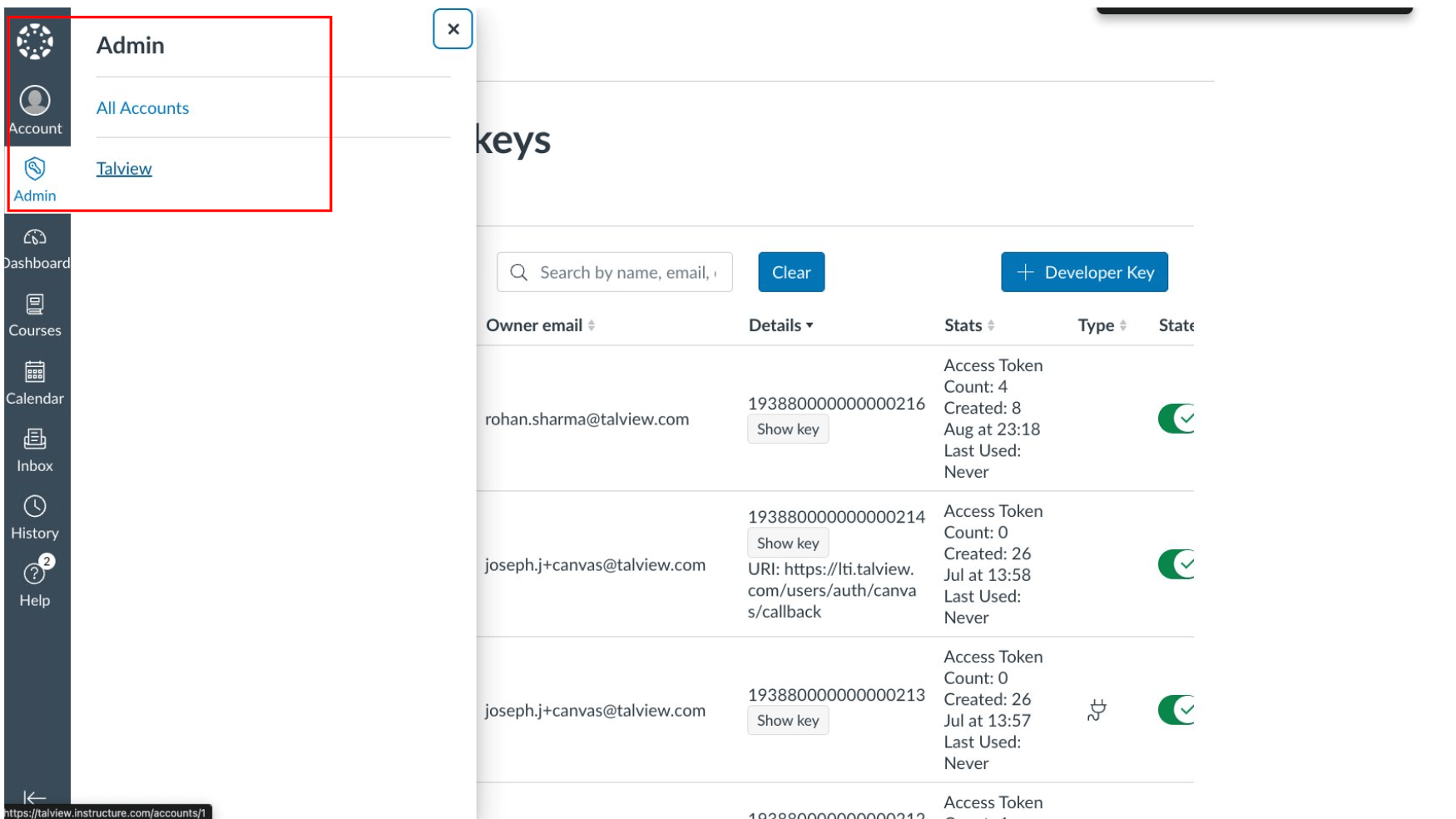
-
Select Developer Keys from the menu.
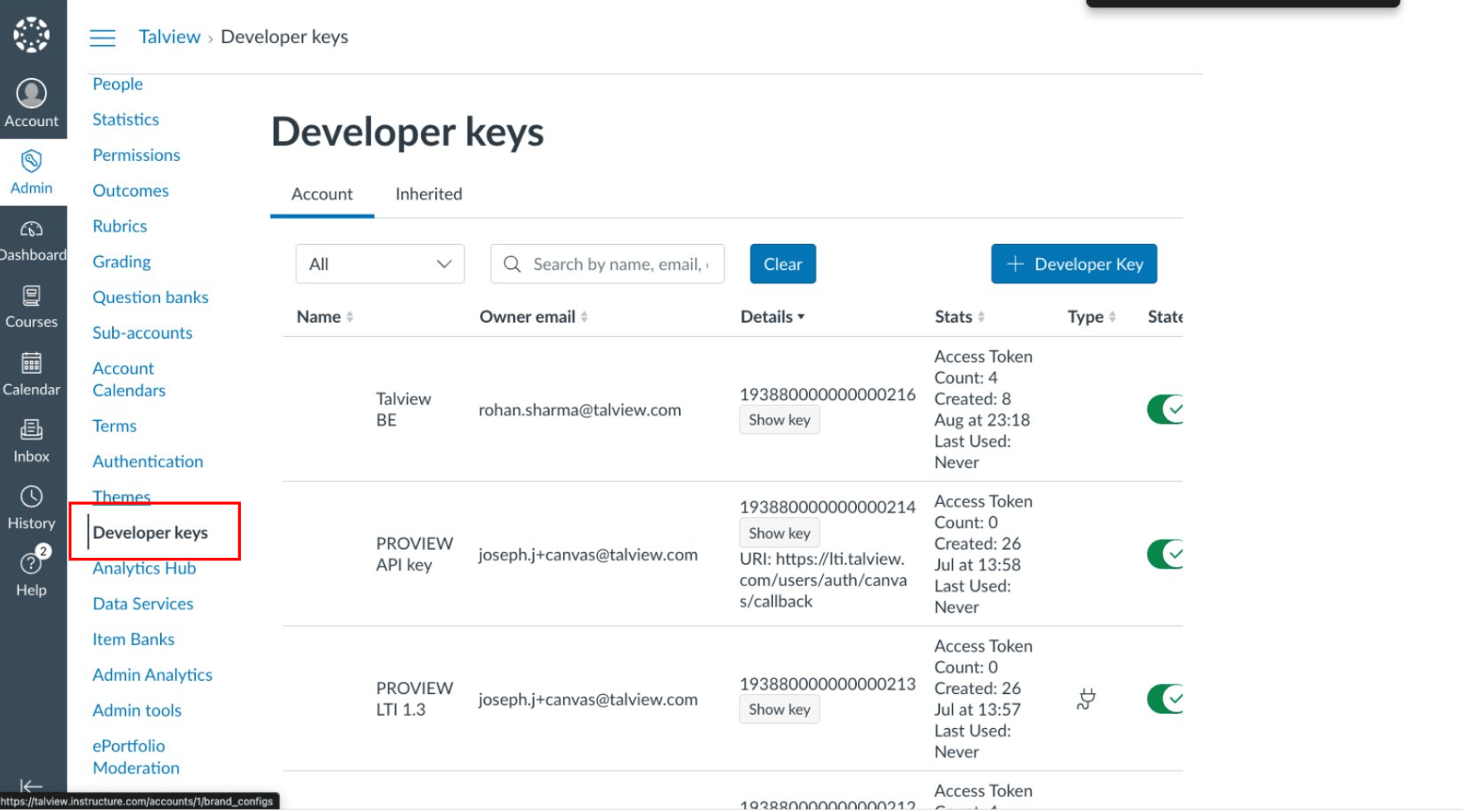
- Create a New API Key:
-
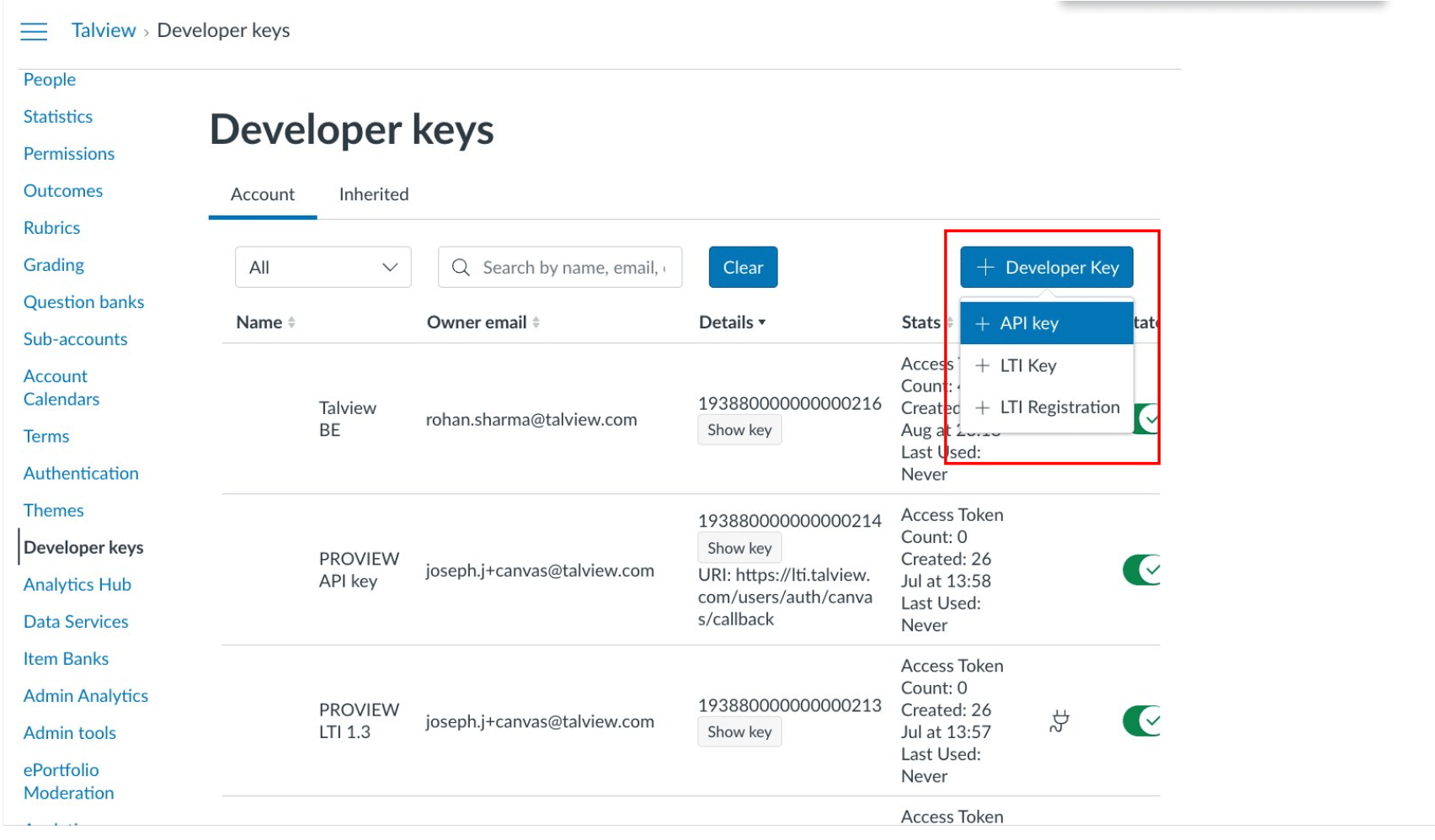
Click on + Developer Key and select API Key from the dropdown.
- Fill out the required fields:
- Name: Enter a descriptive name for the key.
- Email: Enter your contact email.
- Redirect URI: Input
https://lms-connector.proview.io.
- Scopes: Add the following scopes:
- Expand the “Enrollments” section and select the following scope:
- url:GET|/api/v1/courses/:course_id/enrollments
- This scope is required to retrieve enrollment data for a course
- Expand the “Quiz Submissions” section and select the following scope:
- url:GET|/api/v1/courses/:course_id/quizzes/:quiz_id/submissions
- This scope is required to get submission data for classic quizzes, crucial for handling multiple attempts in AI and Record & Review sessions
- Expand the “Submissions” section and select the following scope:
- url:GET|/api/v1/courses/:course_id/assignments/:assignment_id/submissions/:user_id
- This scope is used to get submission data for new quizzes, essential for managing multiple attempts in AI and Record & Review sessions
- Expand the “Courses” section and select the following scope:
- url:GET|/url|/api/v1/courses/:id
- This scope is used to get course details, as well as retrieving the total number of students enrolled
- Save and Enable the Developer Key:
-
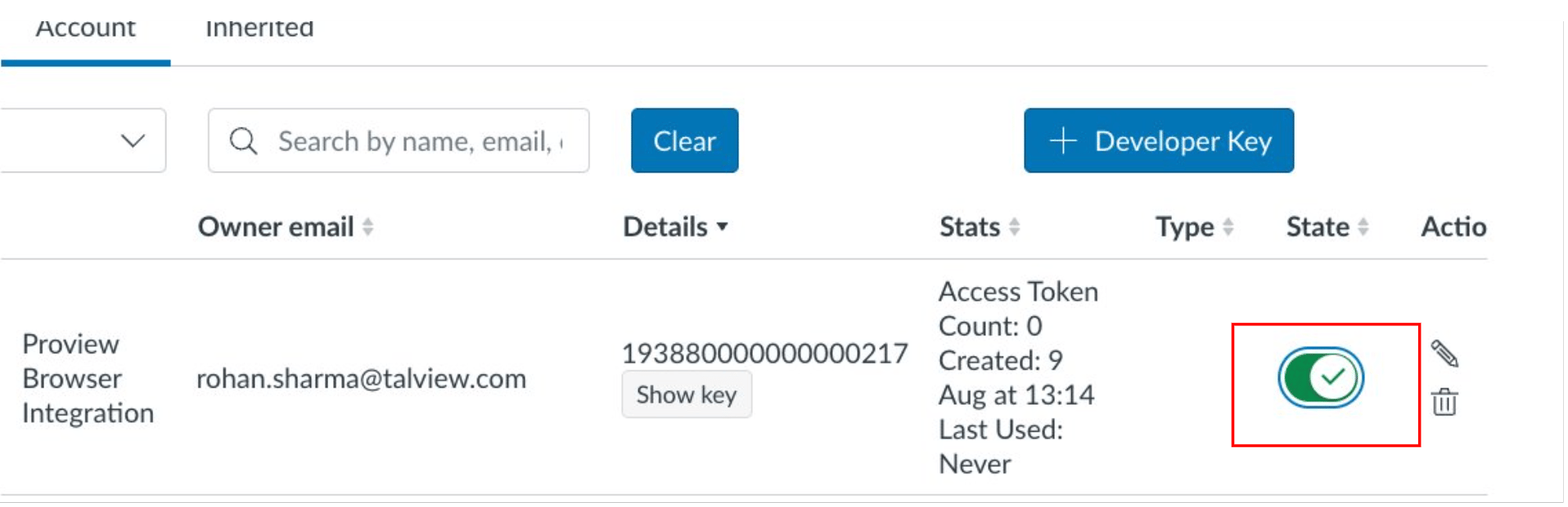
After adding the scopes, click Save.
-
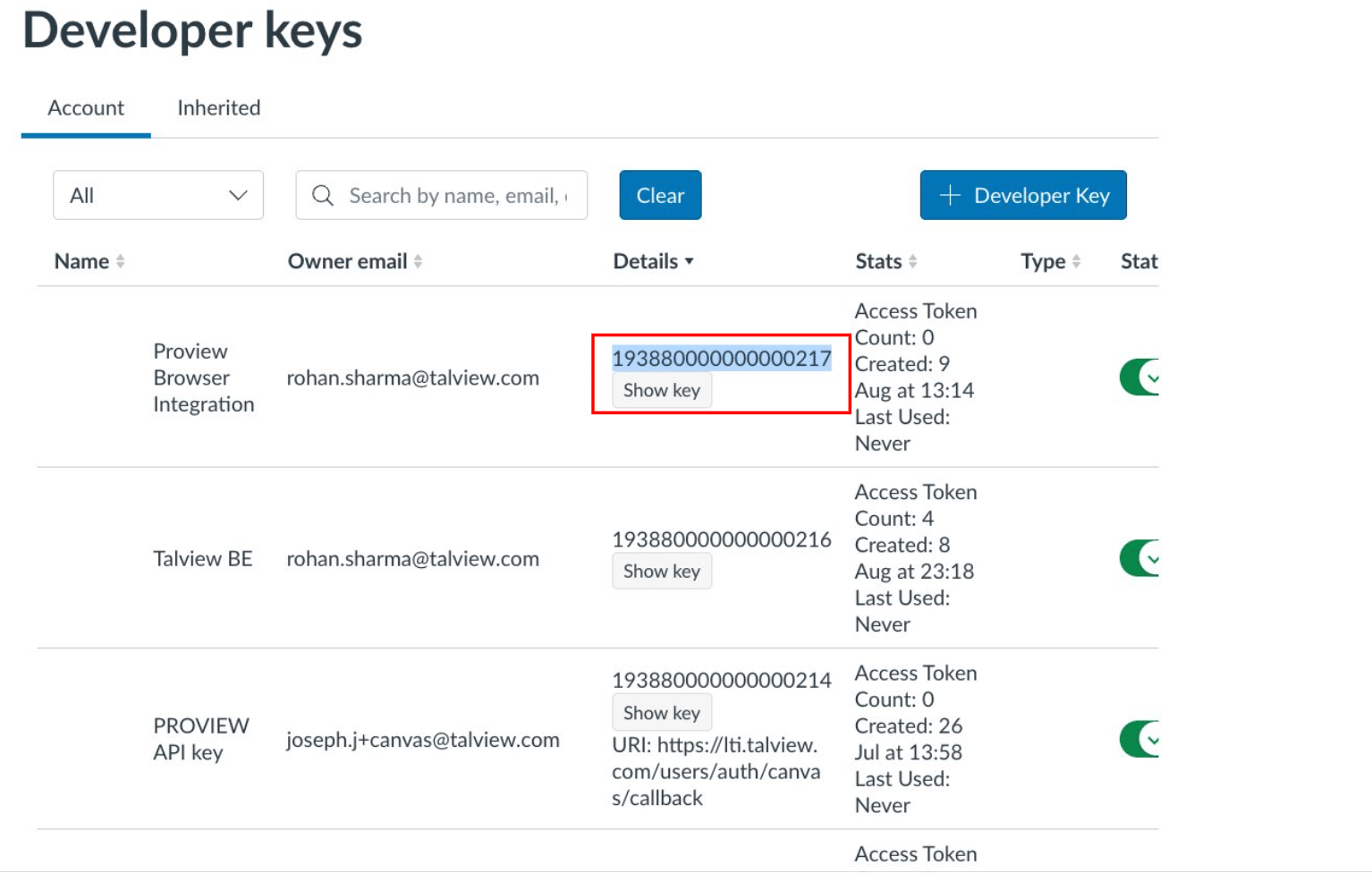
You will receive the Client ID and Client Secret.
-
Click Show Key to view the Client Secret.
 ![Cn5] Pn](/images/cn5].png)
-
Make sure to Enable the state for the key by sliding the toggle to active state.
Authenticate the Integration
-
Prepare the Authentication URL:
- Use the following URL format to authenticate:
https://your_lms_url/login/oauth2/auth?client_id=your_client_id&response_type=code&redirect_uri=https://lms-connector.proview.io&scope=url:GET|/api/v1/courses/:course_id/enrollments%20url:GET|/api/v1/courses/:course_id/quizzes/:quiz_id/submissions%20url:GET|/api/v1/courses/:course_id/assignments/:assignment_id/submissions/:user_id%20url:GET|/api/v1/courses/:id
-
Replace
your_lms_url with your actual Canvas LMS URL and your_client_id with the Client ID you generated.
Example:
https://talview.instructure.com/login/oauth2/auth?client_id=193880000000000216&response_type=code&redirect_uri=https://lms-connector.proview.io&scope=url:GET|/api/v1/courses/:course_id/enrollments%20url:GET|/api/v1/courses/:course_id/quizzes/:quiz_id/submissions%20url:GET|/api/v1/courses/:course_id/assignments/:assignment_id/submissions/:user_id%20url:GET|/api/v1/courses/:id
- Authenticate the Application:
- Copy the prepared URL, paste it into your browser, and press enter.
- Log in to Canvas LMS and authorize the application.
- Upon successful authorization, a code will be appended to the URL in your browser.
- Generate the UUID
- Log in to the Canvas LMS as an admin.
- Enter the following URL in your browser, replacing
your-instance-url with your Canvas LMS instance URL:
- Copy the UUID of the account where you want to enable proctoring.
- Share the Required Details:
- Copy the authorization code from the URL.
- Share the following details with Talview:
- LMS URL
- Authorization Code
- Client ID
- Client Secret
- Account UUID
- The whitelisting process will take about one hour
By following these steps, you will successfully set up the Proview Proctoring extension for your Canvas LMS, enabling a secure and efficient proctoring environment for your online assessments.
Add a validation script to ensure browser extension installation
To ensure that test-takers have installed the Proview browser extension, follow these steps to add a validation script to Canvas LMS.
-
Create the validation script:
Create a file named
proview-browser-extension-validator.js with the following code:
$(document).ready(async function () {
  const url = window.location.href;
  if (isValidCourseAssignmentUrl(url)) {
    try {
      const extension_id = 'doblkllolfingbjkbmelgiepdggnbmhi';
      const { courseId, assignmentId } = parseCourseAssignmentIds(url);
      const cmid = `${courseId}_${assignmentId}`;
      const appId = await getAppId(courseId);
      const apiResponse = await fetchProctoringStatus(cmid, appId);
      if (!apiResponse.success) {
        console.log('API did not respond successfully, allowing the quiz to load normally.');
        return;
      }
      const proctoringEnabled = apiResponse.proctoringEnabled;
      const tsbEnabled = apiResponse.tsbEnabled;
      const isExtensionInstalled = await checkExtension(extension_id);
      const userAgent = window.navigator.userAgent;
      const isProviewBrowser = userAgent.includes('Proview-SB') || userAgent.includes('TalviewBrowser');
      if ((proctoringEnabled || tsbEnabled) && !isExtensionInstalled && !isProviewBrowser) {
        displayExtensionAlert();
      }
    } catch (error) {
      console.error('Silent error, but proceeding without disruption:', error);
    }
  }
});
const isValidCourseAssignmentUrl = (url) =>
  url.includes('courses') &&
  url.includes('assignments') &&
  !(url.includes('edit') || url.includes('new'));
const parseCourseAssignmentIds = (url) => {
  const courseId = url.split('/courses/')[1].split('/')[0];
  const assignmentId = url.split('/assignments/')[1].split('/')[0];
  return { courseId, assignmentId };
};
const getAppId = async (courseId) => {
  const baseUrl = window.location.href.split('/courses')[0];
  const courseInfo = await fetchJson(`${baseUrl}/api/v1/courses/${courseId}`);
  const accountId = courseInfo.root_account_id;
  const userData = await fetchJson(`${baseUrl}/api/v1/audit/authentication/users/self`);
  const accounts = userData.linked.accounts;
  const account = accounts.find((acc) => acc.id === accountId);
  return account.uuid;
};
const fetchJson = async (url) => {
  const response = await fetch(url);
  return response.json();
};
const fetchProctoringStatus = async (cmid, appId) => {
  const proviewApiUrl = 'https://lms-connector.proview.io';
  const getQuizInfoUrl = `${proviewApiUrl}/quiz?course_module_id=${cmid}`;
  const config = {
    headers: {
      'Content-Type': 'application/json',
      'app-id': appId,
    }
  };
  try {
    const response = await fetch(getQuizInfoUrl, config);
    if (!response.ok) {
      if (response.status === 404) {
        console.log(`Quiz not found for cmid: ${cmid}`);
        return { success: false };
      }
      return { success: false };
    }
    const quizInfo = await response.json();
    return {
      success: true,
      proctoringEnabled: quizInfo?.data?.proctoring_enabled ?? false,
      tsbEnabled: quizInfo?.data?.tsb_enabled ?? false
    };
  } catch (error) {
    console.error('Error fetching proctoring/SB status:', error);
    return { success: false };
  }
};
const checkExtension = async (extension_id) => {
  try {
    const response = await fetch(`chrome-extension://${extension_id}/manifest.json`);
    return response.ok;
  } catch (error) {
    return false;
  }
};
const displayExtensionAlert = () => {
  const courseUrl = window.location.href.split('/assignments')[0];
  document.body.innerHTML = '';
  const div = document.createElement('div');
  const alertDiv = document.createElement('div');
  alertDiv.innerHTML = `
    <h4><b>Action Required:</b> Install the Proview Browser Extension</h4>
    <p>To access your exam, you need to install the Proview browser extension.</p>
    <h4><b>Steps to Install</b></h4>
    <p>Click <a href="https://chrome.google.com/webstore/detail/proview-proctoring/doblkllolfingbjkbmelgiepdggnbmhi" target="_blank">here</a> to install the Proview browser extension.</p>
    <p>Once installed, click <a id="newTabRedirectRef" href="${courseUrl}" target="_blank">here</a> to proceed.</p>
  `;
  alertDiv.style.backgroundColor = '#f8d7da';
  alertDiv.style.color = '#171717';
  alertDiv.style.padding = '20px';
  alertDiv.style.borderRadius = '5px';
  div.style.position = 'absolute';
  div.style.top = '50%';
  div.style.left = '50%';
  div.style.transform = 'translate(-50%, -50%)';
  div.appendChild(alertDiv);
  document.body.appendChild(div);
};
-
Upload the script to Canvas LMS:
- Log in as an admin to Canvas LMS.
- Click on the “Admin” tab in the side panel navigation.
- In the expanded side panel, select “Themes.”
-
Add the script to a theme:
- You can either add this script to an existing theme or create a new theme.
- Open the theme in the theme editor.
- Click on the “Upload” button on the left side.
-
Apply the script:
- In the JavaScript file field, select the
proview-browser-extension-validator.js file from the file picker and click “Open.”
- A message will appear asking you to “preview changes”; click to acknowledge.
- After the theme preview has been generated, click on “Save theme” first and then click on “Apply theme” button.
- Confirm by clicking “OK” in the browser pop-up message.
The validation script will now be active, ensuring that test-takers have the Proview browser extension installed before proceeding with their exams.
Add a validation script to hide the vertical & horizontal navigation bar for quizzes (Optional)
To prevent the student from accessing any other course or quiz, a validation script can be added to hide the vertical & horizontal navigation bars.
$(document).ready(async function () {
  const url = window.location.href;

  if (isValidCourseAssignmentUrl(url)) {
    try {
      document.querySelector("#header").style.display = "none";
      document.querySelector("#left-side").style.display="none";
      document.querySelector("#wrapper > div.ic-app-nav-toggle-and-crumbs.no-print").style.display = "none";
      const extension_id = 'doblkllolfingbjkbmelgiepdggnbmhi';
      const isExtensionInstalled = await checkExtension(extension_id);
      const { courseId, assignmentId } = parseCourseAssignmentIds(url);
      const cmid = `${courseId}_${assignmentId}`;
      const appId = await getAppId(courseId);
      const apiResponse = await fetchProctoringStatus(cmid, appId);
      if (!apiResponse.success) {
        console.log('API did not respond successfully, allowing the quiz to load normally.');
        return;
      }
      const proctoringEnabled = apiResponse.proctoringEnabled;
      const tsbEnabled = apiResponse.tsbEnabled;
      const userAgent = window.navigator.userAgent;
      const isProviewBrowser =
        userAgent.includes('Proview-SB') || userAgent.includes('TalviewBrowser');
      if (!isExtensionInstalled && proctoringEnabled && !isProviewBrowser) {
        displayExtensionAlert();
      }
      if(!proctoringEnabled && !tsbEnabled){
        document.querySelector("#header").style.display = "block";
        document.querySelector("#left-side").style.display="block";
        document.querySelector("#wrapper > div.ic-app-nav-toggle-and-crumbs.no-print").style.display = "block";
      }
    } catch (error) {
      console.error('An error occurred:', error);
    }
  }

  if(isValidCourseQuizUrl(url)){
    try {
      document.querySelector("#header").style.display = "none";
      document.querySelector("#left-side").style.display="none";
      document.querySelector("#wrapper > div.ic-app-nav-toggle-and-crumbs.no-print").style.display = "none";
      const { courseId, quizId}=parseCourseQuizIds(url)
      const appId = await getAppId(courseId);
      const cmid = `${courseId}_${quizId}`;
      const apiResponse = await fetchProctoringStatus(cmid, appId);
      if (!apiResponse.success) {
        console.log('API did not respond successfully, allowing the quiz to load normally.');
        return;
      }
      const proctoringEnabled = apiResponse.proctoringEnabled;
      const tsbEnabled = apiResponse.tsbEnabled;
      if(!proctoringEnabled && !tsbEnabled){
        document.querySelector("#header").style.display = "block";
        document.querySelector("#left-side").style.display="block";
        document.querySelector("#wrapper > div.ic-app-nav-toggle-and-crumbs.no-print").style.display = "block";
      }
    } catch (error) {
      console.error('Silent error, but proceeding without disruption:', error);
    }

  }
});
const isValidCourseAssignmentUrl = (url) =>
  url.includes('courses') &&
  url.includes('assignments') &&
  !(url.includes('edit') || url.includes('new')) && !document.querySelector("#easy_student_view");

const isValidCourseQuizUrl = (url) =>
  url.includes('courses') &&
  url.includes('quizzes') &&
  url.includes('take');

const parseCourseAssignmentIds = (url) => {
  const courseId = url.split('/courses/')[1].split('/')[0];
  const assignmentId = url.split('/assignments/')[1].split('?')[0];
  return { courseId, assignmentId };
};

const parseCourseQuizIds = (url) => {
  const courseId = url.split('/courses/')[1].split('/')[0];
  const quizId = url.split('/quizzes/')[1].split('/')[0];
  return { courseId, quizId };
};


const getAppId = async (courseId) => {
  const baseUrl = window.location.href.split('/courses')[0];
  const courseInfo = await fetchJson(`${baseUrl}/api/v1/courses/${courseId}`);
  const accountId = courseInfo.root_account_id;
  const userData = await fetchJson(`${baseUrl}/api/v1/audit/authentication/users/self`);
  const accounts = userData.linked.accounts;
  const account = accounts.find((acc) => acc.id === accountId);
  return account.uuid;
};

const fetchJson = async (url) => {
  const response = await fetch(url);
  return response.json();
};

const fetchProctoringStatus = async (cmid, appId) => {
  const proviewApiUrl = 'https://lms-connector.proview.io';
  const getQuizInfoUrl = `${proviewApiUrl}/quiz?course_module_id=${cmid}`;
  const config = {
    headers: {
      'Content-Type': 'application/json',
      'app-id': appId,
    }
  };

  try {
    const response = await fetch(getQuizInfoUrl, config);
    if (!response.ok) {
      if (response.status === 404) {
        console.log(`Quiz not found for cmid: ${cmid}`);
        return { success: false };
      }
      return { success: false };
    }

    const quizInfo = await response.json();
    return {
      success: true,
      proctoringEnabled: quizInfo?.data?.proctoring_enabled ?? false,
      tsbEnabled: quizInfo?.data?.tsb_enabled ?? false
    };
  } catch (error) {
    console.error('Error fetching proctoring/SB status:', error);
    return { success: false };
  }
};

const checkExtension = async (extension_id) => {
  try {
    const response = await fetch(`chrome-extension://${extension_id}/manifest.json`);
    return response.ok;
  } catch (error) {
    return false;
  }
};

const displayExtensionAlert = () => {
  const courseUrl = window.location.href.split('/assignments')[0];
  document.body.innerHTML = '';
  const div = document.createElement('div');
  const alertDiv = document.createElement('div');
  alertDiv.innerHTML = `
        <h4><b>Action Required:</b> Install the Proview Browser Extension</h4>
        <p>To access your exam, you need to install the Proview browser extension.</p>
        <h4><b>Steps to Install</b></h4>
        <p>Click <a href="https://chrome.google.com/webstore/detail/proview-proctoring/doblkllolfingbjkbmelgiepdggnbmhi" target="_blank">here</a> to install the Proview browser extension.</p>
        <p>Once installed, click <a id="newTabRedirectRef" href="${courseUrl}" target="_blank">here</a> to proceed.</p>
      `;
  alertDiv.style.backgroundColor = '#f8d7da';
  alertDiv.style.color = '#171717';
  alertDiv.style.padding = '20px';
  alertDiv.style.borderRadius = '5px';

  div.style.position = 'absolute';
  div.style.top = '50%';
  div.style.left = '50%';
  div.style.transform = 'translate(-50%, -50%)';
  div.appendChild(alertDiv);
  document.body.appendChild(div);
};

