> ## Documentation Index
> Fetch the complete documentation index at: https://docs.talview.com/llms.txt
> Use this file to discover all available pages before exploring further.
# How am I notified when multiple audio devices are detected from candidates
During a Live Interview, the system automatically checks the candidate’s connected audio devices. If more than one microphone is detected, the platform displays a **real-time alert notification** within the interview interface.
This article explains how evaluators are notified when **multiple audio input devices** are detected on a candidate’s system, what the notification means, and what action (if any) is required.
***
## How is the Evaluator notified?
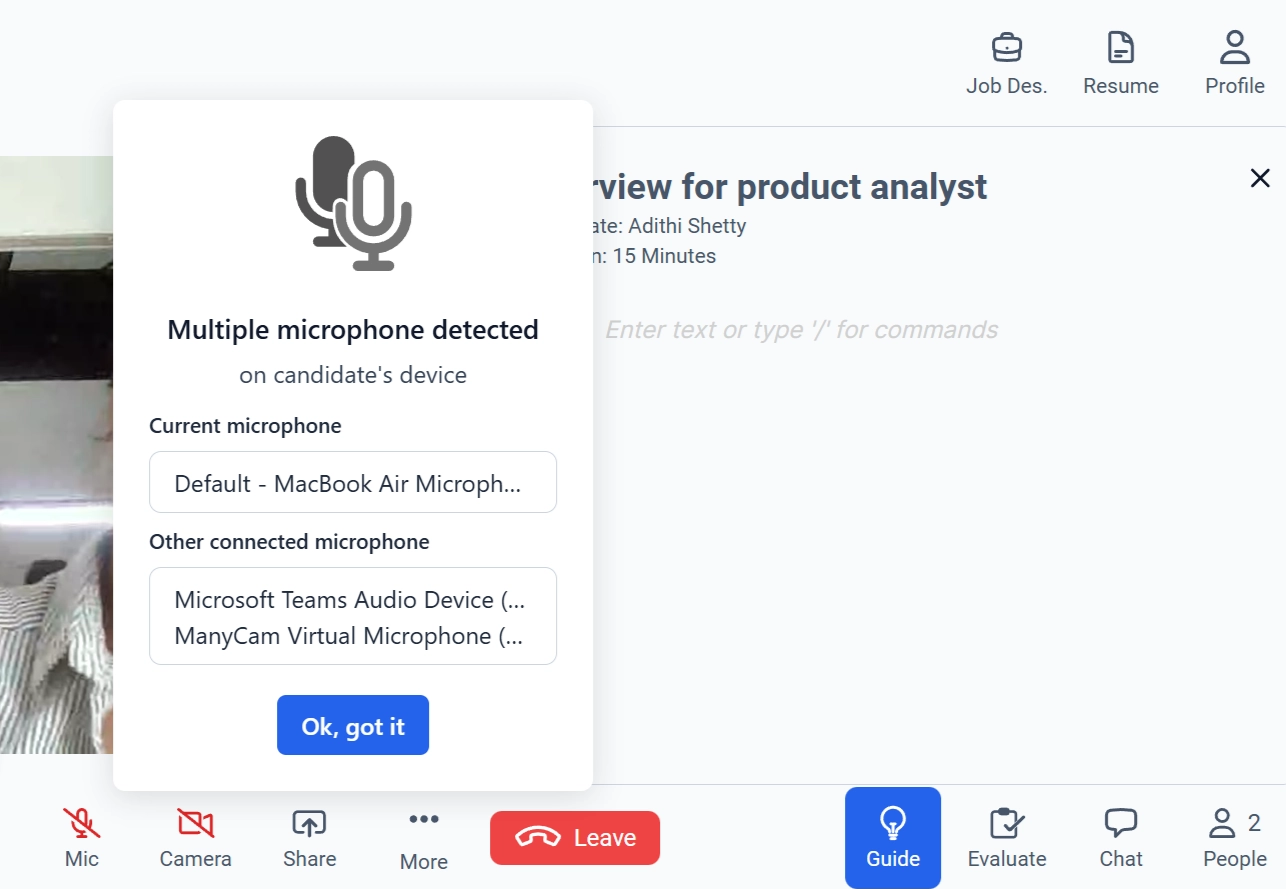 When multiple microphones are detected on the candidate’s device:
* A **pop-up alert** appears inside the Live Interview screen.
* The alert states:
**“Multiple microphone detected on candidate's device.”**
* It displays:
* The **current microphone** in use
* Other connected microphone devices
The alert is informational and allows the evaluator to stay aware of the candidate’s audio configuration.
> **Note**: The Live Interview continues uninterrupted. The notification does **not** automatically pause or terminate the session. It is a **monitoring alert**, not a blocking error.
### Best Practices
To maintain a secure and fair interview environment:
* Review the microphone list when the alert appears.
* Ensure only necessary audio devices are active.
* Follow your organization’s standard interview integrity policy.
When multiple microphones are detected on the candidate’s device:
* A **pop-up alert** appears inside the Live Interview screen.
* The alert states:
**“Multiple microphone detected on candidate's device.”**
* It displays:
* The **current microphone** in use
* Other connected microphone devices
The alert is informational and allows the evaluator to stay aware of the candidate’s audio configuration.
> **Note**: The Live Interview continues uninterrupted. The notification does **not** automatically pause or terminate the session. It is a **monitoring alert**, not a blocking error.
### Best Practices
To maintain a secure and fair interview environment:
* Review the microphone list when the alert appears.
* Ensure only necessary audio devices are active.
* Follow your organization’s standard interview integrity policy.