> ## Documentation Index
> Fetch the complete documentation index at: https://docs.talview.com/llms.txt
> Use this file to discover all available pages before exploring further.
# How am I notified when a candidate switches their camera device
During a Live Interviews, interviewers are notified in real time if a candidate switches their camera device mid-session. This notification ensures transparency and helps maintain interview integrity.
This article explains how evaluators are notified when a candidate switches their camera device and what actions to take.
***
## **How is the Evaluator notified?**
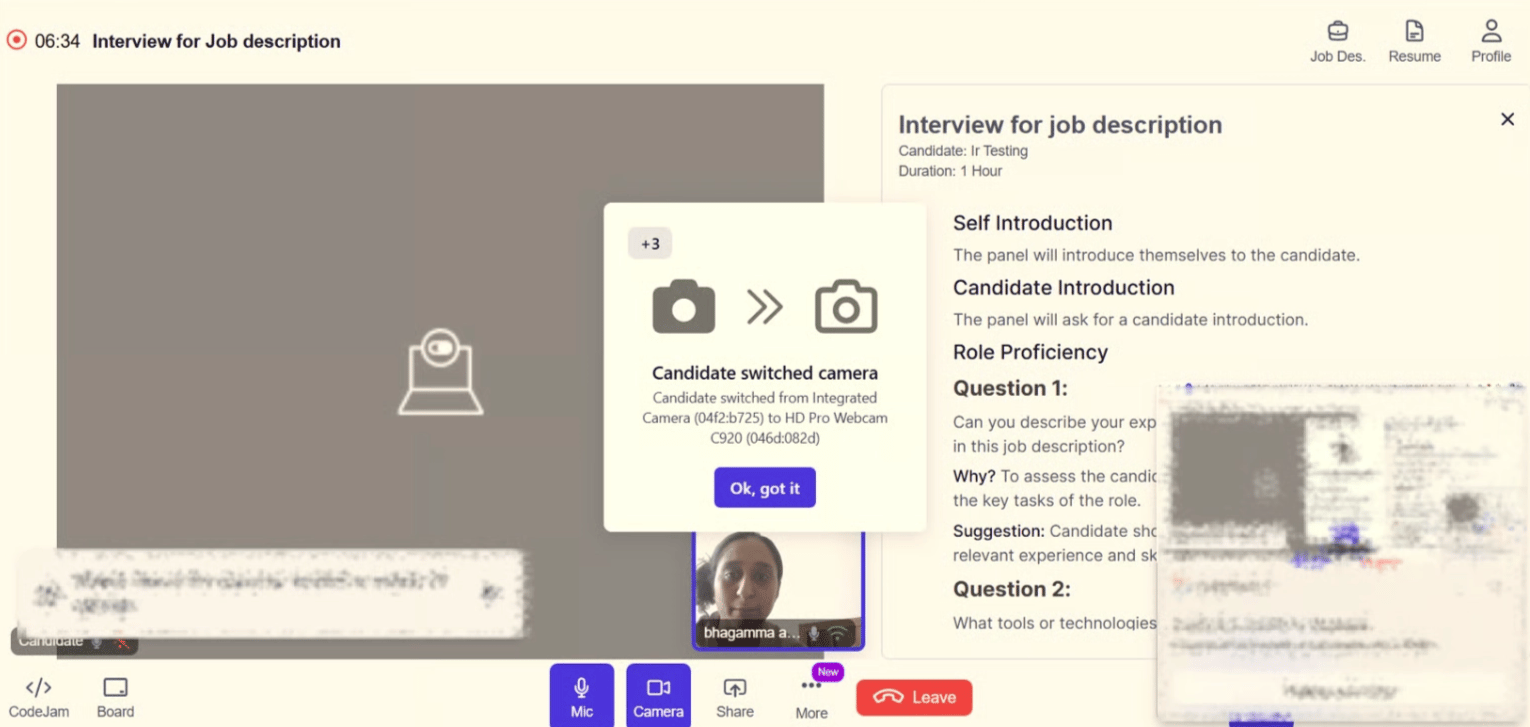 When a candidate changes their camera input device during a Live Interview session, the system displays an **on-screen pop-up alert**.
The notification:
* Appears prominently during the Live Interview session.
* Clearly indicates that the **candidate has switched their camera device**.
* May display details such as:
* The **previous camera device**
* The **newly selected camera device**
* Includes an acknowledgment button such as **“Ok, got it”** to proceed.
This ensures that the evaluators are immediately informed of any changes to the candidate’s video configuration.
> **Note**: The notification is informational and designed to maintain transparency and interview integrity. It does not automatically pause or terminate the session.
**Best Practices**
* Encourage candidates to finalize their setup before the interview begins.
* Avoid frequent interruptions unless the switch impacts video clarity or integrity.
When a candidate changes their camera input device during a Live Interview session, the system displays an **on-screen pop-up alert**.
The notification:
* Appears prominently during the Live Interview session.
* Clearly indicates that the **candidate has switched their camera device**.
* May display details such as:
* The **previous camera device**
* The **newly selected camera device**
* Includes an acknowledgment button such as **“Ok, got it”** to proceed.
This ensures that the evaluators are immediately informed of any changes to the candidate’s video configuration.
> **Note**: The notification is informational and designed to maintain transparency and interview integrity. It does not automatically pause or terminate the session.
**Best Practices**
* Encourage candidates to finalize their setup before the interview begins.
* Avoid frequent interruptions unless the switch impacts video clarity or integrity.