> ## Documentation Index
> Fetch the complete documentation index at: https://docs.talview.com/llms.txt
> Use this file to discover all available pages before exploring further.
# How am I notified when a candidate switches their audio device
During a Live Interview, maintaining clear and consistent communication is essential. If a **candidate switches their audio input device** during the Live inetrview, the platform automatically notifies the evaluator.
This article explains how evaluators are notified when a candidate switches their audio device and what actions to take.
***
## **How is the Evaluator notified?**
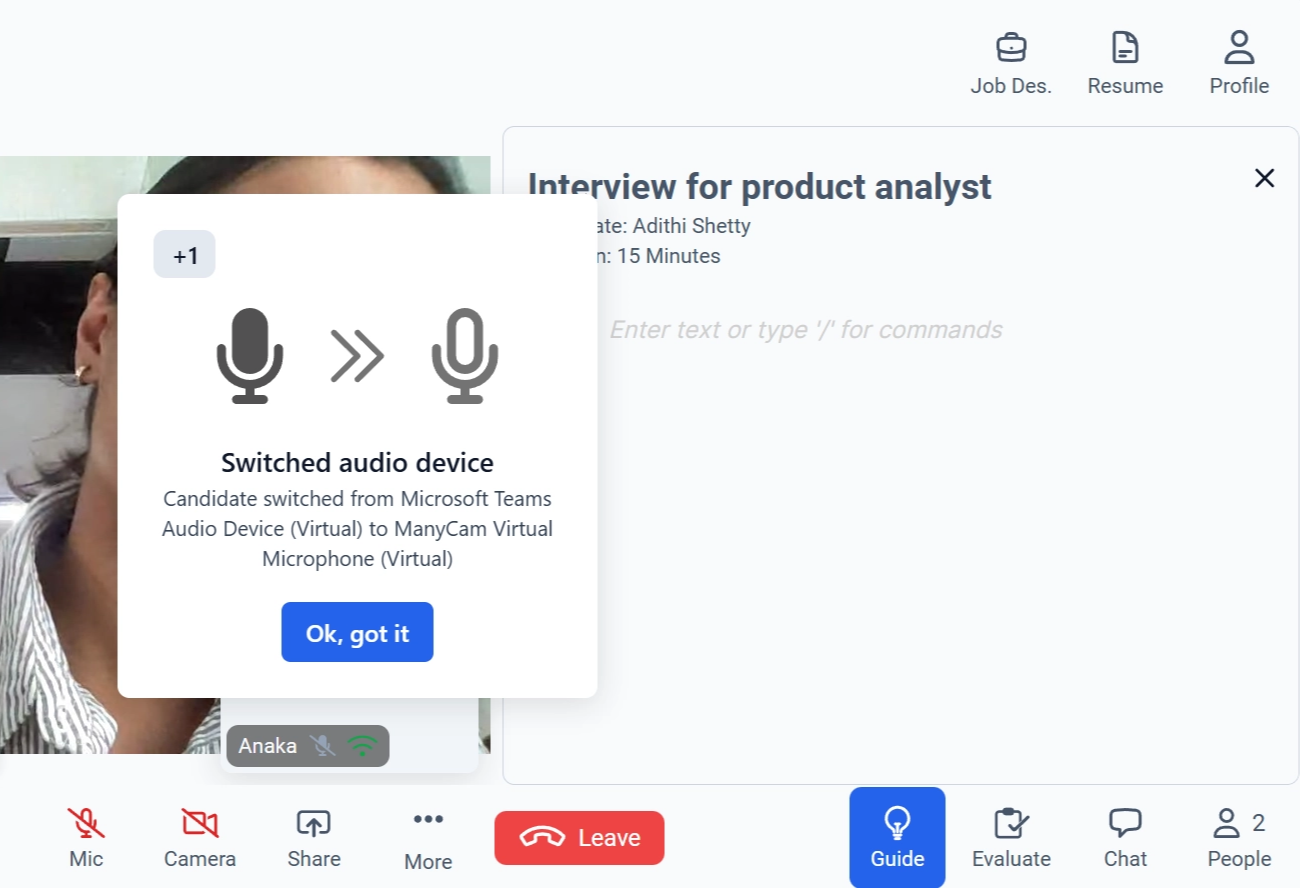 When a candidate changes their audio input device during a Live Interview session on Talview, the system displays an **on-screen pop-up alert**.
The notification:
* Appears prominently during the Live Interview session.
* Clearly indicates that the **candidate has switched their audio device**.
* May display details such as:
* The **previous audio device**
* The **newly selected audio device**
* Includes an acknowledgment button such as **“Ok, got it”** to proceed.
This ensures that the evaluators are immediately informed of any changes to the candidate’s audio configuration.
> **Note**: The notification is informational and designed to maintain transparency and interview integrity. It does not automatically pause or terminate the session.
### **Best Practices**
* Ensure the new audio device provides **clear and stable sound quality**.
* If your organization has strict compliance requirements, verify that the change aligns with interview guidelines.
* Continue the interview once audio quality is confirmed.
When a candidate changes their audio input device during a Live Interview session on Talview, the system displays an **on-screen pop-up alert**.
The notification:
* Appears prominently during the Live Interview session.
* Clearly indicates that the **candidate has switched their audio device**.
* May display details such as:
* The **previous audio device**
* The **newly selected audio device**
* Includes an acknowledgment button such as **“Ok, got it”** to proceed.
This ensures that the evaluators are immediately informed of any changes to the candidate’s audio configuration.
> **Note**: The notification is informational and designed to maintain transparency and interview integrity. It does not automatically pause or terminate the session.
### **Best Practices**
* Ensure the new audio device provides **clear and stable sound quality**.
* If your organization has strict compliance requirements, verify that the change aligns with interview guidelines.
* Continue the interview once audio quality is confirmed.