> ## Documentation Index
> Fetch the complete documentation index at: https://docs.talview.com/llms.txt
> Use this file to discover all available pages before exploring further.
# How to reschedule a candidate’s booking
This article explains how coordinators reschedule a candidate's booking for an individual assessment (or, at the enrollment level, where necessary) using the Talview Coordinator Console, including where to open the reschedule action and how to pick a different slot for the affected step.
***
### **Step-by-Step Guide**
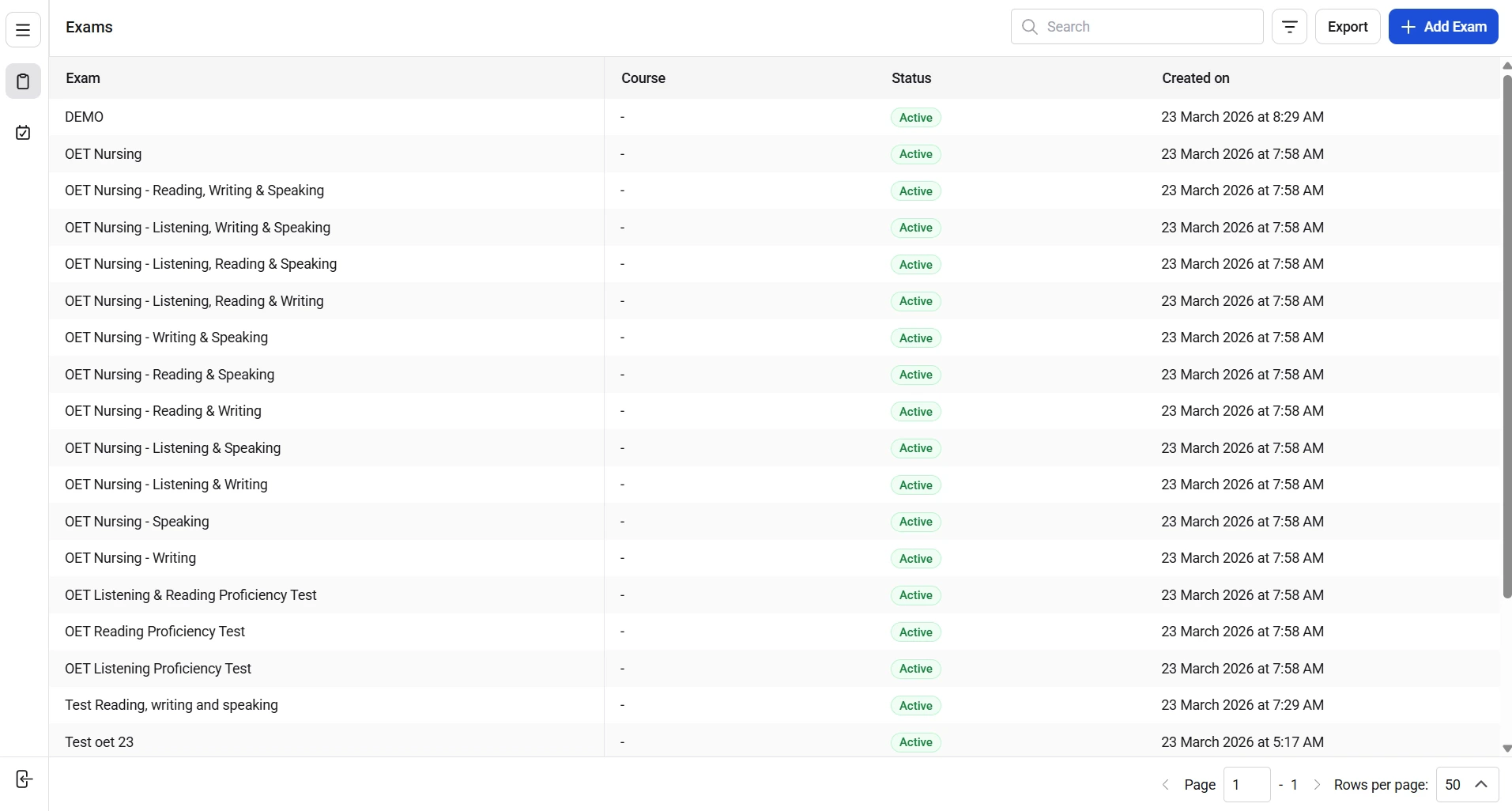 **1. Open the Exams list and select the exam**
* From the dashboard, open the **Exams** list view.
* Locate the exam row for the exam containing the candidate’s enrollment.
* Click the exam row to open the exam details screen.
**2. Reschedule a booking at the step level**
* Open the assessment tab for the specific step (for example, **Reading & Listening** or **Speaking**).
* Locate the candidate time slot for that assessment step.
* Click on the candidate time slot
* Locate the candidate name
* Click the ellipsis (more actions) on the candidate’s row and select **Reschedule booking**.
* Choose a new available slot (date/time) for that exam step from the slot picker and confirm the change.
**3. Reschedule entire enrollment (where necessary)**
* If enrollment-level reschedule is needed for the tenant, open the **Enrollments** tab.
* Click the ellipsis on the specific candidate row and select **Reschedule booking**
* Select new slots for the required assessments
**4. Verify the reschedule**
* Confirm the candidate’s assigned slot and center update in the step tab and the Enrollments list.
* Check booking and capacity values to ensure the new slot allocation is reflected.
**Additional tips**
* Confirm whether you’re rescheduling a step or the entire enrollment, and confirm the candidate’s availability/time zone.
* Verify slot duration and step spacing to avoid conflicts with other exam steps.
* Check mapped center capacity and ensure approved accommodations transfer to the new slot.
* Use search/filters to find and compare available slots before confirming.
**1. Open the Exams list and select the exam**
* From the dashboard, open the **Exams** list view.
* Locate the exam row for the exam containing the candidate’s enrollment.
* Click the exam row to open the exam details screen.
**2. Reschedule a booking at the step level**
* Open the assessment tab for the specific step (for example, **Reading & Listening** or **Speaking**).
* Locate the candidate time slot for that assessment step.
* Click on the candidate time slot
* Locate the candidate name
* Click the ellipsis (more actions) on the candidate’s row and select **Reschedule booking**.
* Choose a new available slot (date/time) for that exam step from the slot picker and confirm the change.
**3. Reschedule entire enrollment (where necessary)**
* If enrollment-level reschedule is needed for the tenant, open the **Enrollments** tab.
* Click the ellipsis on the specific candidate row and select **Reschedule booking**
* Select new slots for the required assessments
**4. Verify the reschedule**
* Confirm the candidate’s assigned slot and center update in the step tab and the Enrollments list.
* Check booking and capacity values to ensure the new slot allocation is reflected.
**Additional tips**
* Confirm whether you’re rescheduling a step or the entire enrollment, and confirm the candidate’s availability/time zone.
* Verify slot duration and step spacing to avoid conflicts with other exam steps.
* Check mapped center capacity and ensure approved accommodations transfer to the new slot.
* Use search/filters to find and compare available slots before confirming.