> ## Documentation Index
> Fetch the complete documentation index at: https://docs.talview.com/llms.txt
> Use this file to discover all available pages before exploring further.
# How to view your upcoming schedules
The **Bookings** section allows proctors to view all their scheduled sessions in one place. From here, you can quickly see your **current sessions**, **upcoming schedules**, and basic session details such as time, room, and seat capacity.
***
### Accessing Your Schedules
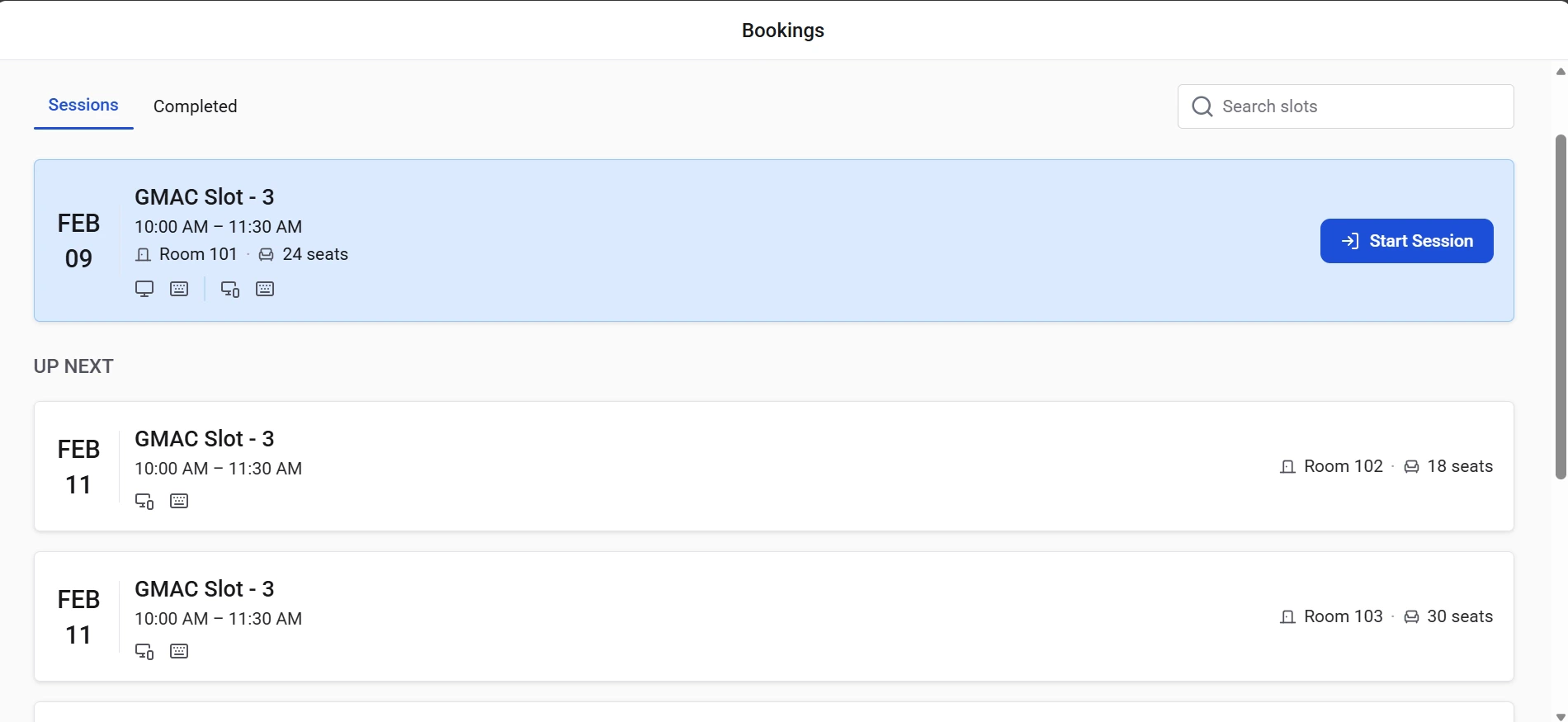 1. Navigate to the **Bookings** page after logging in.
2. The **Sessions** tab displays all scheduled sessions assigned to you.
***
### Understanding the Sessions View
Your schedules are organized in a clear, time-based layout so you can easily track what you need to proctor.
**Current / Active Session**
* The session that is about to start or is currently active appears at the **top of the page**.
* It includes key details such as:
* **Session name**
* **Date**
* **Start and end time**
* **Room number**
* **Number of seats available**
* A **Start Session** button is available for sessions that are ready to begin.
**Upcoming Sessions**
* Sessions scheduled **later in the day or on future dates** appear under the **Up Next** section.
* These sessions are displayed in chronological order so you can easily see what is scheduled next.
***
### Session Information Available
Each session card provides a quick overview of the schedule, including:
* **Session title**
* **Date of the session**
* **Session timing**
* **Assigned room**
* **Total seat capacity**
* **Device or setup indicators (if applicable)**
***
### Completed Sessions
To review sessions that have already finished:
1. Click the **Completed** tab.
2. This tab shows sessions that were previously conducted.
**Best Practices**
* Review your **Bookings dashboard regularly** to stay aware of upcoming sessions.
* Check session details in advance so you are prepared before the session start time.
* Start sessions promptly using the **Start Session** option when the time arrives.
1. Navigate to the **Bookings** page after logging in.
2. The **Sessions** tab displays all scheduled sessions assigned to you.
***
### Understanding the Sessions View
Your schedules are organized in a clear, time-based layout so you can easily track what you need to proctor.
**Current / Active Session**
* The session that is about to start or is currently active appears at the **top of the page**.
* It includes key details such as:
* **Session name**
* **Date**
* **Start and end time**
* **Room number**
* **Number of seats available**
* A **Start Session** button is available for sessions that are ready to begin.
**Upcoming Sessions**
* Sessions scheduled **later in the day or on future dates** appear under the **Up Next** section.
* These sessions are displayed in chronological order so you can easily see what is scheduled next.
***
### Session Information Available
Each session card provides a quick overview of the schedule, including:
* **Session title**
* **Date of the session**
* **Session timing**
* **Assigned room**
* **Total seat capacity**
* **Device or setup indicators (if applicable)**
***
### Completed Sessions
To review sessions that have already finished:
1. Click the **Completed** tab.
2. This tab shows sessions that were previously conducted.
**Best Practices**
* Review your **Bookings dashboard regularly** to stay aware of upcoming sessions.
* Check session details in advance so you are prepared before the session start time.
* Start sessions promptly using the **Start Session** option when the time arrives.