> ## Documentation Index
> Fetch the complete documentation index at: https://docs.talview.com/llms.txt
> Use this file to discover all available pages before exploring further.
# How to check-in a candidate
Once a session has started, proctors can manage candidates from the **Candidate Management** view. One of the key actions available is **checking in a candidate**, which confirms that the candidate has arrived and is ready to begin the exam process.
***
### Navigating to Check-In
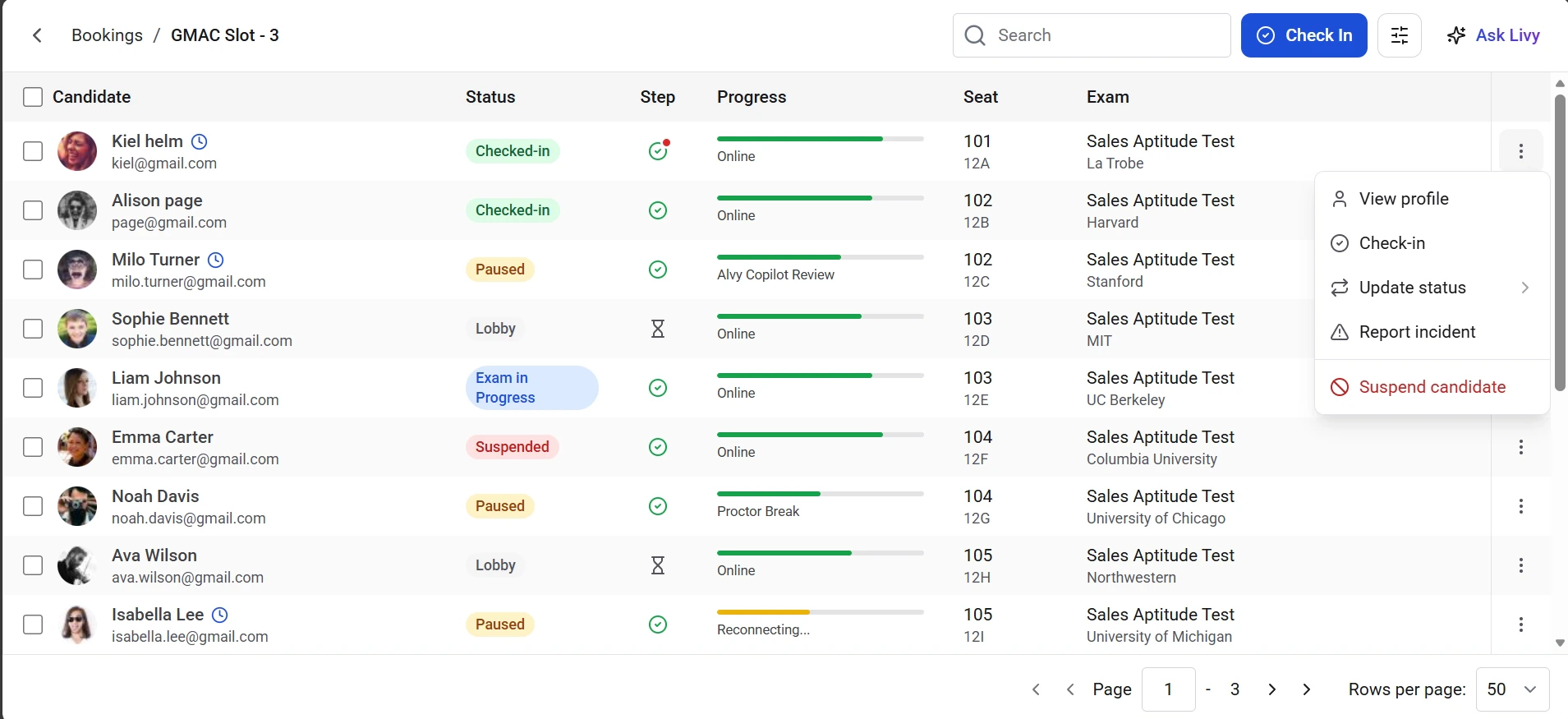 1. Navigate to the **Bookings** page.
2. Locate the scheduled session and click **Start Session**.
3. You will be directed to the **Candidate Management** view for that session.
4. Find the candidate in the **Candidate list**.
5. Click the **menu (three-dot icon)** next to the candidate’s name.
6. Select **Check-in** from the available options.
Once the action is completed, the candidate’s **Status** will update to **Checked-in**.
***
### Verifying the Check-In Status
After checking in a candidate, you can confirm the update in the candidate list:
* The **Status** column will display **Checked-in**.
* The **Step** indicator will reflect the candidate’s current stage in the process.
* The **Progress** bar will show the candidate’s exam progression once the test begins.
**Best Practices**
* Confirm the **candidate’s identity** before performing the check-in.
* Verify the **seat assignment and exam details** shown in the dashboard.
* Ensure the candidate is **physically present and ready** before completing the check-in.
1. Navigate to the **Bookings** page.
2. Locate the scheduled session and click **Start Session**.
3. You will be directed to the **Candidate Management** view for that session.
4. Find the candidate in the **Candidate list**.
5. Click the **menu (three-dot icon)** next to the candidate’s name.
6. Select **Check-in** from the available options.
Once the action is completed, the candidate’s **Status** will update to **Checked-in**.
***
### Verifying the Check-In Status
After checking in a candidate, you can confirm the update in the candidate list:
* The **Status** column will display **Checked-in**.
* The **Step** indicator will reflect the candidate’s current stage in the process.
* The **Progress** bar will show the candidate’s exam progression once the test begins.
**Best Practices**
* Confirm the **candidate’s identity** before performing the check-in.
* Verify the **seat assignment and exam details** shown in the dashboard.
* Ensure the candidate is **physically present and ready** before completing the check-in.