> ## Documentation Index
> Fetch the complete documentation index at: https://docs.talview.com/llms.txt
> Use this file to discover all available pages before exploring further.
# Understanding the Allocation View
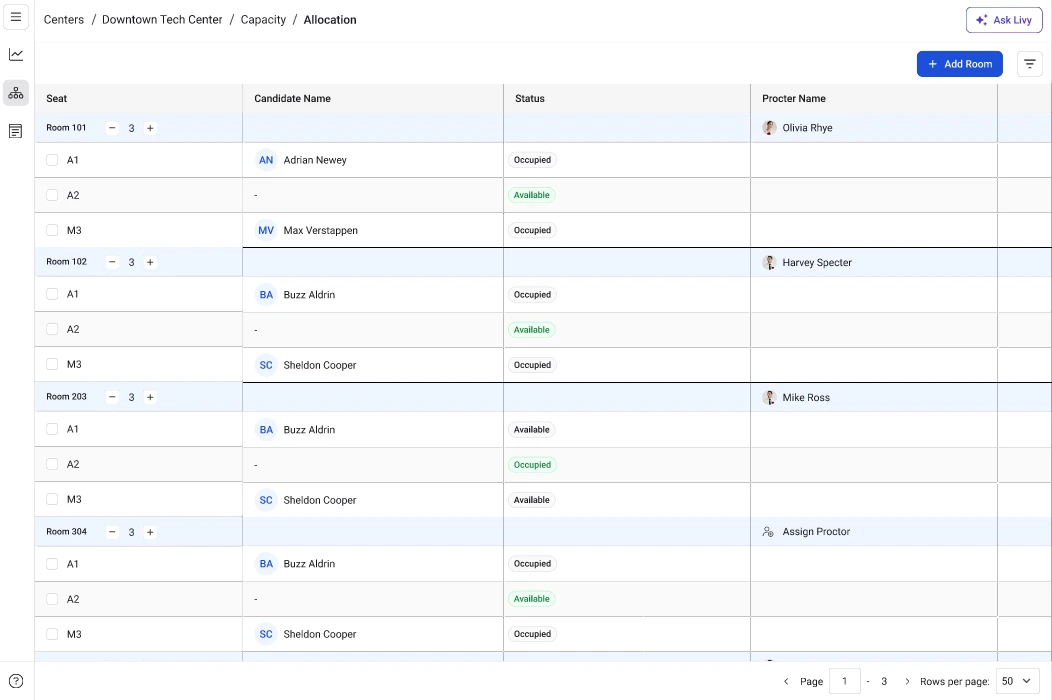
The **Allocation view** helps administrators manage how rooms, seats, and proctors are assigned for a specific exam slot This view provides a detailed breakdown of the slot configuration, including which rooms are allocated, how many seats are available, and which proctors are assigned to supervise each room.
***
### Step-by-Step Guide
 **1. Open the Capacity tab**
* Navigate to the **Capacity** tab in the center workflow.
* This page displays the list of scheduled exam slots, including details such as **date, time, exam type, and total slot capacity**.
**2. Locate the slot you want to review**
Scroll through the **slot table** to find the specific slot whose room and seat allocation you want to review.
**3. Open the slot allocation view**
* Click anywhere on the **slot row**.
* This opens the **Allocation view**, where you can see how the slot is distributed across rooms.
***
### Key Actions in the Allocation view
Once the allocation view opens, you will see detailed information about how the slot is configured.
**Rooms assigned to the slot**
The allocation view lists all **rooms allocated** for the selected slot.
Each room entry typically displays:
* **Room name or number**
* **Room seat capacity**
* **Current seat usage**
If multiple rooms are assigned, the **combined capacity of all rooms** determines the total number of candidates that can be scheduled for the slot.
**Seat allocation**
For each room, the system shows the **number of seats available, and the number of seats already used**.
Seat availability depends on:
* The **seat layout configured for the room**
* The **number of candidates assigned to the slot**
If seat capacity changes due to room adjustments, administrators may need to **reassign seats** for candidates.
**Proctor assignment**
Each room in the allocation view includes an option to **assign or view a proctor** responsible for supervising that room.
When a proctor is assigned, the view displays:
* **Proctor name**
* **Room assigned for supervision**
Assigning a proctor ensures that every exam room has **proper supervision during the exam session**.
**Additional Tips**
* The **total slot capacity** is calculated based on the combined seat capacity of all assigned rooms.
* If a room is **removed from the allocation**, the slot capacity may decrease.
* Ensure that **each room has an assigned proctor** before the exam begins.
* If a room’s **seat configuration changes**, review the allocation view to confirm seat availability
**1. Open the Capacity tab**
* Navigate to the **Capacity** tab in the center workflow.
* This page displays the list of scheduled exam slots, including details such as **date, time, exam type, and total slot capacity**.
**2. Locate the slot you want to review**
Scroll through the **slot table** to find the specific slot whose room and seat allocation you want to review.
**3. Open the slot allocation view**
* Click anywhere on the **slot row**.
* This opens the **Allocation view**, where you can see how the slot is distributed across rooms.
***
### Key Actions in the Allocation view
Once the allocation view opens, you will see detailed information about how the slot is configured.
**Rooms assigned to the slot**
The allocation view lists all **rooms allocated** for the selected slot.
Each room entry typically displays:
* **Room name or number**
* **Room seat capacity**
* **Current seat usage**
If multiple rooms are assigned, the **combined capacity of all rooms** determines the total number of candidates that can be scheduled for the slot.
**Seat allocation**
For each room, the system shows the **number of seats available, and the number of seats already used**.
Seat availability depends on:
* The **seat layout configured for the room**
* The **number of candidates assigned to the slot**
If seat capacity changes due to room adjustments, administrators may need to **reassign seats** for candidates.
**Proctor assignment**
Each room in the allocation view includes an option to **assign or view a proctor** responsible for supervising that room.
When a proctor is assigned, the view displays:
* **Proctor name**
* **Room assigned for supervision**
Assigning a proctor ensures that every exam room has **proper supervision during the exam session**.
**Additional Tips**
* The **total slot capacity** is calculated based on the combined seat capacity of all assigned rooms.
* If a room is **removed from the allocation**, the slot capacity may decrease.
* Ensure that **each room has an assigned proctor** before the exam begins.
* If a room’s **seat configuration changes**, review the allocation view to confirm seat availability