> ## Documentation Index
> Fetch the complete documentation index at: https://docs.talview.com/llms.txt
> Use this file to discover all available pages before exploring further.
# How to view room capacity
Room capacity refers to the total number of seats configured within a room. It directly impacts slot planning, seat allocation, and overall center utilization.
This article explains how to view the seating capacity of a room in the In-Center workflow.
***
### Where Can I View Room Capacity?
You can view room capacity from:
* The **Overview** tab (center-level view)
* The **Capacity** tab (slot-level view)
***
### Method 1: View Capacity from the Overview Tab
 **Step 1: Open the Center**
* Go to the **Centers** dashboard.
* Click on the relevant **Center Name**.
* You will land on the **Overview** tab.
**Step 2: Locate the Rooms Section**
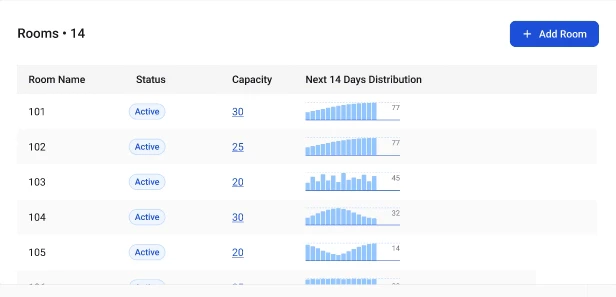
In the **Rooms** section, you will see a table listing all configured rooms.
The table displays:
* Room Name
* Room Status (Active/Inactive)
* Capacity (total seats)
* Next 14 Days Distribution
The **Capacity column** shows the total number of seats available in that room.
**Step 3 (Optional): View Detailed Seat Allocation**
*To see individual seats:*
* Click on the room row (or click on the capacity number).
* The **Edit Room** side panel will open.
* Navigate to the **Seat Allocation** section.
*Here you can:*
* View all configured seat labels
* Add new seats (if required)
* Edit or remove seats (if no active bookings exist)
***
### Method 2: View Capacity from the Capacity Tab (Slot-Level)
**Step 1: Open the Center**
* Go to the **Centers** dashboard.
* Click on the relevant **Center Name**.
* You will land on the **Overview** tab.
**Step 2: Locate the Rooms Section**
In the **Rooms** section, you will see a table listing all configured rooms.
The table displays:
* Room Name
* Room Status (Active/Inactive)
* Capacity (total seats)
* Next 14 Days Distribution
The **Capacity column** shows the total number of seats available in that room.
**Step 3 (Optional): View Detailed Seat Allocation**
*To see individual seats:*
* Click on the room row (or click on the capacity number).
* The **Edit Room** side panel will open.
* Navigate to the **Seat Allocation** section.
*Here you can:*
* View all configured seat labels
* Add new seats (if required)
* Edit or remove seats (if no active bookings exist)
***
### Method 2: View Capacity from the Capacity Tab (Slot-Level)
 **Step 1: Open the Capacity Tab**
* From the center page, click on the **Capacity** tab.
**Step 2: Review Slot Information**
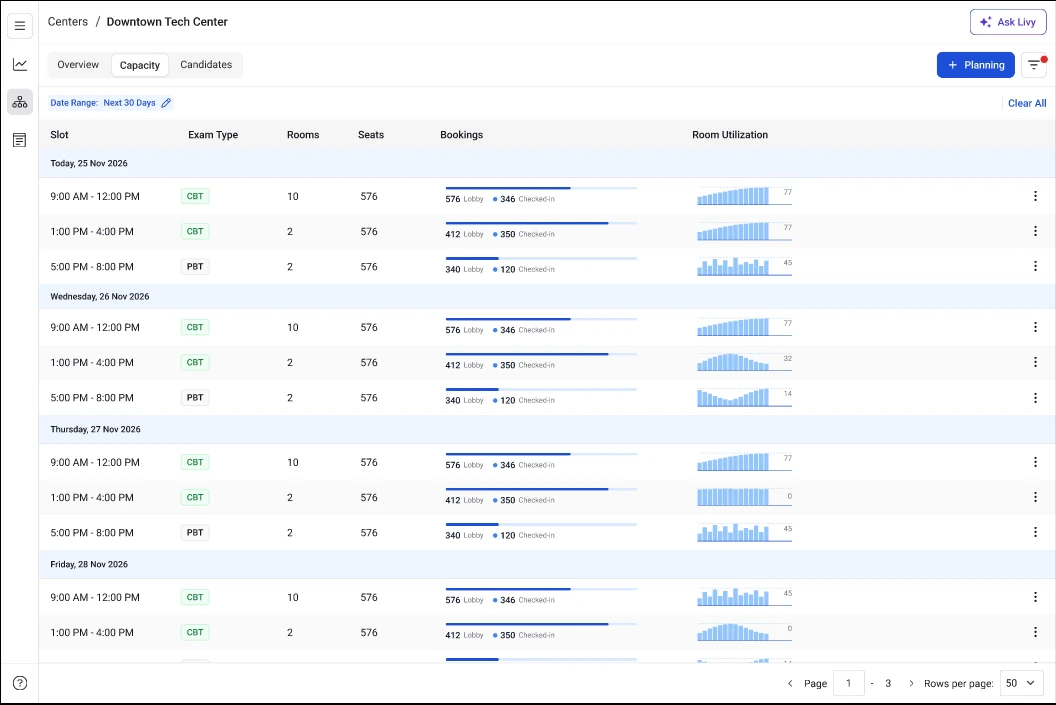
Each row in the Capacity table shows:
* Date and time slot
* Number of rooms allocated
* Total seats available for that slot
The **Seats column** displays the combined capacity across all rooms allocated to that specific slot.
This helps you understand how room capacity translates into actual scheduling availability.
**Important Notes**
* Inactive rooms do not contribute to available capacity for new bookings.
* Capacity updates automatically when seats are added or removed.
* Seats with active bookings cannot be deleted.
* Slot-level capacity depends on which rooms are allocated to that slot.
**Step 1: Open the Capacity Tab**
* From the center page, click on the **Capacity** tab.
**Step 2: Review Slot Information**
Each row in the Capacity table shows:
* Date and time slot
* Number of rooms allocated
* Total seats available for that slot
The **Seats column** displays the combined capacity across all rooms allocated to that specific slot.
This helps you understand how room capacity translates into actual scheduling availability.
**Important Notes**
* Inactive rooms do not contribute to available capacity for new bookings.
* Capacity updates automatically when seats are added or removed.
* Seats with active bookings cannot be deleted.
* Slot-level capacity depends on which rooms are allocated to that slot.