> ## Documentation Index
> Fetch the complete documentation index at: https://docs.talview.com/llms.txt
> Use this file to discover all available pages before exploring further.
# How to update candidate status
The **Update Status** option allows administrators to manually change a candidate’s exam status during the in-center exam process. This helps staff accurately reflect the candidate’s progress and manage the exam workflow in real time.
***
### Accessing the Candidate Status Option
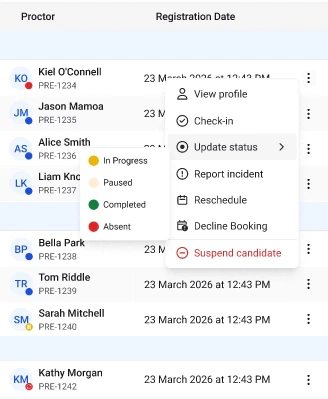 To update the status of a candidate:
1. Navigate to the **Centers** section from the main dashboard.
2. Select the **center** where the candidate is scheduled.
3. Click on the **Candidates** tab.
4. Locate the candidate in the **Candidates table**.
5. Click the **menu (⋯)** at the end of the candidate’s row.
6. Select **Update Status** from the available options.
A status selection window will appear, allowing you to change the candidate’s current status.
***
### Available Candidate Statuses
When updating a candidate’s status, you may see several possible status options depending on the stage of the exam session. These statuses indicate the candidate’s current progress.
| Status | Description |
| :-------------- | :------------------------------------------------------------------------------------------- |
| **Invited** | The candidate has been scheduled for the exam but has not yet started the exam process. |
| **Checked-In** | The candidate has arrived at the test center and completed the initial verification process. |
| **Lobby** | The candidate is waiting in the system lobby before being seated for the exam. |
| **Seated** | The candidate has been assigned a seat in the exam room. |
| **In Progress** | The candidate has started the exam and is currently taking it. |
| **Paused** | The exam session has been temporarily paused. |
| **Completed** | The candidate has finished the exam. |
| **Checked Out** | The candidate has completed the entire exam process and exited the center workflow. |
***
### Updating the Status
After selecting **Update Status**:
1. Choose the appropriate **status** from the list.
2. Confirm the change.
Once updated, the new status will immediately appear in the **Status column** in the Candidates table.
**Best Practices When Updating Status**
To maintain accurate exam tracking:
* Ensure the candidate has completed the required step before updating their status.
* Verify candidate identity before marking them as **Checked-In**.
* Only mark **Completed** after the exam session has officially ended.
* Use **Paused** only when an exam session needs to be temporarily halted.
Keeping candidate statuses updated helps maintain clear visibility of exam progress across the center.
***
To update the status of a candidate:
1. Navigate to the **Centers** section from the main dashboard.
2. Select the **center** where the candidate is scheduled.
3. Click on the **Candidates** tab.
4. Locate the candidate in the **Candidates table**.
5. Click the **menu (⋯)** at the end of the candidate’s row.
6. Select **Update Status** from the available options.
A status selection window will appear, allowing you to change the candidate’s current status.
***
### Available Candidate Statuses
When updating a candidate’s status, you may see several possible status options depending on the stage of the exam session. These statuses indicate the candidate’s current progress.
| Status | Description |
| :-------------- | :------------------------------------------------------------------------------------------- |
| **Invited** | The candidate has been scheduled for the exam but has not yet started the exam process. |
| **Checked-In** | The candidate has arrived at the test center and completed the initial verification process. |
| **Lobby** | The candidate is waiting in the system lobby before being seated for the exam. |
| **Seated** | The candidate has been assigned a seat in the exam room. |
| **In Progress** | The candidate has started the exam and is currently taking it. |
| **Paused** | The exam session has been temporarily paused. |
| **Completed** | The candidate has finished the exam. |
| **Checked Out** | The candidate has completed the entire exam process and exited the center workflow. |
***
### Updating the Status
After selecting **Update Status**:
1. Choose the appropriate **status** from the list.
2. Confirm the change.
Once updated, the new status will immediately appear in the **Status column** in the Candidates table.
**Best Practices When Updating Status**
To maintain accurate exam tracking:
* Ensure the candidate has completed the required step before updating their status.
* Verify candidate identity before marking them as **Checked-In**.
* Only mark **Completed** after the exam session has officially ended.
* Use **Paused** only when an exam session needs to be temporarily halted.
Keeping candidate statuses updated helps maintain clear visibility of exam progress across the center.
***