> ## Documentation Index
> Fetch the complete documentation index at: https://docs.talview.com/llms.txt
> Use this file to discover all available pages before exploring further.
# How to decline a candidate booking
Sometimes due to operational issues, duplicate bookings, or candidate requests Center administrators can submit a decline booking request so the exam coordinator can review and reassign the booking and/or reschedule the booking
This article explains how to submit a decline booking request for a candidate from the **Candidates** tab.
***
## Step-by-Step Guide
Follow these steps to decline a candidate booking.
 **1. Open the Candidates tab**
Navigate to the **Candidates** tab within the center workflow.
This page displays the list of candidates scheduled to take exams at the center, along with details such as **exam slot, status, and assigned room**.
**2. Locate the candidate booking**
Scroll through the candidate list or use available **filters** to find the candidate whose booking needs to be declined.
Each row represents a candidate booking associated with a specific exam slot.
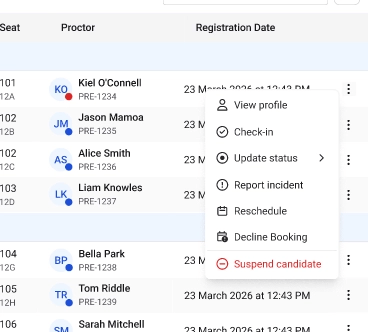
**3. Open the candidate action menu**
On the right side of the candidate row, click the **menu** to view the available actions.
**4. Select the Decline booking option**
From the action menu, click **Decline booking**.
This opens the **Decline booking request panel**.
**5. Select the reason for declining the booking**
From the **Reason** dropdown, choose the most appropriate reason for declining the booking.
Common reasons include:
* **Technical issue at center**
* **Center operational issue**
* **Other** (with optional remarks)
**6. Add remarks (optional)**
If additional explanation is required, enter details in the **Remarks** field to provide context for the request.
**7. Confirm the decline request**
Click Confirm **decline request** to send the request to the exam coordinator for review.
Once submitted, the booking remains active until the **exam coordinator reviews and approves the request**.
**Additional Tips**
* Declining a booking does **not cancel** the candidate’s slot but the slot will no longer be tagged to them
* Provide **clear remarks** when selecting **Other** as the reason.
* Decline requests cannot be submitted if the candidate’s exam status is **In Progress** or **Completed**.
* If the request is approved, the candidate will be **removed from the slot and the slot capacity will increase**.
**1. Open the Candidates tab**
Navigate to the **Candidates** tab within the center workflow.
This page displays the list of candidates scheduled to take exams at the center, along with details such as **exam slot, status, and assigned room**.
**2. Locate the candidate booking**
Scroll through the candidate list or use available **filters** to find the candidate whose booking needs to be declined.
Each row represents a candidate booking associated with a specific exam slot.
**3. Open the candidate action menu**
On the right side of the candidate row, click the **menu** to view the available actions.
**4. Select the Decline booking option**
From the action menu, click **Decline booking**.
This opens the **Decline booking request panel**.
**5. Select the reason for declining the booking**
From the **Reason** dropdown, choose the most appropriate reason for declining the booking.
Common reasons include:
* **Technical issue at center**
* **Center operational issue**
* **Other** (with optional remarks)
**6. Add remarks (optional)**
If additional explanation is required, enter details in the **Remarks** field to provide context for the request.
**7. Confirm the decline request**
Click Confirm **decline request** to send the request to the exam coordinator for review.
Once submitted, the booking remains active until the **exam coordinator reviews and approves the request**.
**Additional Tips**
* Declining a booking does **not cancel** the candidate’s slot but the slot will no longer be tagged to them
* Provide **clear remarks** when selecting **Other** as the reason.
* Decline requests cannot be submitted if the candidate’s exam status is **In Progress** or **Completed**.
* If the request is approved, the candidate will be **removed from the slot and the slot capacity will increase**.