> ## Documentation Index
> Fetch the complete documentation index at: https://docs.talview.com/llms.txt
> Use this file to discover all available pages before exploring further.
# How to view who created or last updated a Form
The Forms list table includes details about who created each form and who last made changes to it. In this article, you'll learn where to find this information and how to read it.
#### Step-by-step guide
 **1. Open the Forms list**
Open the **Forms** section. The Forms list table loads with all available forms.
**2. Locate the Created by column**
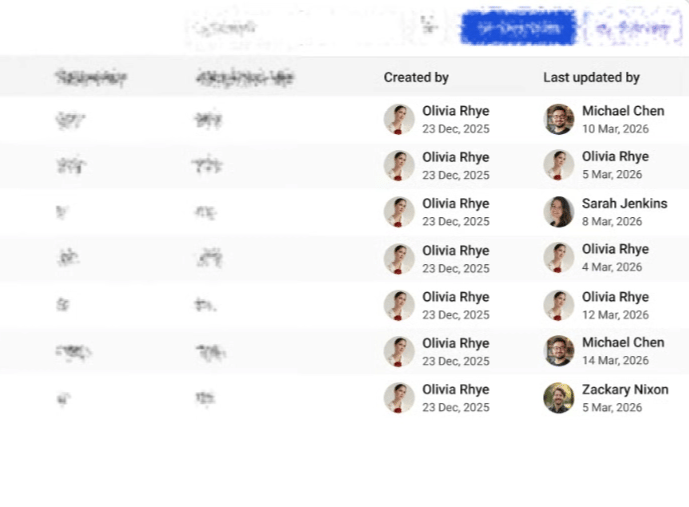
The **Created by** column shows the name and profile picture of the user who originally created the form, along with the date it was created (for example, 23 Dec 2025).
**3. Locate the Last updated by column**
The **Last updated by** column shows the name and profile picture of the user who most recently made changes to the form, along with the date of that update (for example, 10 Mar 2026).
> **Note**: If no one has edited the form since it was created, this column shows the same user and date as **Created by**.
**Additional Tips**
* If a user doesn't have a profile picture, a colored initial avatar is shown instead (for example, "MC" for Michael Chen).
* These columns are helpful when multiple admins work on forms and you need to identify who last touched a specific form.
**1. Open the Forms list**
Open the **Forms** section. The Forms list table loads with all available forms.
**2. Locate the Created by column**
The **Created by** column shows the name and profile picture of the user who originally created the form, along with the date it was created (for example, 23 Dec 2025).
**3. Locate the Last updated by column**
The **Last updated by** column shows the name and profile picture of the user who most recently made changes to the form, along with the date of that update (for example, 10 Mar 2026).
> **Note**: If no one has edited the form since it was created, this column shows the same user and date as **Created by**.
**Additional Tips**
* If a user doesn't have a profile picture, a colored initial avatar is shown instead (for example, "MC" for Michael Chen).
* These columns are helpful when multiple admins work on forms and you need to identify who last touched a specific form.