> ## Documentation Index
> Fetch the complete documentation index at: https://docs.talview.com/llms.txt
> Use this file to discover all available pages before exploring further.
# How to preview a form in web and mobile view
Before publishing a form, you can preview it to see how it will appear to respondents on a desktop browser and on a mobile device. The preview opens in web view by default and lets you switch to mobile view using tabs. In this article, you'll learn how to open the preview, switch between web and mobile views, and what to check in each.
***
### Step-by-step guide
**1. Click Preview**
Inside the Form Editor, click **Preview** at the top right. The **Preview Web** page opens, showing your form in web view by default.
**2. Review the web view**
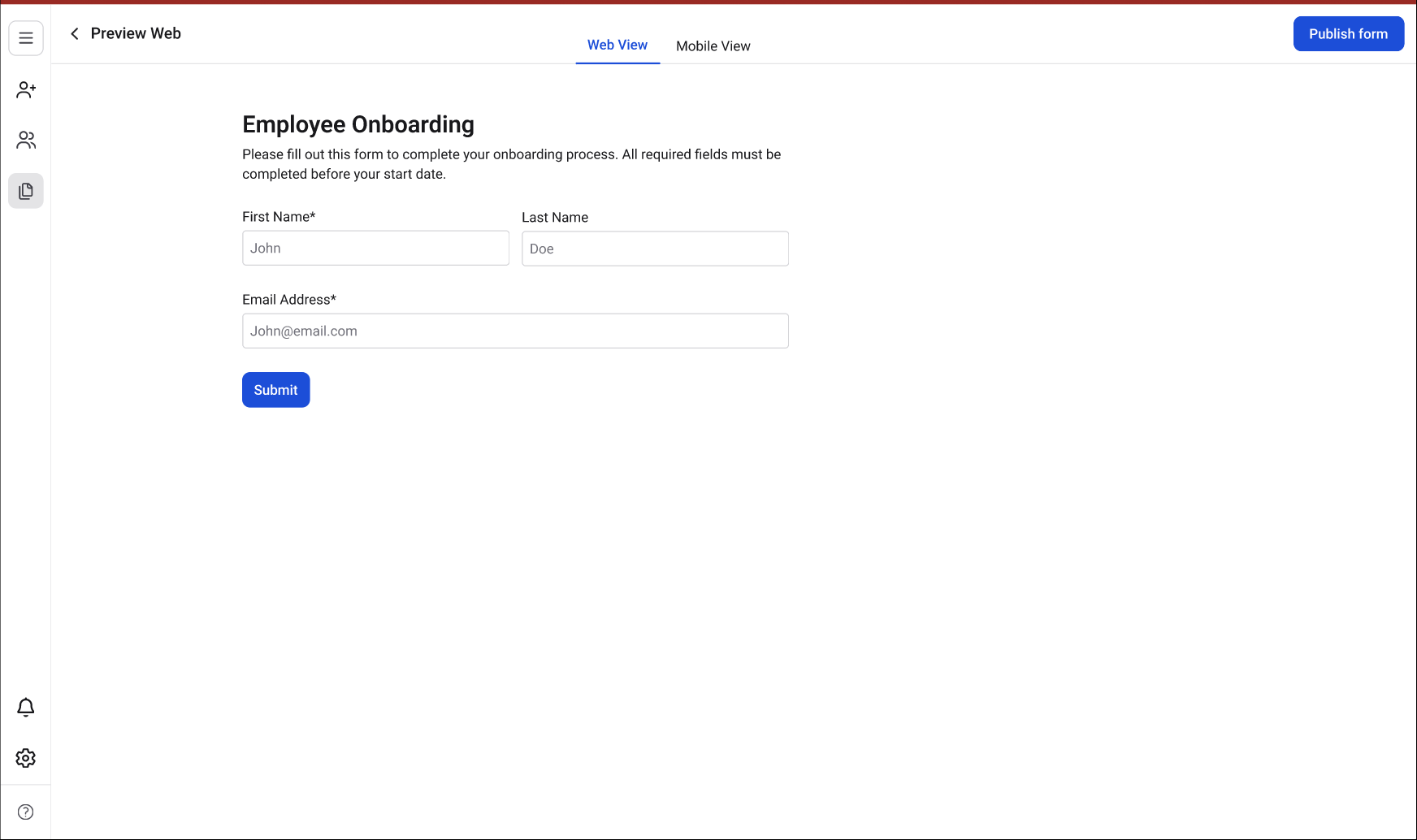 The web view displays your form as it will appear to respondents on a desktop browser. Check that:
* All fields are visible and in the correct order.
* Field labels and placeholder text are accurate.
* Required fields are marked with an asterisk (\*).
* The overall layout and spacing look as expected.
**3. Switch to mobile view**
The web view displays your form as it will appear to respondents on a desktop browser. Check that:
* All fields are visible and in the correct order.
* Field labels and placeholder text are accurate.
* Required fields are marked with an asterisk (\*).
* The overall layout and spacing look as expected.
**3. Switch to mobile view**
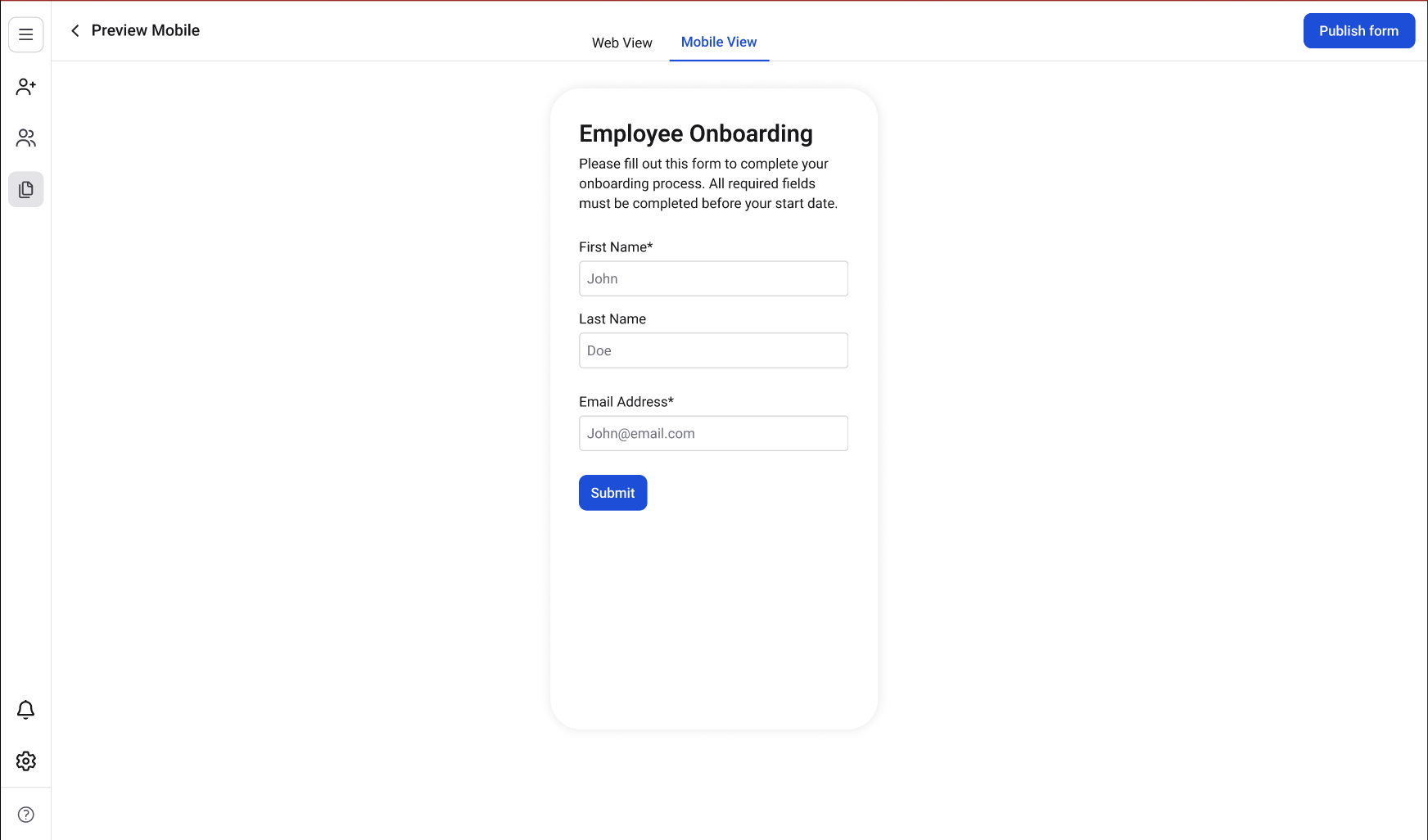 Click the **Mobile View** tab at the top center of the page. The header changes to **Preview Mobile** and the form is displayed inside a narrower container that simulates a mobile screen. Check that:
* All fields stack correctly and are readable on a narrower screen.
* Field widths adjust properly.
* Buttons are large enough to tap.
* The form does not require horizontal scrolling.
**4. Switch back to web view**
Click the **Web View** tab to return to the desktop preview.
**5. Return to the editor**
Click the back arrow next to **Preview Web** or **Preview Mobile** to return to the Form Editor.
**Additional Tips**
* You can preview your form at any point while building it, not just when it's finished. Previewing periodically as you add fields helps catch layout issues early.
* Many respondents will fill in your form on a mobile device. Always check the mobile view before publishing.
* The **Publish form** button is also accessible from the preview page, so you can publish directly after reviewing.
Click the **Mobile View** tab at the top center of the page. The header changes to **Preview Mobile** and the form is displayed inside a narrower container that simulates a mobile screen. Check that:
* All fields stack correctly and are readable on a narrower screen.
* Field widths adjust properly.
* Buttons are large enough to tap.
* The form does not require horizontal scrolling.
**4. Switch back to web view**
Click the **Web View** tab to return to the desktop preview.
**5. Return to the editor**
Click the back arrow next to **Preview Web** or **Preview Mobile** to return to the Form Editor.
**Additional Tips**
* You can preview your form at any point while building it, not just when it's finished. Previewing periodically as you add fields helps catch layout issues early.
* Many respondents will fill in your form on a mobile device. Always check the mobile view before publishing.
* The **Publish form** button is also accessible from the preview page, so you can publish directly after reviewing.