> ## Documentation Index
> Fetch the complete documentation index at: https://docs.talview.com/llms.txt
> Use this file to discover all available pages before exploring further.
# How to create a form using a template
Instead of building a form from scratch, you can use a pre-built template in Talview to get started quickly. Templates come with fields already set up based on the form type you select. In this article, you will learn how to choose a template, insert it, and customise the form to your needs.
#### Step-by-step guide
 1. **Open a new form**
Create a new form to open the Form Editor. On the canvas, you will see two options: **Start from scratch** and **Use a template**.
2. **Click Use a template**
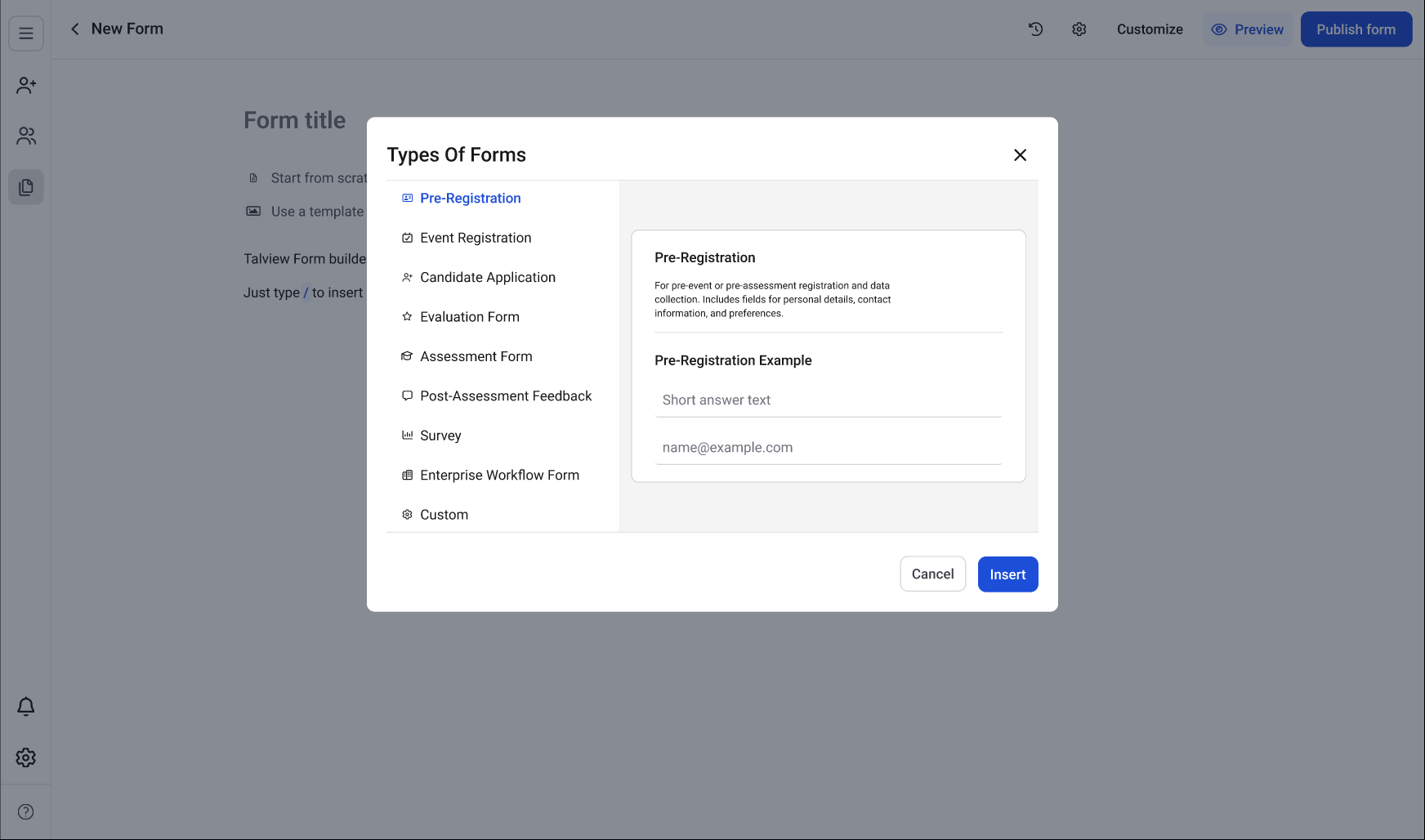
Click the icon next to **Use a template**. A **Types Of Forms** modal opens, listing all available form types on the left side.
3. **Choose a form type**
Select a form type from the list (for example, **Pre-Registration**). When you select a type, a description and a preview of the template appear on the right side of the modal. This helps you understand what fields the template includes before inserting it.
4. **Insert the template**
Click **Insert** at the bottom right of the modal. The template is applied to your form, and the canvas now shows the pre-built fields for the selected type.
> For example, a Pre-Registration template includes fields like Full Name, Email Address, Phone Number, and Department.
5. **Customise the form**
You can now add, remove, or rearrange fields on the canvas to match your requirements. Use the “**/”** command or the block picker to add new fields.
6. **Publish or save as a draft**
Once you're done, click **Publish form** at the top right to make the form live. If you want to keep it as a draft and continue working on it later, click the back arrow next to the form name to return to the Forms list. Your changes are auto-saved.
**Additional Tips**
* You can rework on a published form at any time. Find the form in the Forms list, open it, make your changes, and click **Publish form** again. The **Last updated by** column in the Forms list reflects who last made changes.
* Each form type template comes with a default set of fields tailored to that use case.
* If you want to switch to a different template after adding one, the existing fields on the canvas may be replaced. Make sure you've selected the correct type before clicking **Insert**.
1. **Open a new form**
Create a new form to open the Form Editor. On the canvas, you will see two options: **Start from scratch** and **Use a template**.
2. **Click Use a template**
Click the icon next to **Use a template**. A **Types Of Forms** modal opens, listing all available form types on the left side.
3. **Choose a form type**
Select a form type from the list (for example, **Pre-Registration**). When you select a type, a description and a preview of the template appear on the right side of the modal. This helps you understand what fields the template includes before inserting it.
4. **Insert the template**
Click **Insert** at the bottom right of the modal. The template is applied to your form, and the canvas now shows the pre-built fields for the selected type.
> For example, a Pre-Registration template includes fields like Full Name, Email Address, Phone Number, and Department.
5. **Customise the form**
You can now add, remove, or rearrange fields on the canvas to match your requirements. Use the “**/”** command or the block picker to add new fields.
6. **Publish or save as a draft**
Once you're done, click **Publish form** at the top right to make the form live. If you want to keep it as a draft and continue working on it later, click the back arrow next to the form name to return to the Forms list. Your changes are auto-saved.
**Additional Tips**
* You can rework on a published form at any time. Find the form in the Forms list, open it, make your changes, and click **Publish form** again. The **Last updated by** column in the Forms list reflects who last made changes.
* Each form type template comes with a default set of fields tailored to that use case.
* If you want to switch to a different template after adding one, the existing fields on the canvas may be replaced. Make sure you've selected the correct type before clicking **Insert**.